Description: The basic information about a newly created User is configured here.
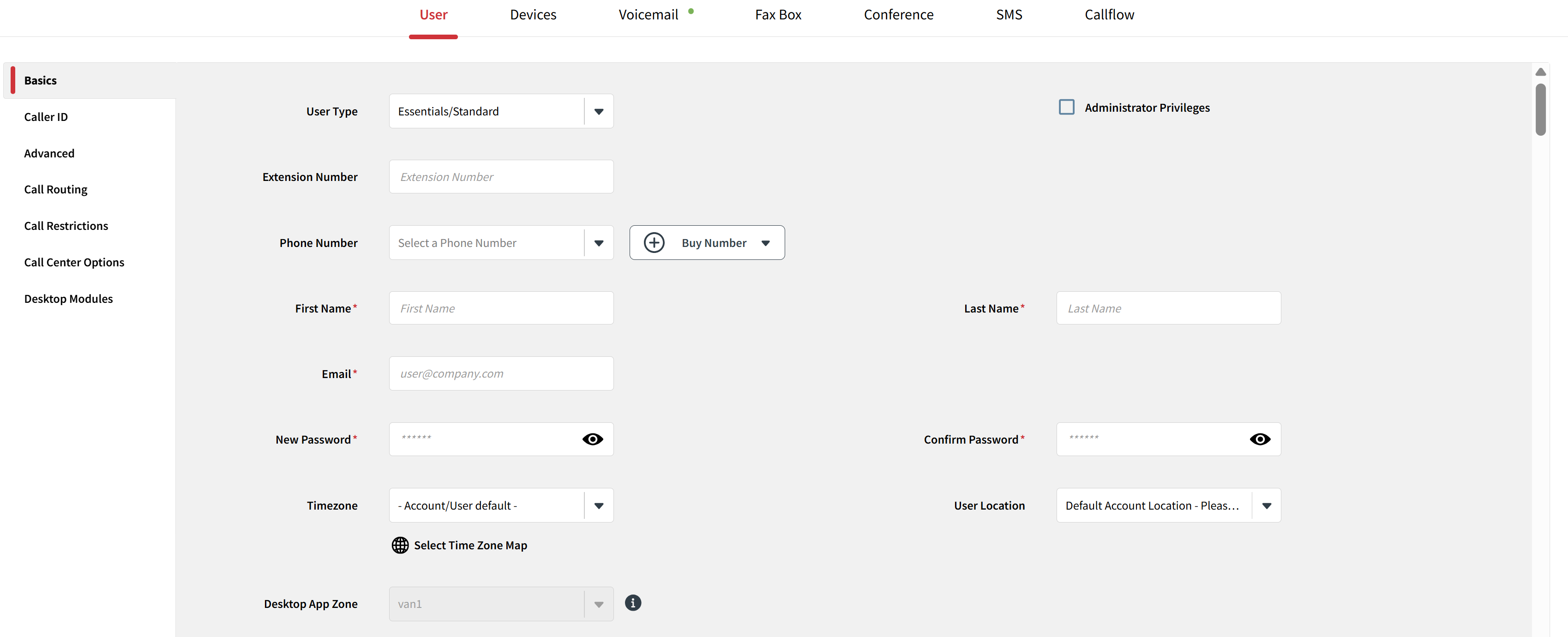
The following list provides a description of the fields and parameters outlined in this section:
- User Type: in this field, you'll find a drop-down list of all the available User types for you to select from. The User you configure will then be categorized under the chosen type.
- Administrator Privileges: only administrators of the Portal have access to this option which grants administrator privileges to the User you configure.
This field will be removed in the future.
- Extension Number: in this field, you can set a numerical identifier assigned to a specific telephone line within a private branch exchange (PBX) system. This enables internal communication between employees or User without requiring an external phone line for each person.
- "Buy Number" button: after clicking this button, a drop-down list will appear, allowing you to choose the type of number you want to purchase for your account.

This process is identical to buying numbers within the Numbers App. The purchased number will automatically be linked to the configured User without redirecting to the Numbers App.
Keep in mind that if you purchase a number for a User but then cancel the User creation, the number you purchased will still be listed in the Spare Numbers Tab of the Numbers App. - First Name: in this field, you can enter the first name of the individual that should be associated with this User.
- Last Name: in this field, you can enter the last name of the individual that should be associated with this User.
- Email: in this field, you can enter the email address that should be associated with this User.
- New Password: in this field, you can set a password for the configured User.
The Password in this field must consist solely of numbers and have a length between 4 and 6 characters.
When creating a User, the Password you set will also serve as the default PIN for the voicemail, until you choose to change it.
- Confirm Password: the purpose of this field is to ensure that you have entered the correct password into the previous field by requiring you to re-enter it.
- Timezone: you can use this field to select the time zone of the account's location. Additionally, you can use the time zone map instead of scrolling through the drop-down list to find your desired time zone.
- User Location: this field contains a drop-down list of all locations to choose from.
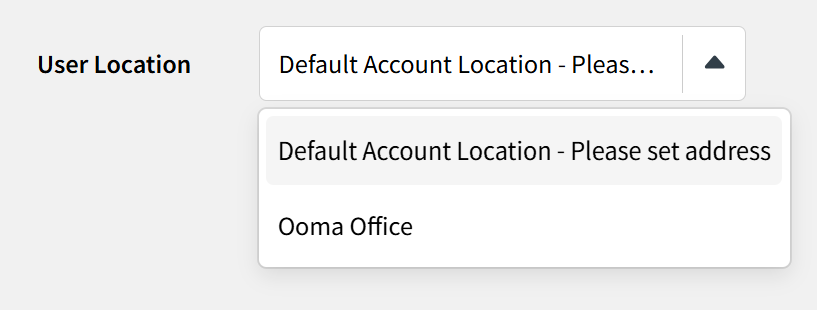
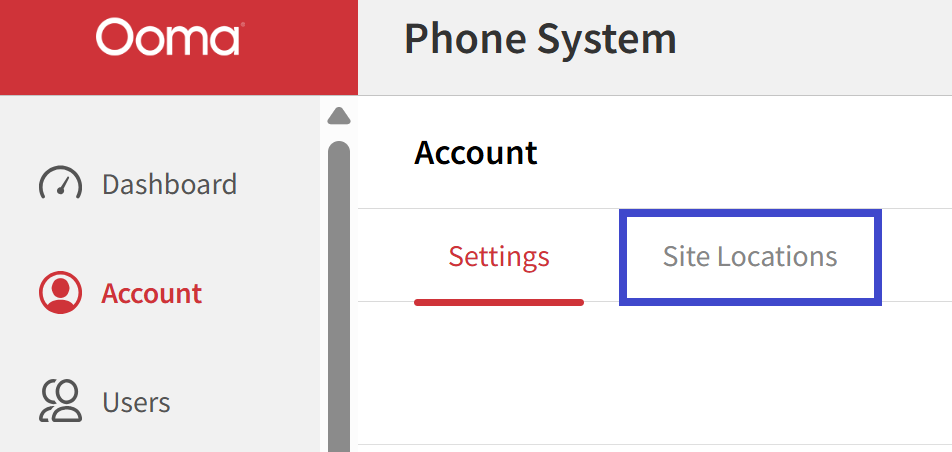
You can set this list in the Site Locations tab within the Accounts section of the Phone System App.
Once you have inputted data into the fields, do not forget to click the "SAVE" button to apply the changes.

The Phone System App will display an icon of an exclamation mark within a green circle next to any fields that have been modified.

The Phone System App will notify you that leaving the page will result in the loss of any unsaved changes.

Once a newly created User has been saved, the "Delete User" button will appear at the top of the Main Space of the Phone System App.
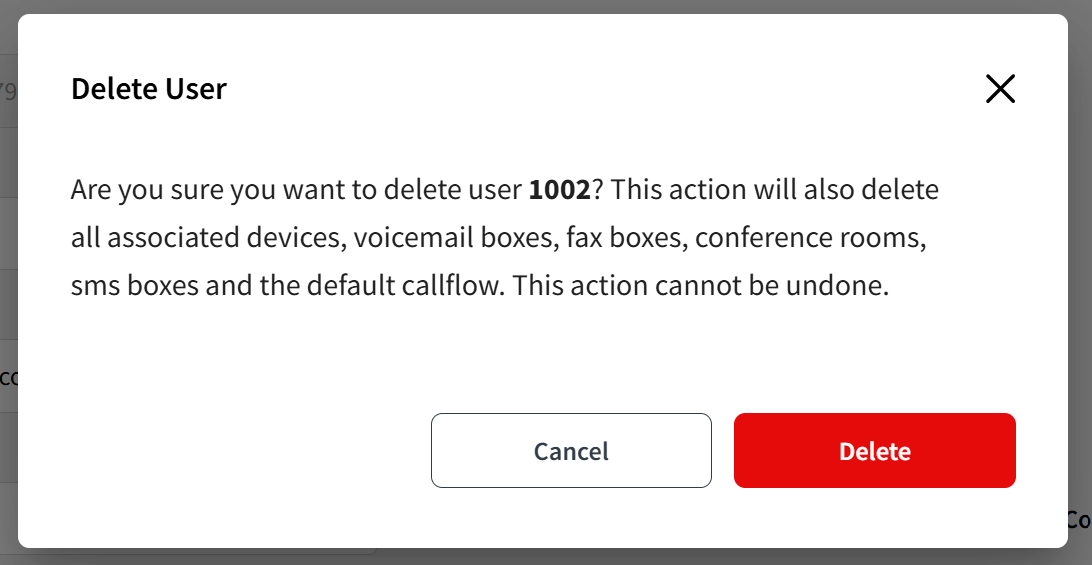
To delete the recently created User, click on this button.
Please note that the system refers to the User by its extension number you entered earlier.
Was this article helpful?
That’s Great!
Thank you for your feedback
Sorry! We couldn't be helpful
Thank you for your feedback
Feedback sent
We appreciate your effort and will try to fix the article