Description: This article provides an overview of the Integrations parameter group located in the OE Desktop app’s Settings section.
Upon accessing the OE Desktop app’s Settings section, you will find six groups of parameters. In this article, we explore the Integrations group.
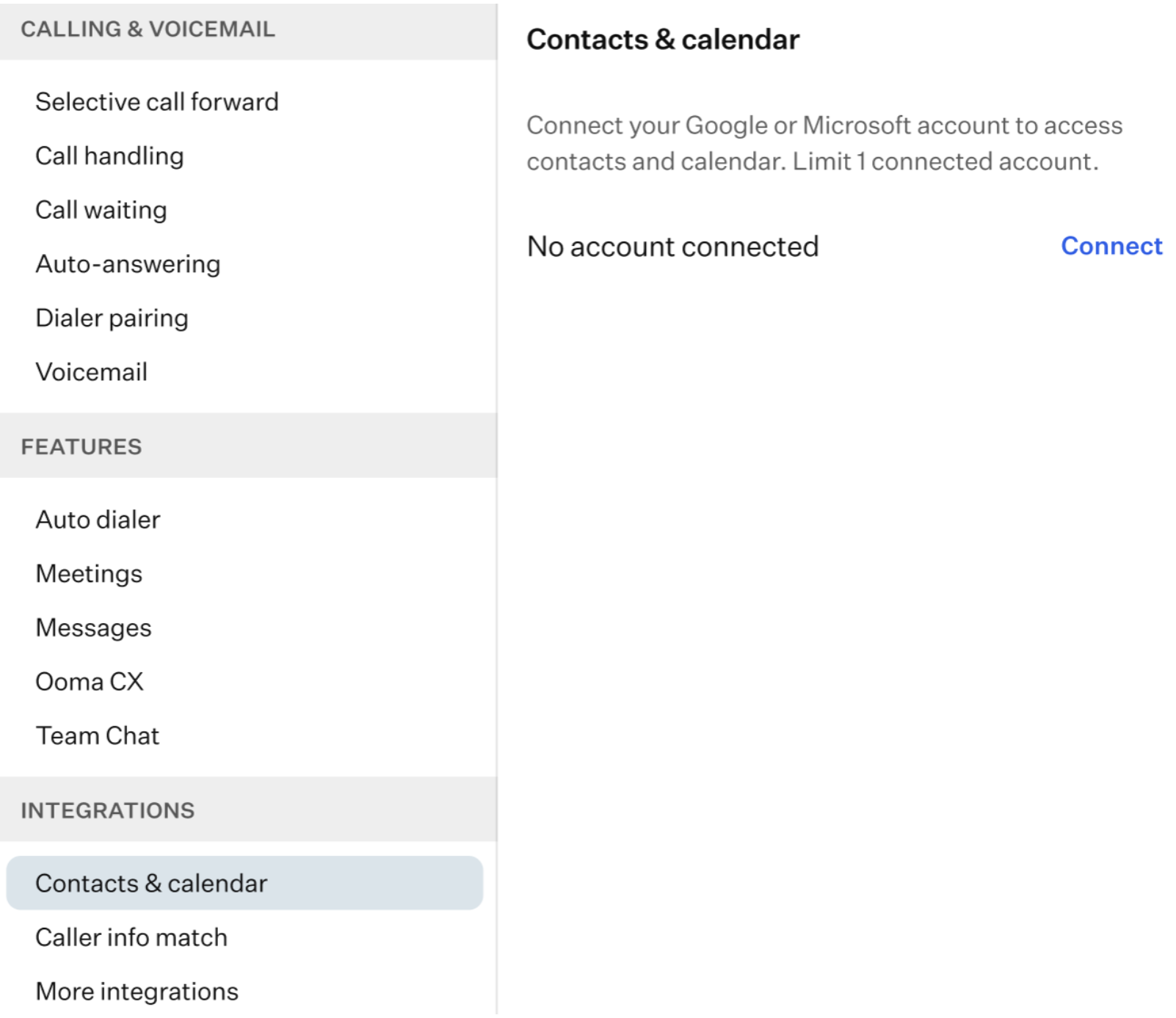
- Integrations: in this section, you can configure the integration of your personal or work contacts and calendar with the OE Desktop app. You can also set caller info matching rules here.
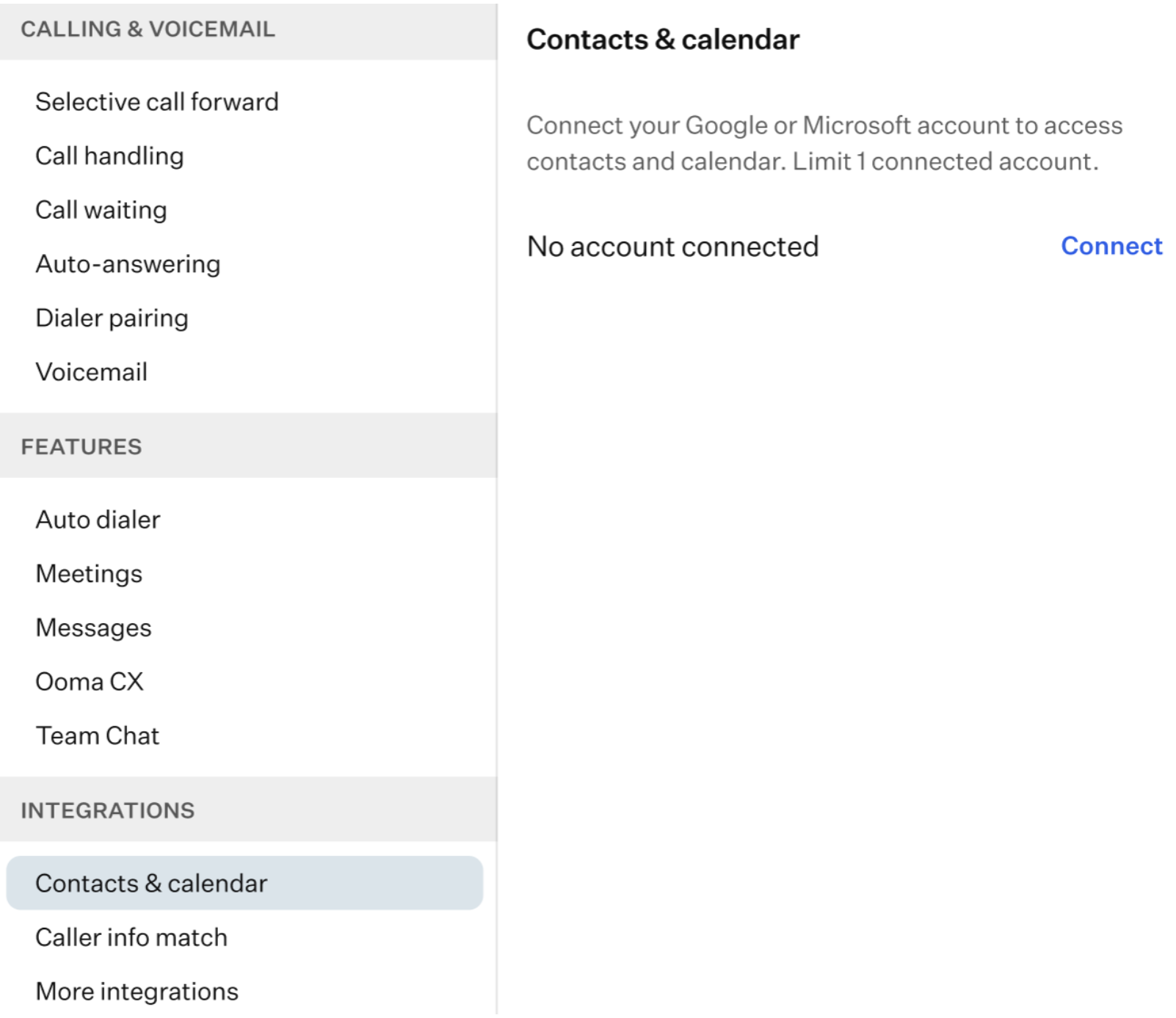
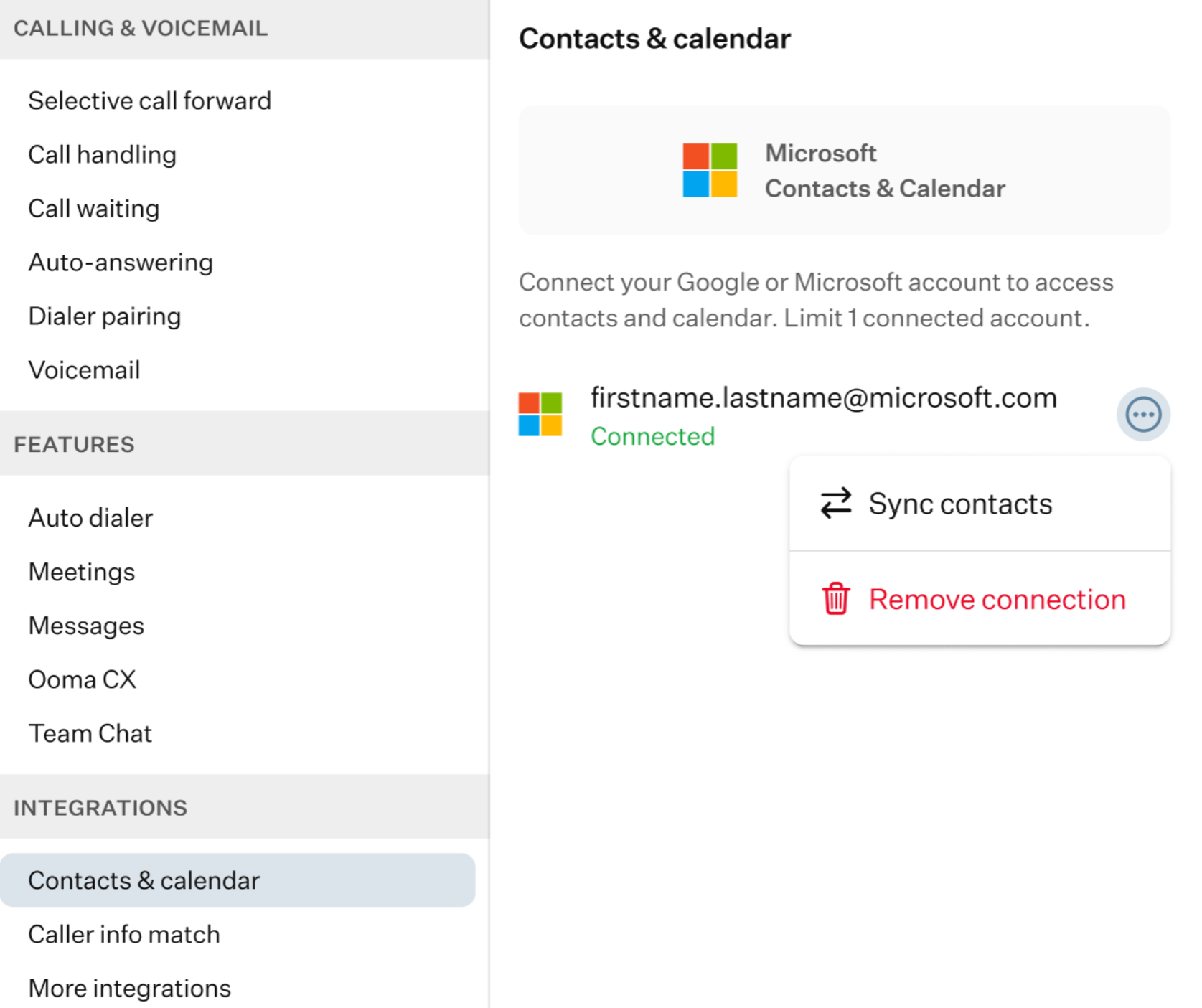
- Contacts & calendar: here, you can configure the integration of your personal or work contact list and calendar with the OE Desktop App. To establish a connection, click on the “Connect” button.
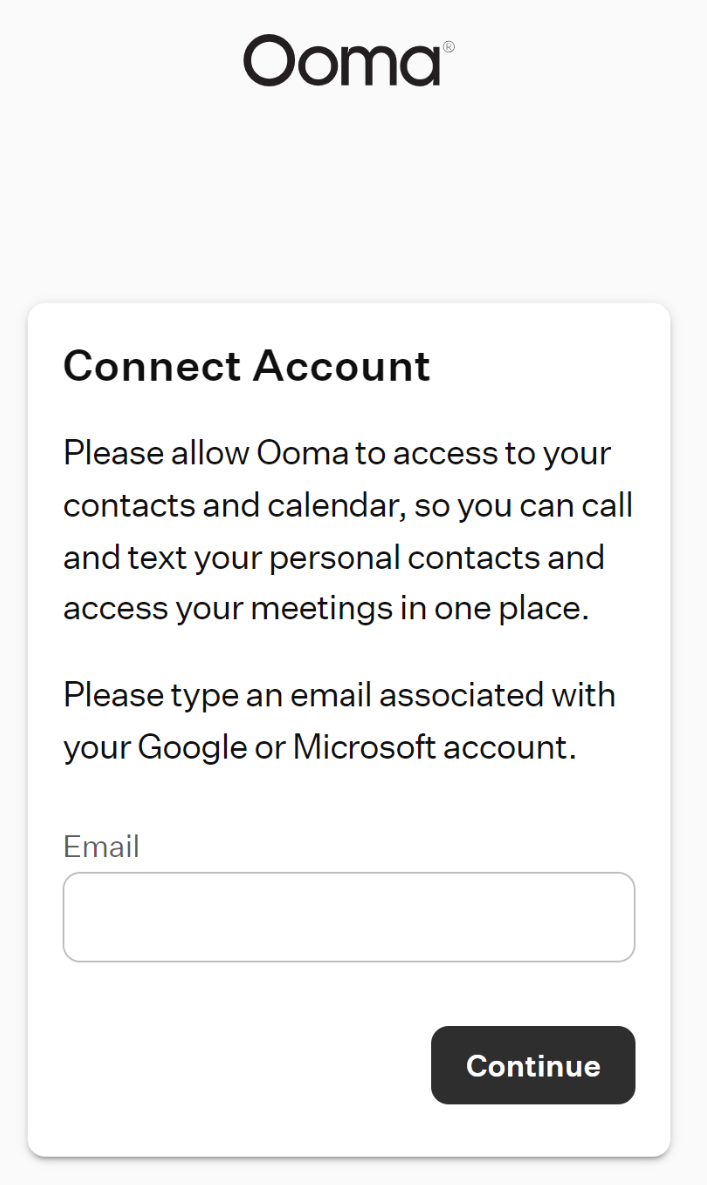
Upon doing so, a new page will open in your internet browser, redirecting you to a form where you will be prompted to enter your work email.
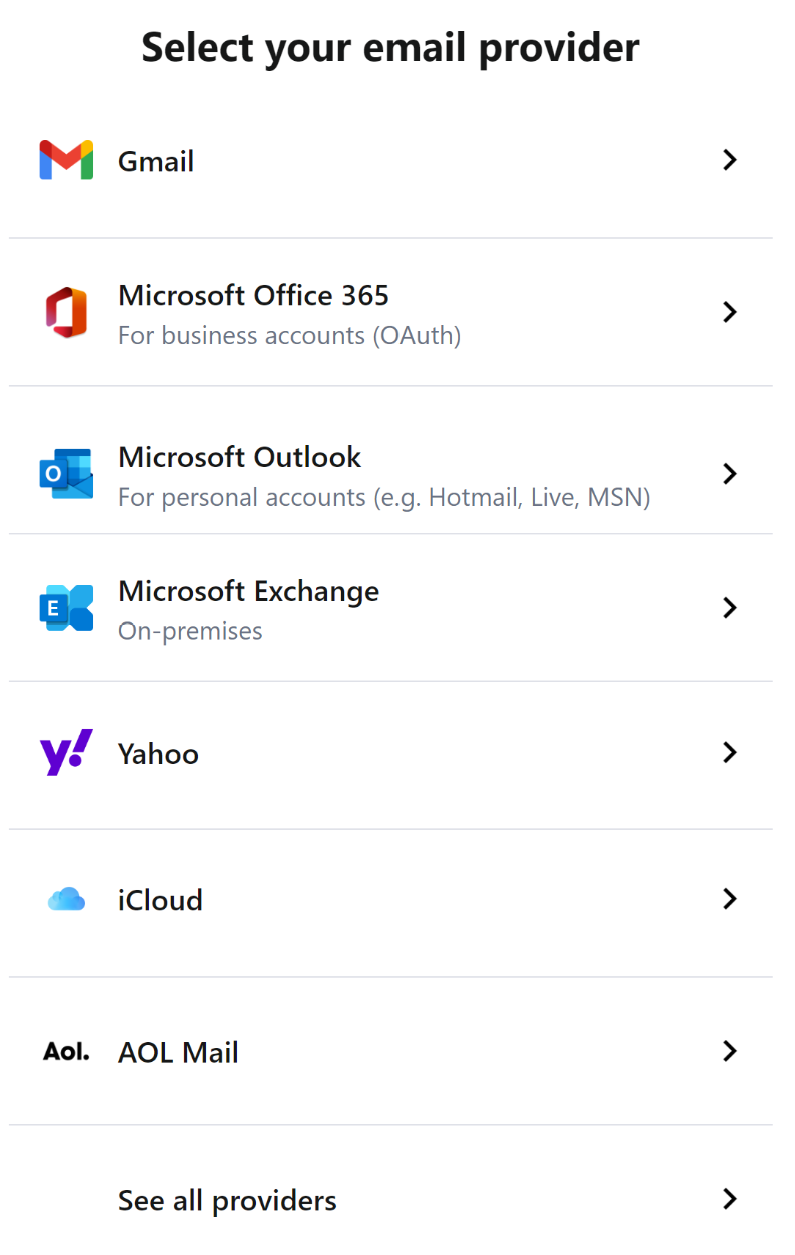
Following that, you will be prompted to select your email provider which contact list and calendar you wish to integrate into the app.
After selecting your email provider, you will be prompted to input your credentials to complete the integration process. After the integration is complete, return to the Contacts and Calendar page, where you will see your Google or Microsoft account listed with a “Connected” status.
Click the three-dot button next to the account name to open a drop-down menu, where you can sync contacts or remove the connection.
- Caller info match: here, you can learn to to configure the Caller Info Match Rules.
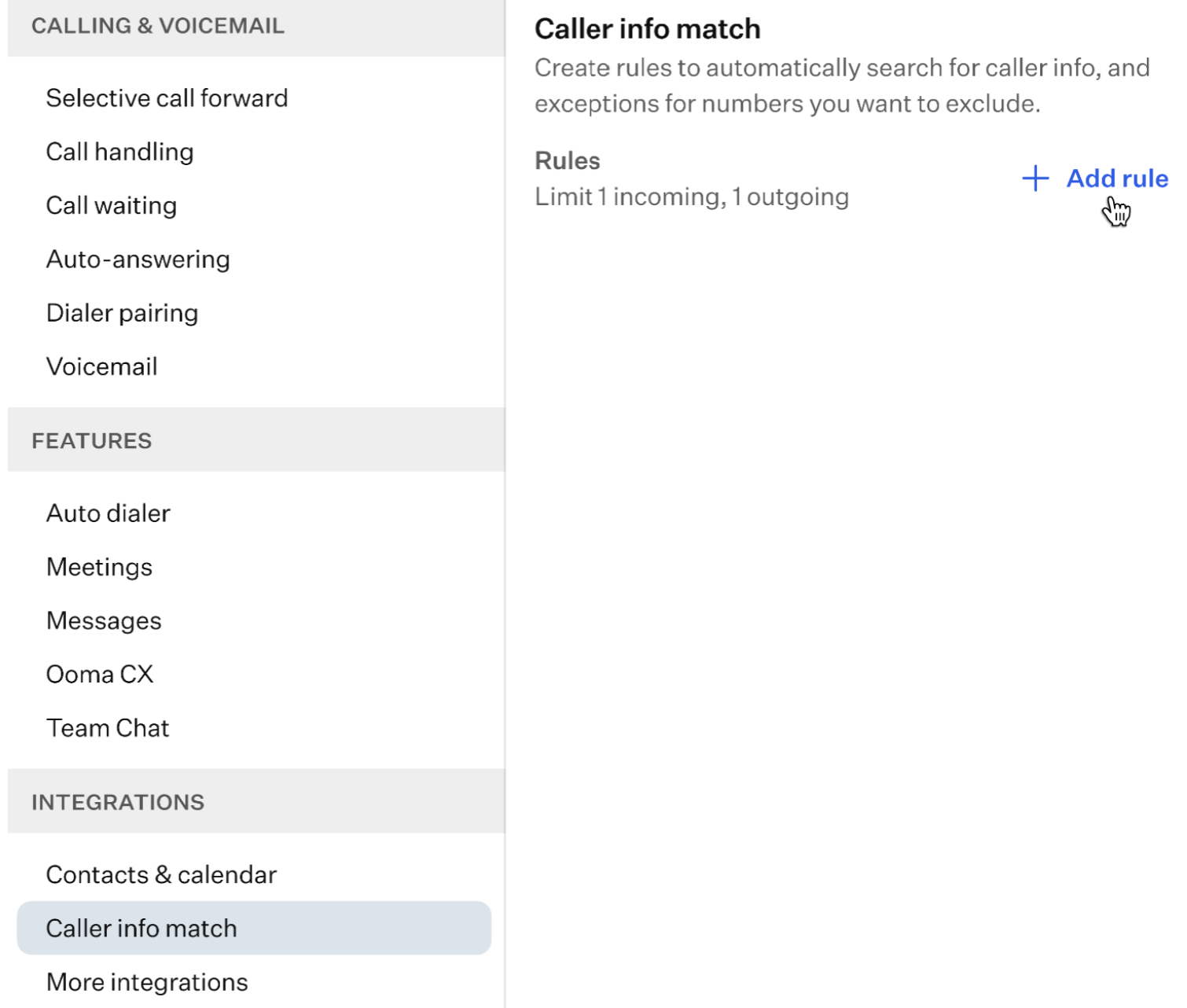
Caller info match rules are used to automatically search for and match incoming caller information with the data stored in your system. These rules help identify the caller by cross-referencing details such as their phone number, ensuring that relevant information is displayed for a more efficient call handling experience.
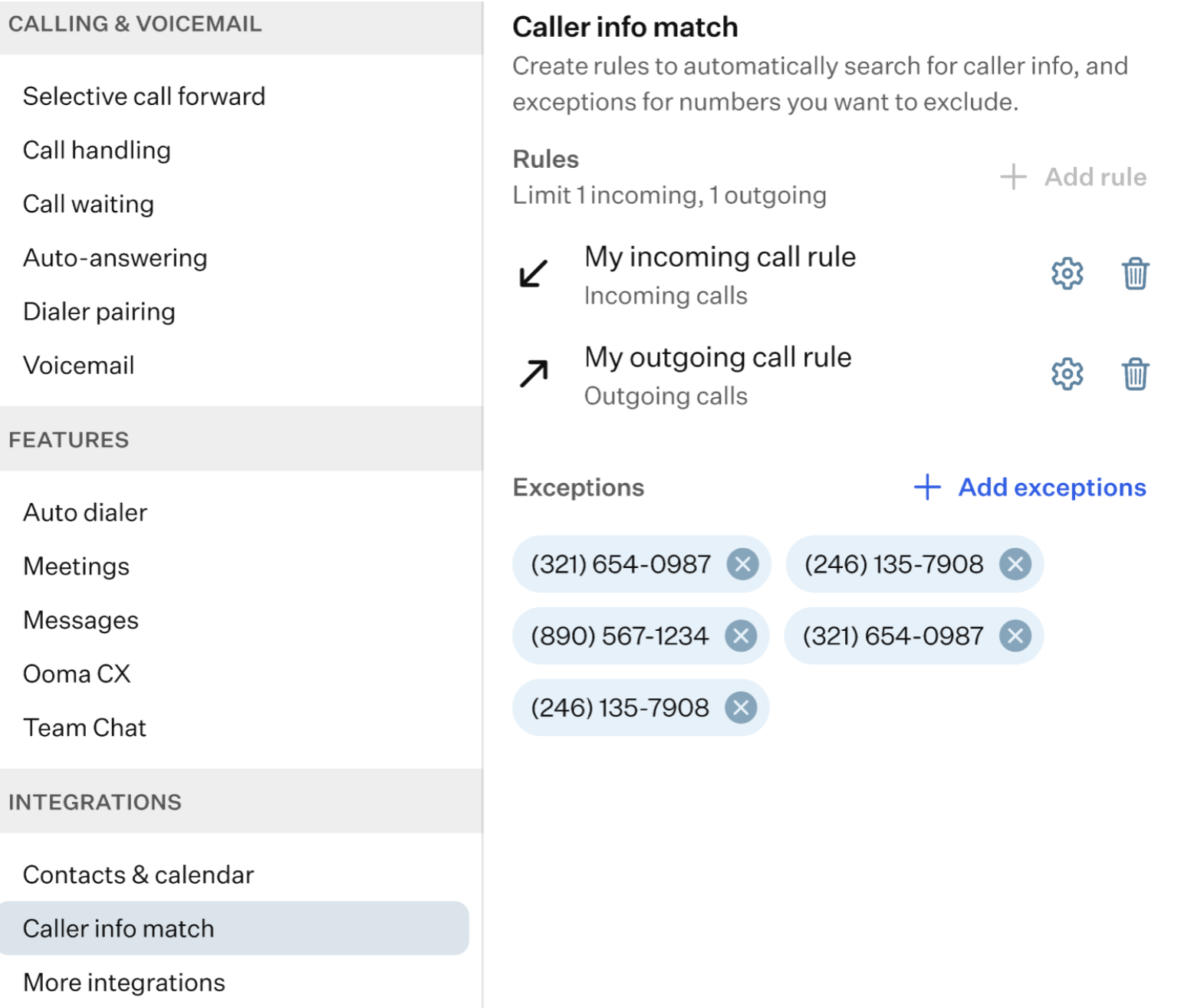
The system allows you to create only one incoming and one outgoing caller info match rule. However, you can add as many exceptions as needed.
To get started, simply click on the “+Add Rule” button.
Clicking this button will open a pop-up window above the app, displaying a list of fields that you need to configure to set up a Rule.
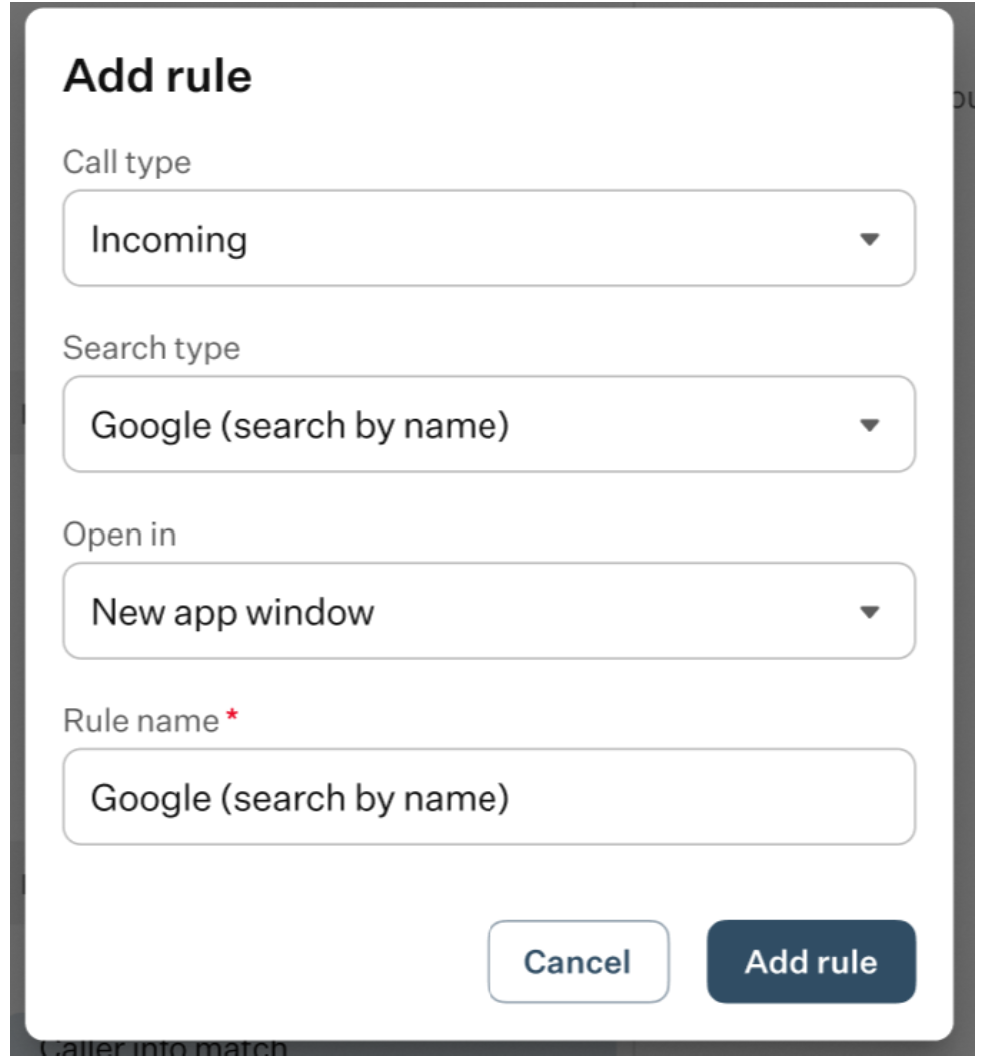
Here’s the list of fields you need to configure:
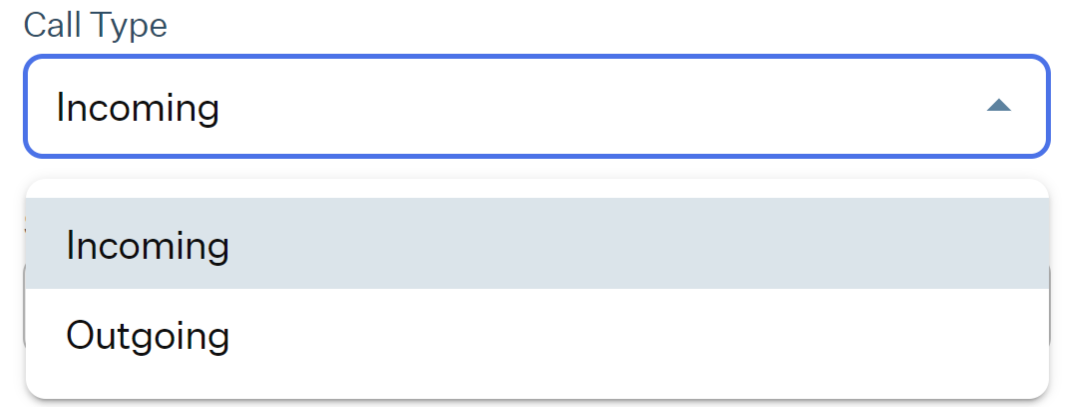
- Call Type: select the Call Type to perform the caller match search.
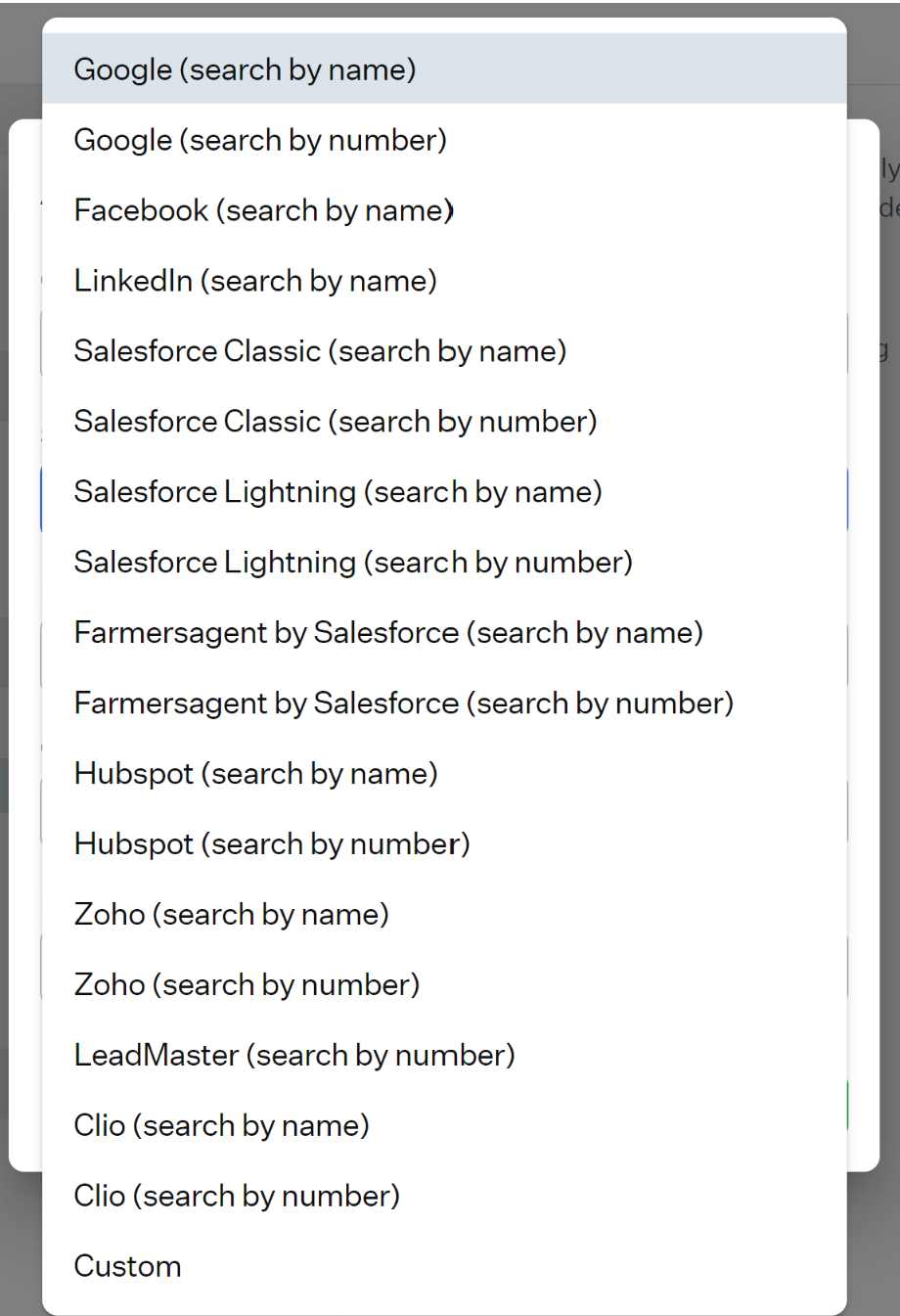
- Search Type: this field offers a drop-down list of various platforms, allowing you to select where the search will be conducted.
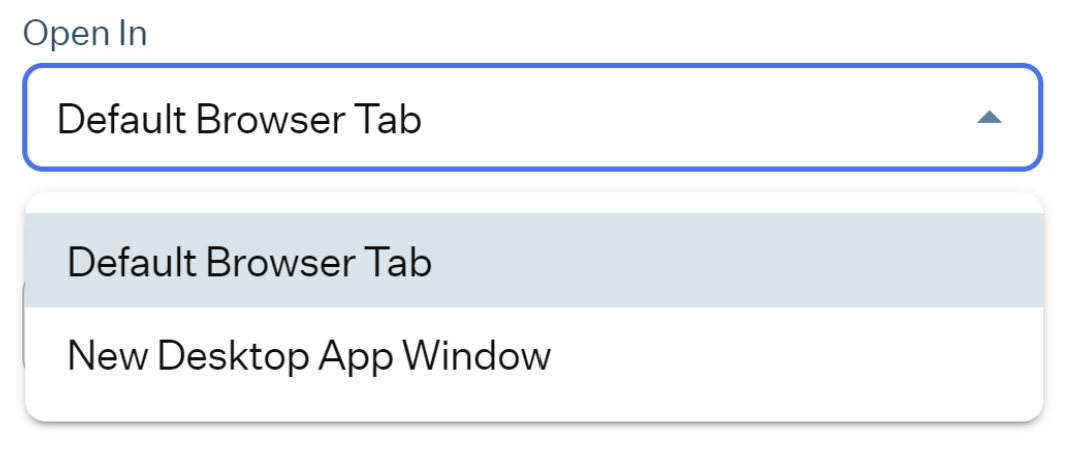
- Open In: in this field, you can choose from a drop-down list where the search results should be displayed.
- Rule Name: in this field, you can manually set the name for the custom search you wish to configure.
Once you have set all the fields for this Rule, do not forget to click on the “SAVE” button to apply the changes. Once the Caller Info Match Rule is created, it will appear on the Caller Info Match page.
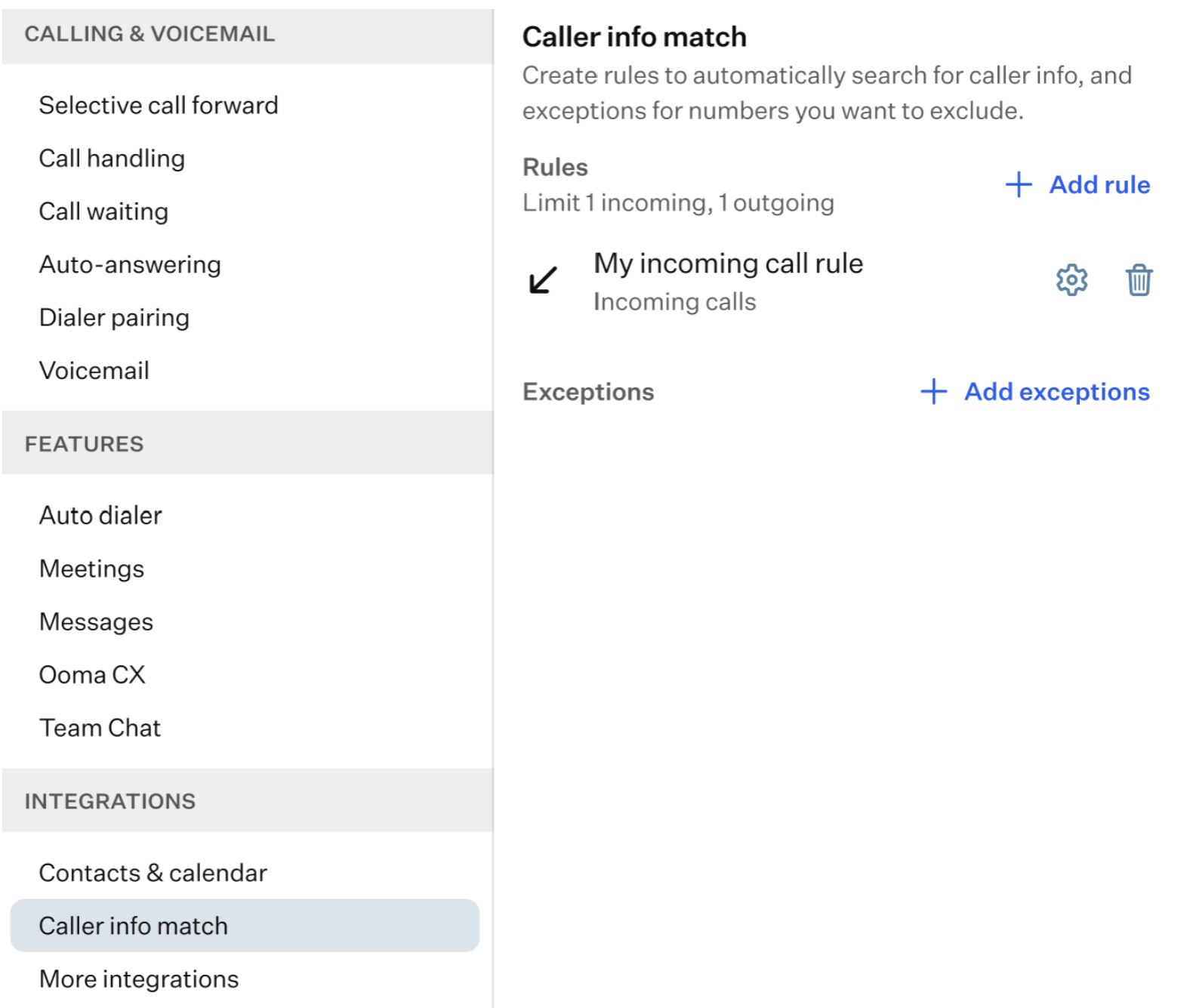
You can edit the rule by clicking the Gear icon or delete it using the Recycle Bin icon.

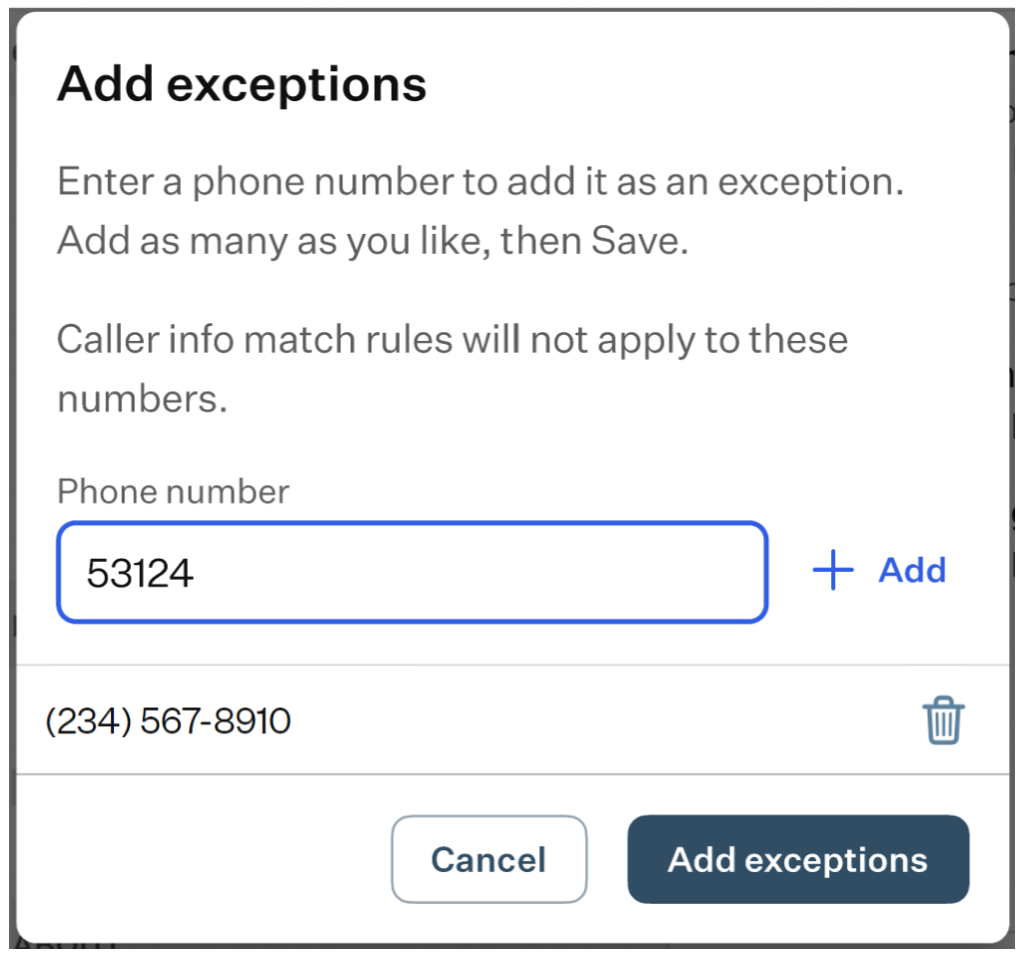
To add exceptions to your rules, click the “+Add exceptions” button. This will open a pop-up window where you can enter phone numbers that the rule should ignore.
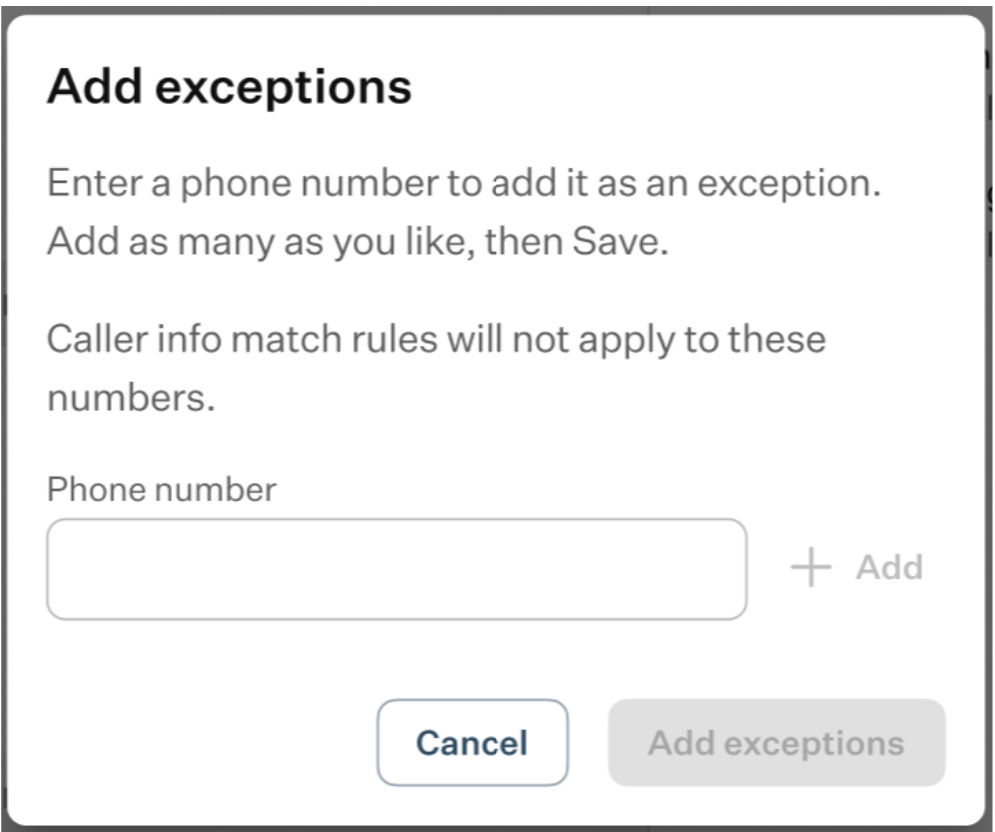
After entering a number, click the “+ Add” button to add it, then click “Add exceptions” to confirm.
The added numbers will be listed in the Exceptions section of the Caller Info Match page. To remove a number, simply click the “X” icon next to it.
- More integrations: in this section, you can find a list of all platforms that the OE Desktop app can integrate with.
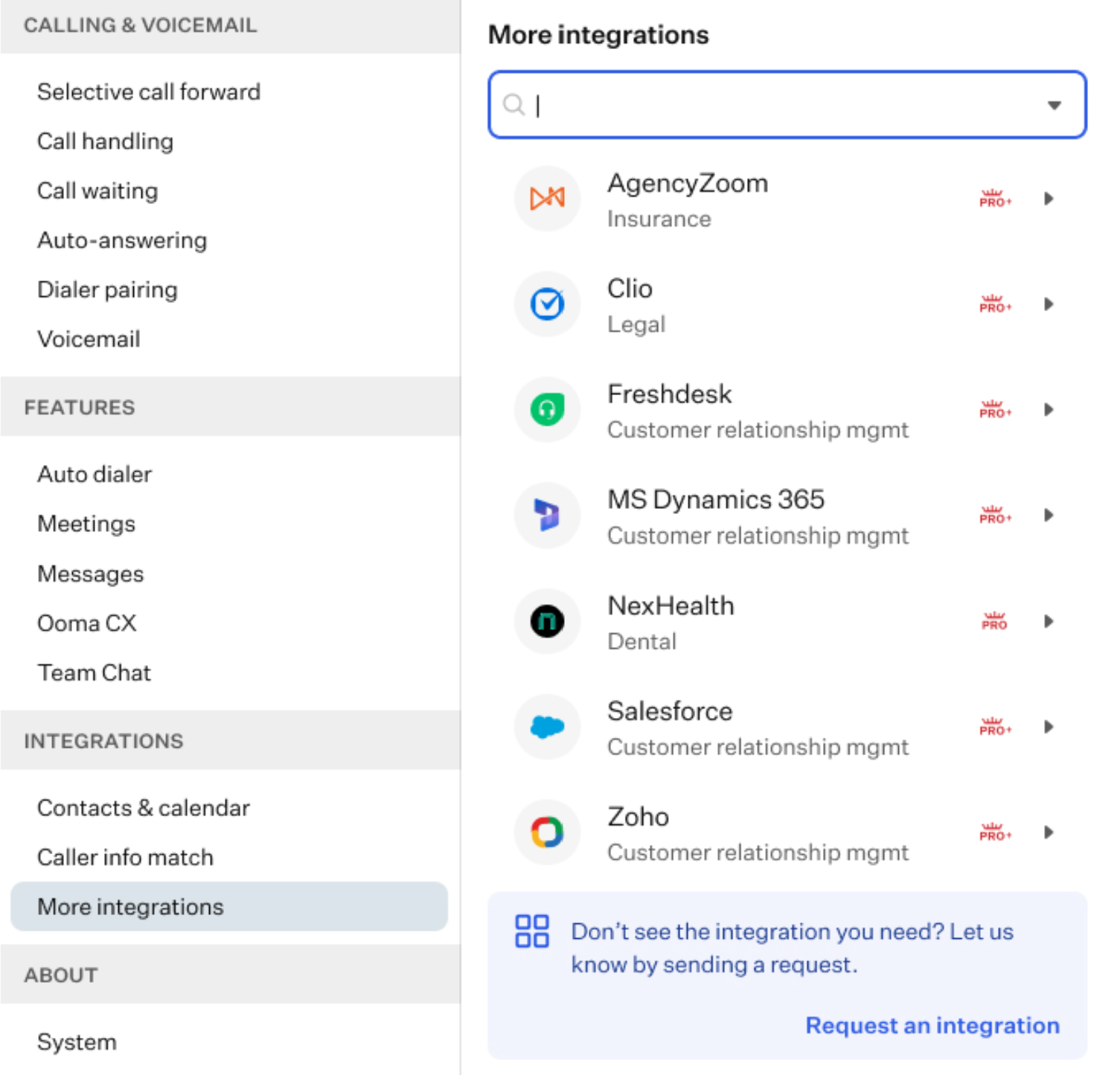
Use the search bar and filter options to find a specific platform.
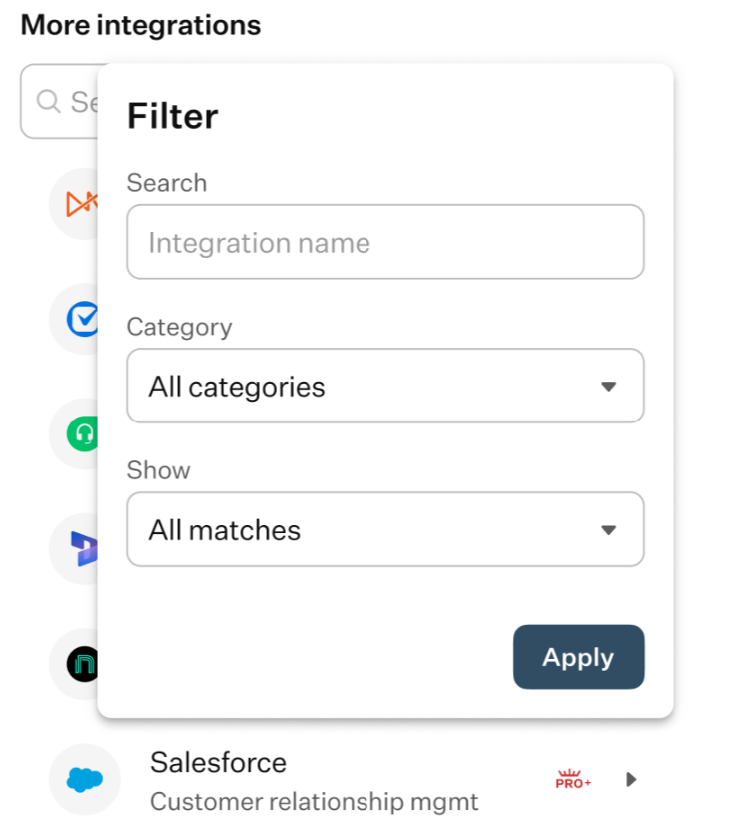
Filters can help you narrow down results by category, as platforms may belong to different industries such as dental, insurance, legal, and more. You can also use the “Show” field to view either all available platforms or only those included in your plan.
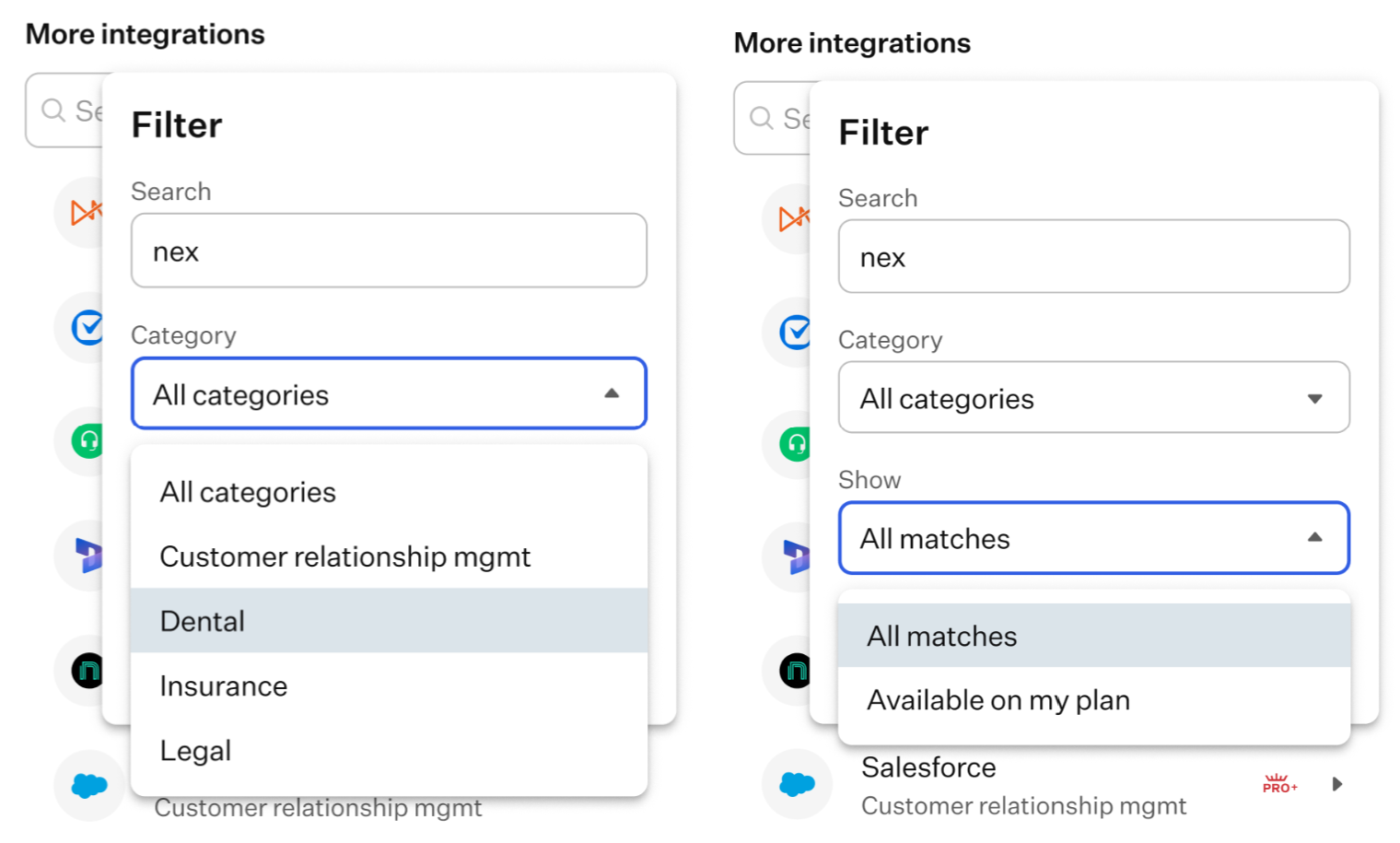
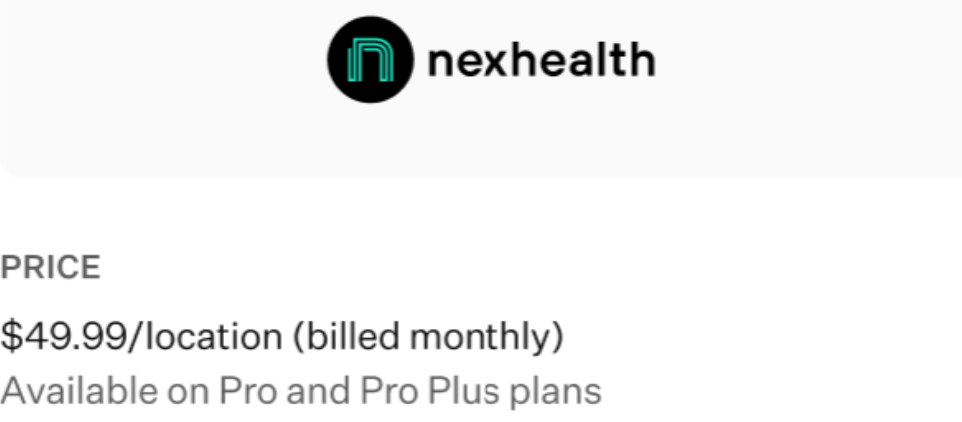
Once you find a platform you want to integrate with, select it from the list to open its details page. There, you can view general information, pricing, billing details, and availability across different plans.
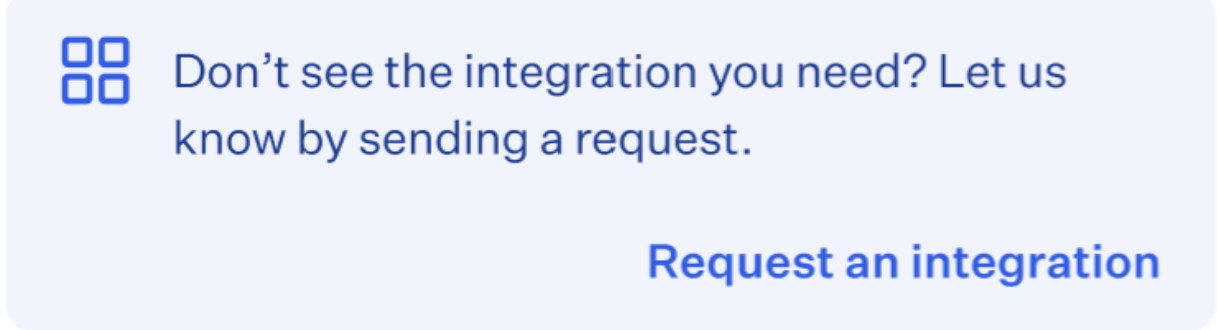
If you don’t see the integration you need, select the “Request Integration” option.
A pop-up window will appear, allowing you to enter the name of the platform and provide additional details about your request.
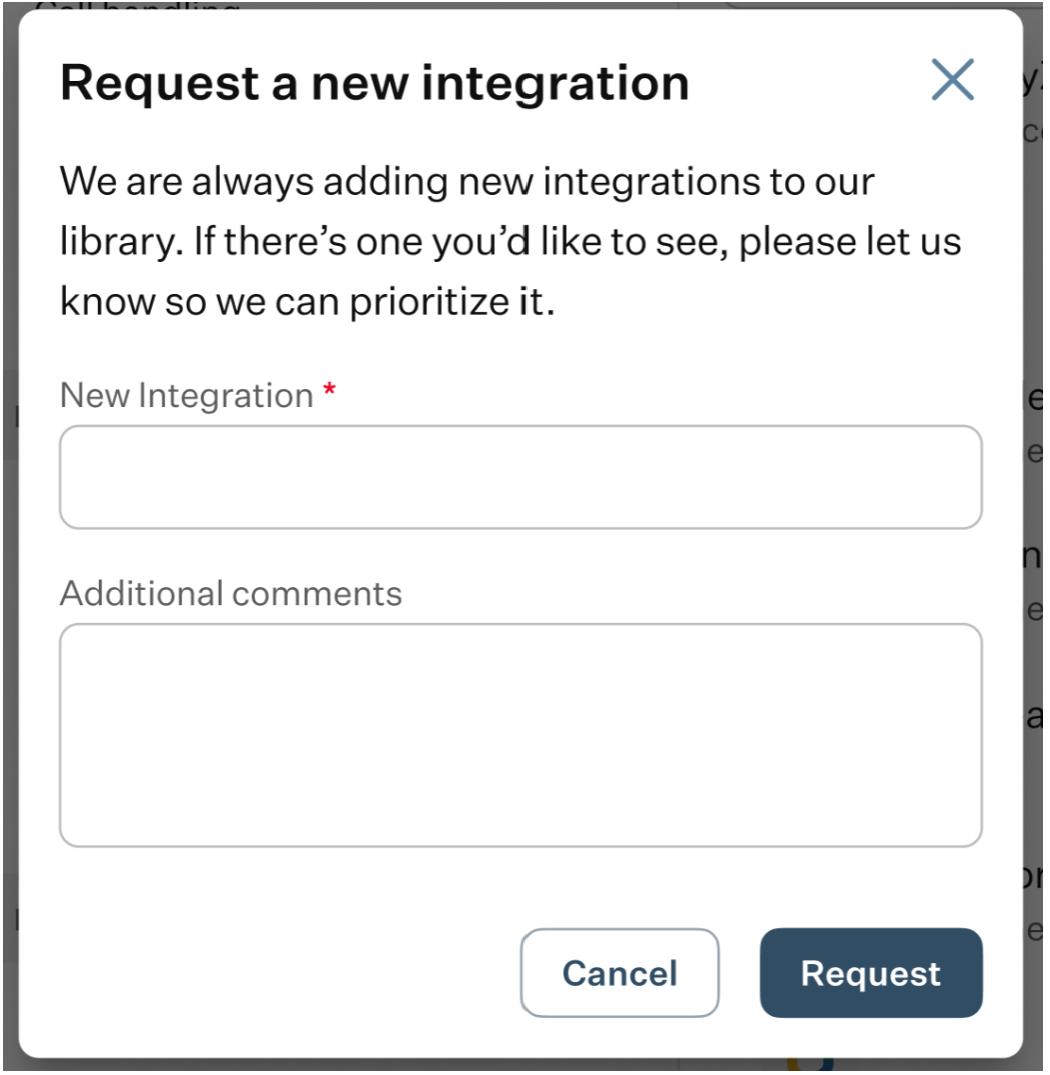
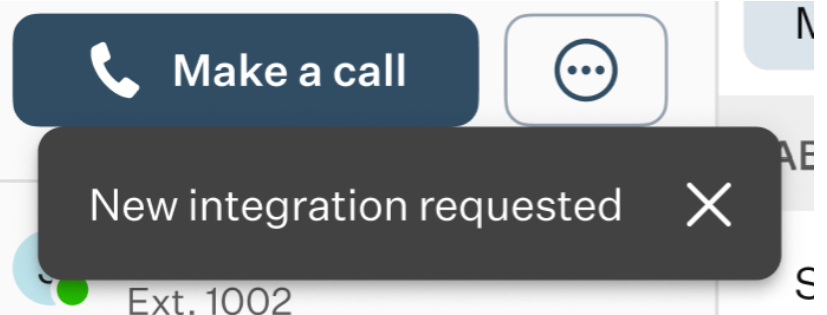
After submitting the request, our team will review it and get back to you with an update.
Was this article helpful?
That’s Great!
Thank you for your feedback
Sorry! We couldn't be helpful
Thank you for your feedback
Feedback sent
We appreciate your effort and will try to fix the article