Description: This article provides an overview of the Features parameter group located in the OE Desktop app’s Settings section.
Upon accessing the OE Desktop app’s Settings section, you will find six groups of parameters. In this article, we explore the Features group.
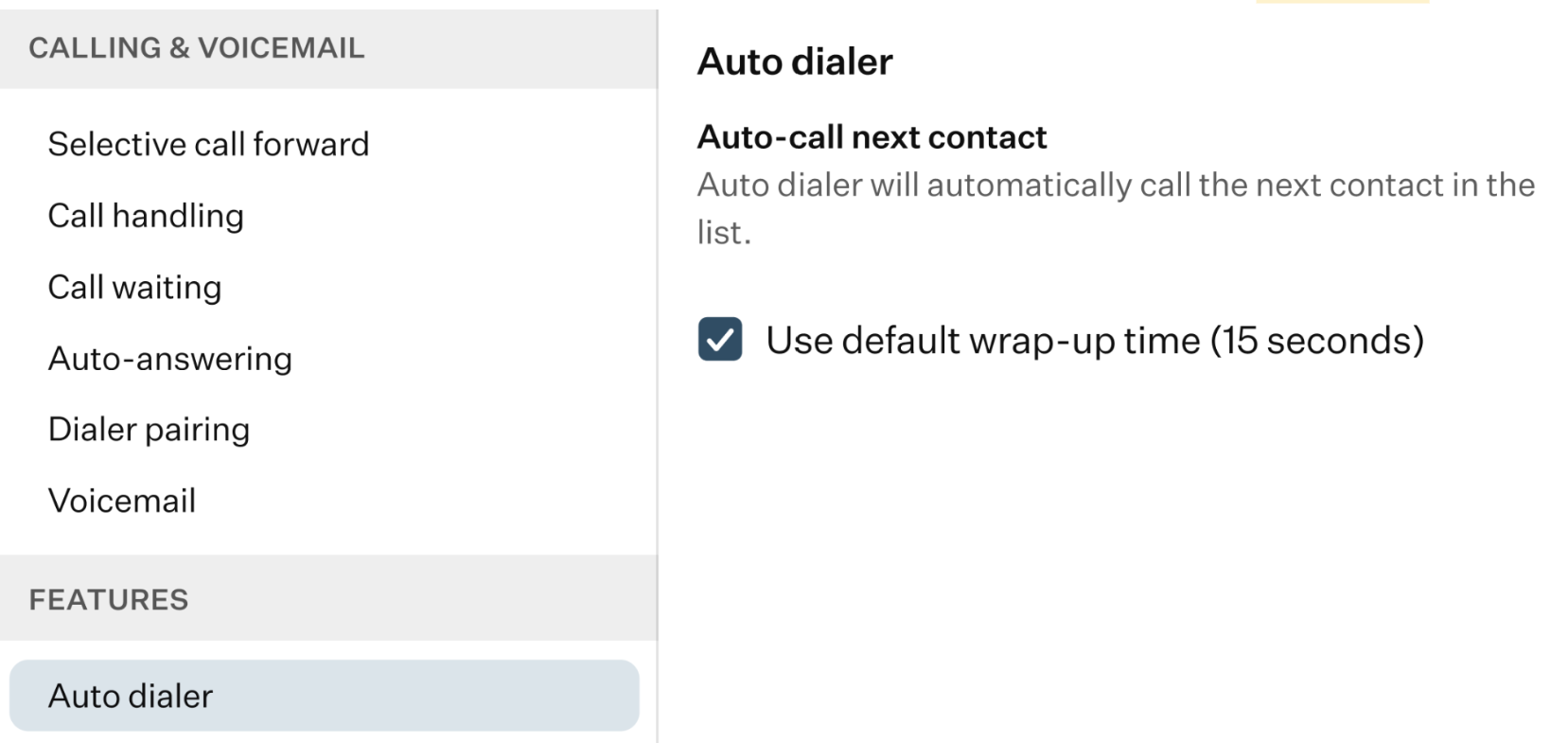
In this group of settings, you can configure various features available in the OE Desktop app.
- Auto dialer: in this section, you can configure the auto-dialer feature, which automatically calls the next contact in your call list.
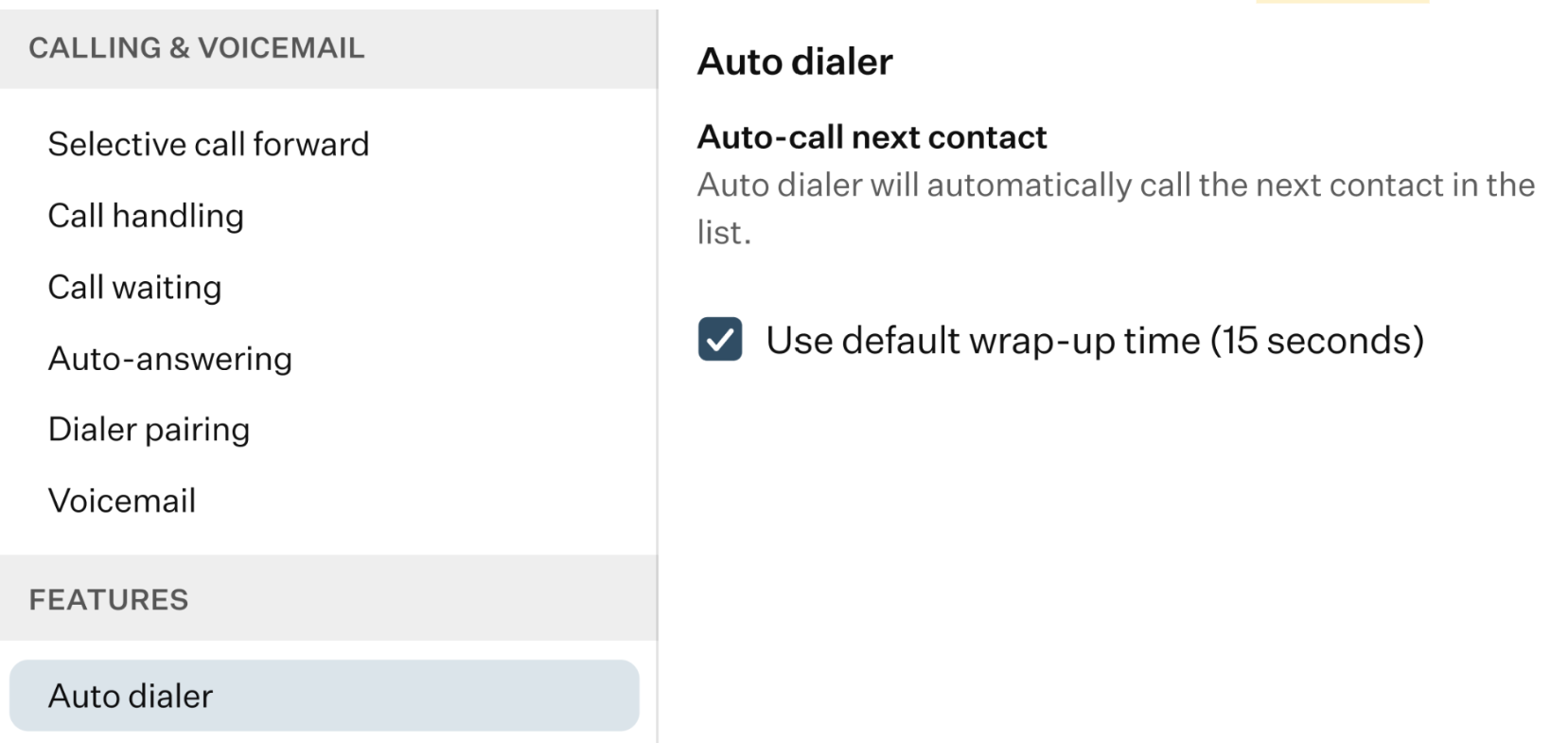
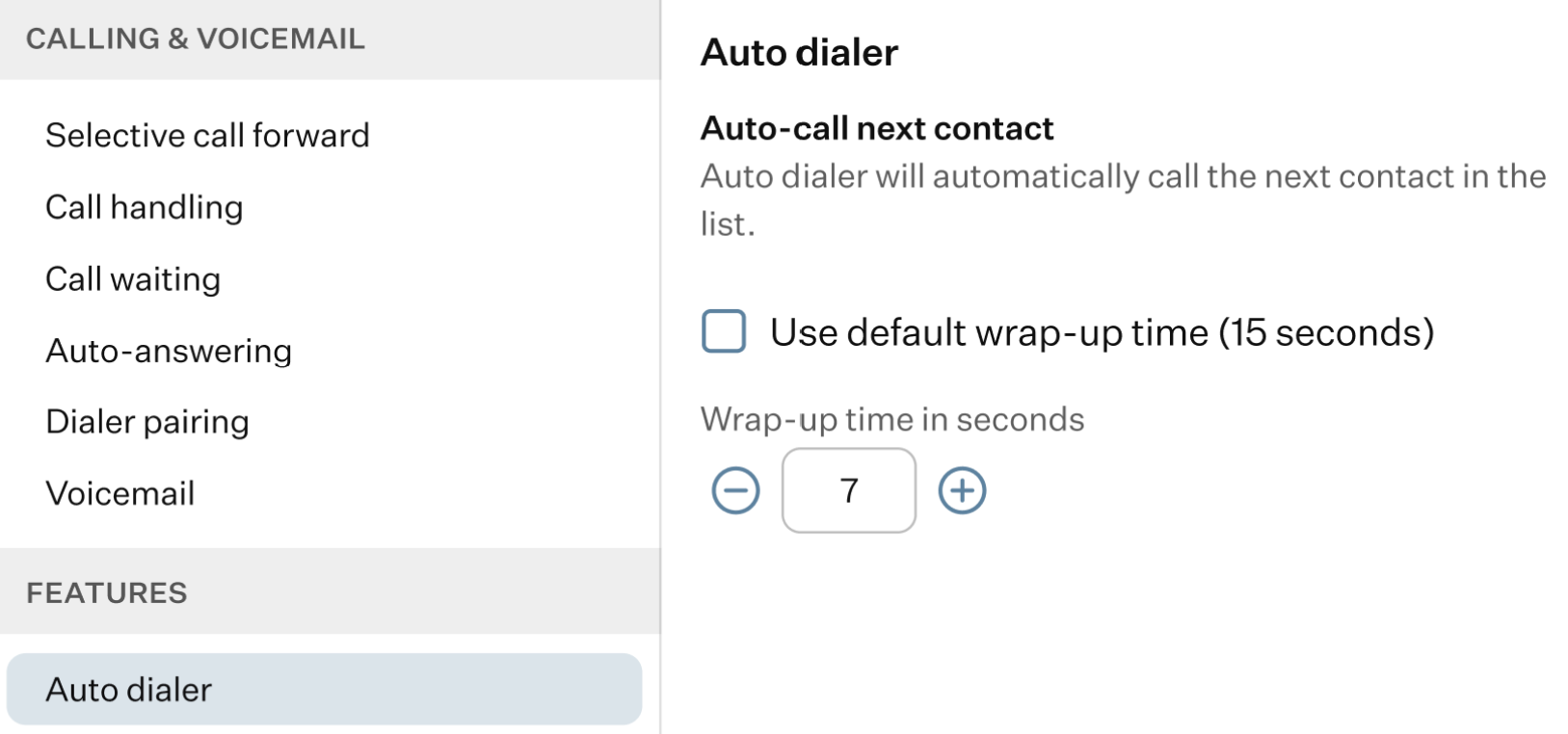
By default, the wrap-up time between calls in the contact list is set to 15 seconds. To change this duration, disable the “Use default wrap-up time (15 seconds)” checkbox. A new field will then appear, allowing you to set a custom wrap-up time.
- Meetings: in this section, you can define the default meeting location and configure the basic parameters for one-time meetings.
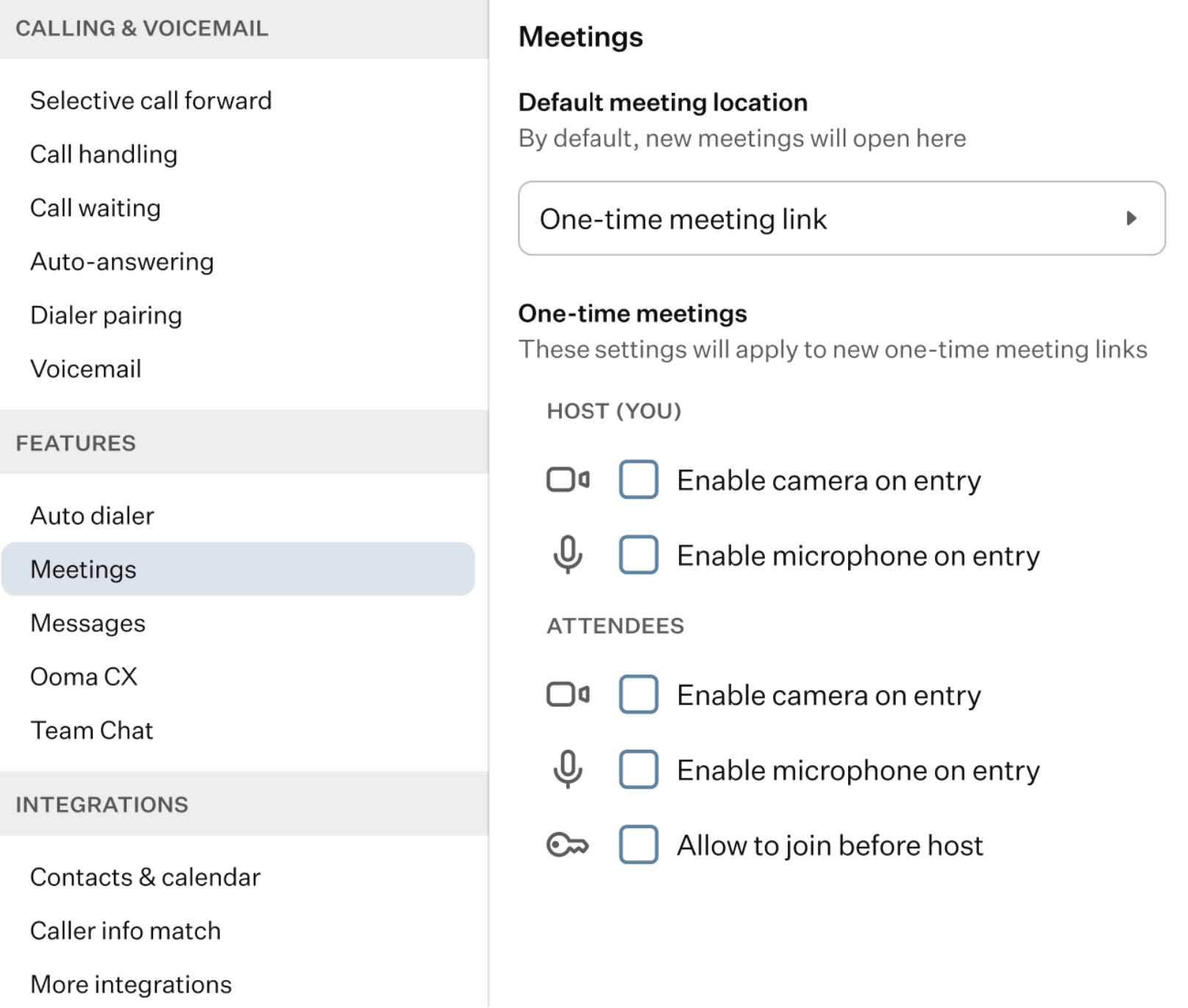
- Default meeting location: click this field to view a drop-down list of all available meeting rooms and select the default location.
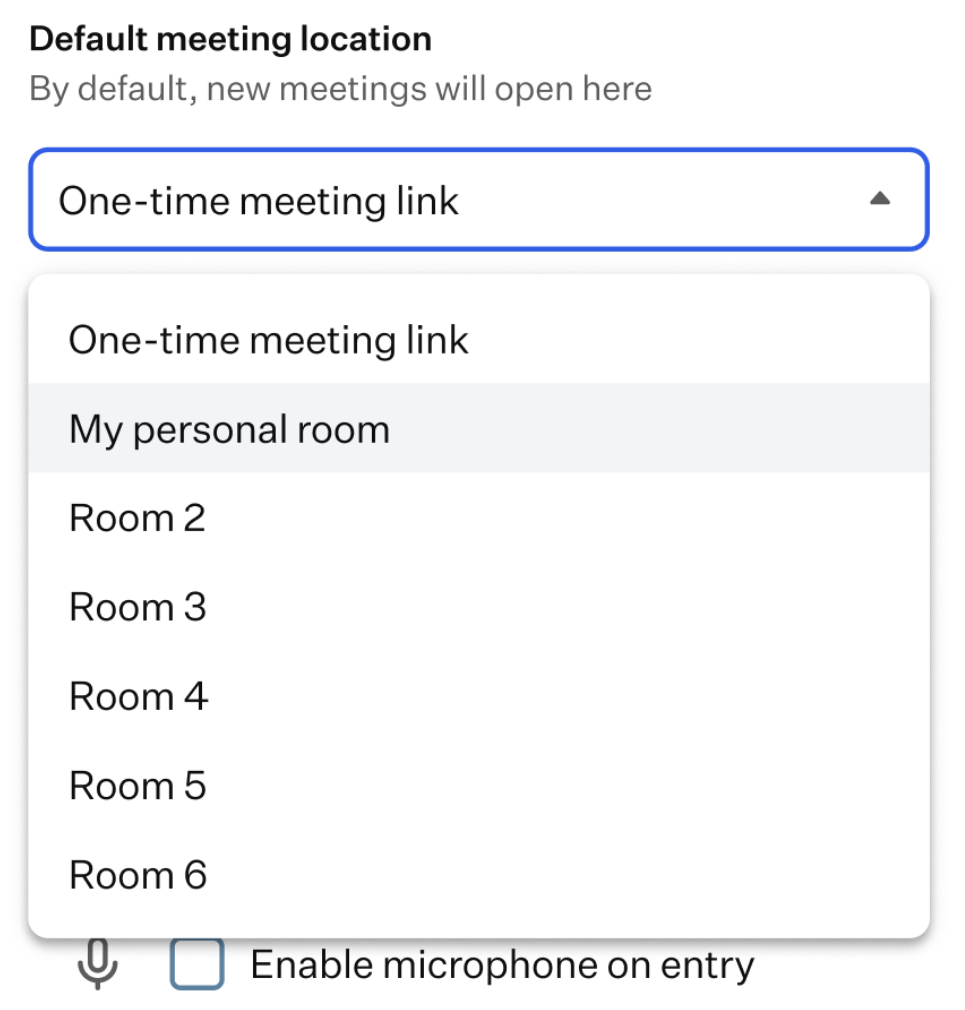
- One-time meetings: here, you can configure various camera and microphone settings for hosts and attendees.
Please note that to configure these settings for other meeting rooms, you need to use the Meetings feature in the OE Desktop app.
- Messages: in this section, you can view your monthly message usage and configure the auto-reply feature.
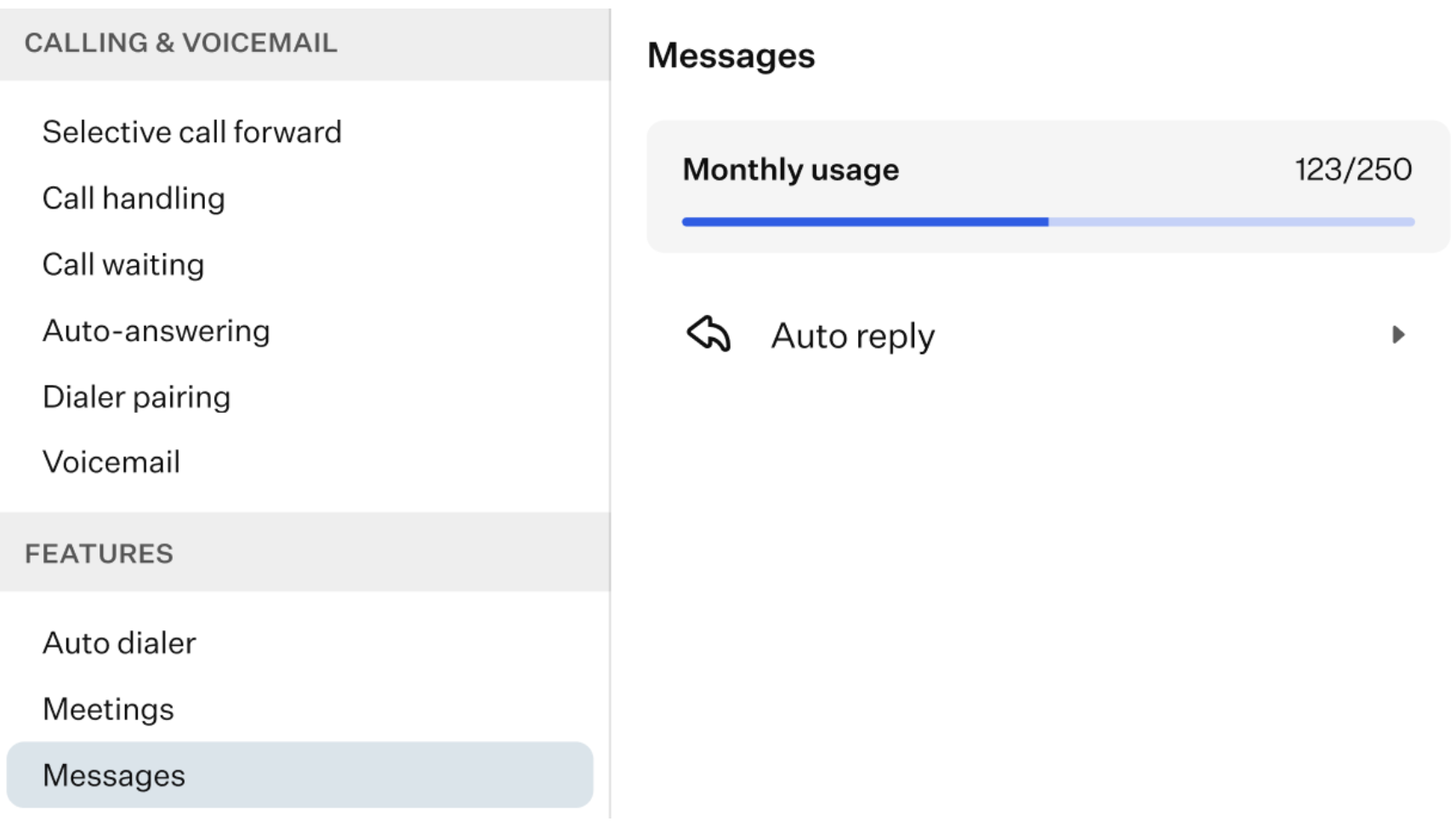
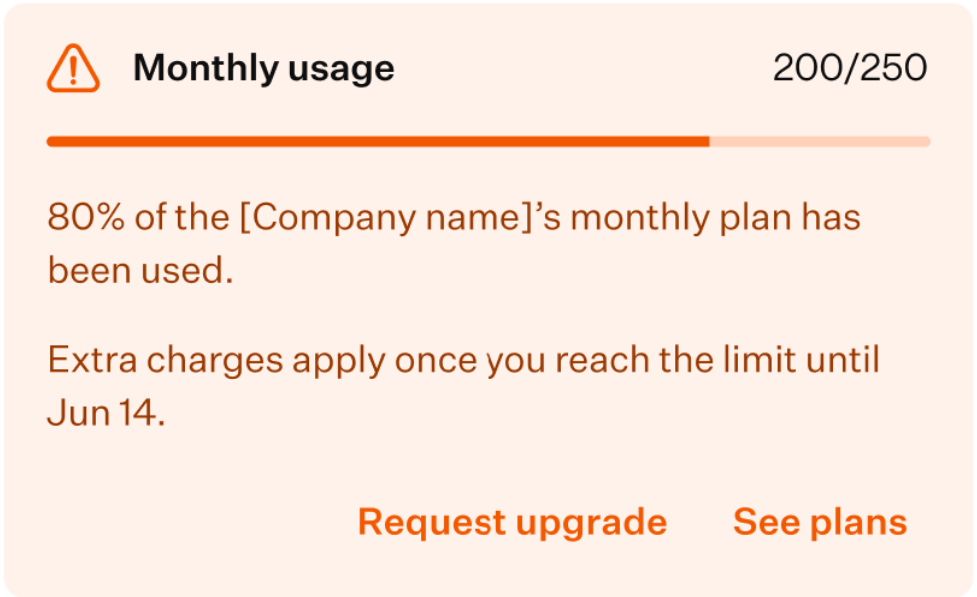
If your monthly usage reaches a certain percentage of your company’s plan, a notification message will appear.
If your message storage is full, you will also see a notification.
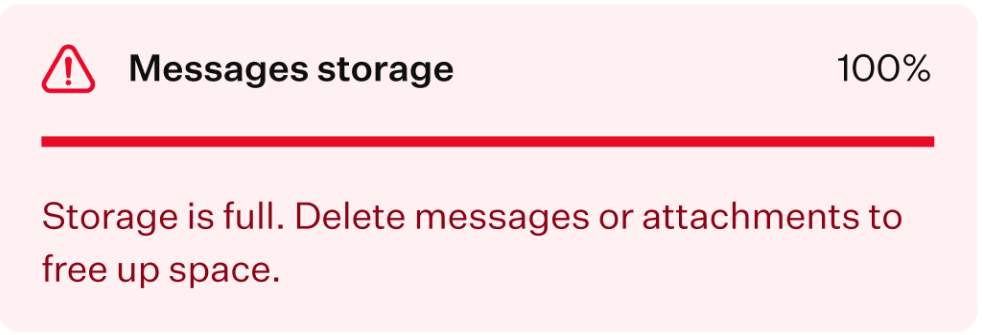
To free some space, you’ll need to go to the Messages module and delete several chats manually.
After clicking the “Auto-Reply” button, you will see a list of message boxes you have access to, which can be configured individually.
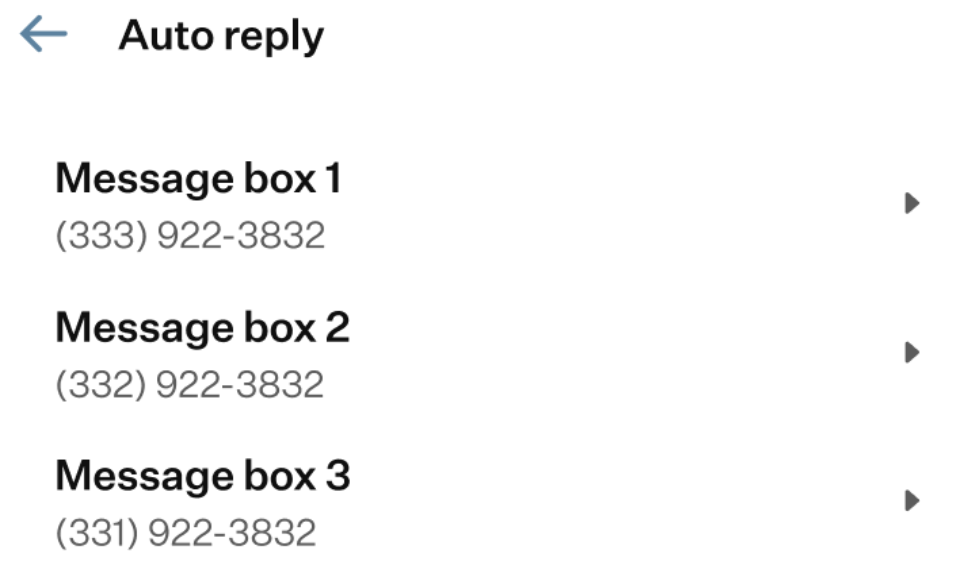
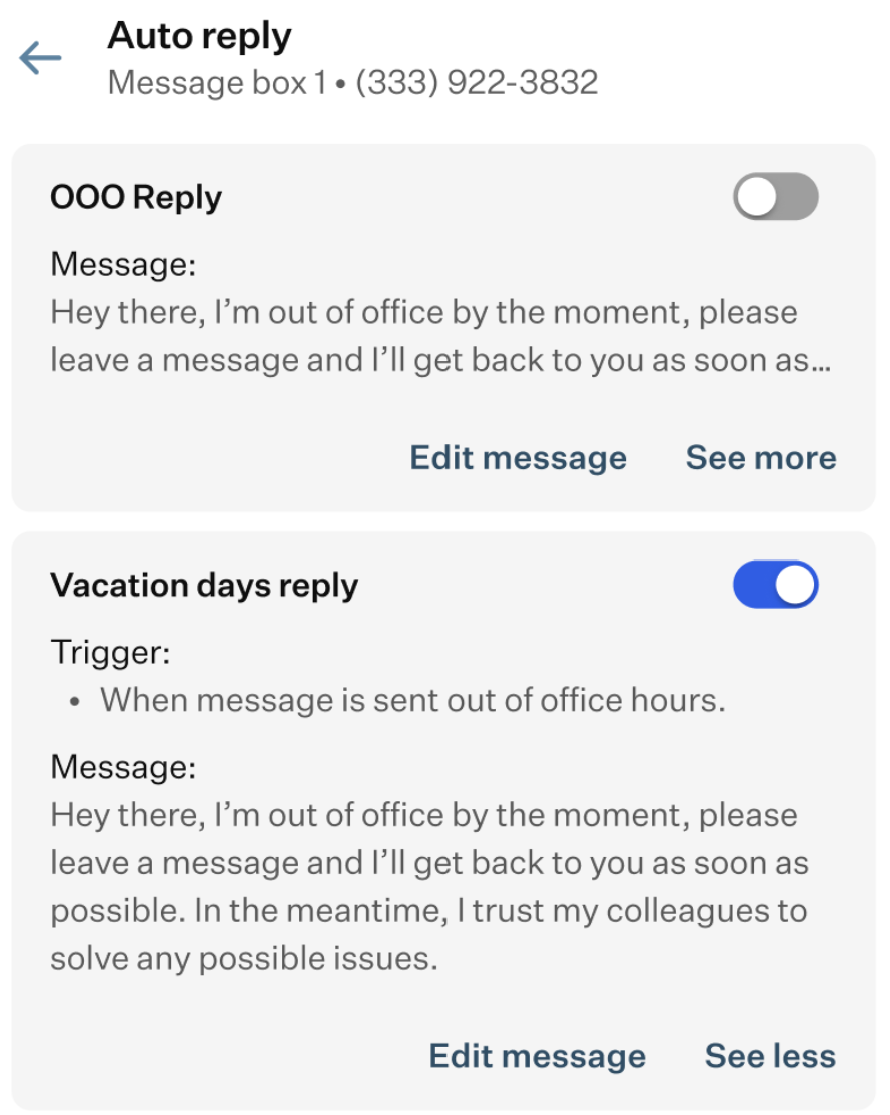
Once you select a message box, you will be able to view and manage its auto-reply messages. You can enable or disable them, as well as edit them by clicking the “Edit Message” button.
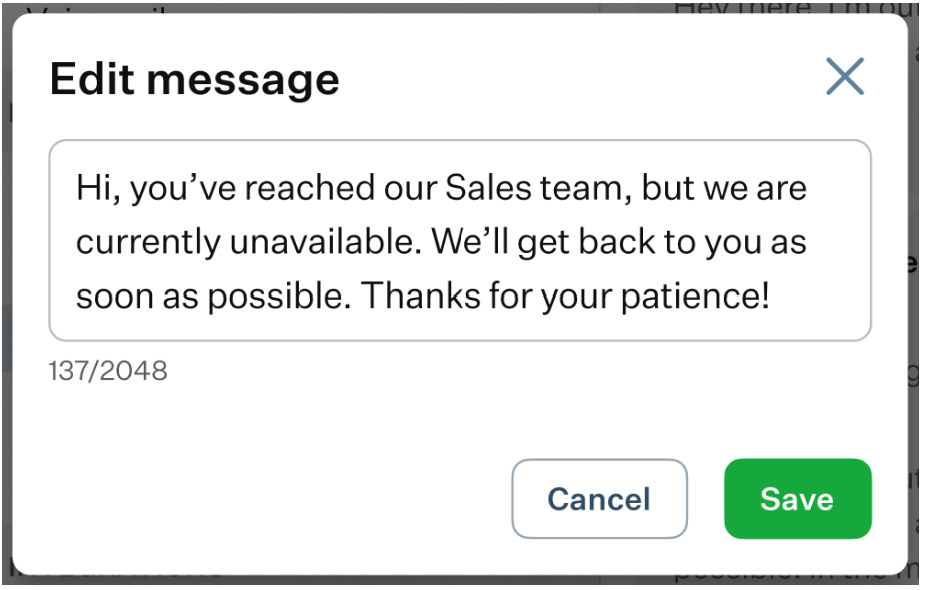
After clicking this button, a pop-up window will appear where you can modify the message.
Ooma CX: in this section, you can select the default answering device used to handle call center calls.
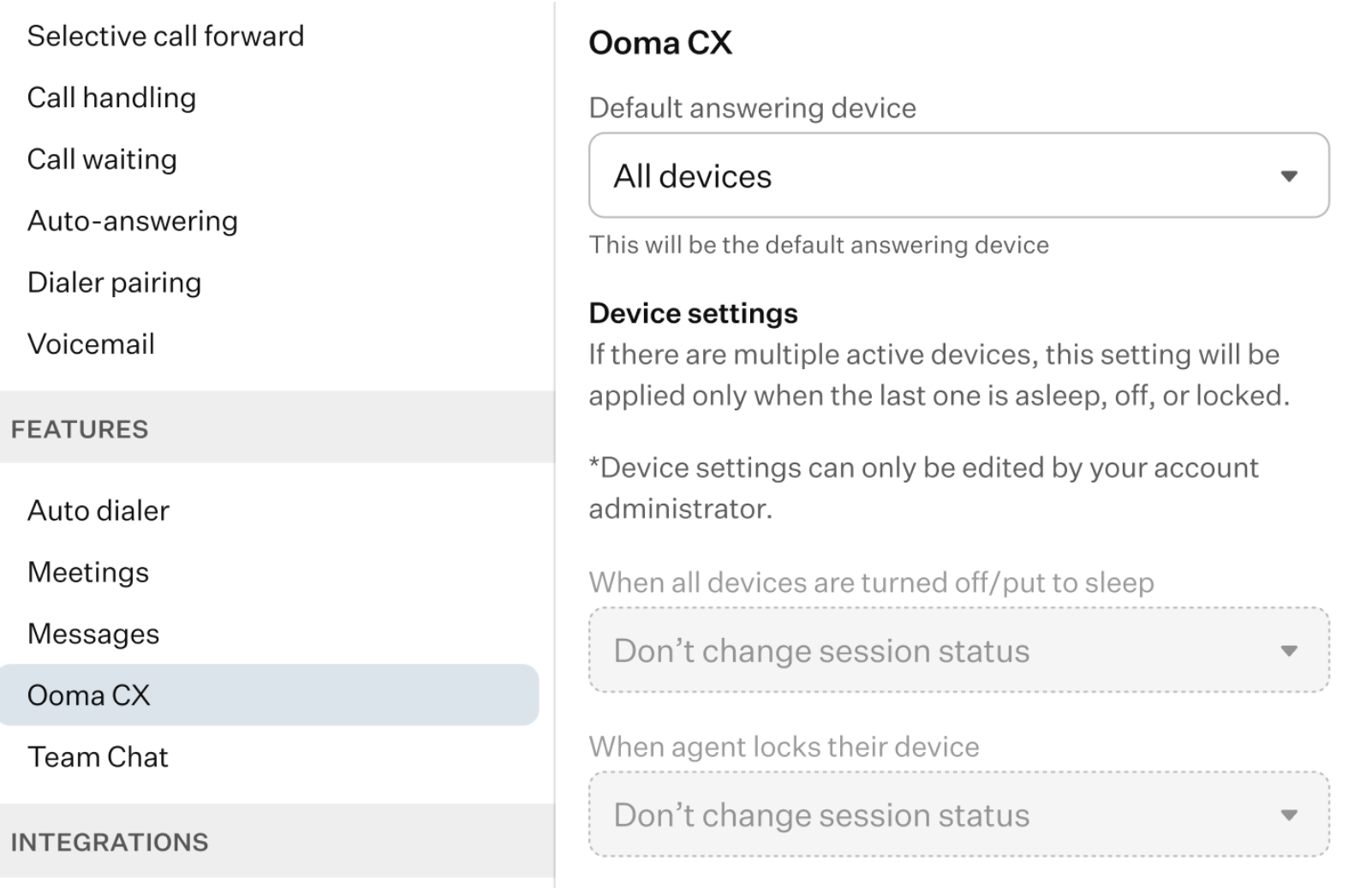
Click the “Default Answering Device” field to view and choose from the available options in the drop-down list.
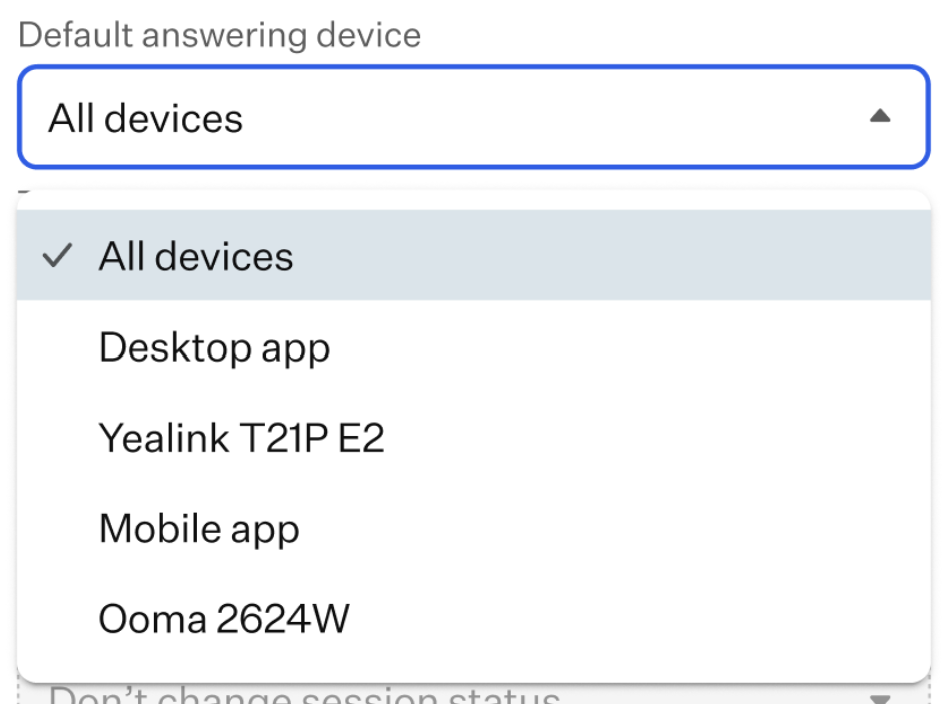
Please note that device settings cannot be configured here and can only be managed by your account administrator.
Was this article helpful?
That’s Great!
Thank you for your feedback
Sorry! We couldn't be helpful
Thank you for your feedback
Feedback sent
We appreciate your effort and will try to fix the article