Description: This article provides an overview of the Calling and Voicemail parameter group located in the OE Desktop app’s Settings section.
Upon accessing the OE Desktop app’s Settings section, you will find six groups of parameters. In this article, we explore the Calling and Voicemail group.
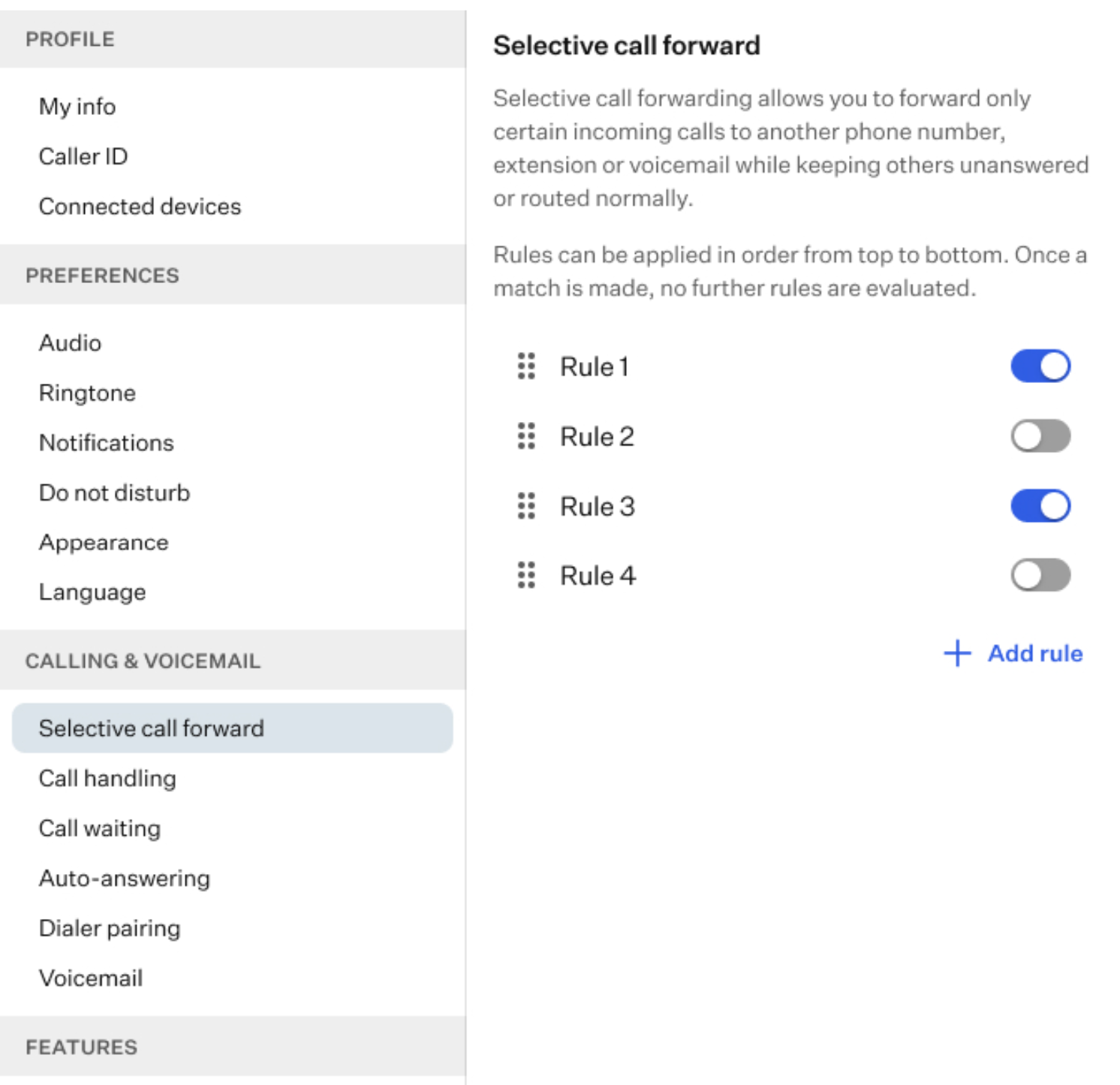
This group of settings allows you to manage the call handling parameters.
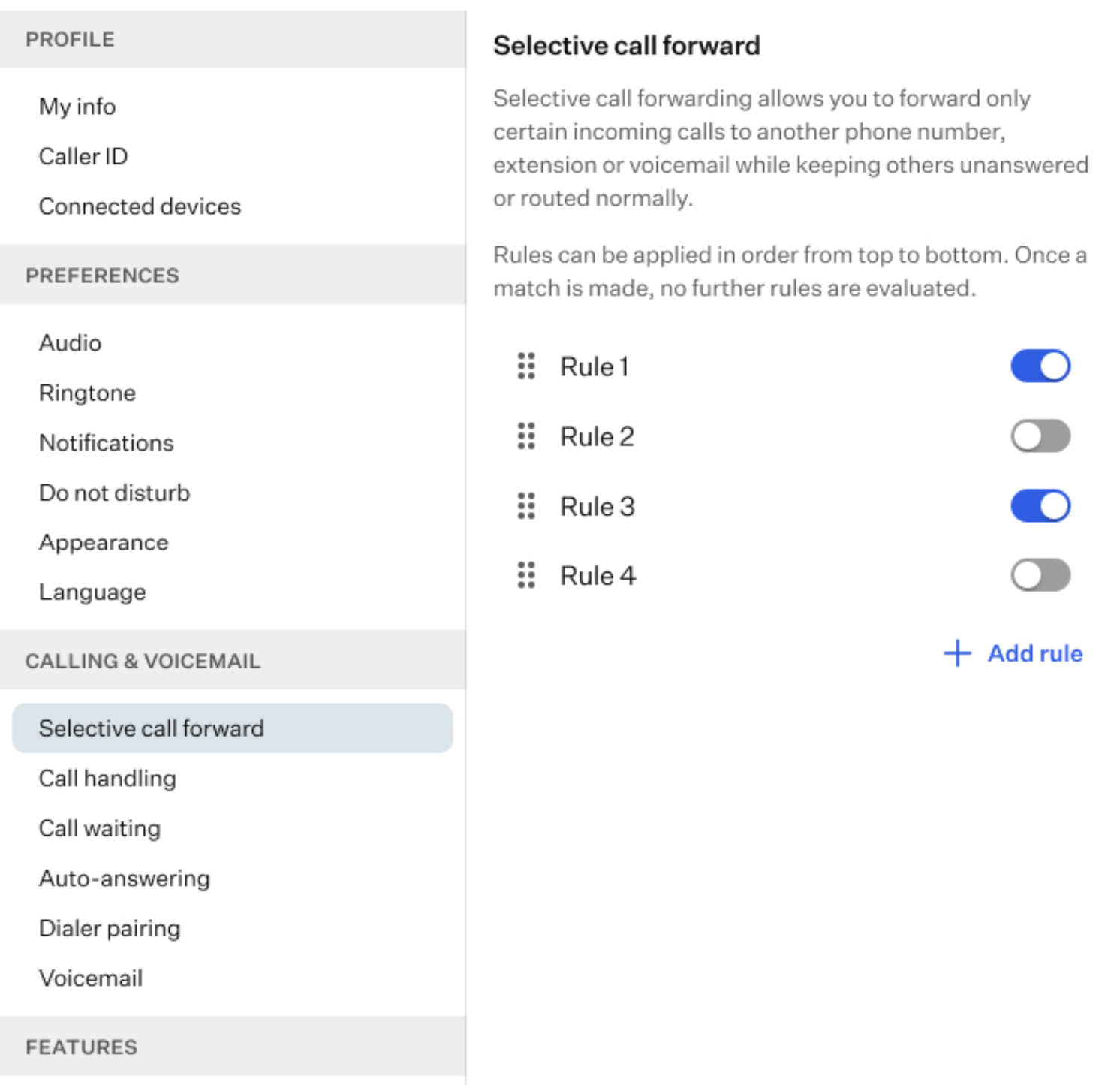
Selective call forward: on this page, you can configure selective call forwarding rules, which allow you to forward specific incoming calls to another phone number, extension, or voicemail, while other calls are handled normally.
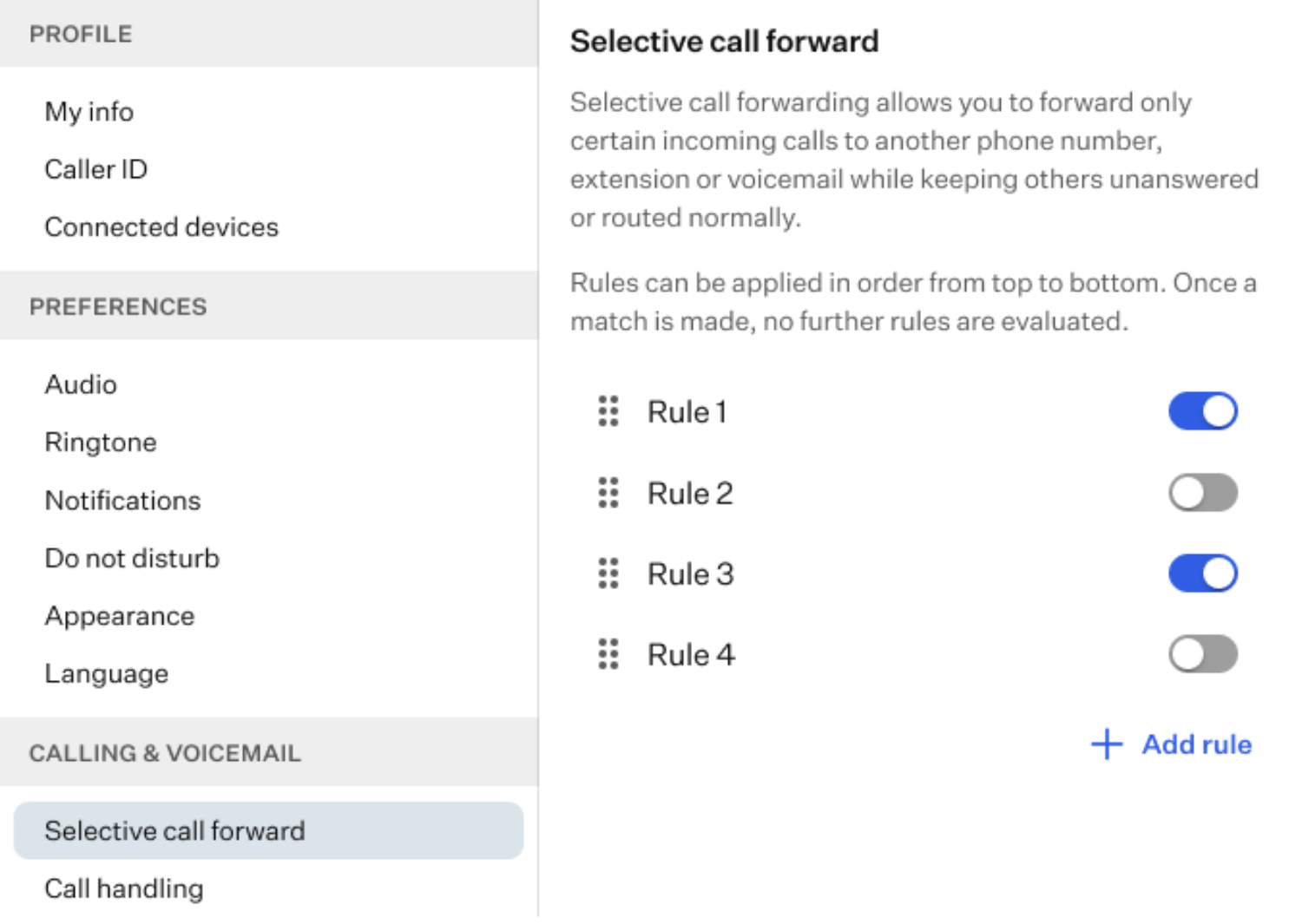
To create a new rule, click the “Add Rule” button.
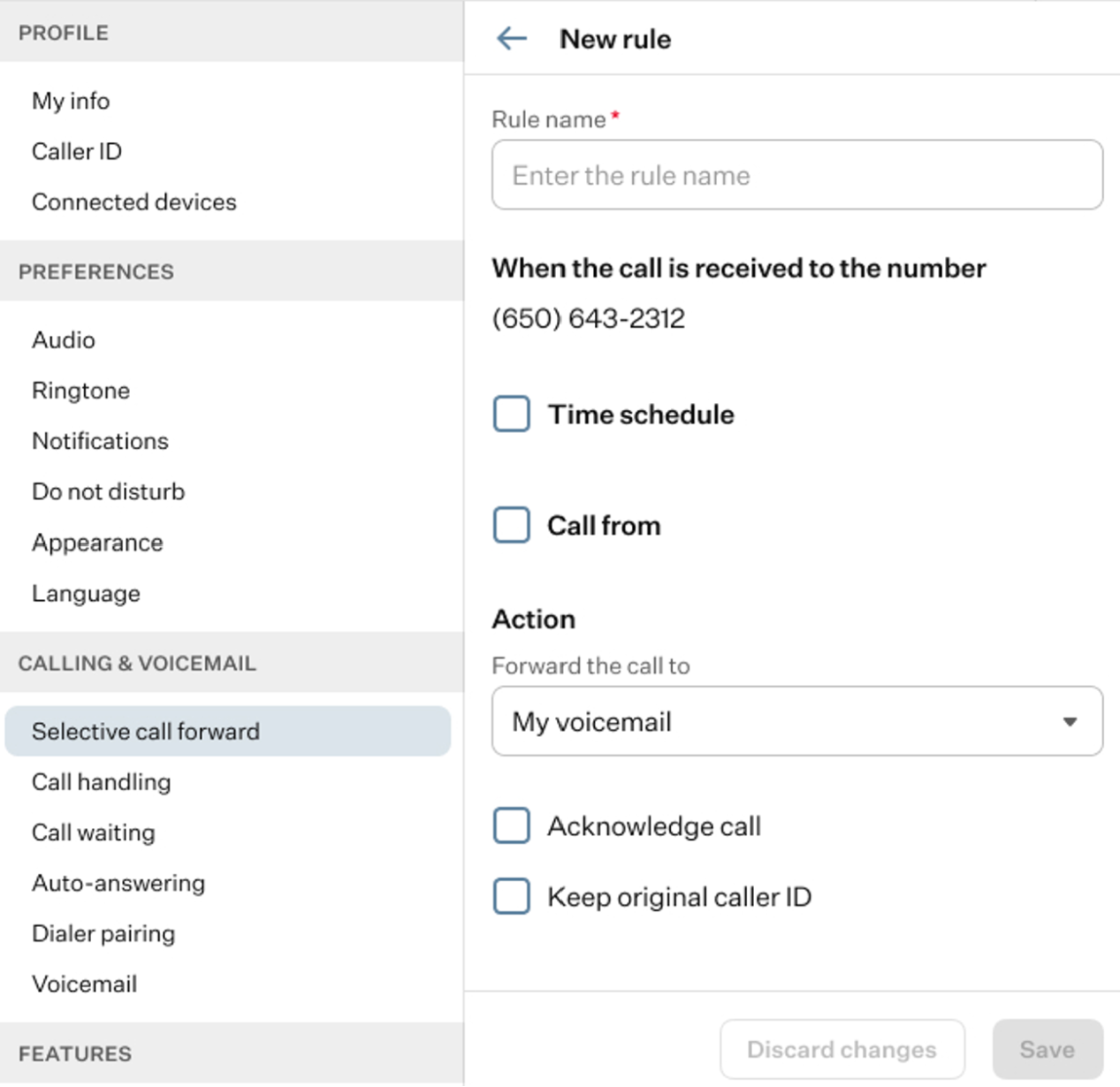
After clicking this button, a form for creating a Rule will appear. It contains several fields.
- Rule Name: use this field to enter a custom name for the rule.
- When the call is received to the number: select one or more numbers assigned to your account for which this rule will apply.
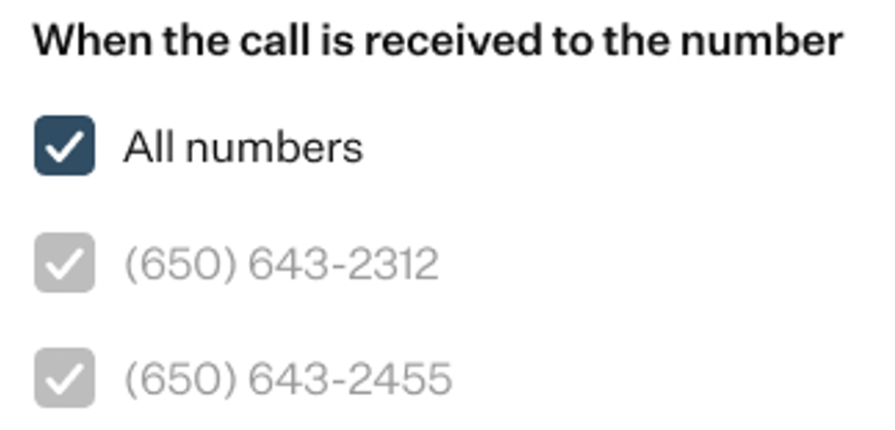
- Time Schedule: enable this option to expand the section.
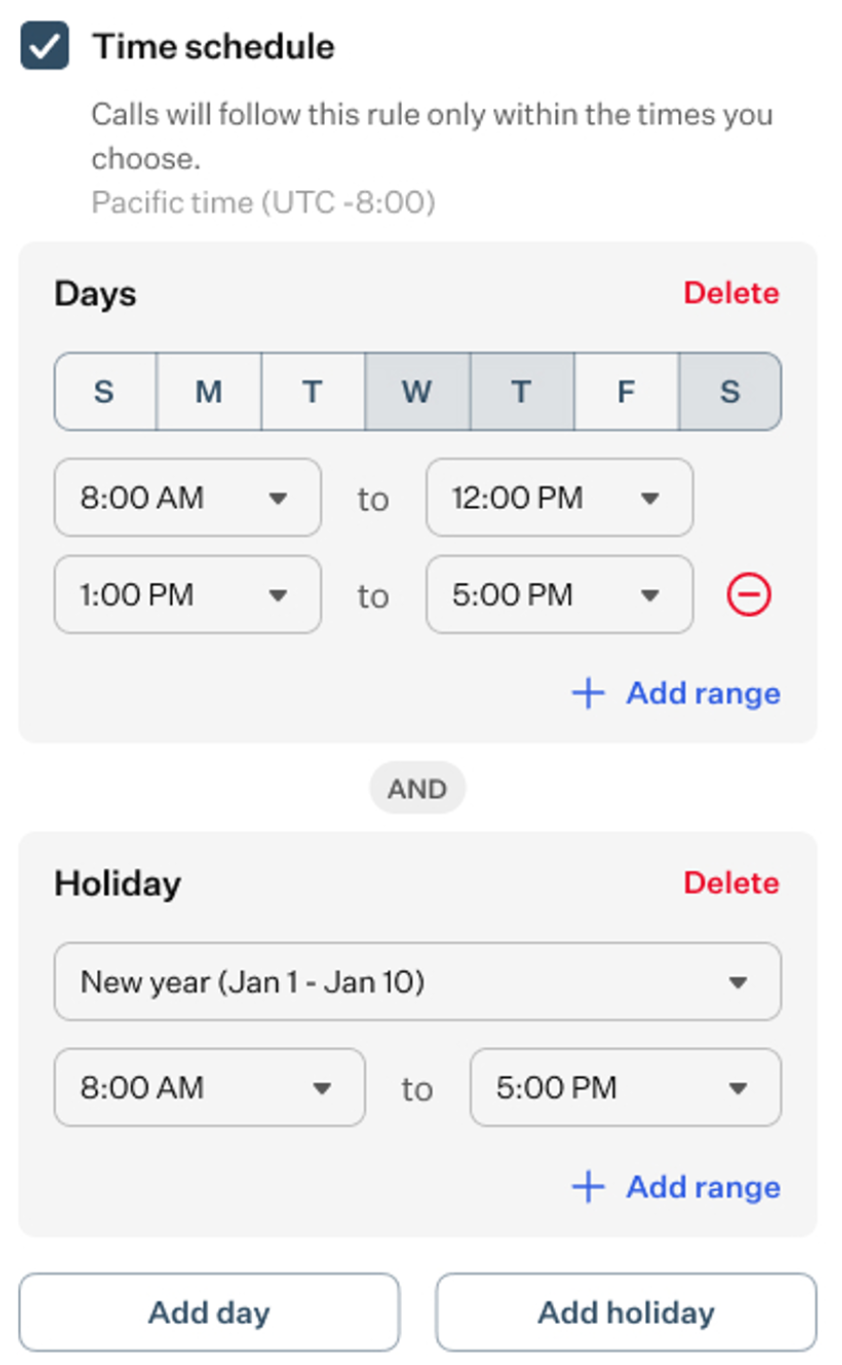
- Days: here, you can create a custom schedule by selecting the days and time ranges during which the rule will be active. By pressing the “+Add Range” button, you can add multiple time ranges if needed.
- Holidays: this option works similarly to the Days section. You can select a holiday from the list and define a custom time range for it. You can also add a new holiday by clicking the “Add Holiday” button.
Please note that no holidays have been added by the admin, so this section will be available to you.- Call From: enable this option to expand the section. Here, you can choose between two options:
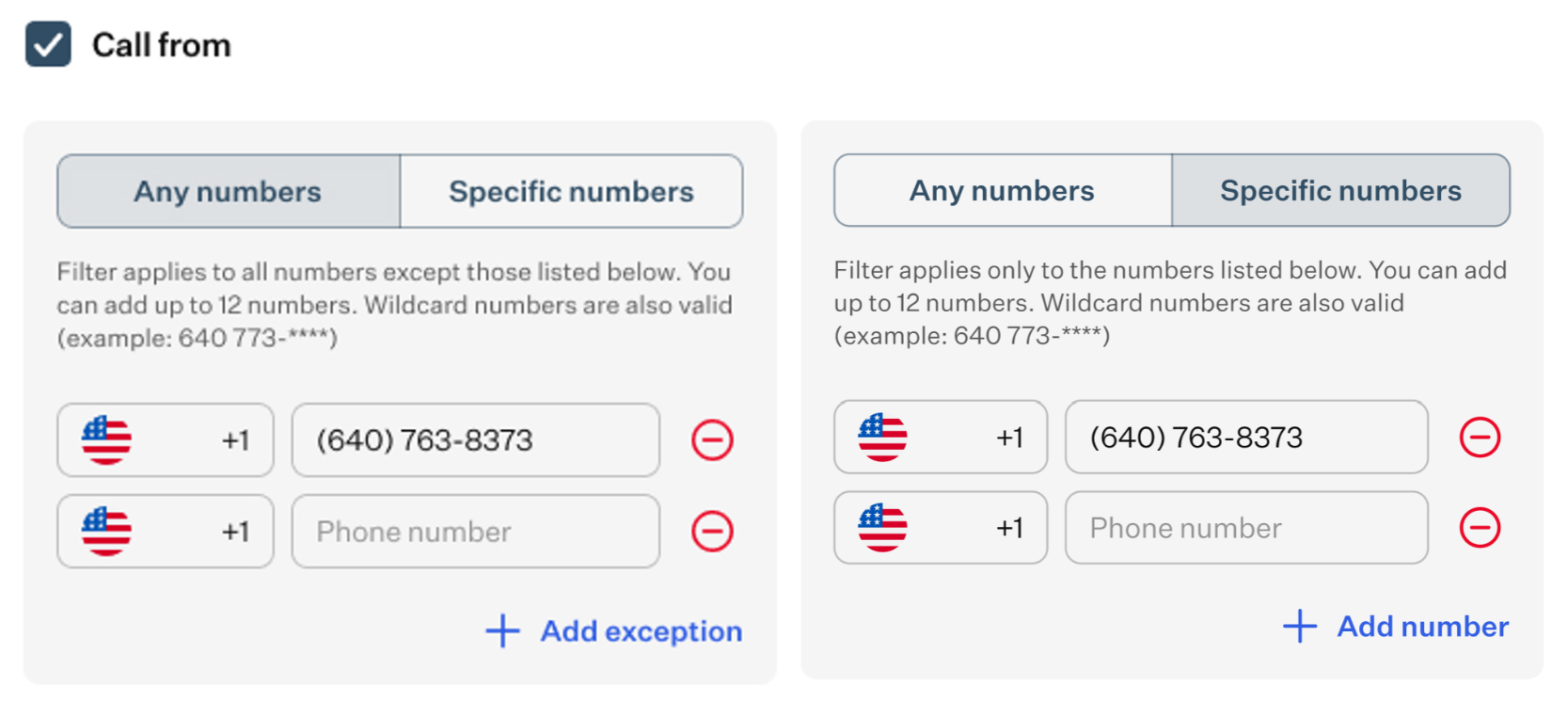
- Any numbers: if you select this option, you can list up to 12 phone numbers that will be excluded from the rule you are configuring. Press the “+Add exception” button to add additional numbers.
- Specific numbers: if you select this option, you can list up to 12 phone numbers to which the rule will apply. Any numbers not listed here will not be affected by the rule. Press the “+Add number” button to add additional numbers.
- Action: in this section, you can configure call forwarding with additional options.
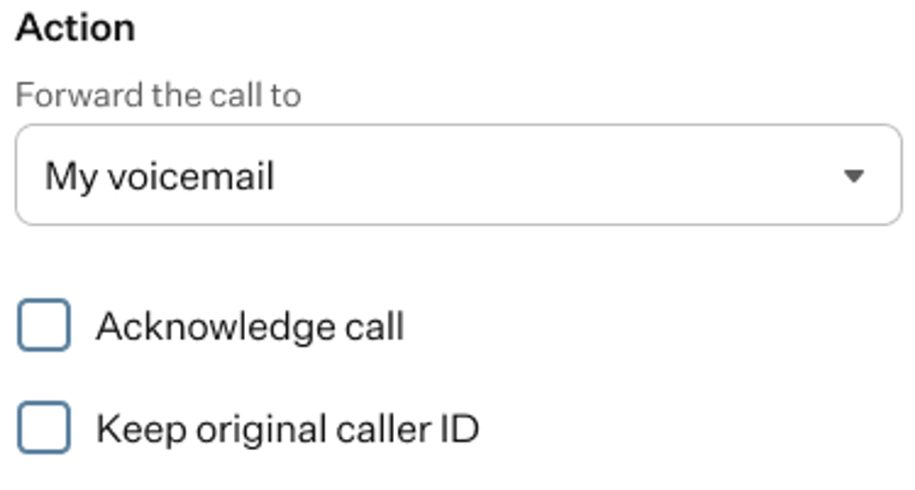
- Forward the call to: use this field to select where the call should be forwarded. The available destinations are listed in the drop-down menu.
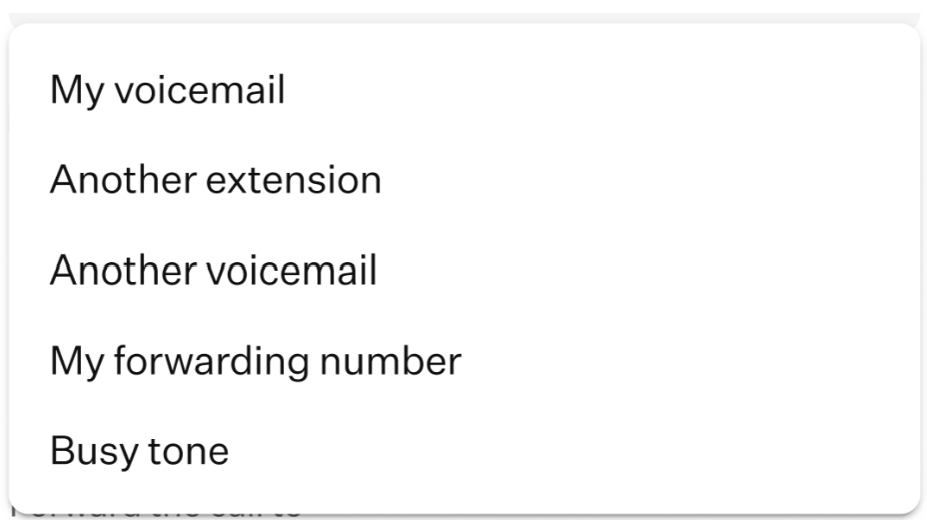
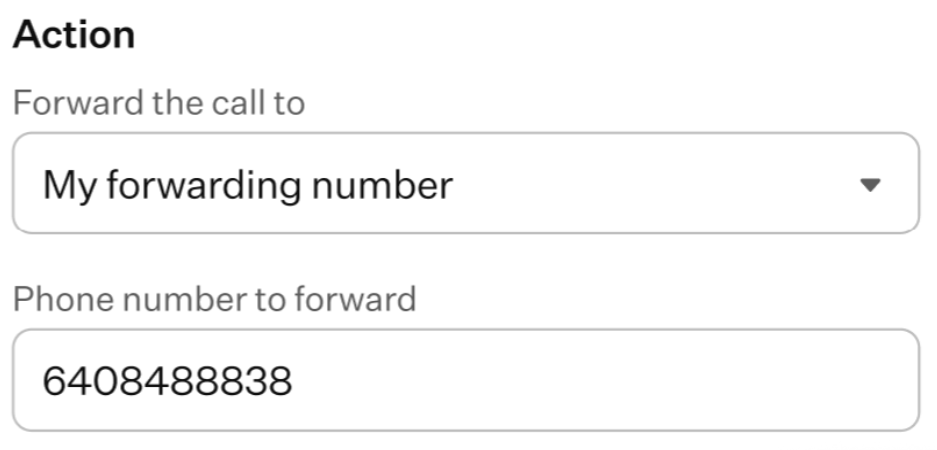
Depending on the option you select from the drop-down list, an additional field will appear where you can select a destination or enter it manually.
- Acknowledge call: enable this option to require the recipient to confirm that they want to accept the call before the system connects it. This helps prevent calls from being answered by voicemail or automated systems.
- Keep original caller ID: enable this option if you want the forwarded call to display the original caller’s phone number instead of the forwarding number
- Call handling: in this section, you can configure how the system handles incoming calls.
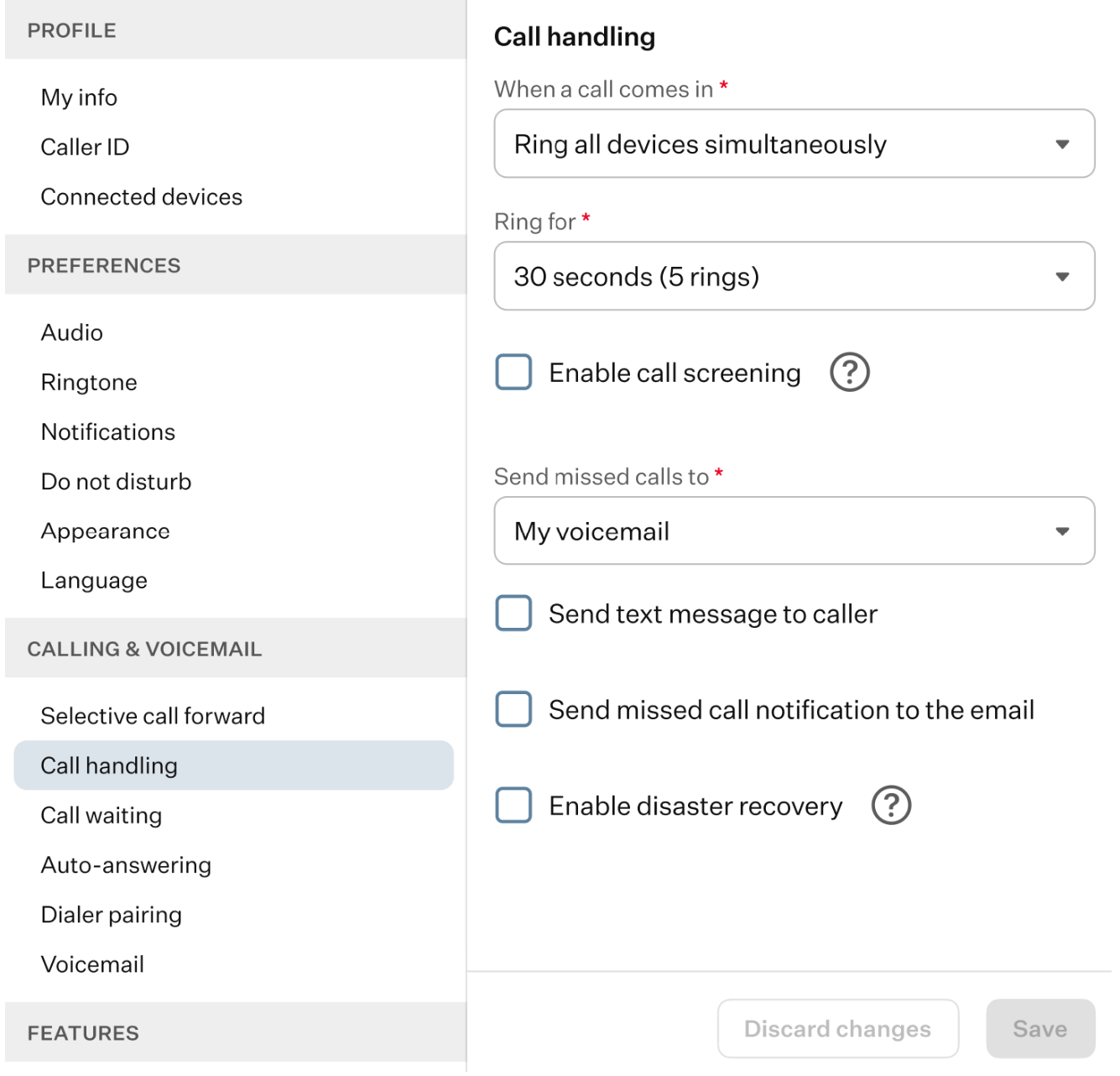
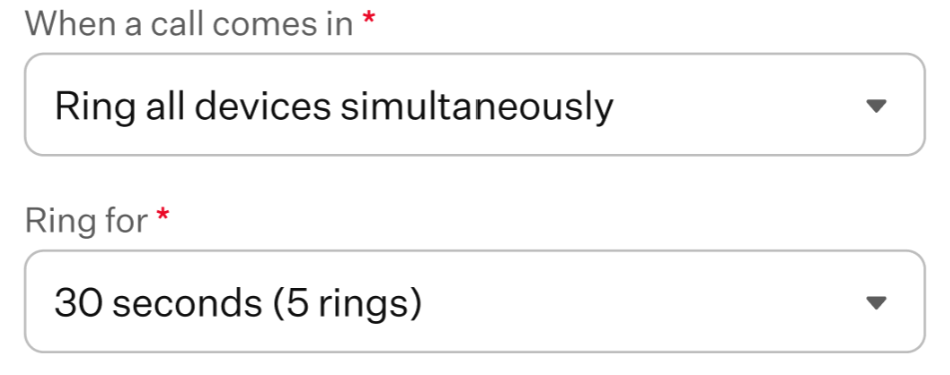
- When the call comes in: this field field provides several options that you can select from the drop-down list.
- Ring all devices simultaneously: select this option to ring all devices at the same time. You can also set how long the devices will ring.
- Forward it immediately: select this option to forward the call right away. When enabled, the following options will appear:
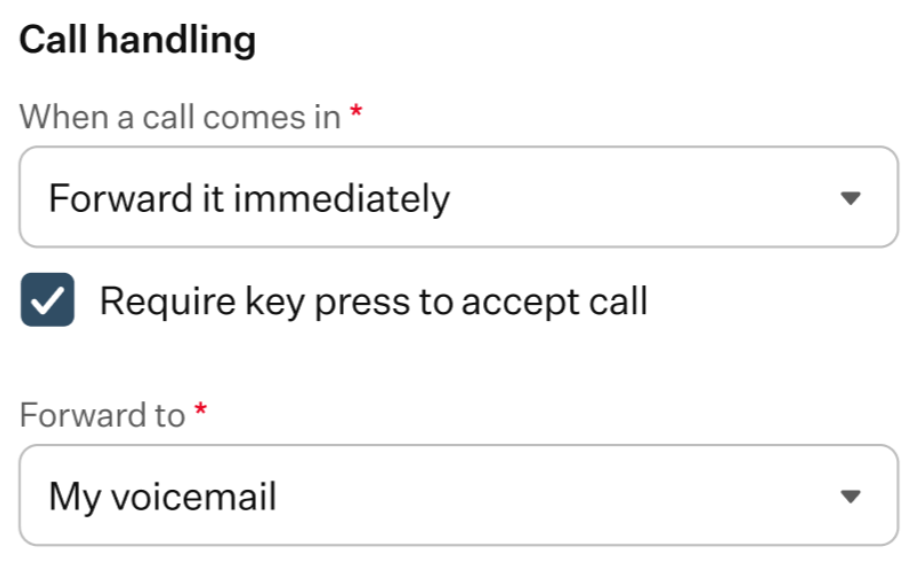
- Require key press to accept call: enable this option to require the recipient to press a key before the call is connected. This helps prevent calls from being answered by voicemail or automated systems.
- Forward to: use this field to select the destination where the call will be forwarded. Available options can be chosen from the drop-down list.
- Ring devices in a specific order: select this option to define the order in which devices will ring. You can configure up to three steps. The Step 1 appears automatically. To configure it, click the gear icon.
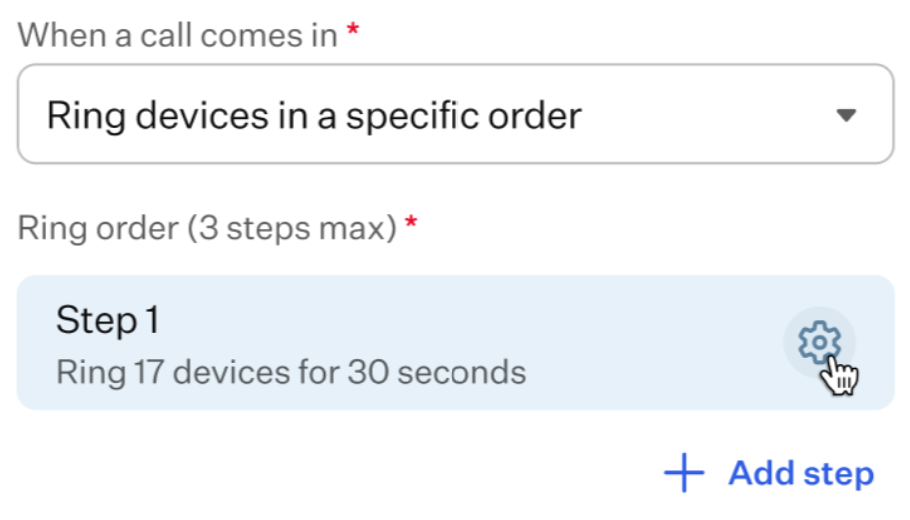
A pop-up window will open, allowing you to set the call duration, ring duration, and select the device or devices the call should be sent to.
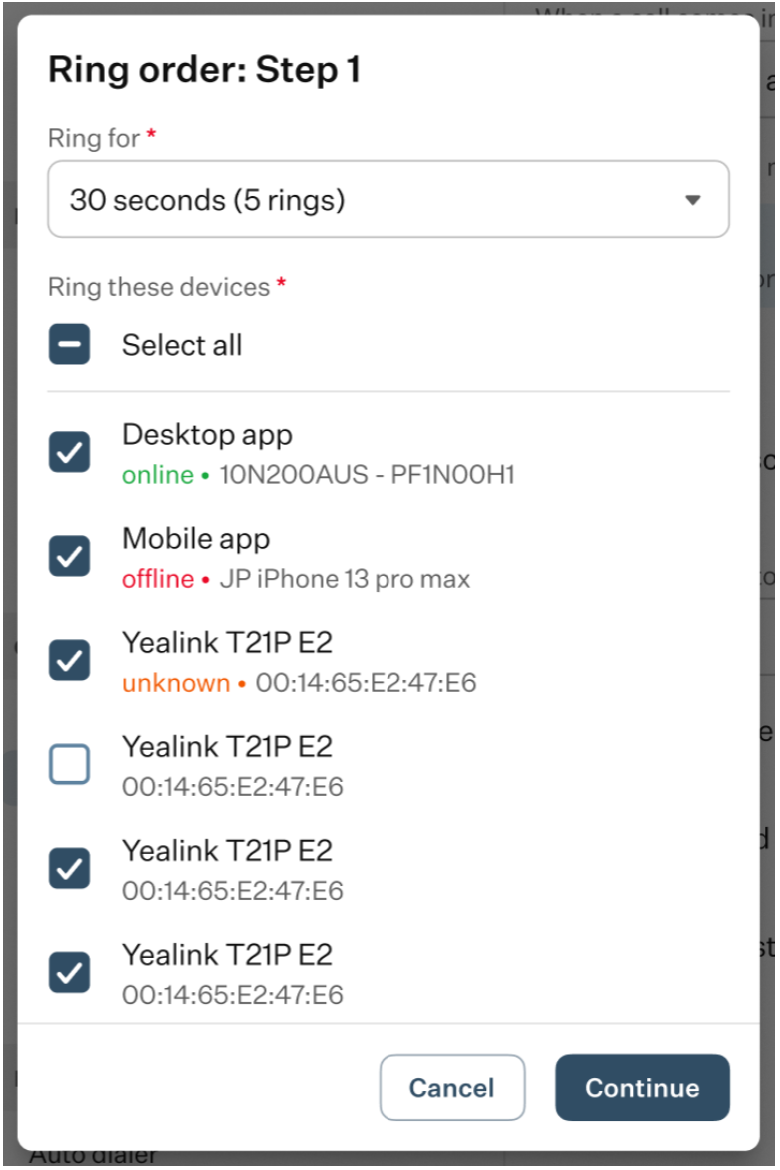
Click the “Continue” button to apply the configuration for Step 1. To add more steps, click the “+Add Step” button.
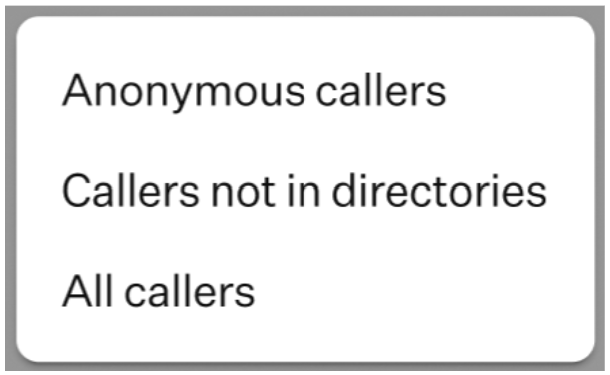
- Enable call screening: select this checkbox to enable call screening.
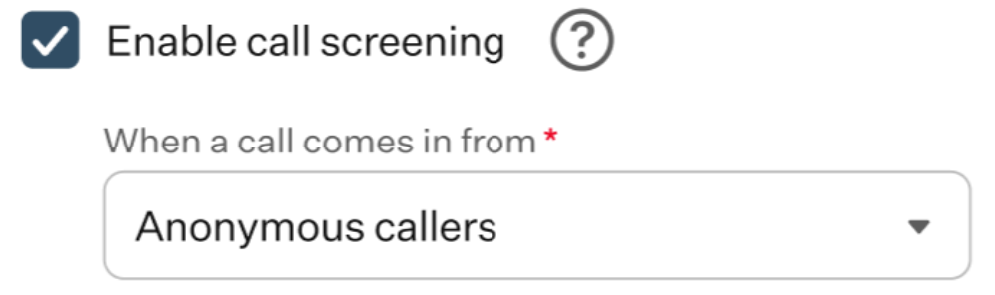
Once enabled, an additional field will appear, allowing you to choose when this feature should apply.
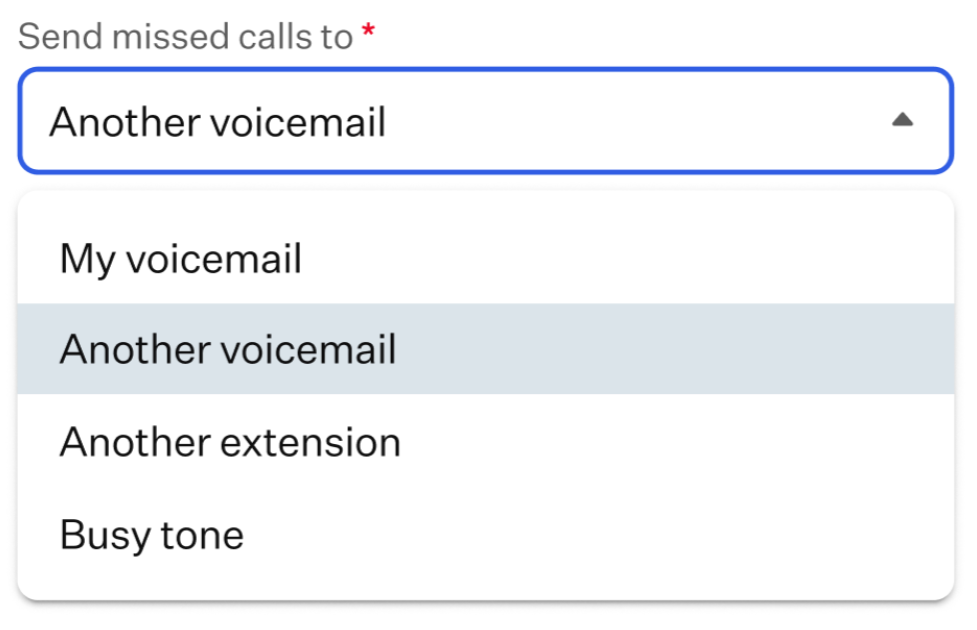
- Send missed calls to: select this option to forward your missed calls. You can choose from the available options in the drop-down list.
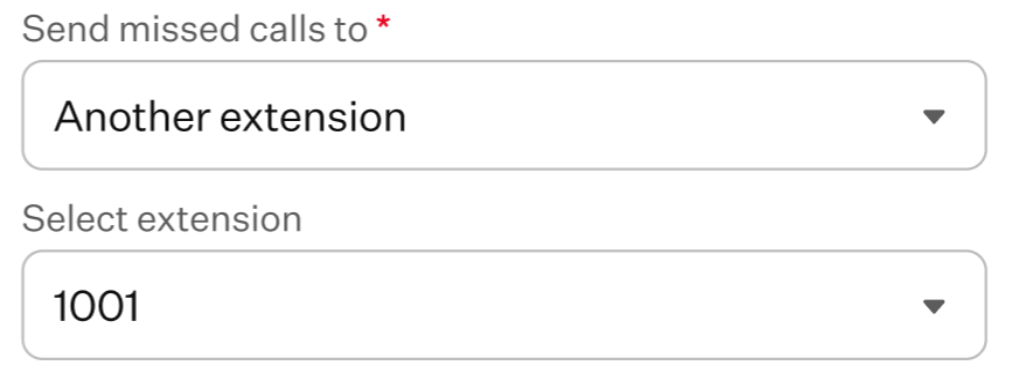
If you select an option that requires a specific voicemail or extension number, an additional field will appear where you can choose the number from a drop-down list.
- Send text message to caller: select this checkbox to send a message to the caller. A default message will appear, which you can edit by clicking the “Edit Message” button.
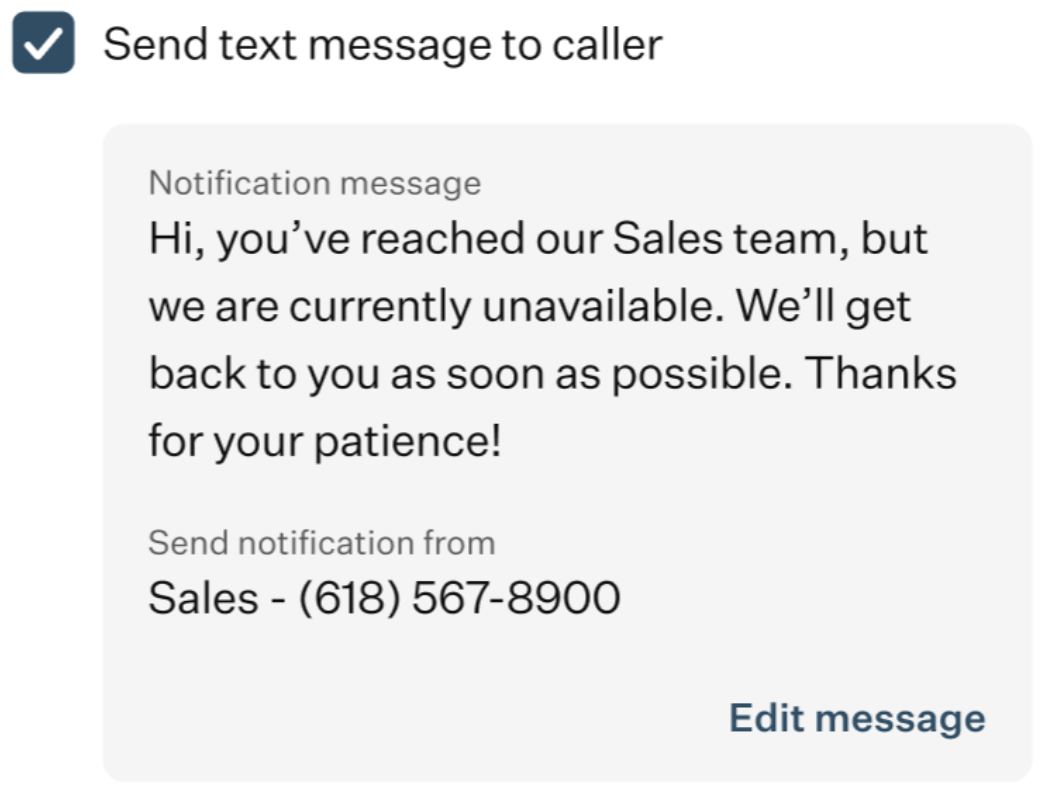
A pop-up window will open with two fields:
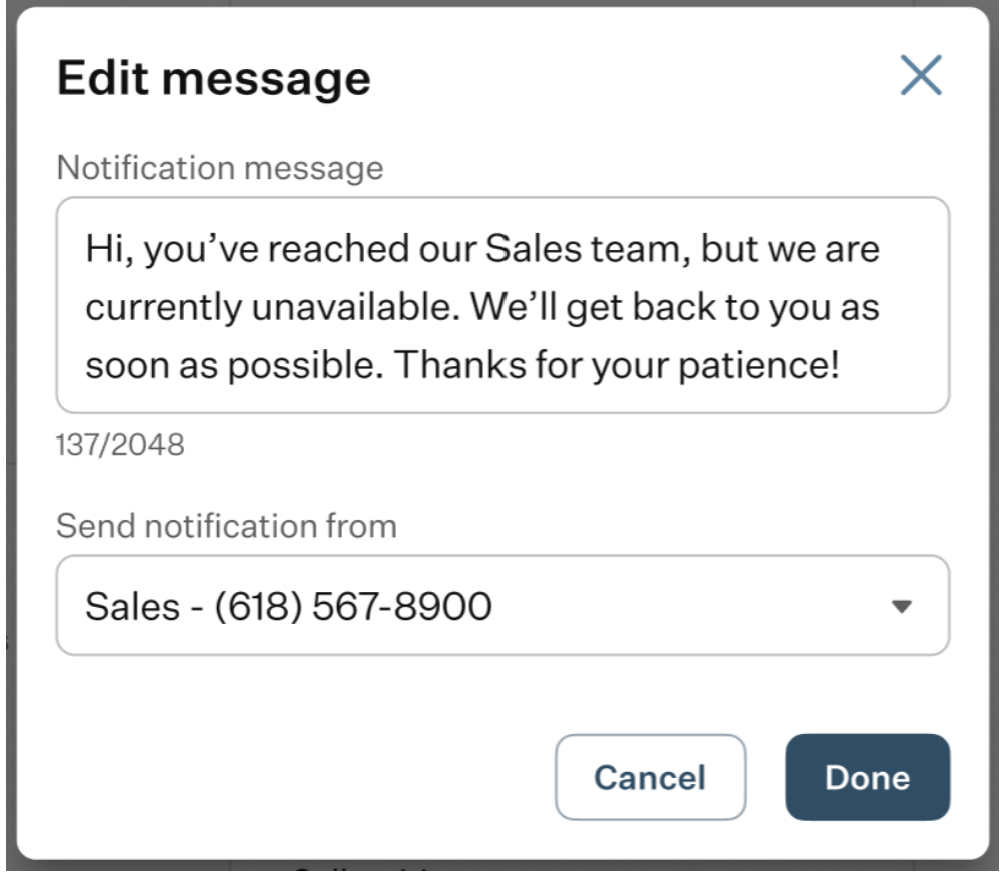
- Notification message: enter the message you want to send to the caller.
- Send notification from: select the phone number from which the notification will be sent.
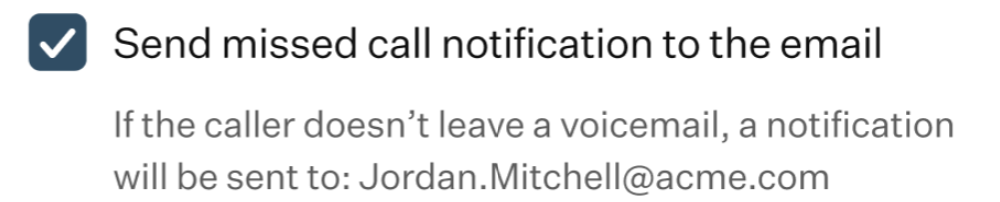
- Send missed call notification to the email: select this checkbox if you want missed call notifications to be sent directly to your email.
- Enable disaster recovery: select this checkbox to enable disaster recovery.
Disaster recovery is a feature that forwards calls to a backup number if the primary system becomes unavailable, ensuring continued connectivity.
When enabled, two additional fields will appear:
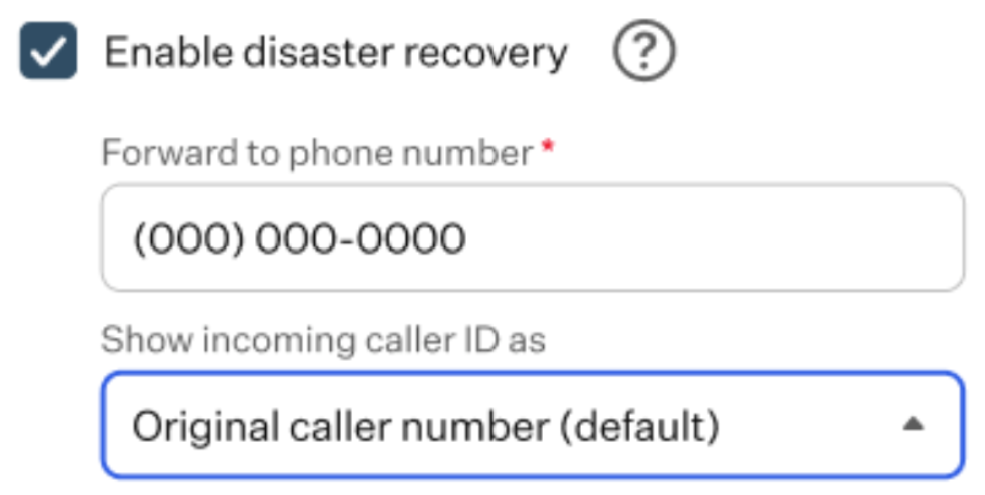
- Forward to phone number: enter the phone number to be used for disaster recovery.
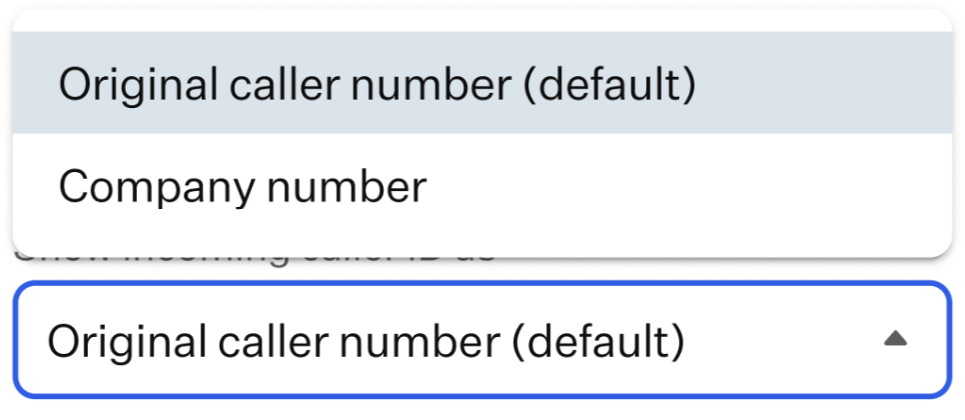
- Show incoming caller ID as: choose how the caller ID will be displayed. You can select from two available options.
- Call waiting: In this section, you can configure the alerts you receive when a new call comes in while you are already on an active call.
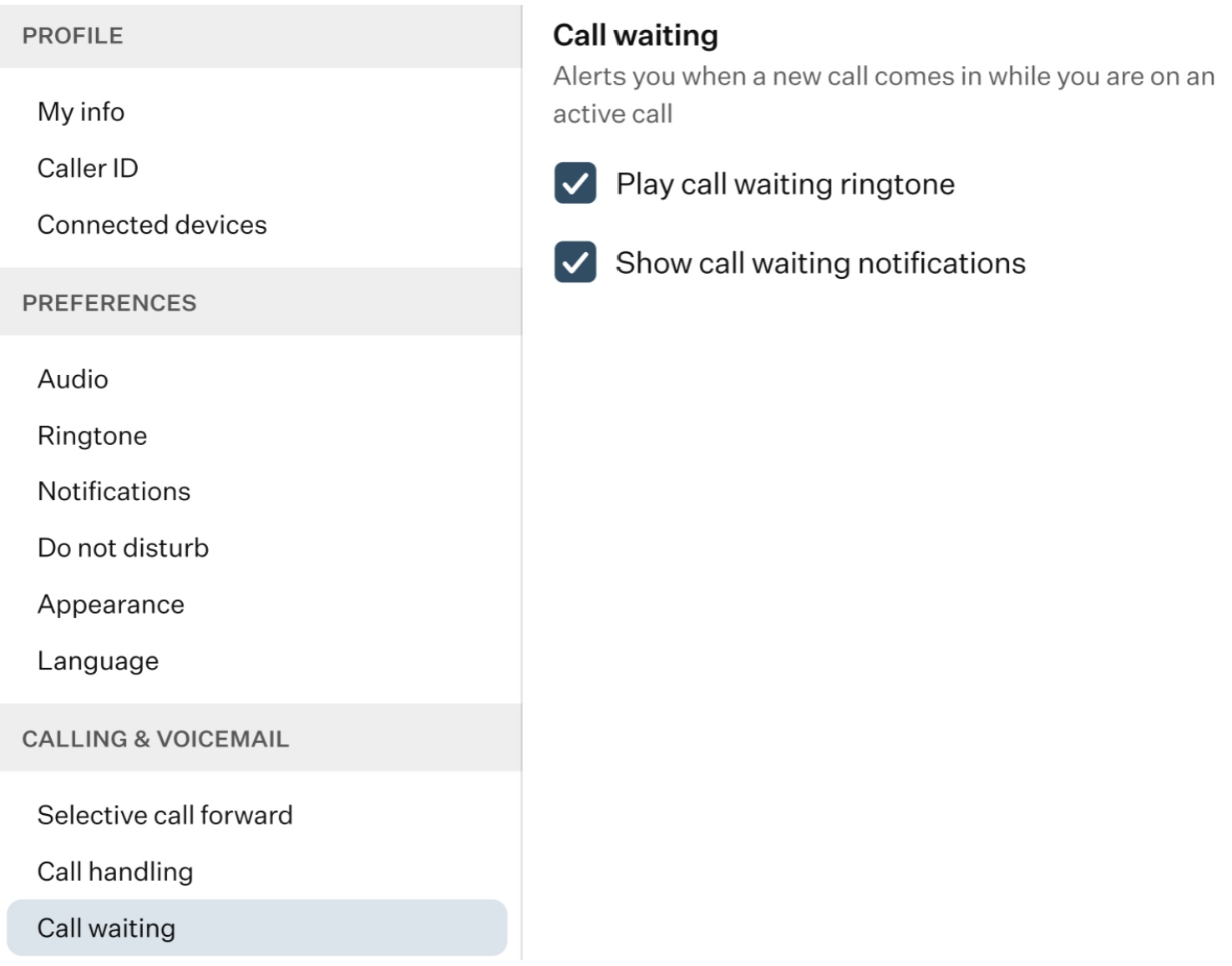
- Play call waiting ringtone: enable this checkbox to hear a ringtone when another call comes in during an active call.
- Show call waiting notifications: enable this checkbox to receive a visual notification when a new call arrives.
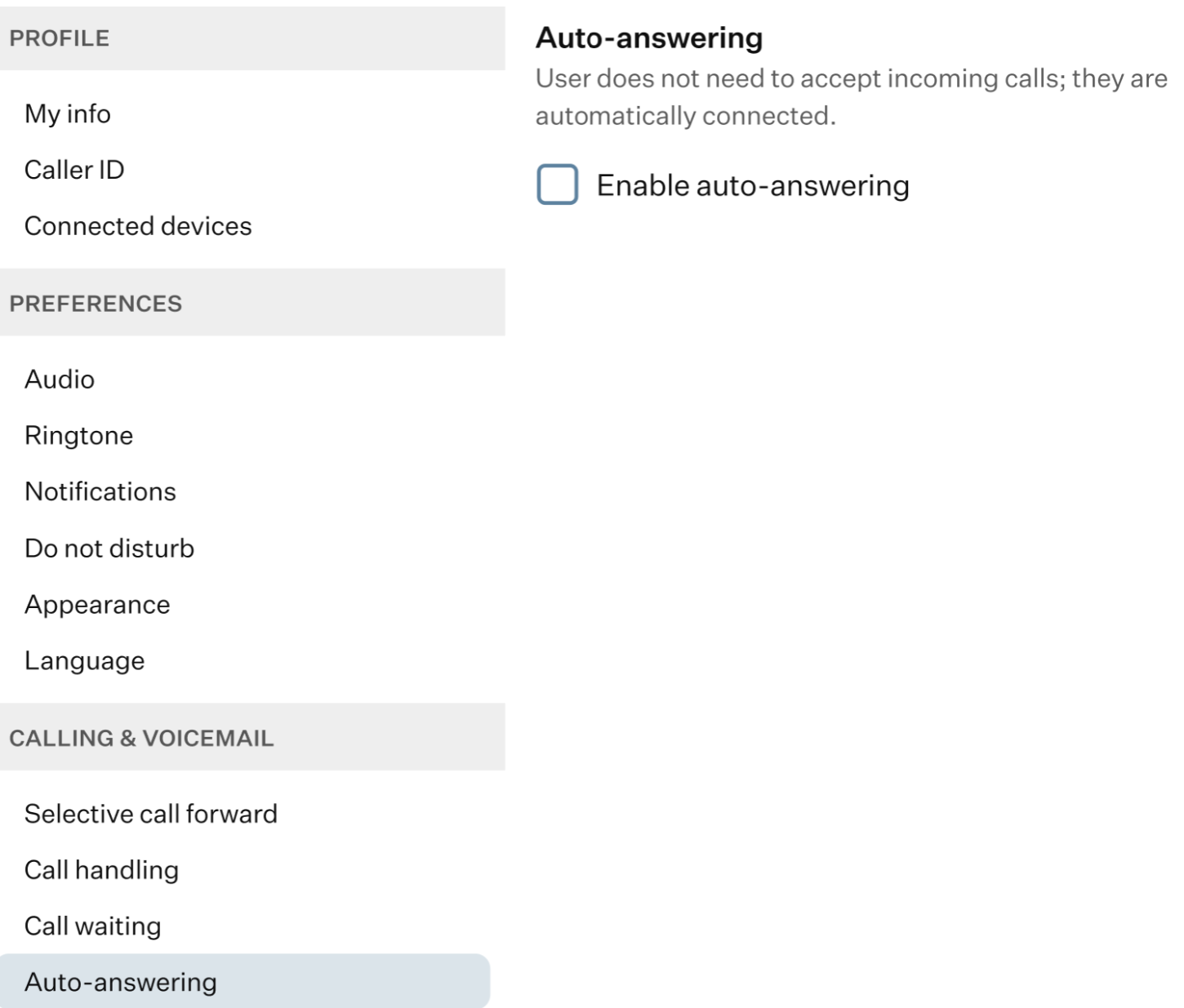
- Auto-answering: in this section, you can enable the auto-answer feature, which allows incoming calls to be answered automatically without pressing any buttons.
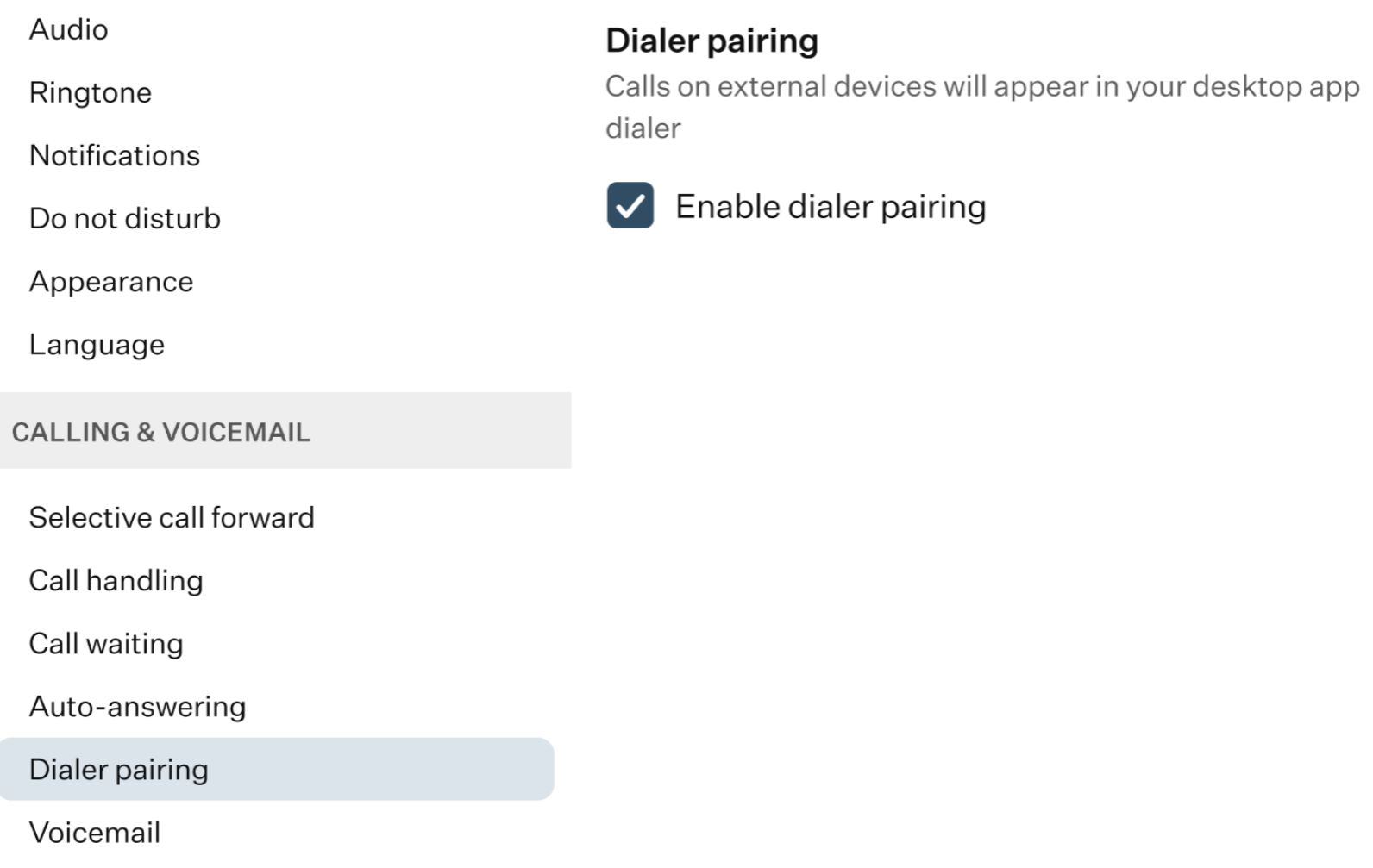
- Dialer pairing: in this section, you can enable the dial pairing feature, which allows calls made on connected devices to appear in your OE Desktop app’s dialer.
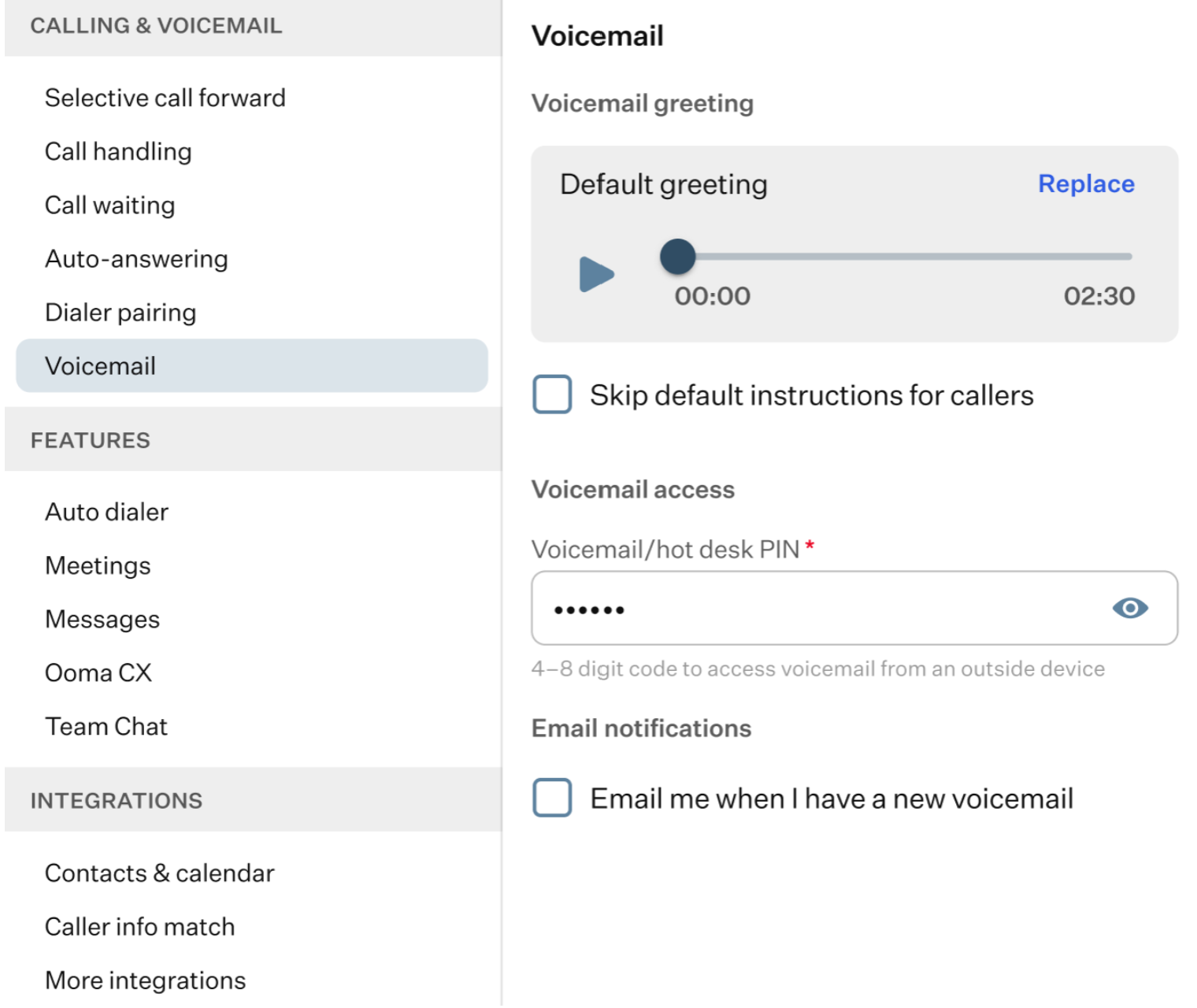
- Voicemail: in this section, you can configure the voicemail box assigned to your account. When you select the “Voicemail” subgroup from the left-hand list, all the available parameters will be displayed in the right-hand side of the page.
If you have multiple voicemail boxes assigned to your account, you will first see a list of all available voicemail boxes, both personal and shared, after selecting this option from the left-hand settings menu.
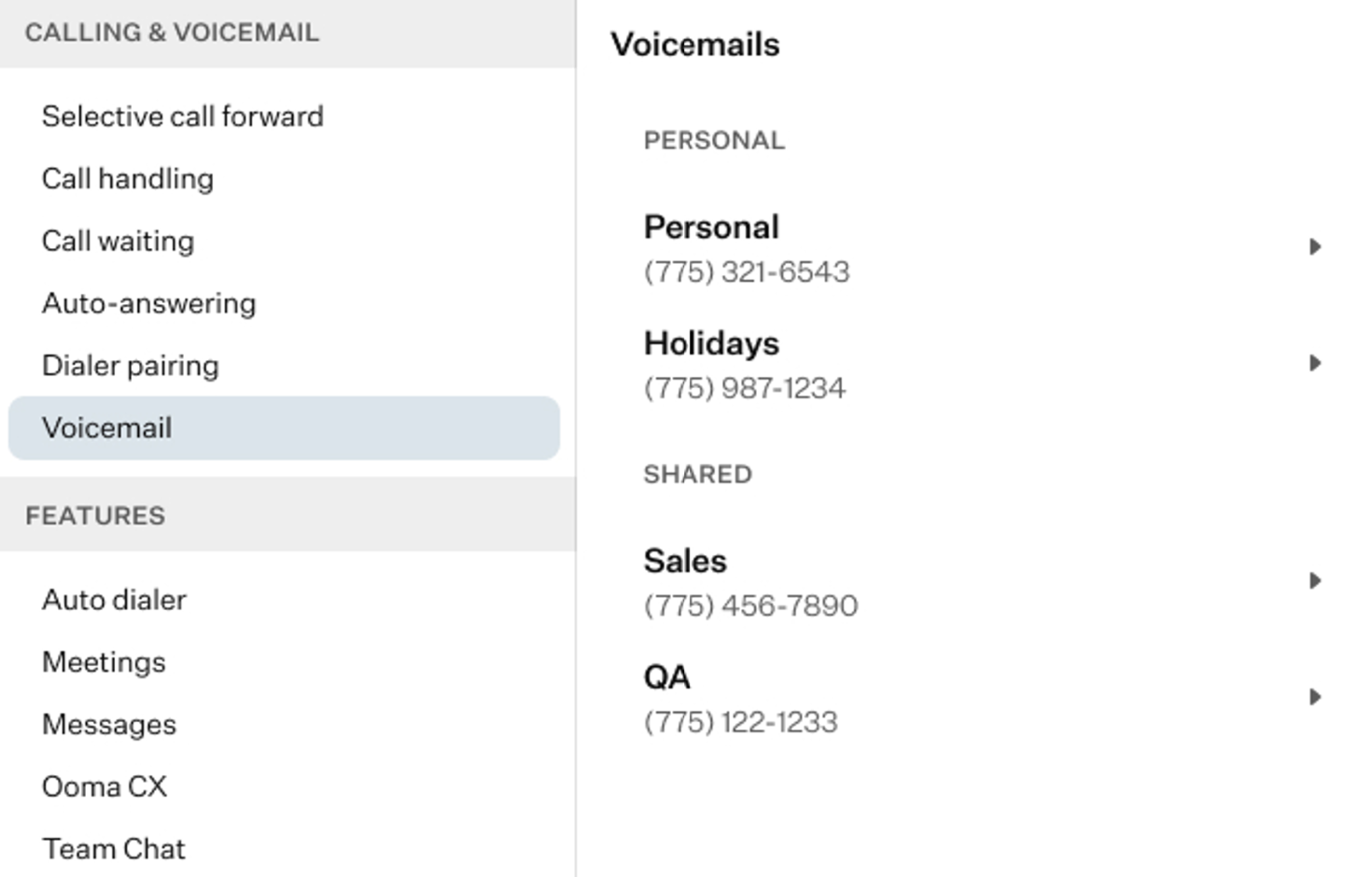
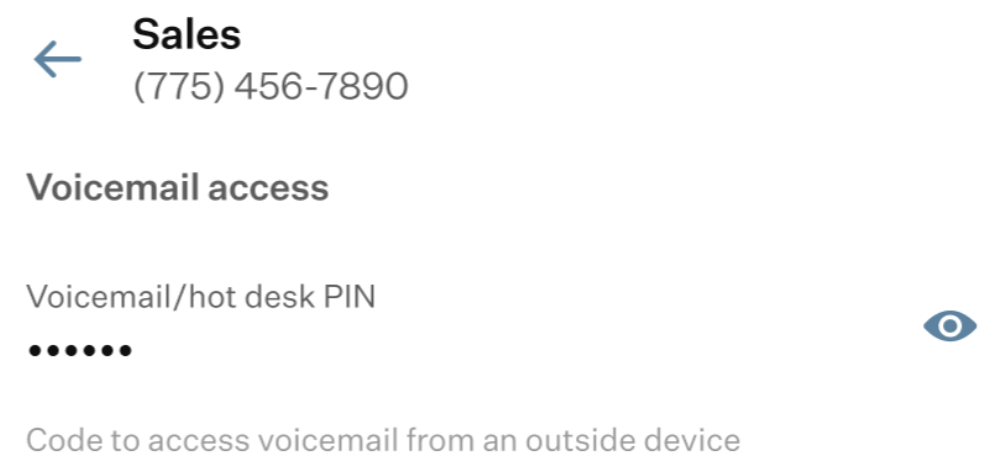
If you select a shared voicemail box, you will see that its parameters cannot be configured.
If it is a personal voicemail box, all available parameters can be configured.
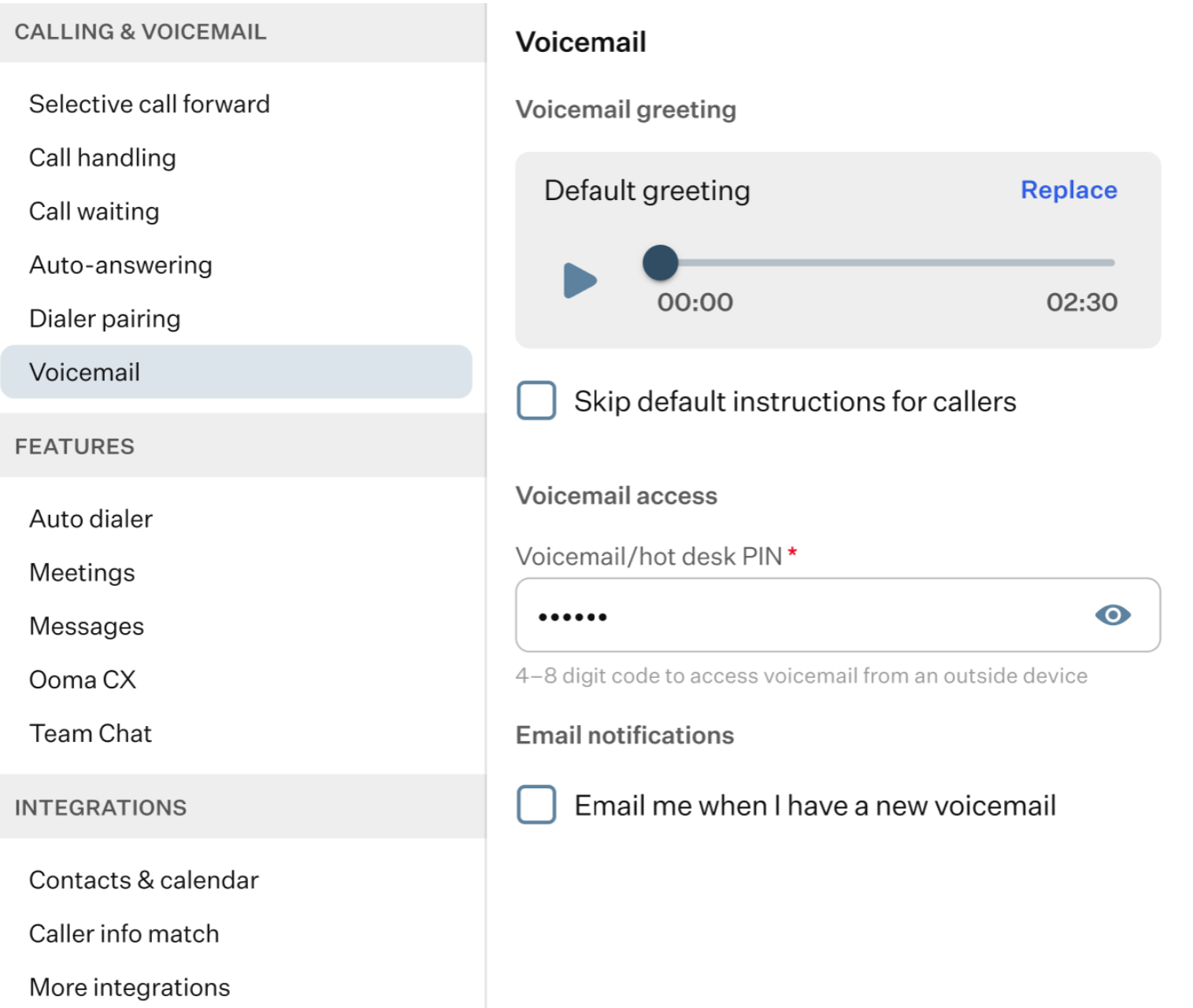
- Voicemail greeting: here, you can configure the voicemail greeting. Click the “Replace” button to do so. When you click this button, a pop-up window will appear with four options for replacing the greeting.
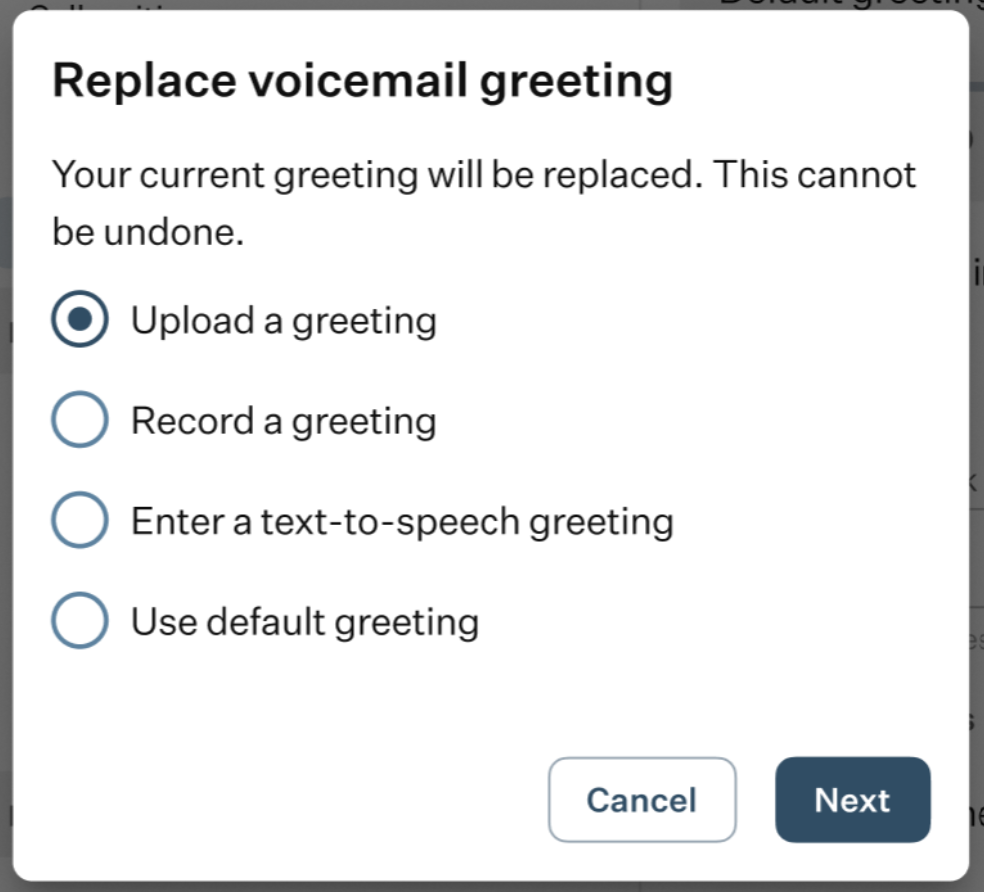
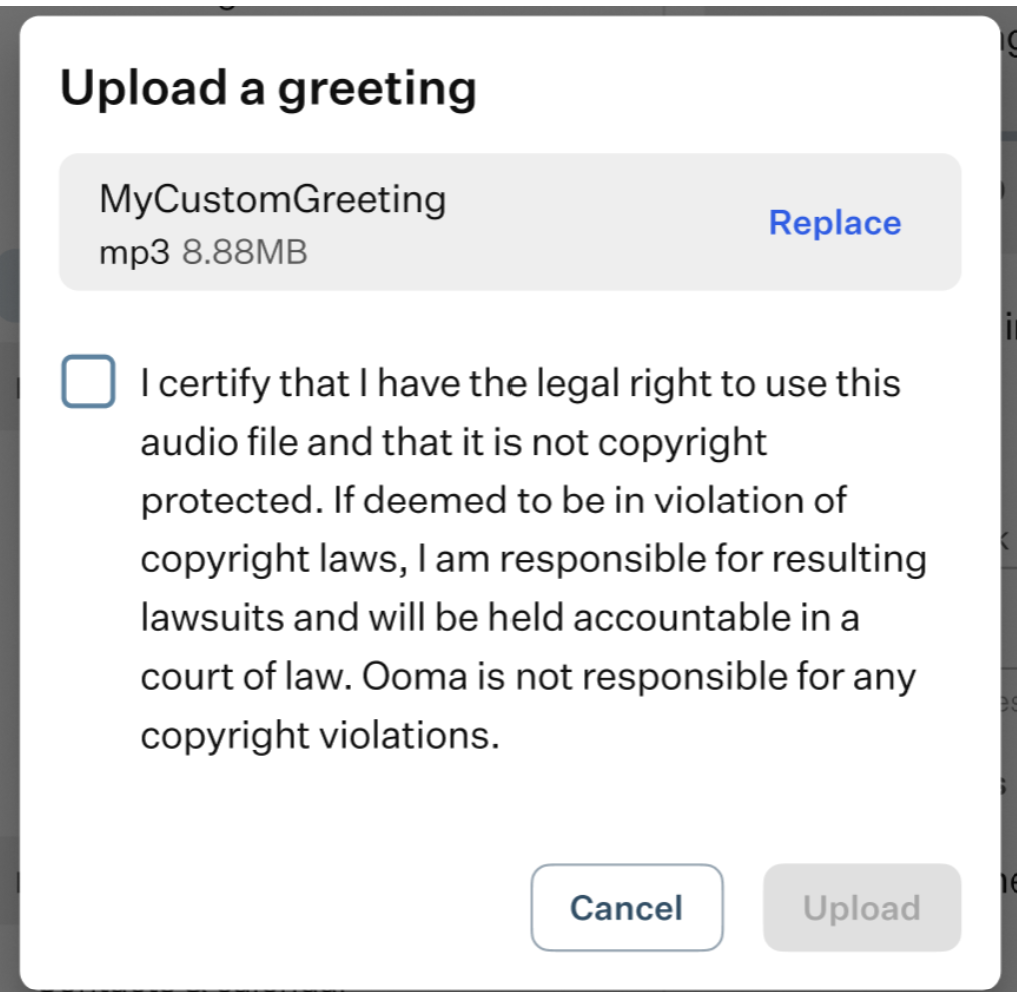
- Upload a greeting: select this option to upload an audio file to use as your new greeting.
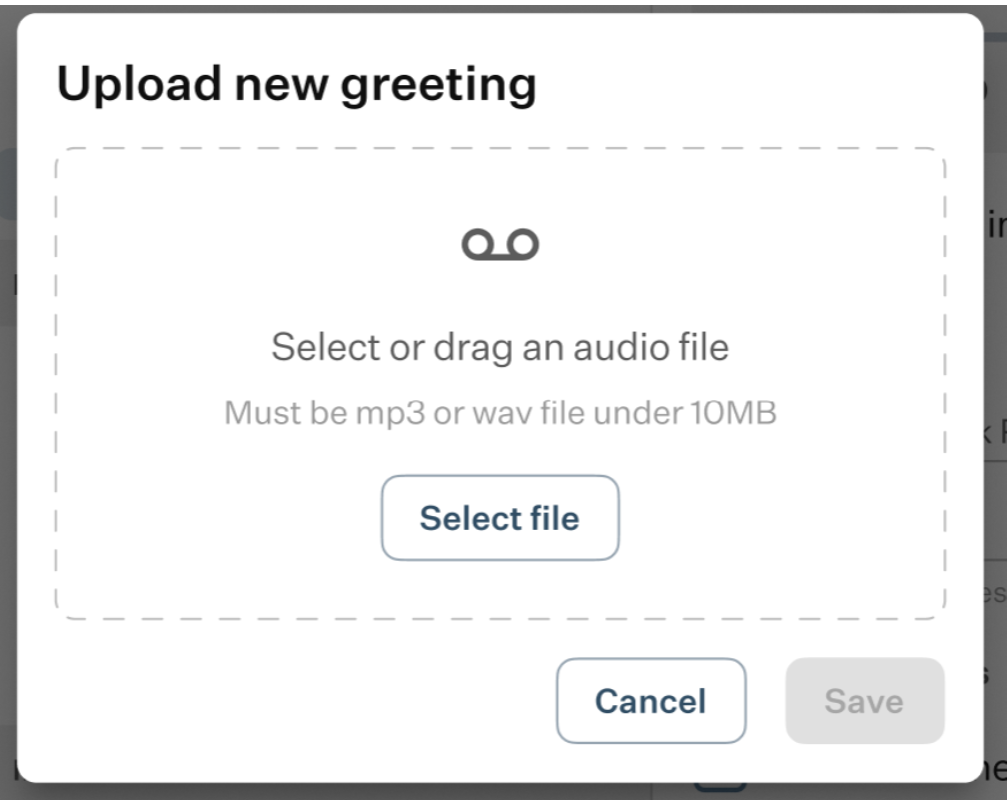
Once uploaded, you must confirm by checking the box that you have the legal rights to use the file.
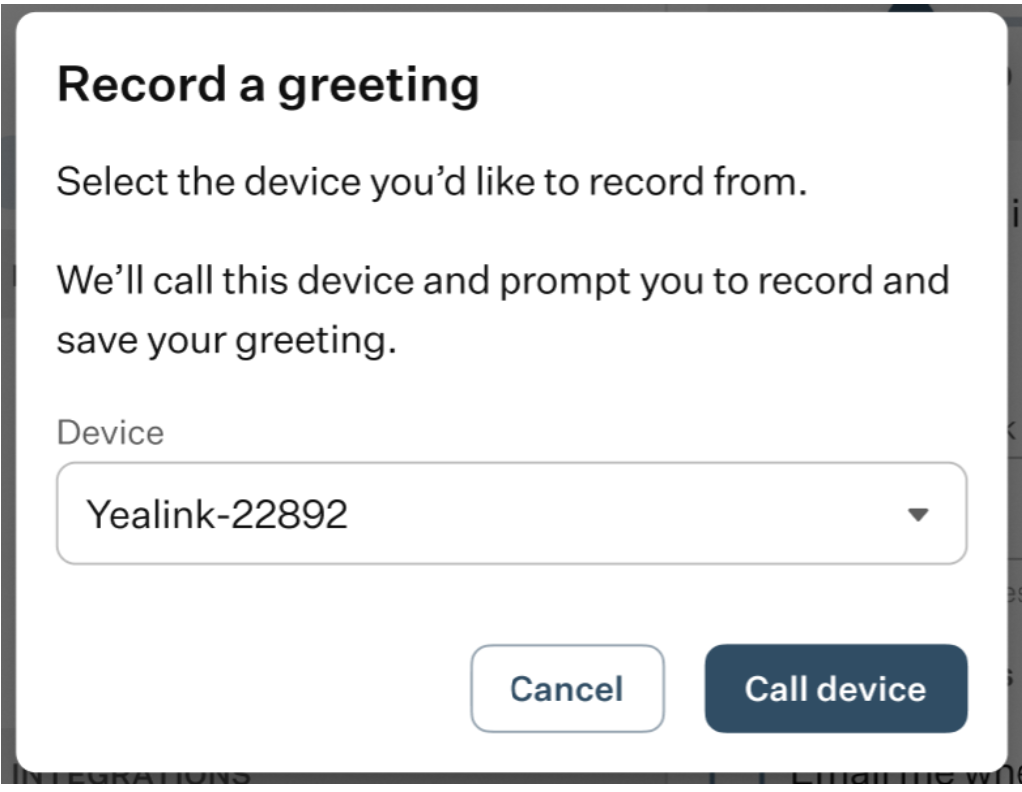
- Record a greeting: select this option if you want to record your own greeting. A pop-up window will appear where you can choose the device that will receive the call.
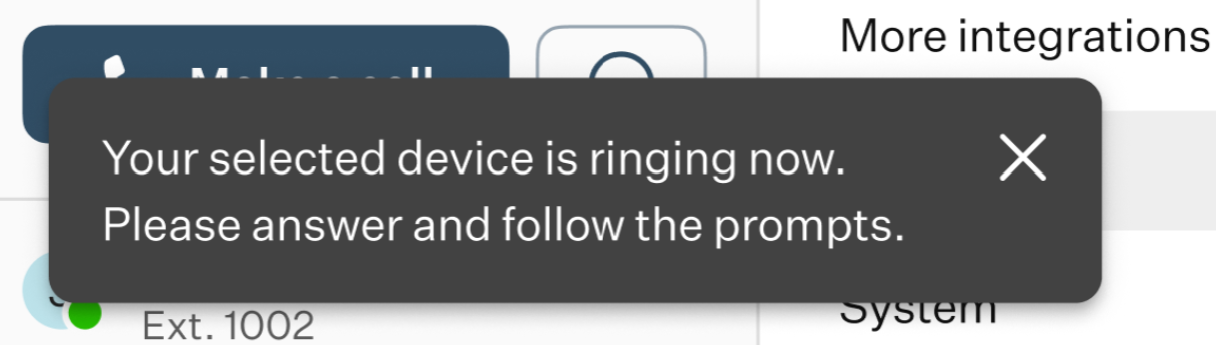
Answer the call and follow the prompts to record your greeting, which will then be used as your voicemail greeting.
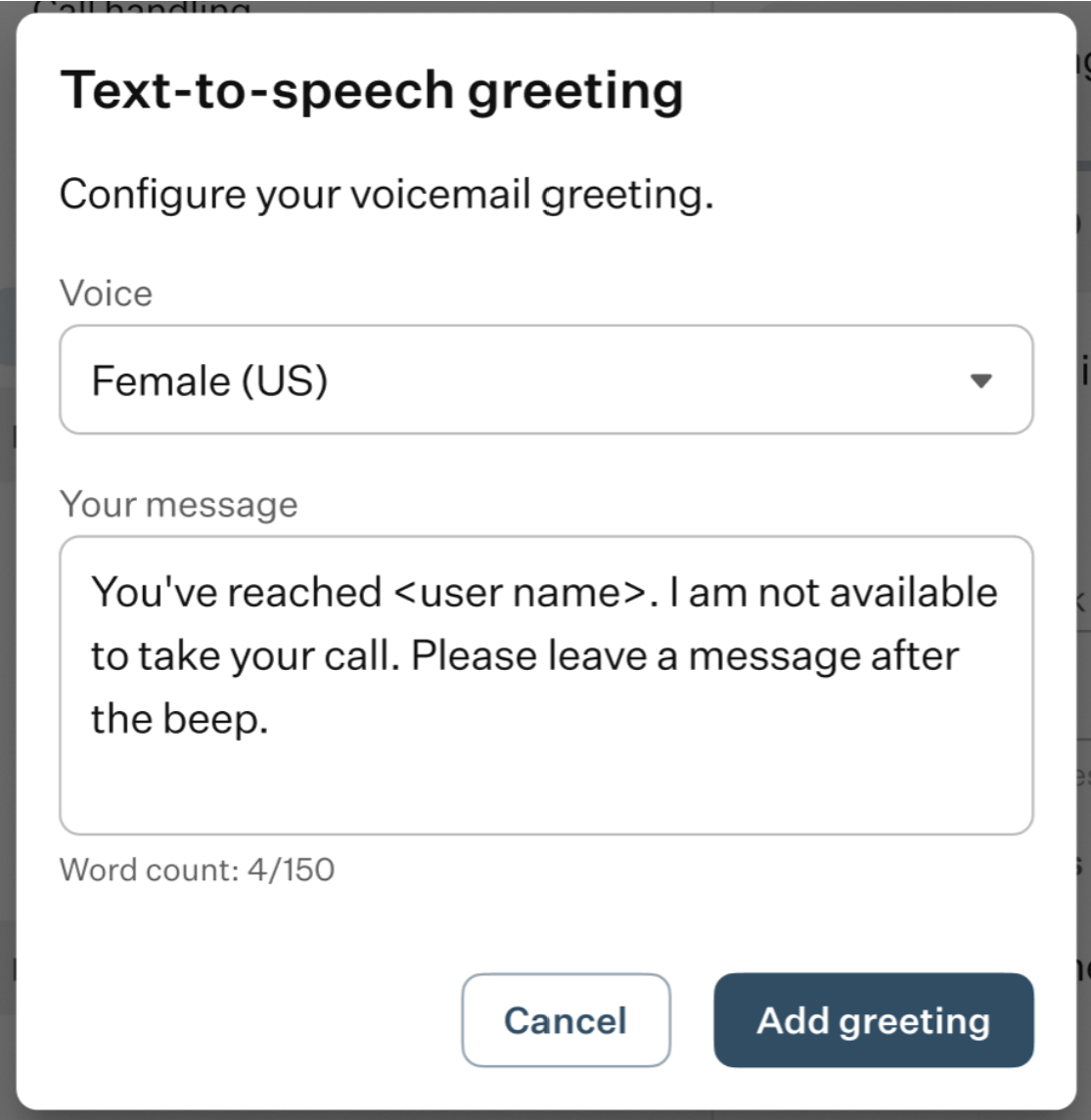
- Enter a text-to-speech greeting: choose this option to generate a greeting from text using the automated voice. A pop-up window will appear where you can select the voice and enter the greeting text.
- Use default greeting: select this option to use the default greeting.
- Skip default instructions for callers: enabling this feature allows the caller to bypass or skip the recorded instructions or prompts that typically play before the voicemail message recording begins.
- Voicemail / hot desk PIN: here, you can view or edit your voicemail PIN.
- Email me when I have a new voicemail: when enabled, this feature sends email notifications to your email address whenever a new voicemail message is received.
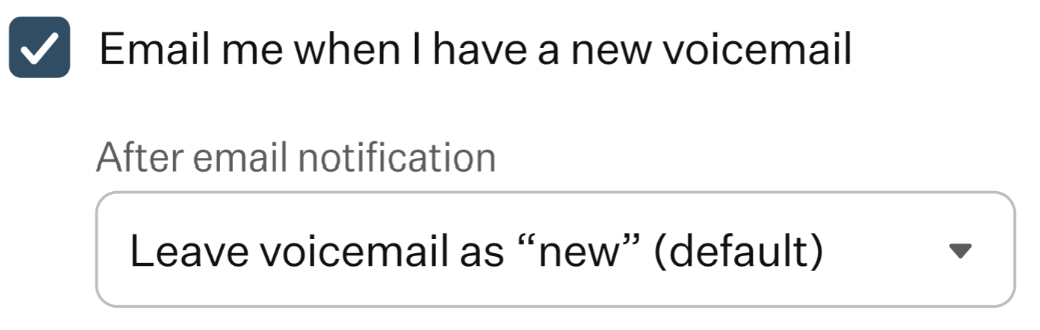
- After email notification: this field will appear once you’ve enabled the “Email me when I have a new voicemail” checkbox. When you click on this field, a dropdown list of options will appear, allowing you to specify the actions for all newly received voicemails after their notifications have been sent.
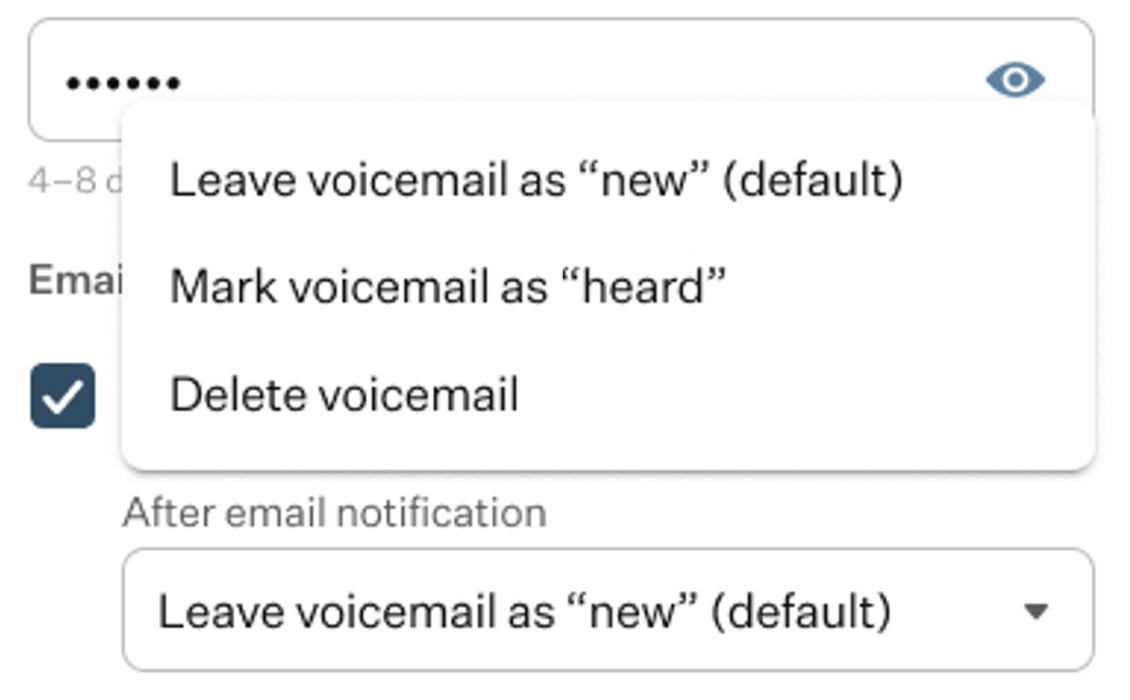
There are three options to choose from:
- Leave voicemail as “new” (default): by choosing this option, the status of a received voicemail will not change; it will remain as “new.”
- Mark voicemail as “heard”: by choosing this option, the status of a received voicemail will change; it will be set as “heard.”
- Delete voicemail: by choosing this option, a received voicemail will be deleted after its notification is sent.
Was this article helpful?
That’s Great!
Thank you for your feedback
Sorry! We couldn't be helpful
Thank you for your feedback
Feedback sent
We appreciate your effort and will try to fix the article