Description: This article provides an overview of the Preferences parameter group located in the OE Desktop app’s Settings section.
Upon accessing the OE Desktop app’s Settings section, you will find six groups of parameters. In this article, we explore the Preferences group.
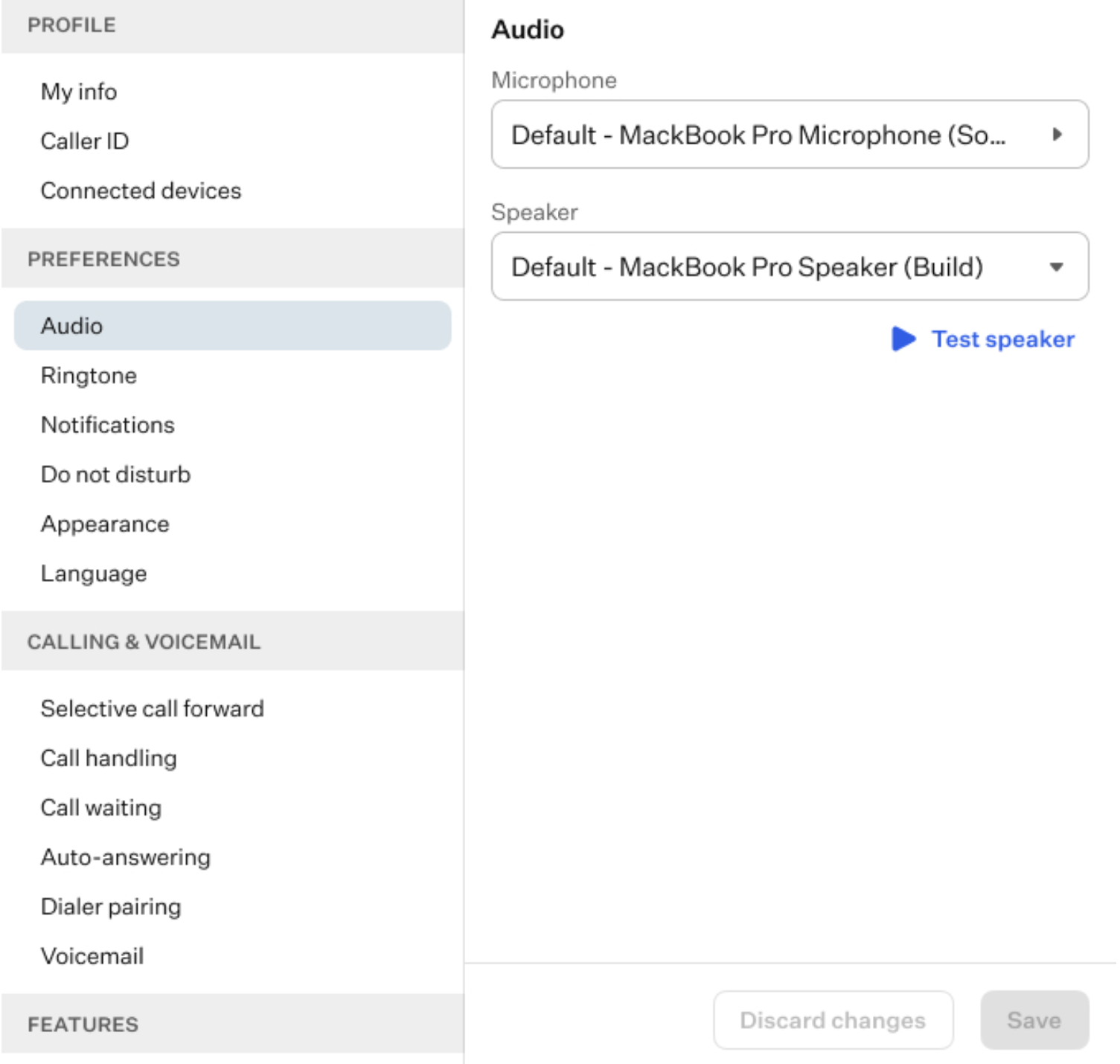
This group of settings enables you to adjust audio and ringtone parameters and rearrange the order of modules in the left-hand side of the OE Desktop app.
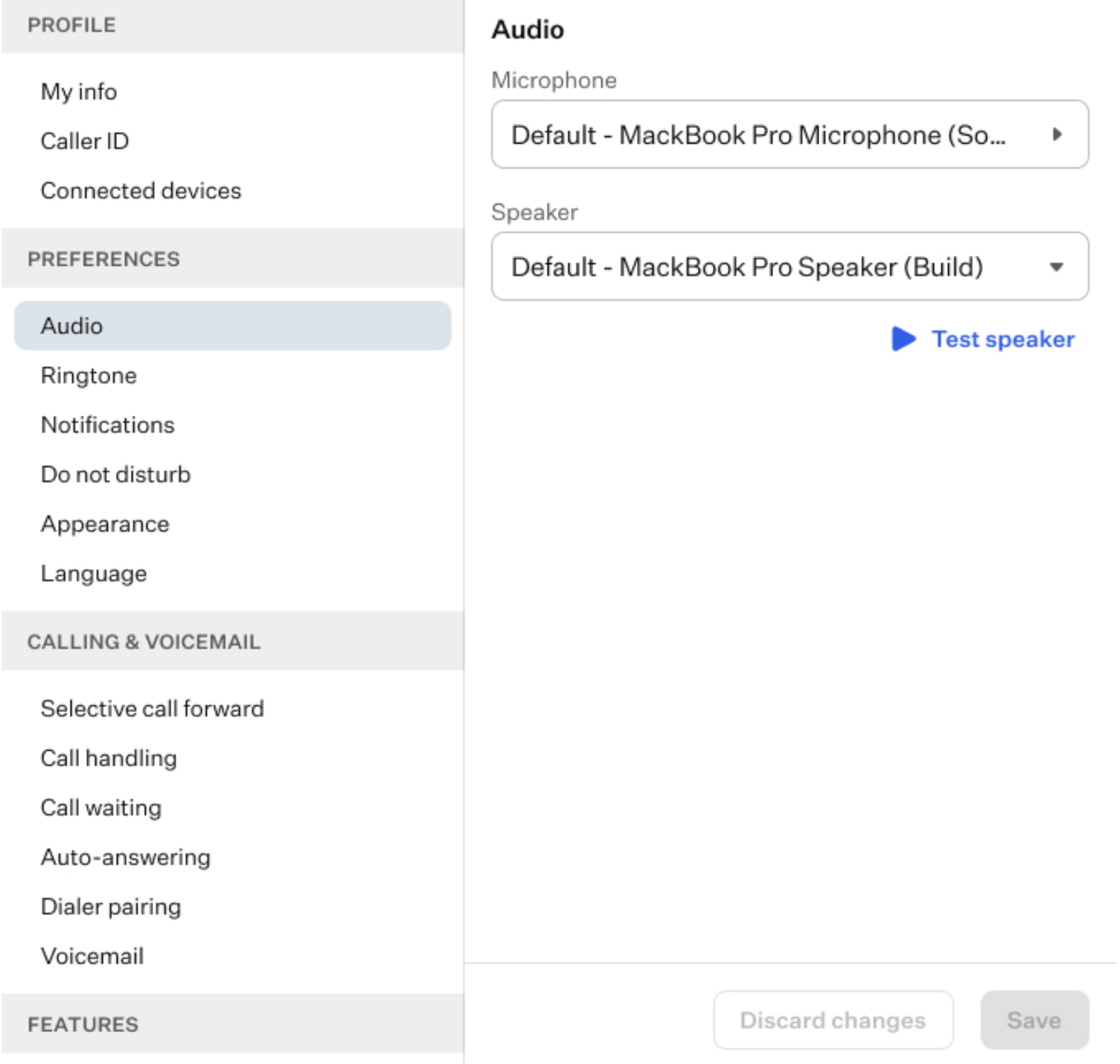
- Audio: here, you can select both the microphone and speaker from the corresponding drop-down lists of options.
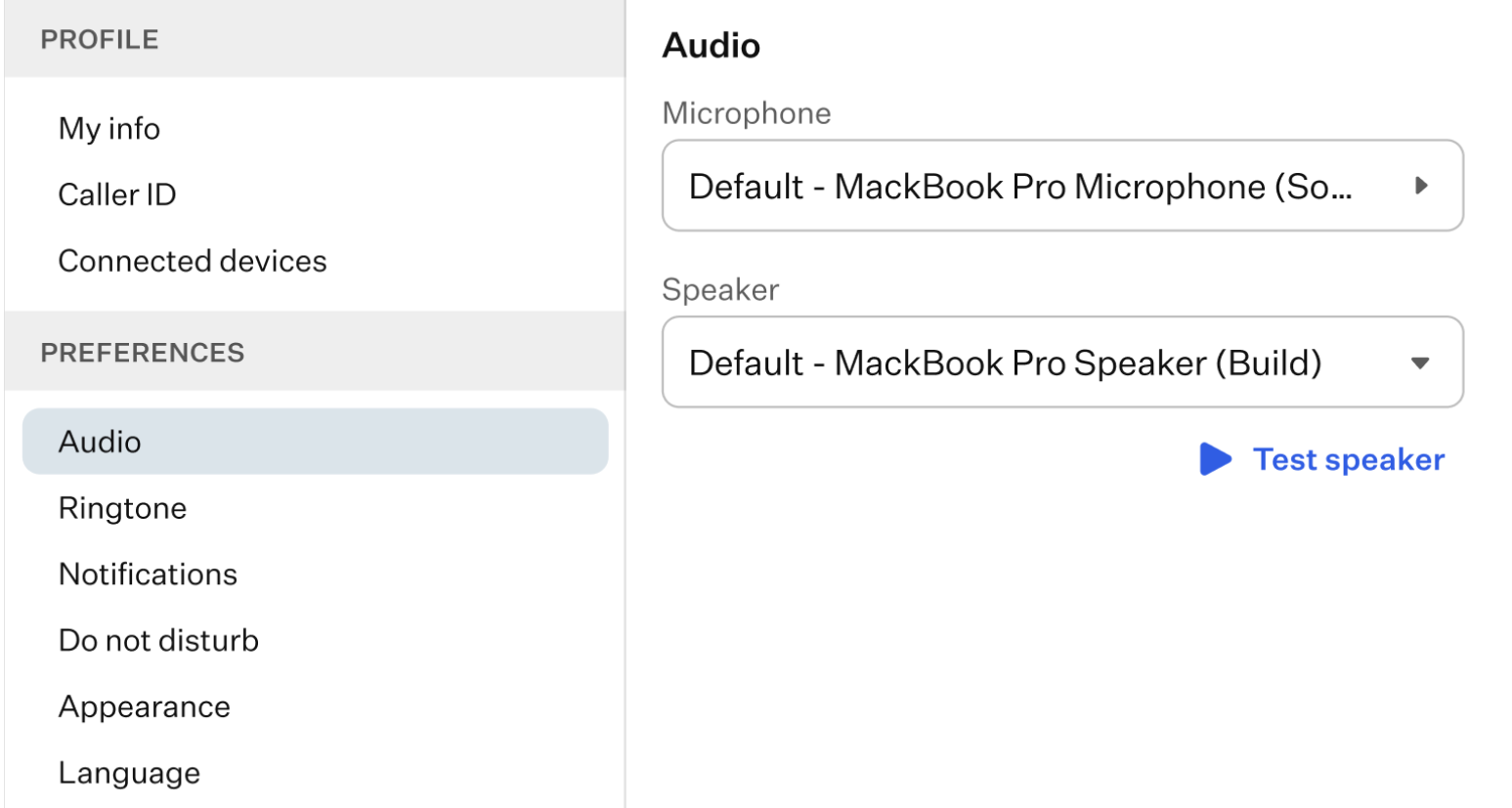
- Ringtone: on this page, you can choose a ringtone for incoming calls from a drop-down list of options, select a speaker for playing the ringtone, adjust the ringtone volume, and enable or disable the option to bring the app forward when ringing.
- Notifications: on this page, you can enable push notifications and configure related options, such as playing notification sounds and receiving email alerts for calls, voicemail messages, faxes, or chats.
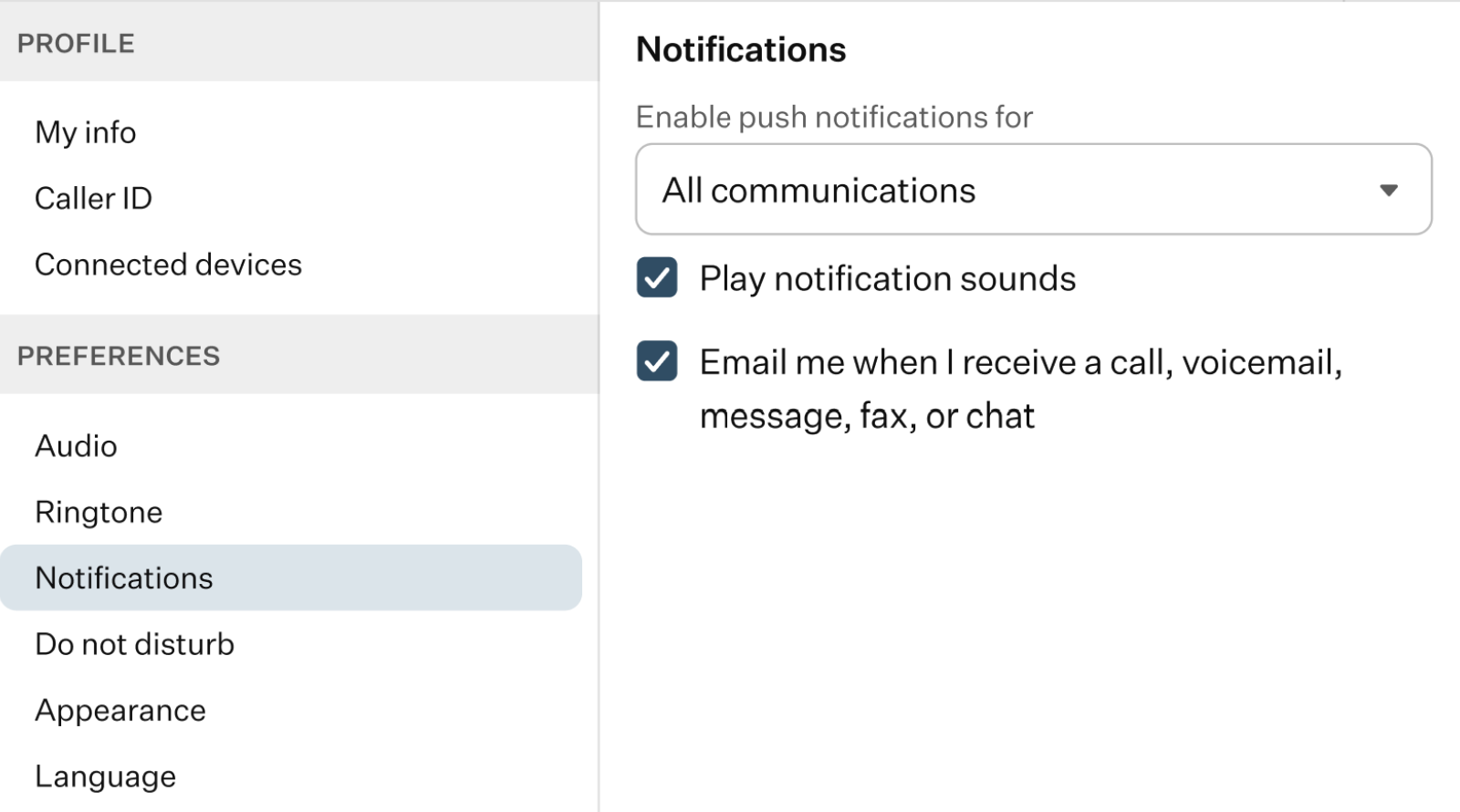
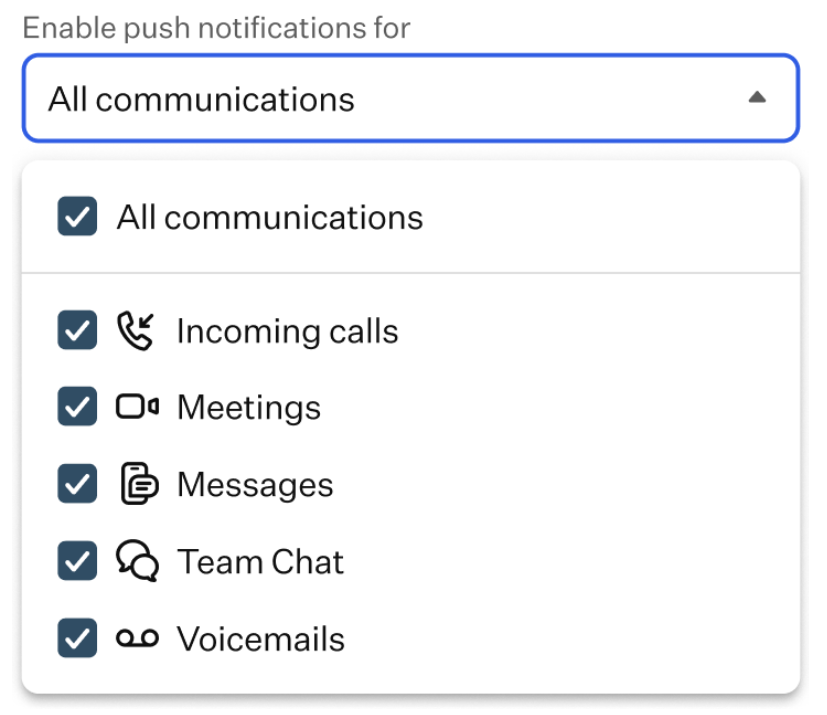
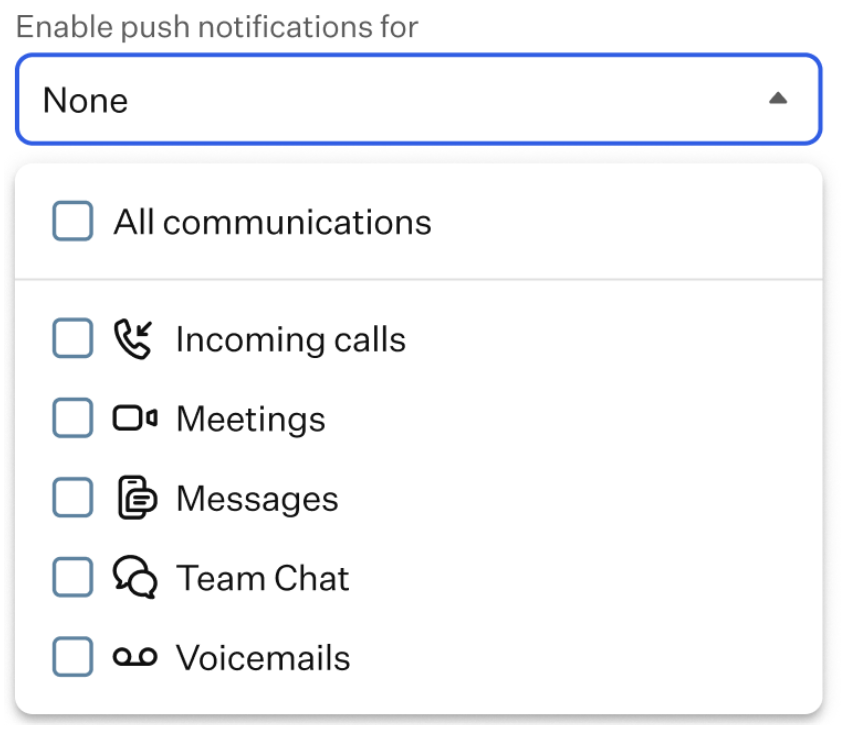
In the “Enable push notifications for” field, you can specify which types of communication should trigger a push notification. Clicking this field opens a drop-down list of available options.
- Do not disturb: on this page, you can configure the DND mode.
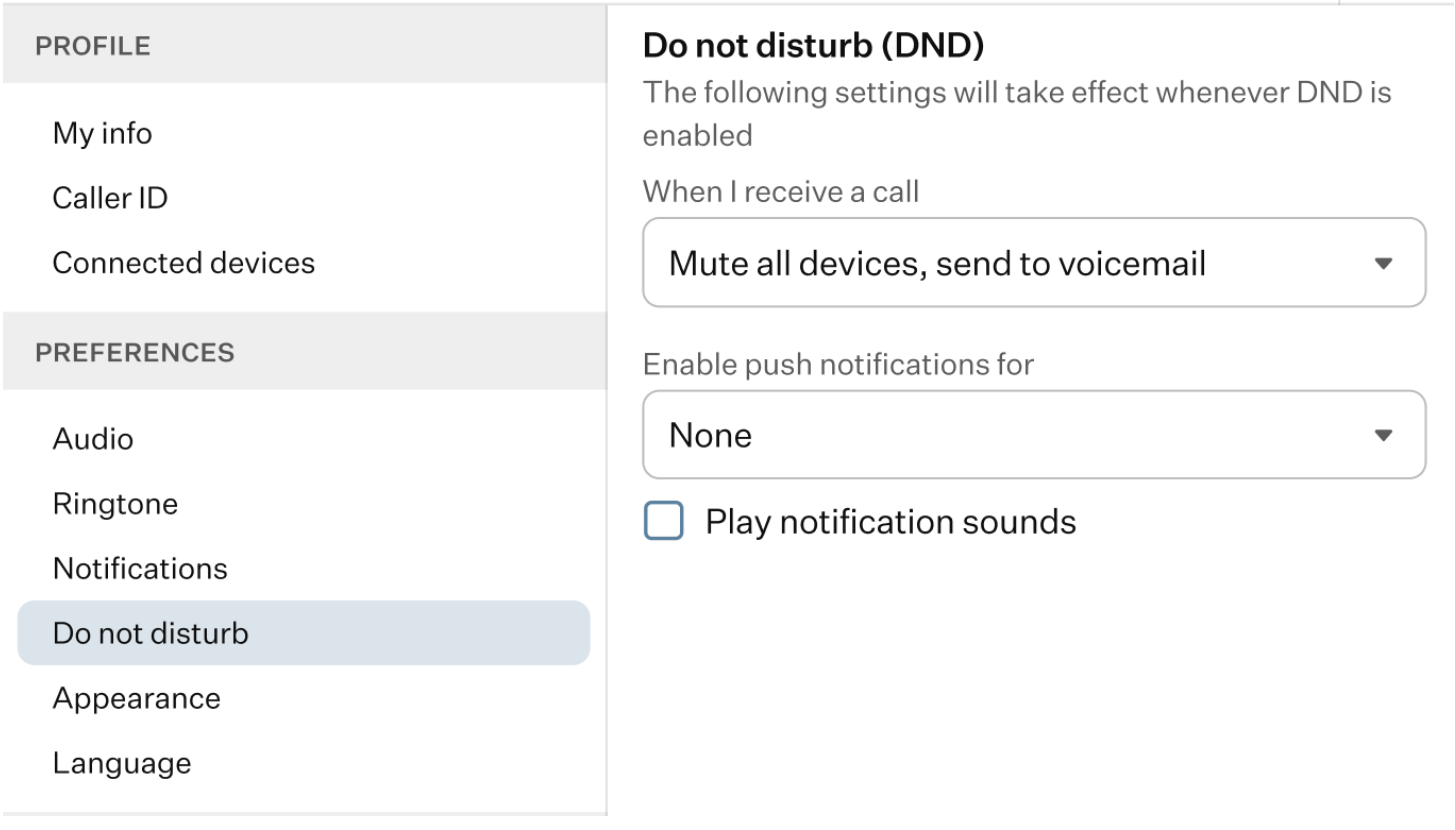
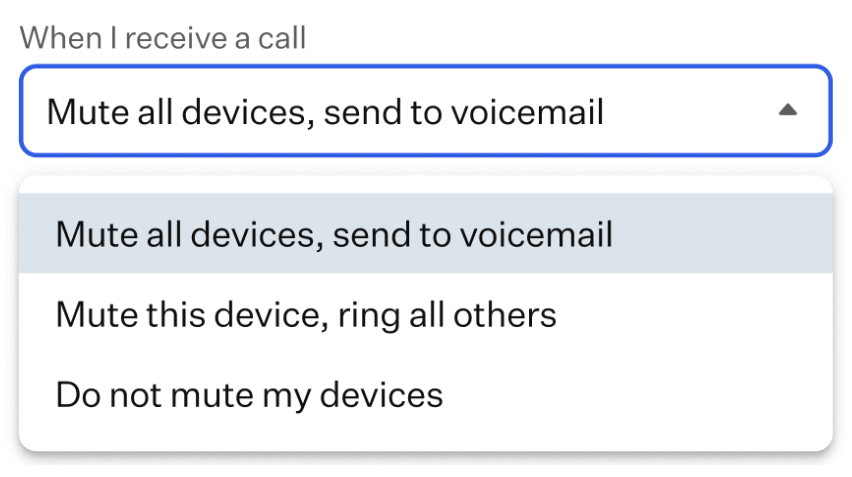
- When I receive a call: use this field to select how your devices should be muted when a call is received.
- Enable push notifications for: use this field to specify which types of communication should trigger push notifications.
- Play notification sounds: here, you can enable or disable the notification sounds.
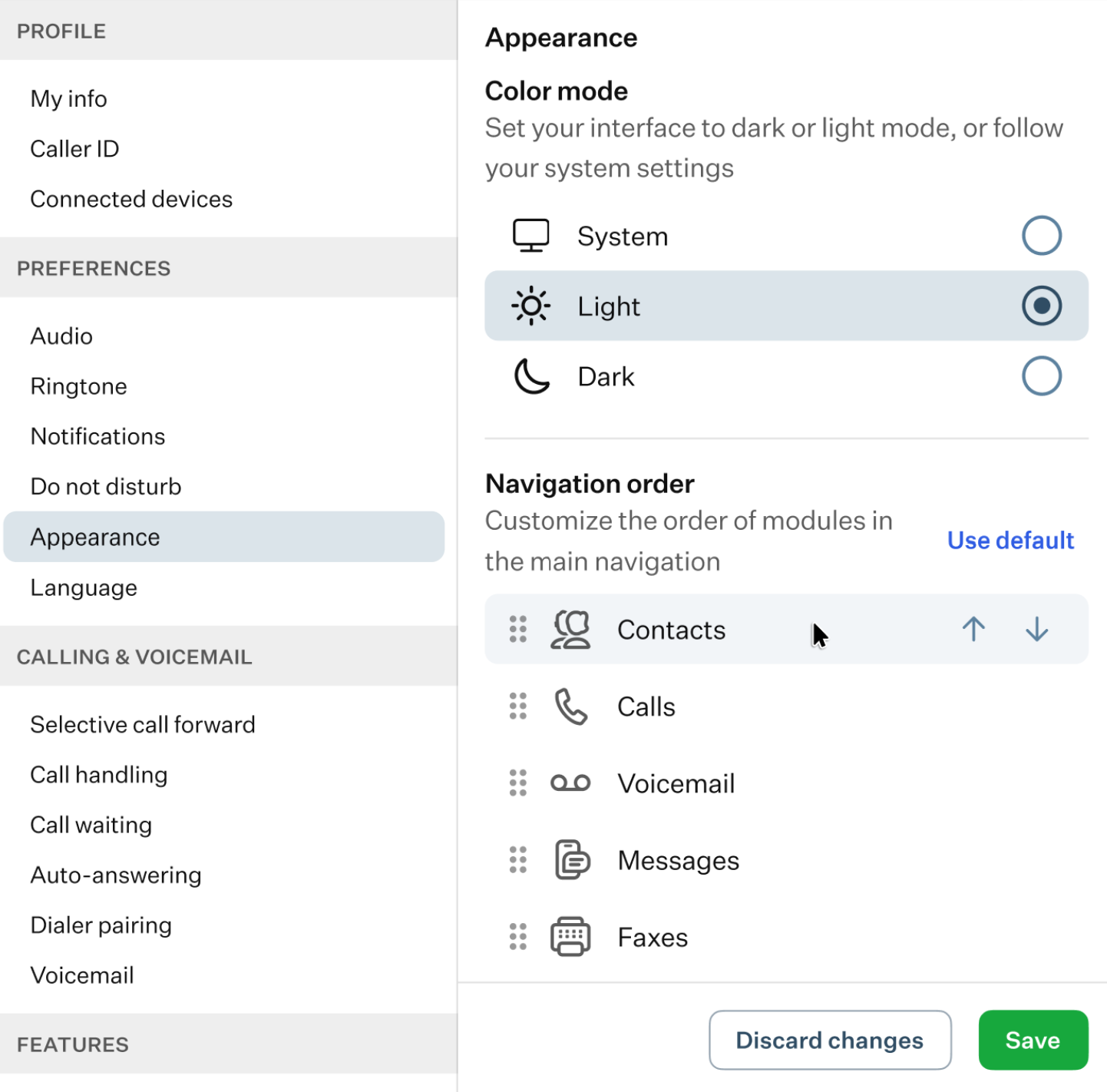
- Appearance: on this page, you can select the application’s color mode and customize the order of modules in the of the OE Desktop app. To change the module order, use the arrow buttons.
- Language: on this page, you can set the OE Desktop app’s language.
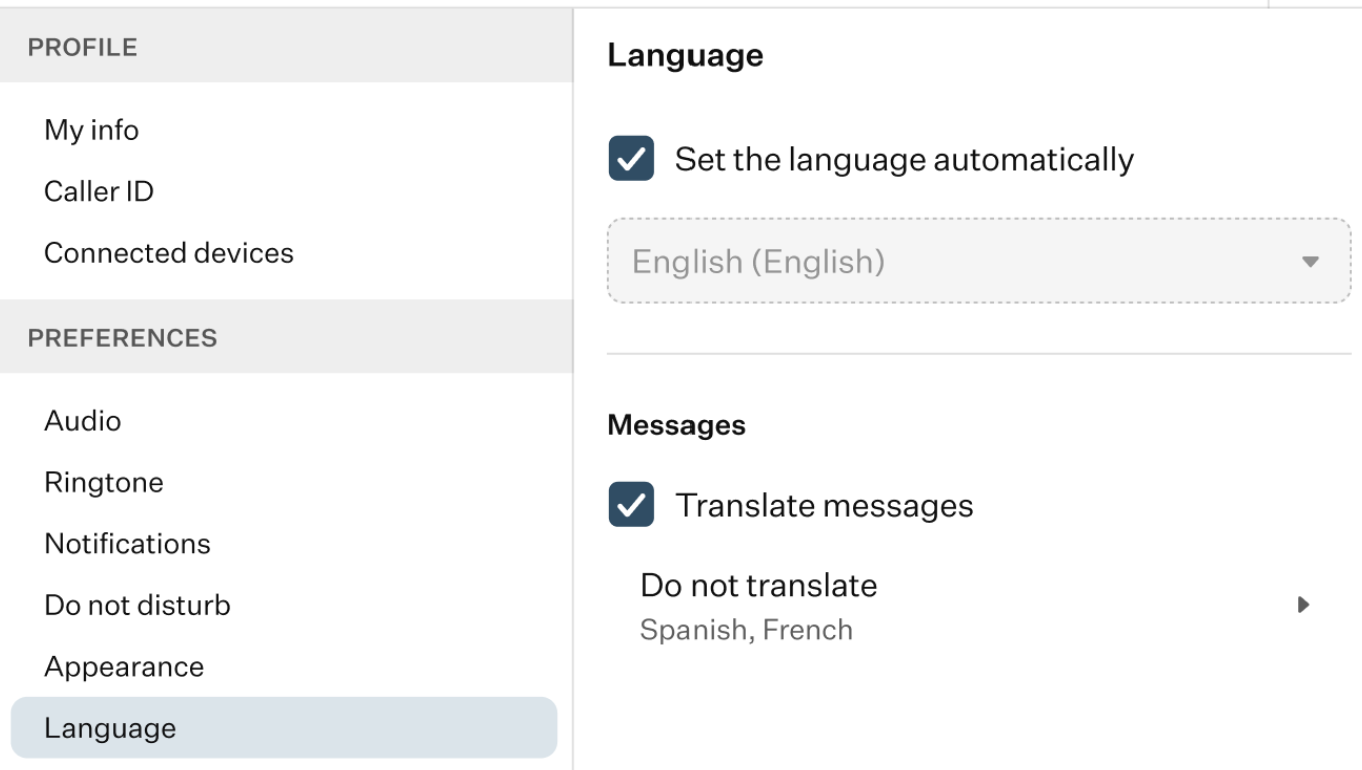
- Set the language automatically: disable this toggle switch to select a language manually.
- Translate messages: turn on this toggle switch to enable automatic translation. To exclude certain languages from translation, use the “Do Not Translate” option to specify them.
Was this article helpful?
That’s Great!
Thank you for your feedback
Sorry! We couldn't be helpful
Thank you for your feedback
Feedback sent
We appreciate your effort and will try to fix the article