Description: The Queue Manager feature lets you manage the call center using dashboards and reports. The Queue Dashboard section, in particular, shows all queues and agents you have access to, along with key statistics.
When you access the Call Manager feature of the OE Desktop App, the Queue Dashboard tab will be open by default.
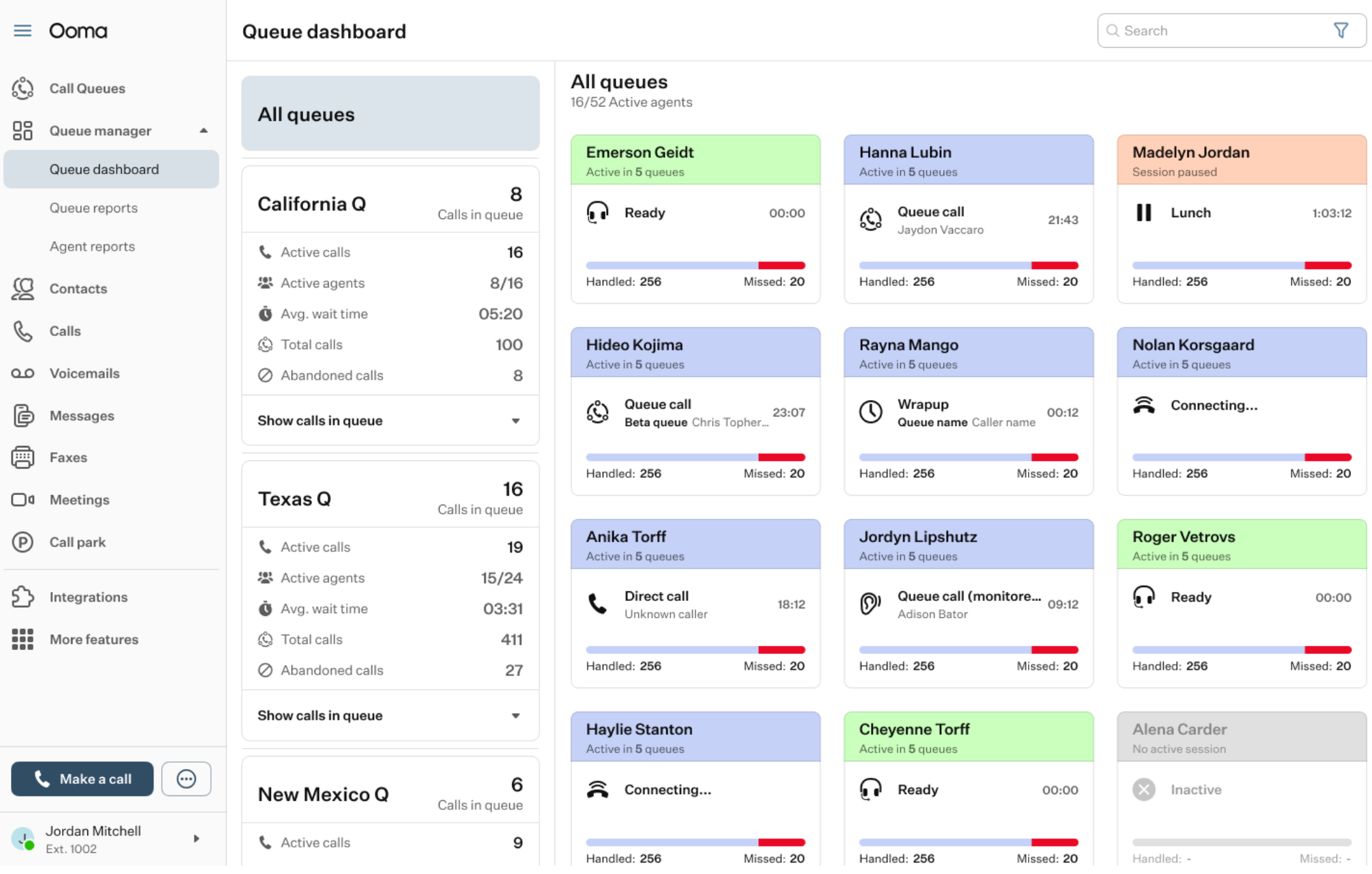
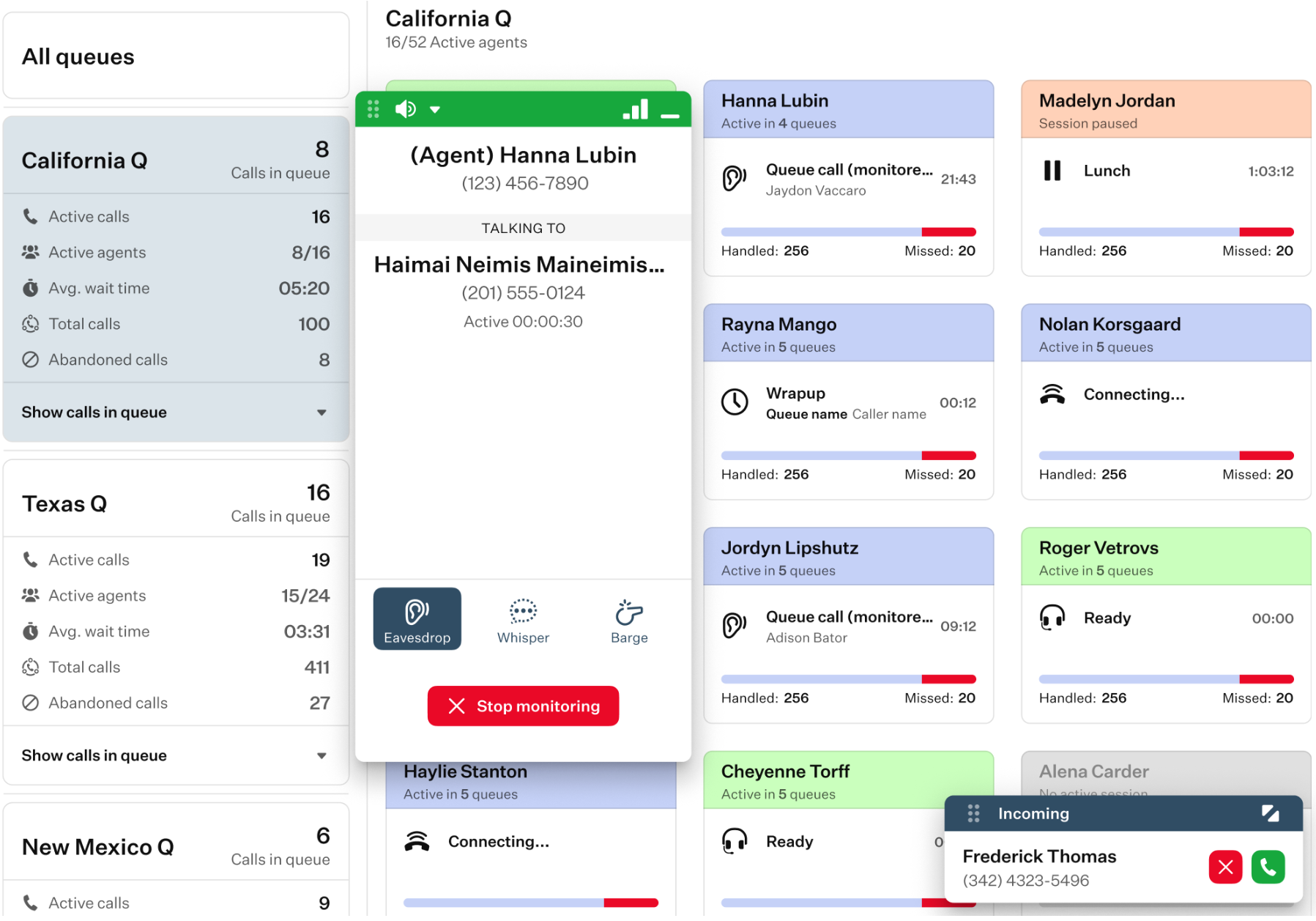
The Queue Dashboard interface can be divided into three main sections:
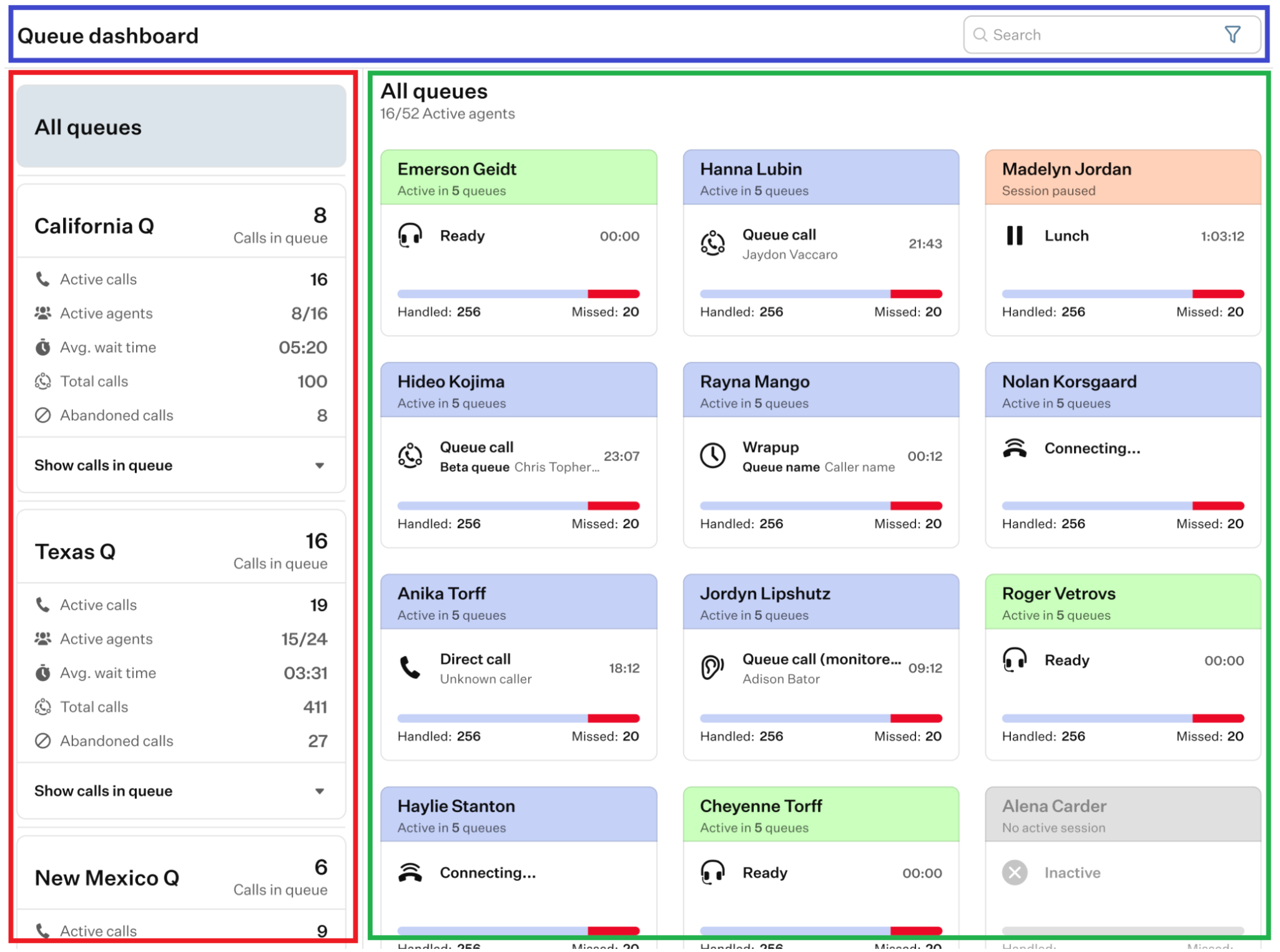
- Top panel: the only action available here is the search bar, which you can use to find a specific queue or agent. The search bar also includes a filtering feature that allows you to find a specific agent or queue by keyword or by status. To filter by status, click the search field and select from the drop-down list of available statuses.
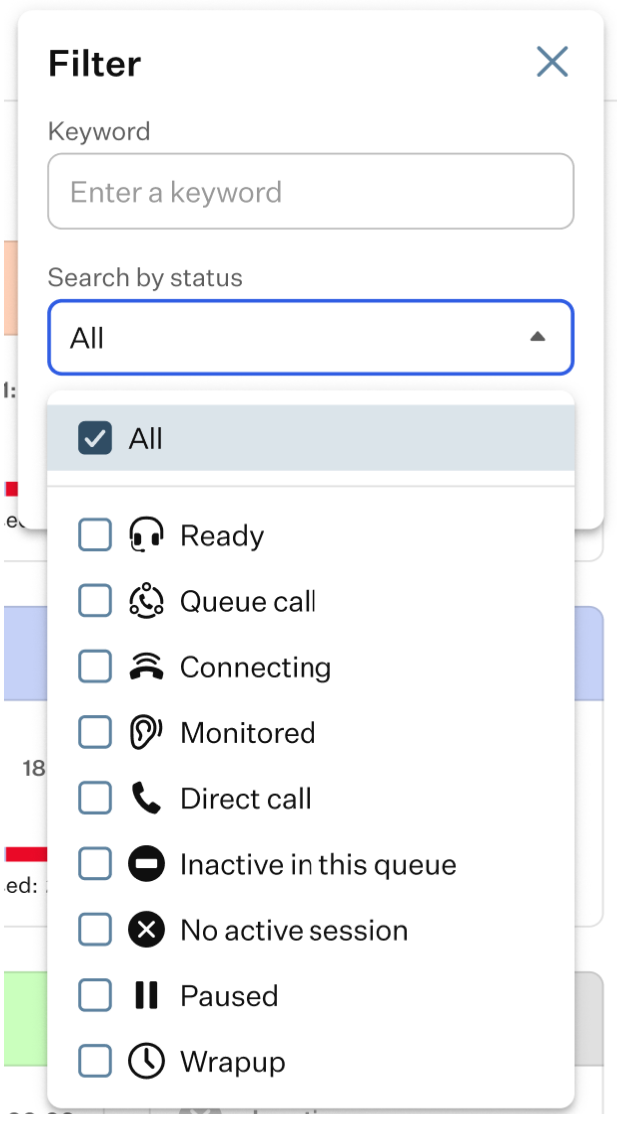
This is useful when you need to find agents in a specific state, such as Paused, Ready, Wrap-up, or Monitored.
- Queue list: this section displays all queues along with key statistics, such as the number of active calls, active agents, average wait time, total calls, and abandoned calls.
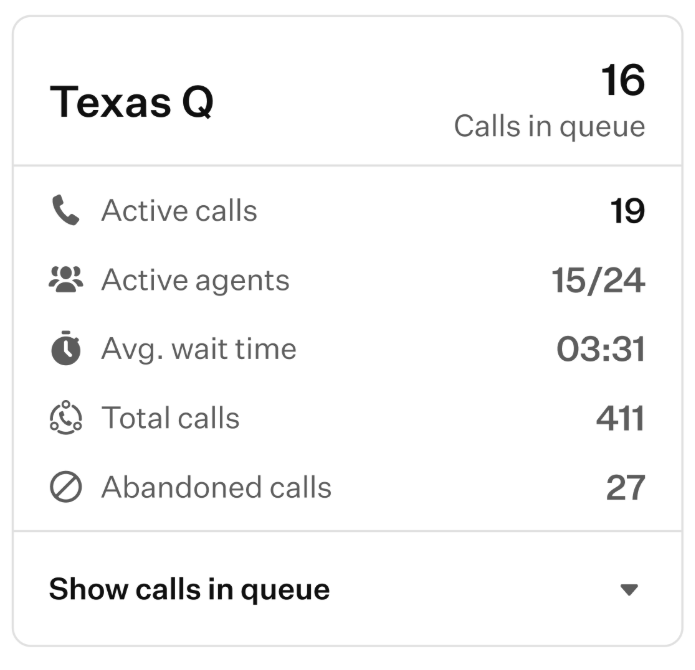
Here, you can click the “Show calls in queue” option to expand and view the calls currently waiting in that queue.
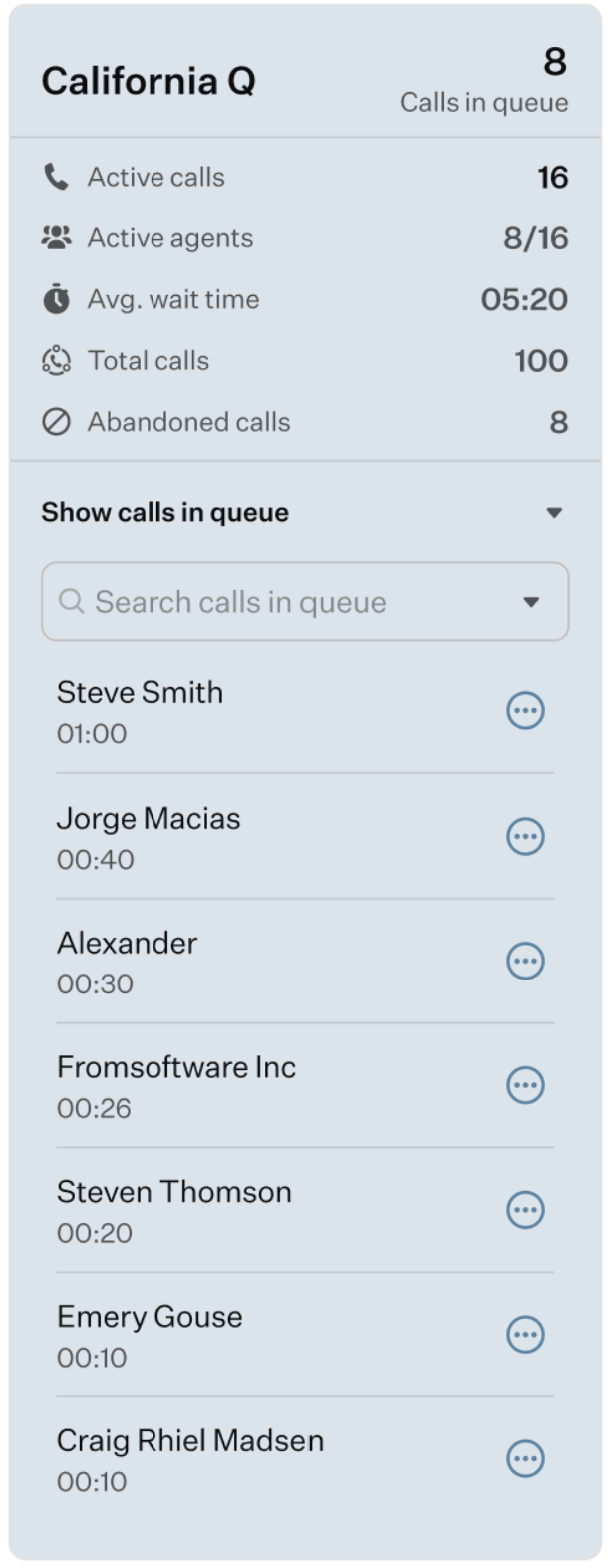
The queue here is highlighted in gray when selected, while non-selected queues remain white.
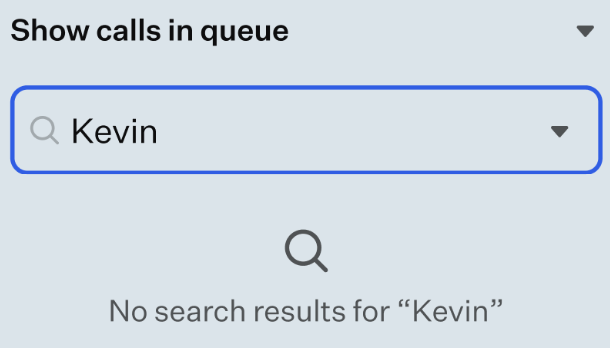
You can use the search bar to find a specific call in the queue by the name of an agent.
In the list of active calls, each call has a three-dot button. Click it to open a drop-down list with the following options:
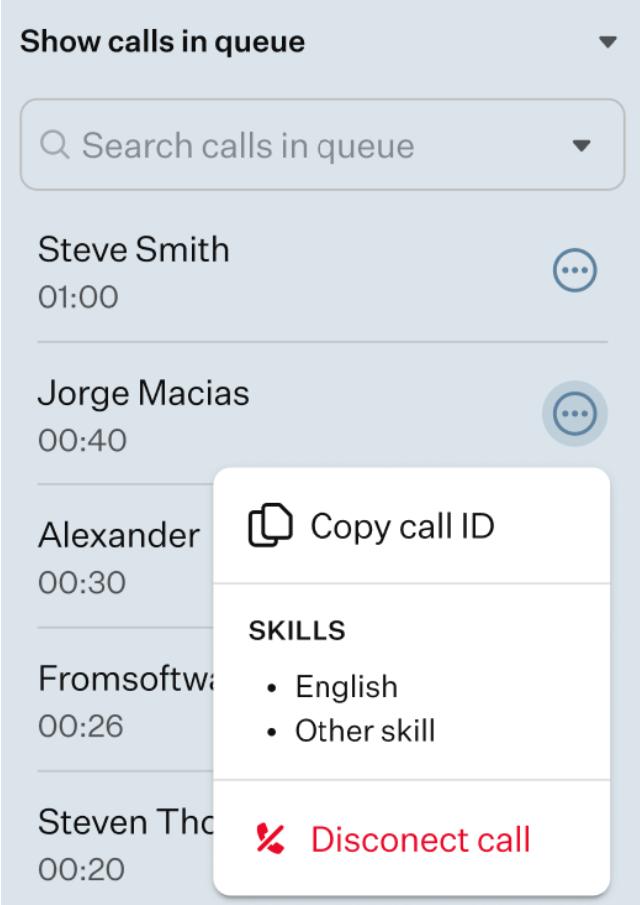
- Copy Call ID: click it to copy the call ID.
- Skills: here, you can find the list of agent skills required for this call.
- Disconnect Call: select this option to manually disconnect the call.
When you select a queue from the list, the agents assigned to that queue will appear in the Active Agents panel.
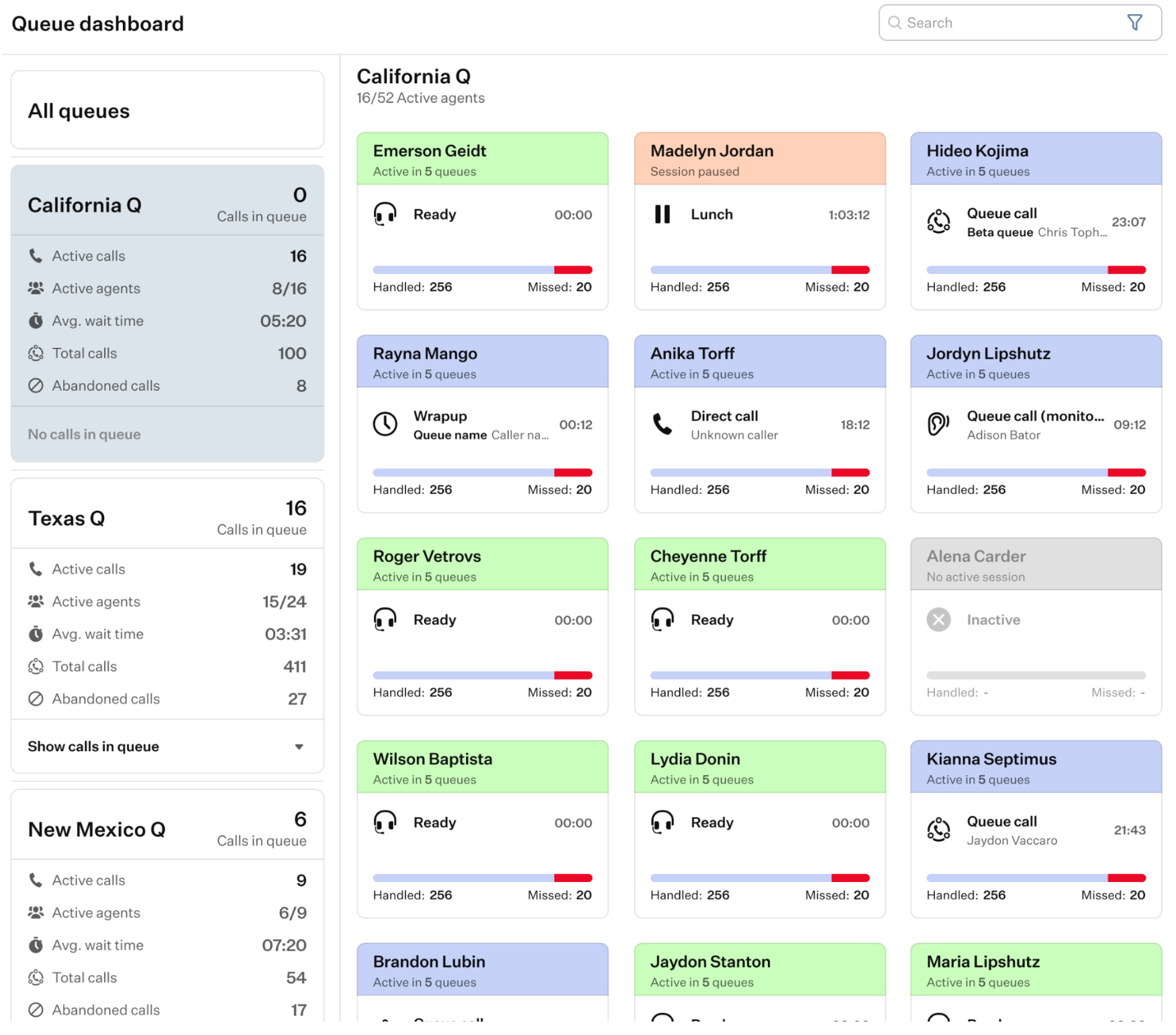
By clicking the “All Queues” button, you can view all agents in the Active Agents panel.
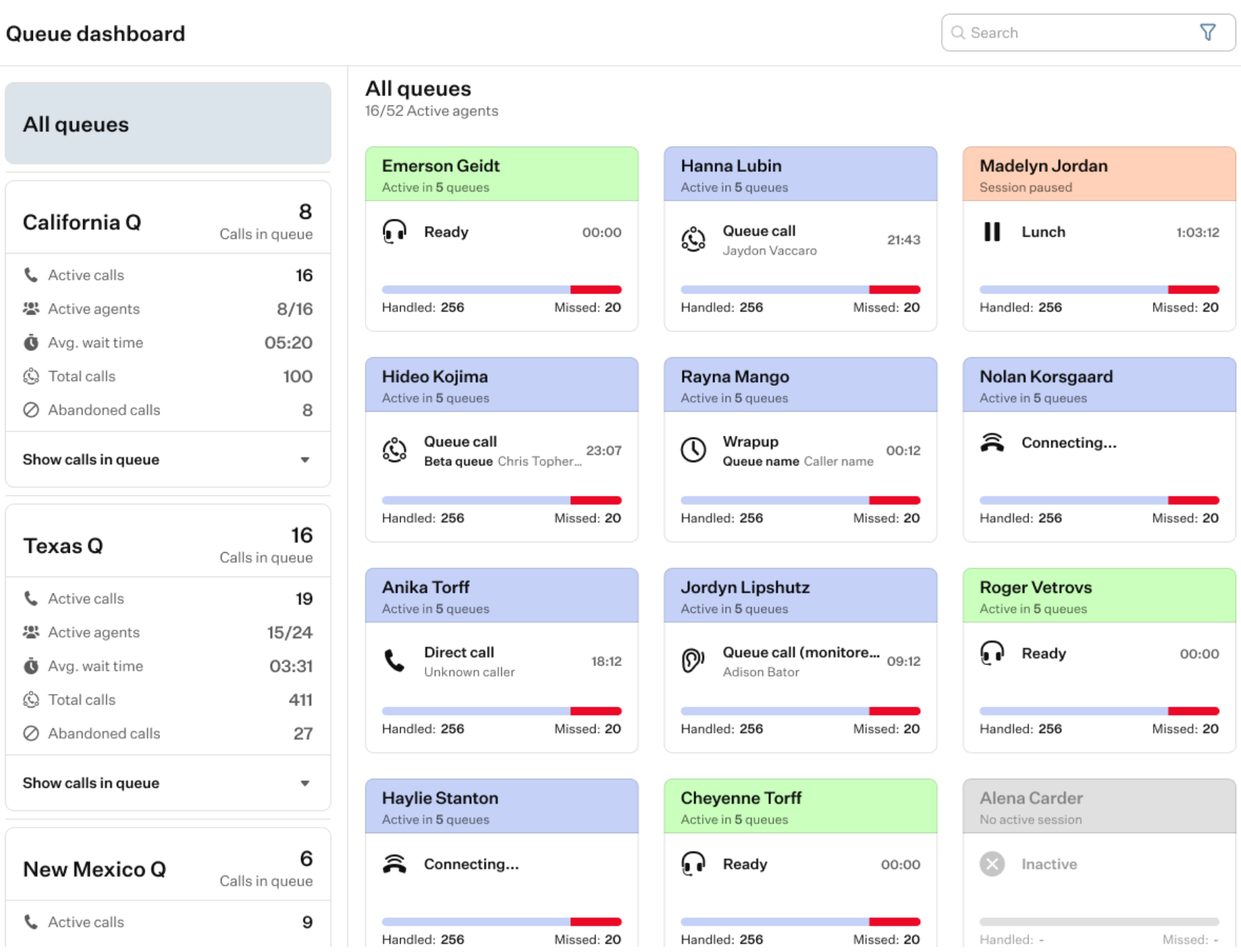
- Active Agents Dashboard: this dashboard displays a number of agent cards representing agents assigned to the selected queue.
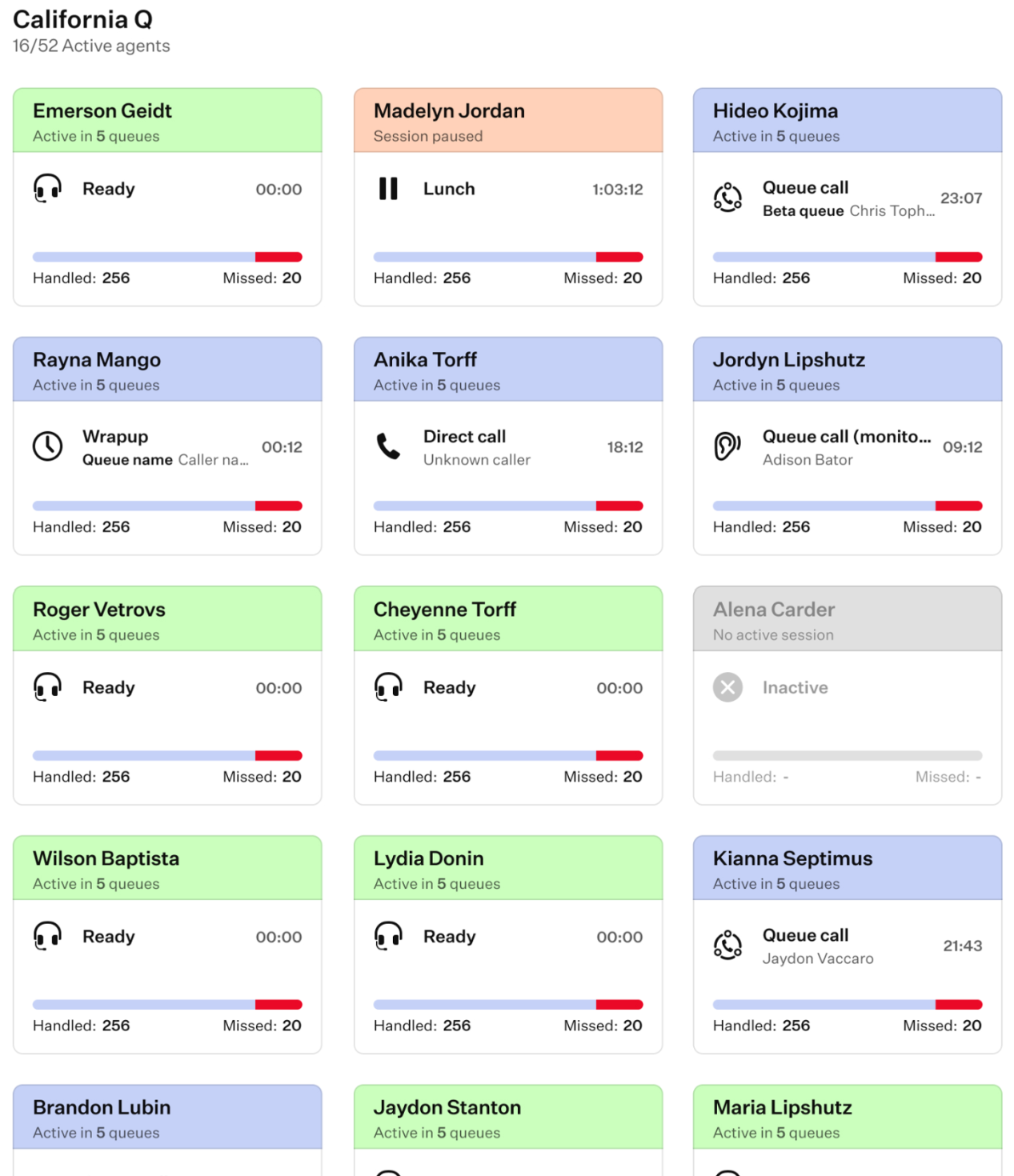
Each agent card provides basic information about the agent, including their name, the number of queues they are active in, their current status, the duration of time they have been in that status (for example, waiting or on a call), and initial statistics showing the number of handled and missed calls in the current queue.
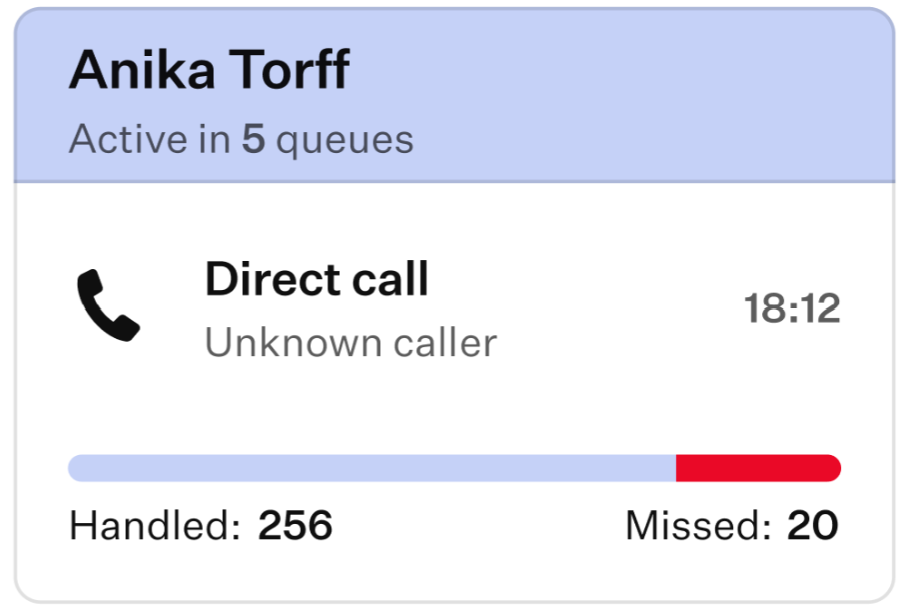
The color of each agent card header indicates the agent’s current status. Below is the list of color codes used:
- Green: the agent is available to take calls.
- Blue: the agent is currently on a call.
- Orange: the agent’s session is paused.
- Gray: the agent is not available for calls.
- Red: the agent’s status is undefined.
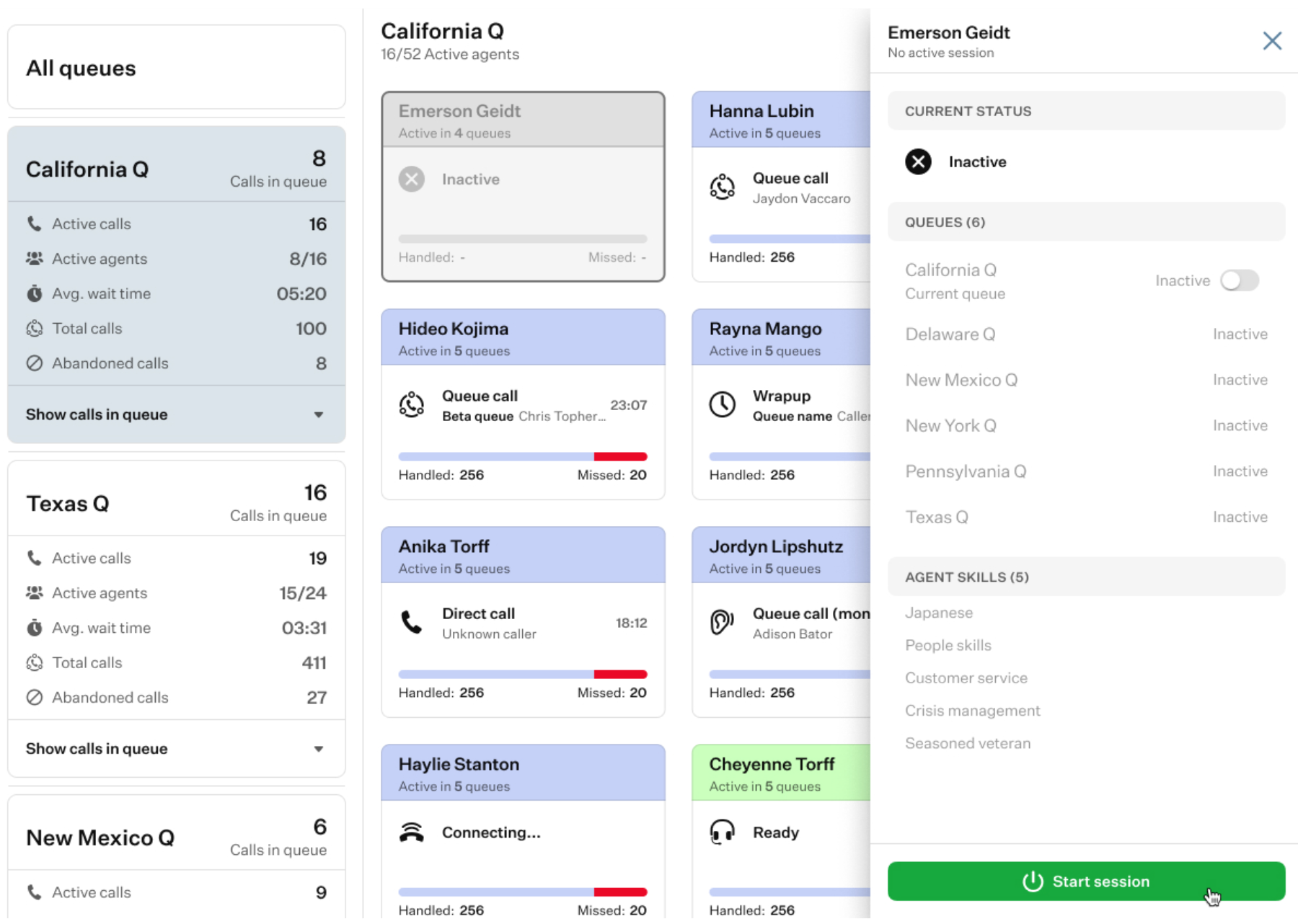
When you click on an agent card, a drawer opens on the right-hand side of the application, displaying more detailed information.
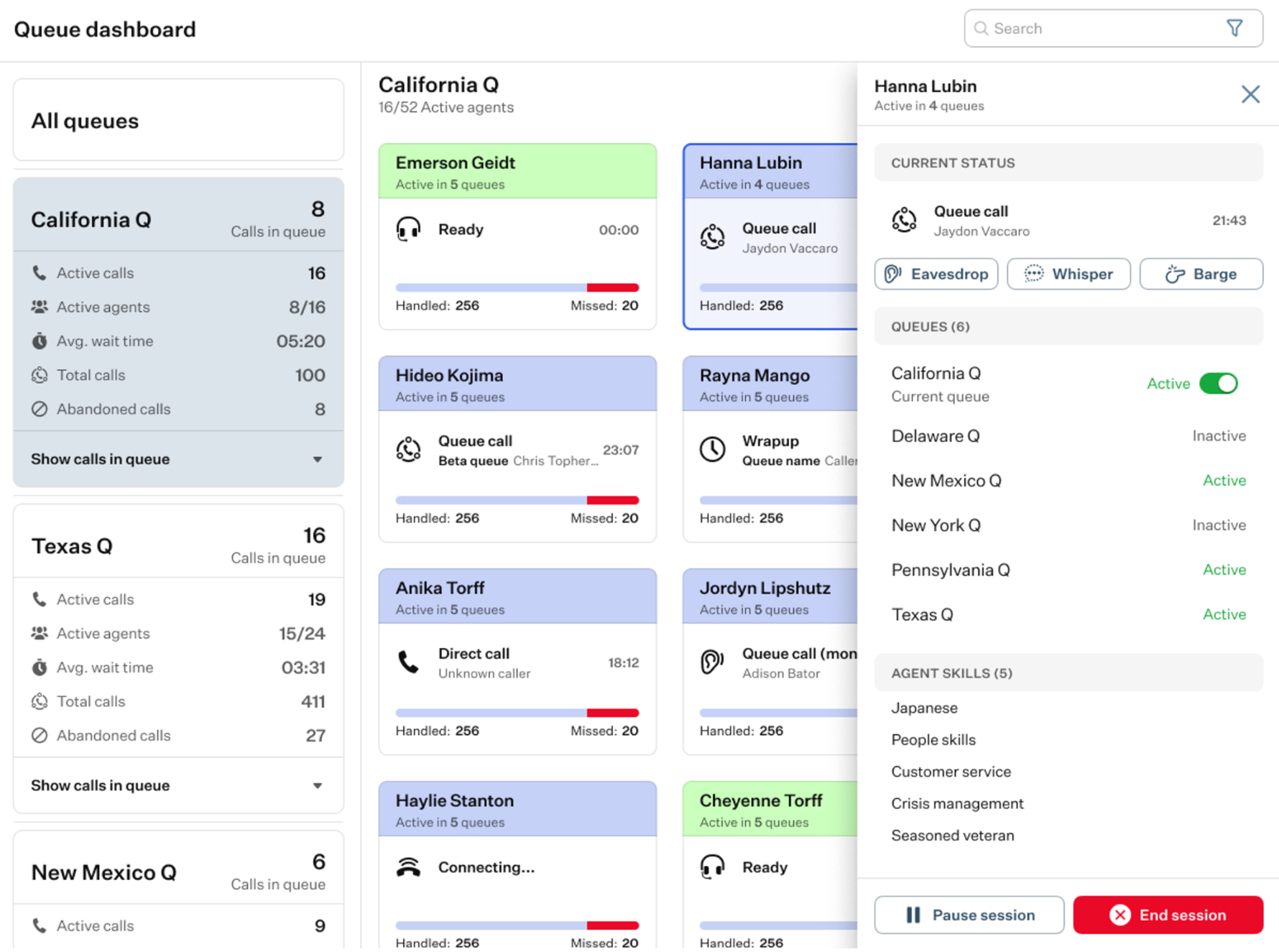
This includes:
- Agent’s name: here, you can find the agent’s name.
- Active in: this parameters displays the number of queues this agent is active in.
- Current status: this section displays the agent’s current status. If the agent is on a call, you can monitor their call activity using additional action buttons that become available.
Pressing any of these action buttons opens a dialer where you can see the agent’s name, their interlocutor’s name, and the same set of action buttons used for monitoring. This allows you to change the monitoring mode directly within the dialer, rather than in the drawer.
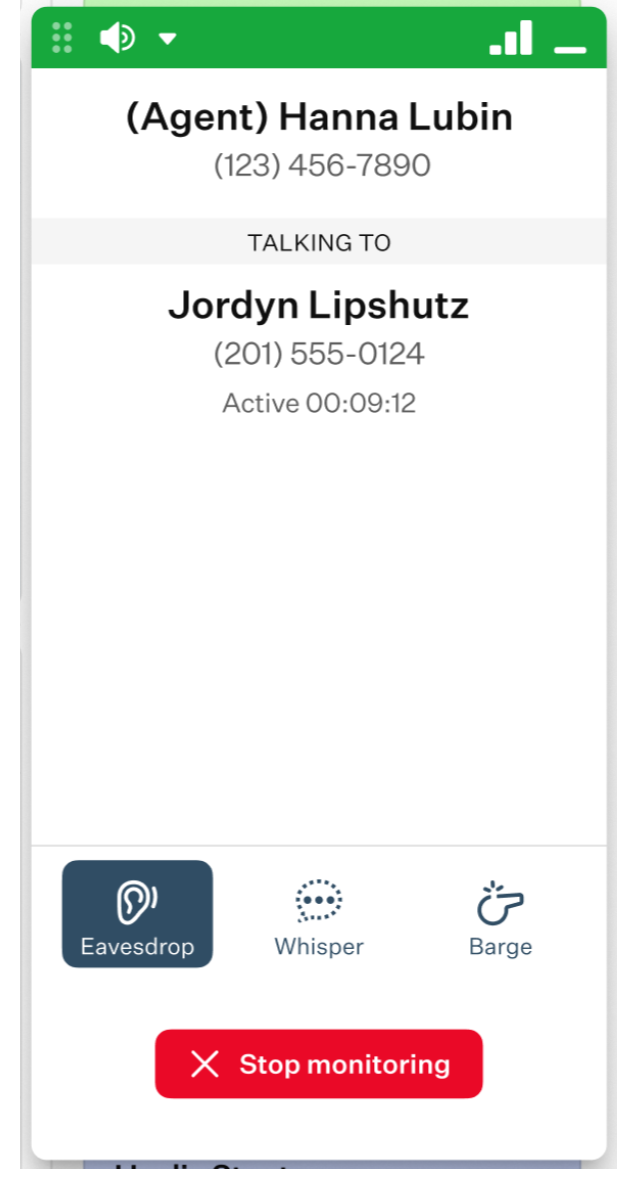
- Eavesdrop: by selecting this monitoring mode, you can listen in on the agent’s call without the agent or the caller knowing.
- Whisper: by selecting this monitoring mode, you can speak to the agent without the caller hearing your voice.
- Barge: by selecting this monitoring mode, you can join the call so that both the agent and the caller can hear you.
- Queues: here, you will find a list of queues this agent is assigned to with toggle switches, allowing an admin to manually deactivate the agent’s activity for specific queues.
Please note that, as a queue manager, you may not be able to manually modify an agent’s presence in queues that you do not manage.
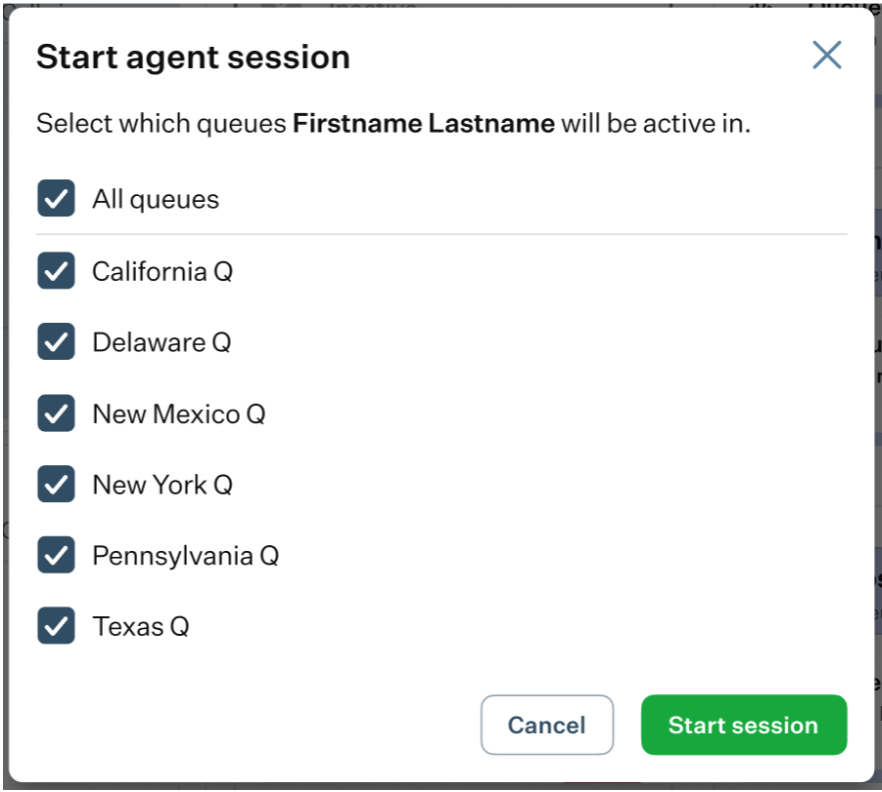
If the agent is inactive, this will be indicated in the drawer. You can start their session by pressing the “Start Session” button.
A pop-up window will appear, showing a list of queues where the agent can start a session. Select the desired queues and then press “Start Session” button to activate the agent manually.
- Agent skills: this is a list of tags representing a standardized set of capabilities that an agent may possess. These skills are used to match calls with specific requirements to the most suitable agent from the available roster.
- Action buttons: this buttons are used to control the current session the agent is in.
- Pause Session: click this button to pause the agent’s current session.
- End Agent Session: click this button to terminate the agent’s current session
While monitoring a call, you can use the “Fold” button to minimize the dialer.

It will shrink into a small pop-up window in the bottom-right corner of the app, while still displaying the main details of the call.
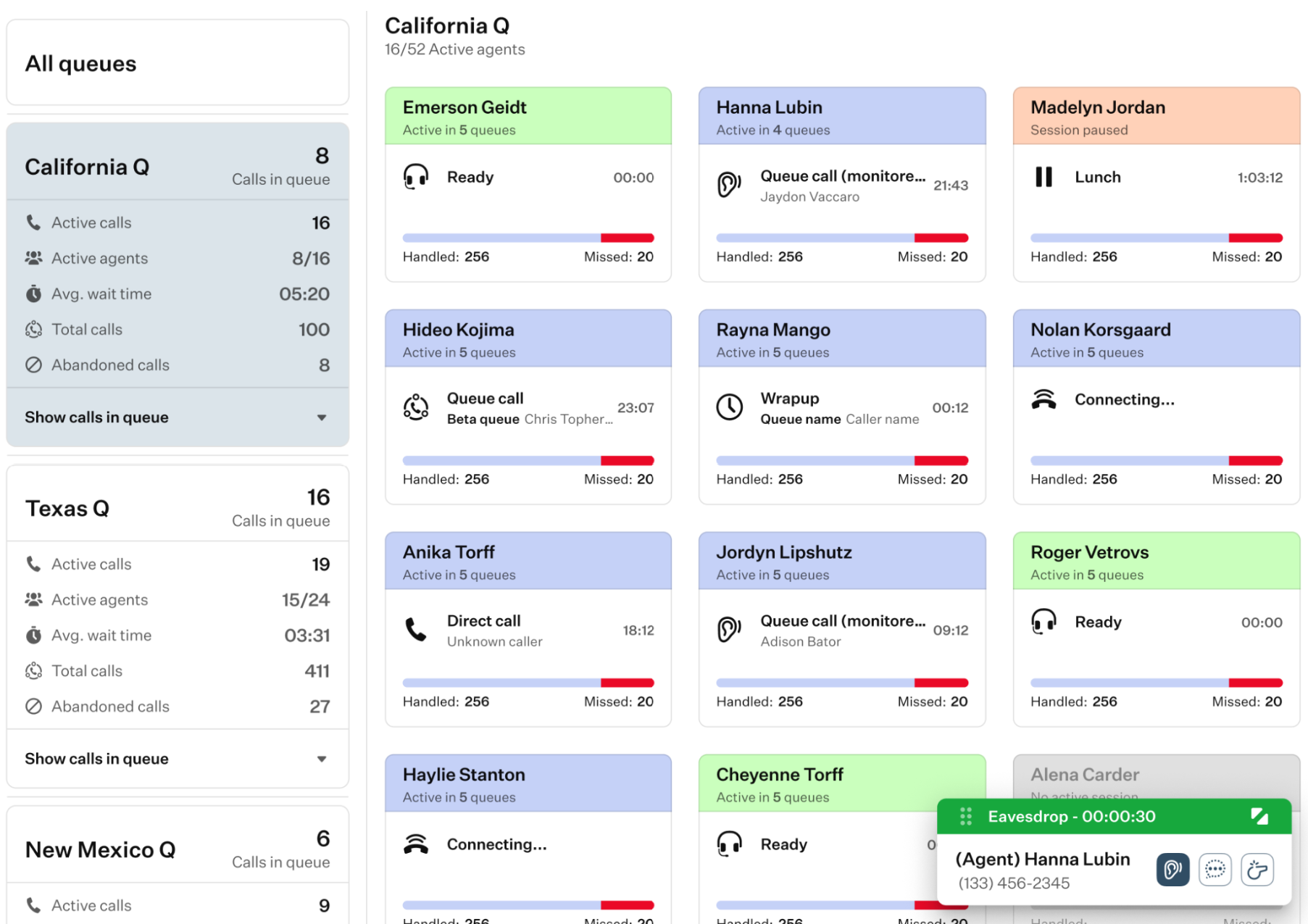
When a call is minimized, you can still accept new calls, which will open in a full-size dialer.
These new calls can also be minimized, and the pop-up windows will stack in the bottom-right corner.
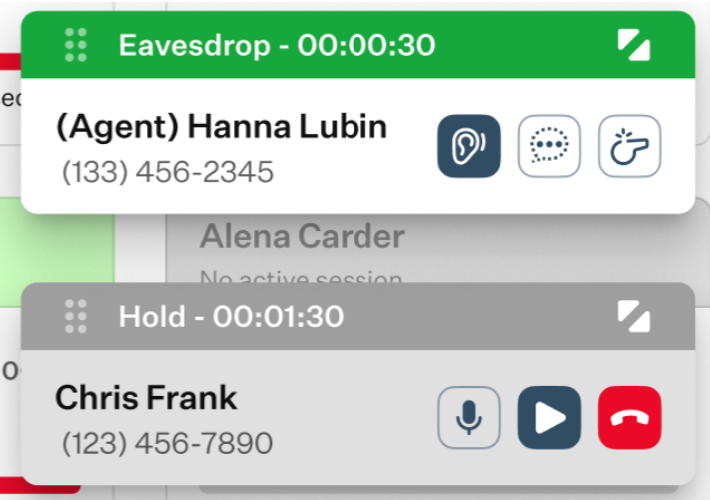
The header colors of these windows follow the same status color codes described earlier, providing a visual indication of each call’s status.
Was this article helpful?
That’s Great!
Thank you for your feedback
Sorry! We couldn't be helpful
Thank you for your feedback
Feedback sent
We appreciate your effort and will try to fix the article