Description: The Queue Manager feature lets you manage the call center using dashboards and reports. The Agent Reports section specifically provide all statistical information about the agents you manage.
When you access the Call Manager feature of the OE Desktop App, the Queue Dashboard tab will be open by default.
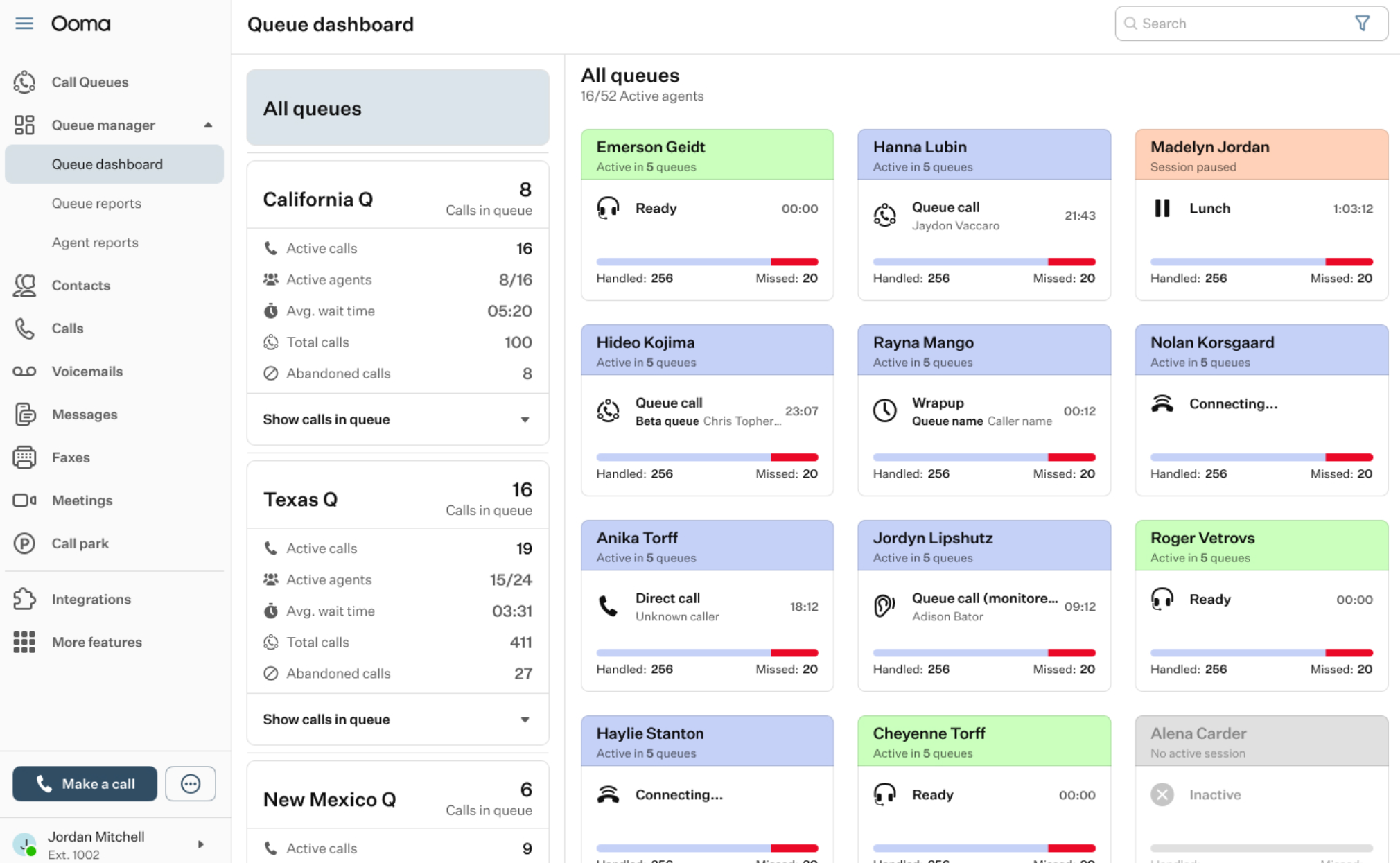
To access Agent Reports, select the corresponding option from the left-hand menu of the OE Desktop app.
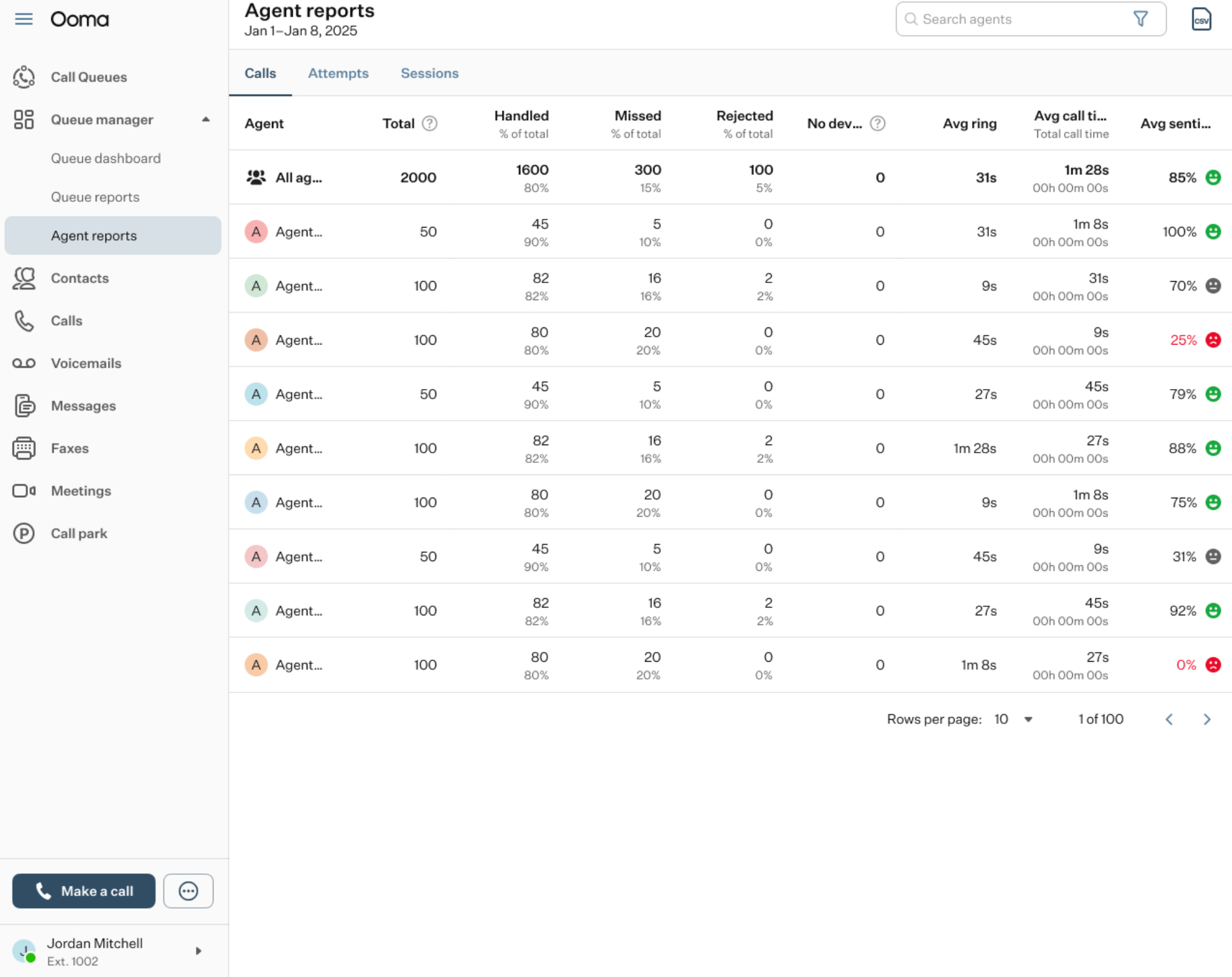
The Agent Reports interface can be divided into two main sections:
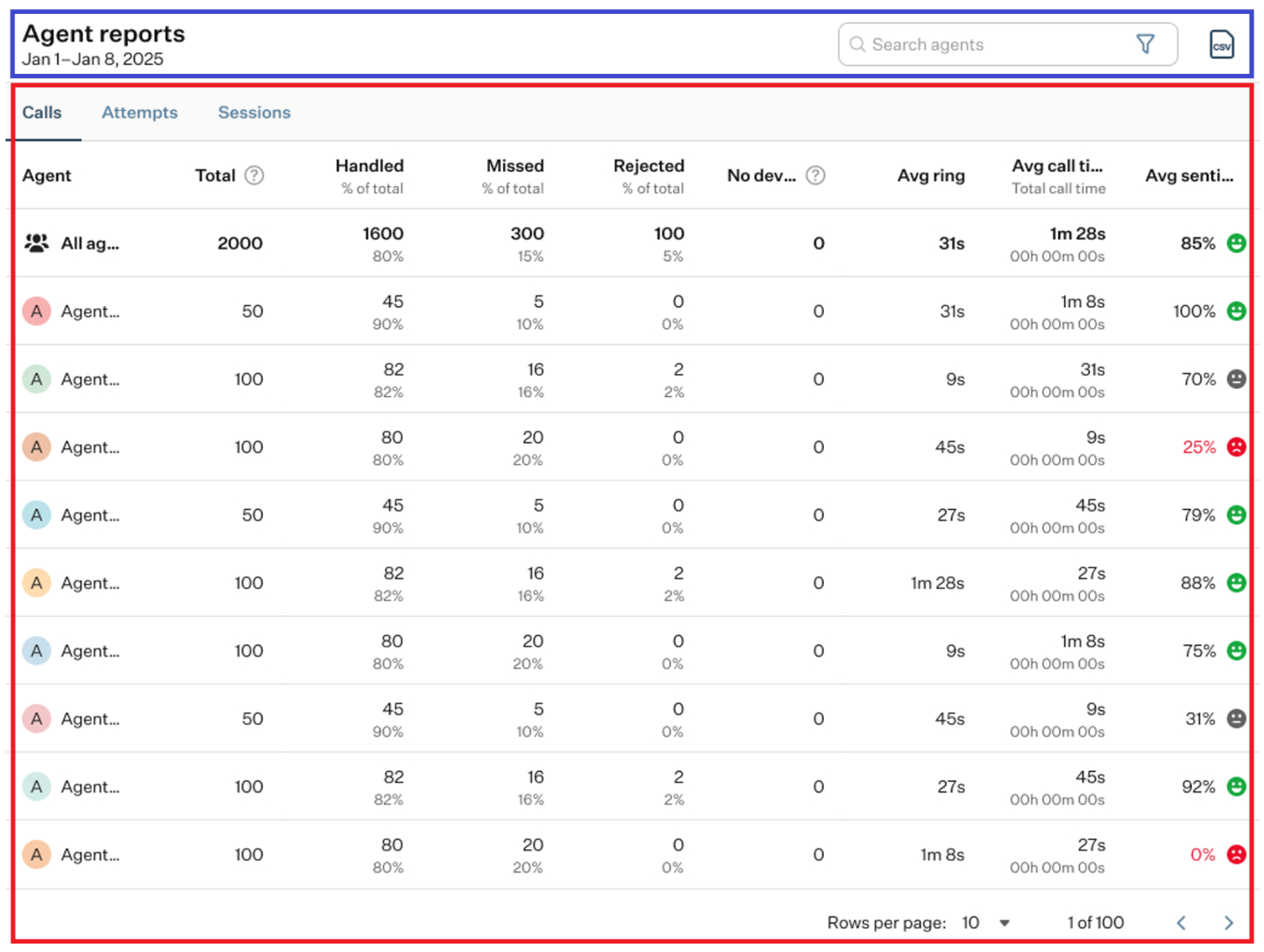
- Top panel: it contains several action elements:
- Search Bar: is used for finding a specific agent.
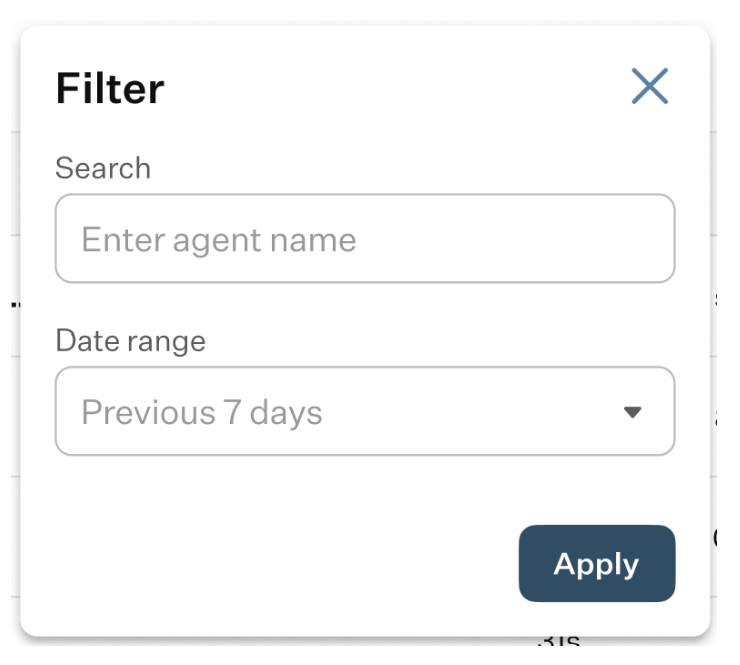
- Filter: it allows you to set a date range for your search.
- CSV: click this button for downloading the report, as a CSV file.
- Table of agents: the following section displays a list of agents you have managerial access to. It includes three tabs, each presenting slightly different information when selected.
- Calls Tab: for each agent, the table displays key statistics, including total queue calls sent to the agent, the percentage of missed calls, the percentage of rejected calls, the number of calls sent to the agent while they were logged out of all devices, average call time, and average sentiment.

Clicking the “CSV” button on the top panel of the Queue Manager feature downloads the call report, as a CSV file.
- Attempts Tab: for each agent, the table displays key statistics, including total attempts to connect to the agent, the percentage of missed calls, the percentage of rejected calls, the number of attempts to connect while the agent was logged out of all devices, average call time, and average sentiment.
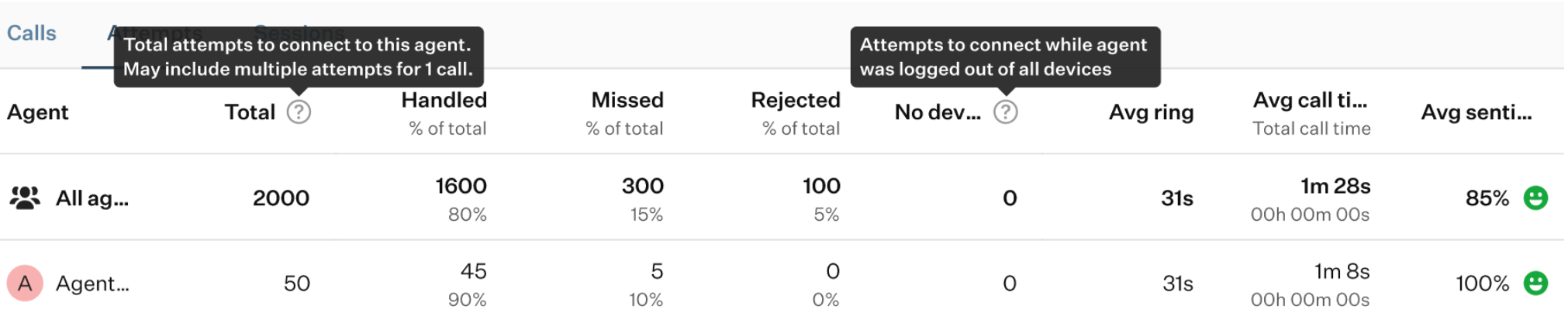
Clicking the “CSV” button on the top panel of the Queue Manager feature downloads the attempts report, as a CSV file.
- Sessions Tab: for each agent, the table displays key statistics, including the number of sessions the agent was involved in, the total duration of those sessions, the total duration of queue calls, wrap-up time, pause time across all reasons, and idle time.

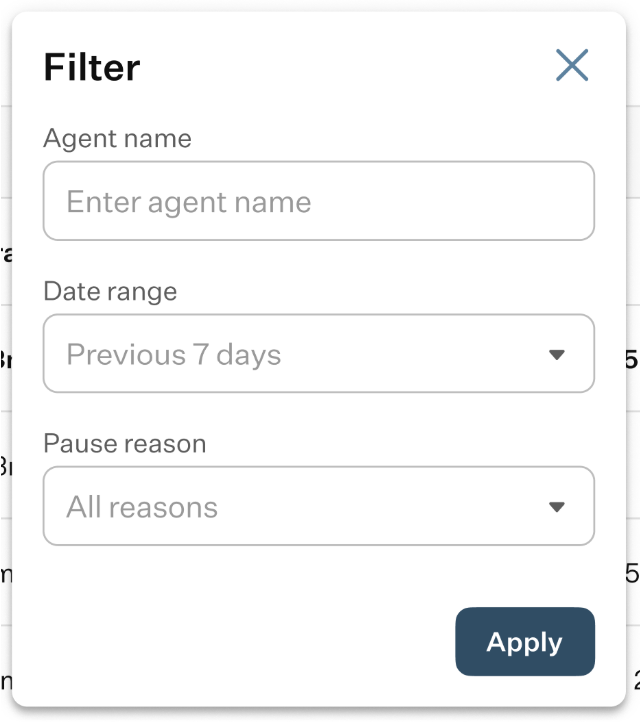
When the Sessions tab is enabled, the filter options on the top panel of the Queue Manager feature includes an additional field called “Pause Reason,” which allows you to filter results based on the reason an agent paused their activity.
Clicking the “CSV” button on the top panel of the Queue Manager feature downloads the sessions report, as a CSV file.
When you select an agent from the table on any tab, their personal call history page is displayed. This page includes a table listing callers, call resolutions, the queues where the calls took place, the date and time of each call, ring time, sentiment, and recording status.
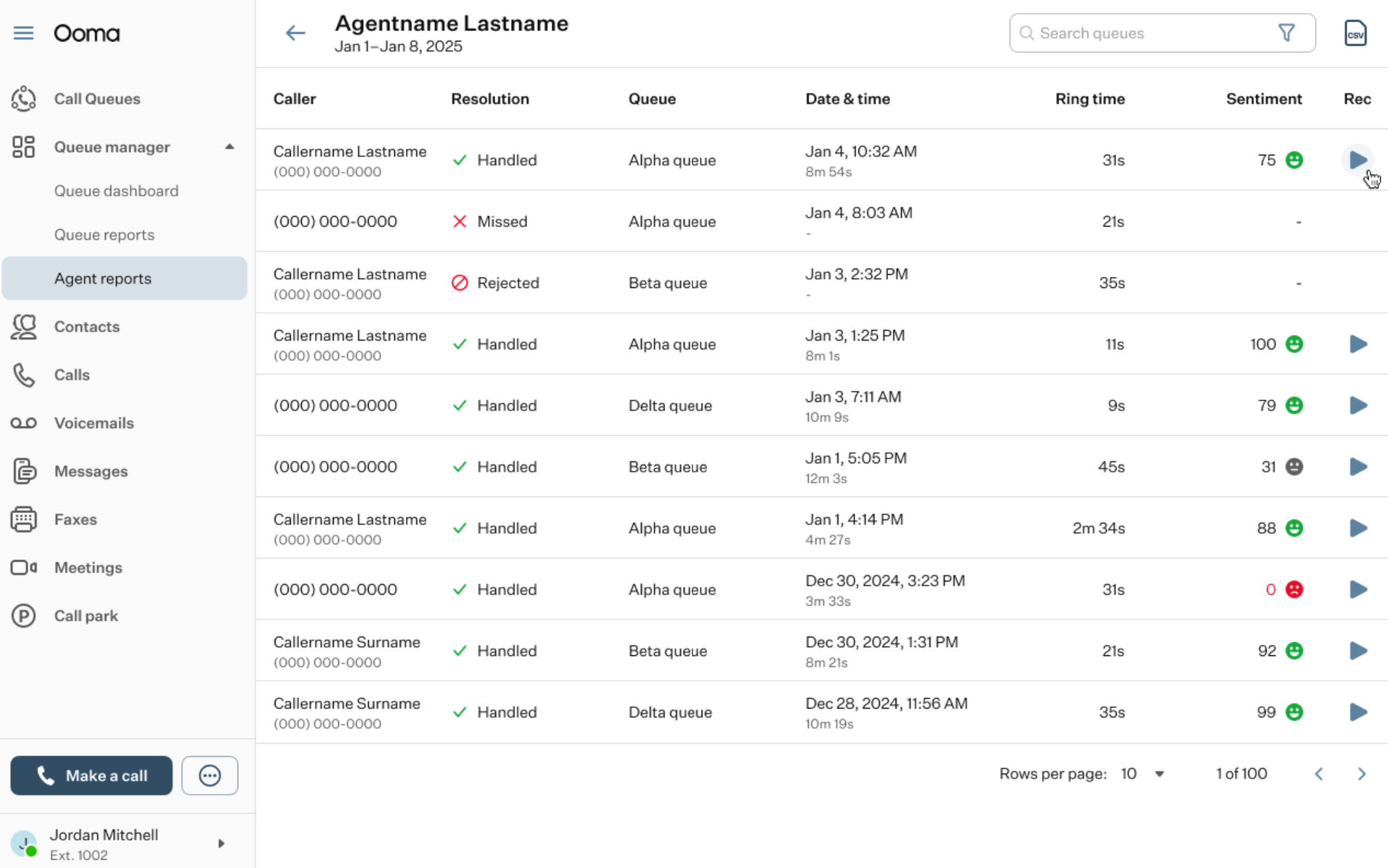
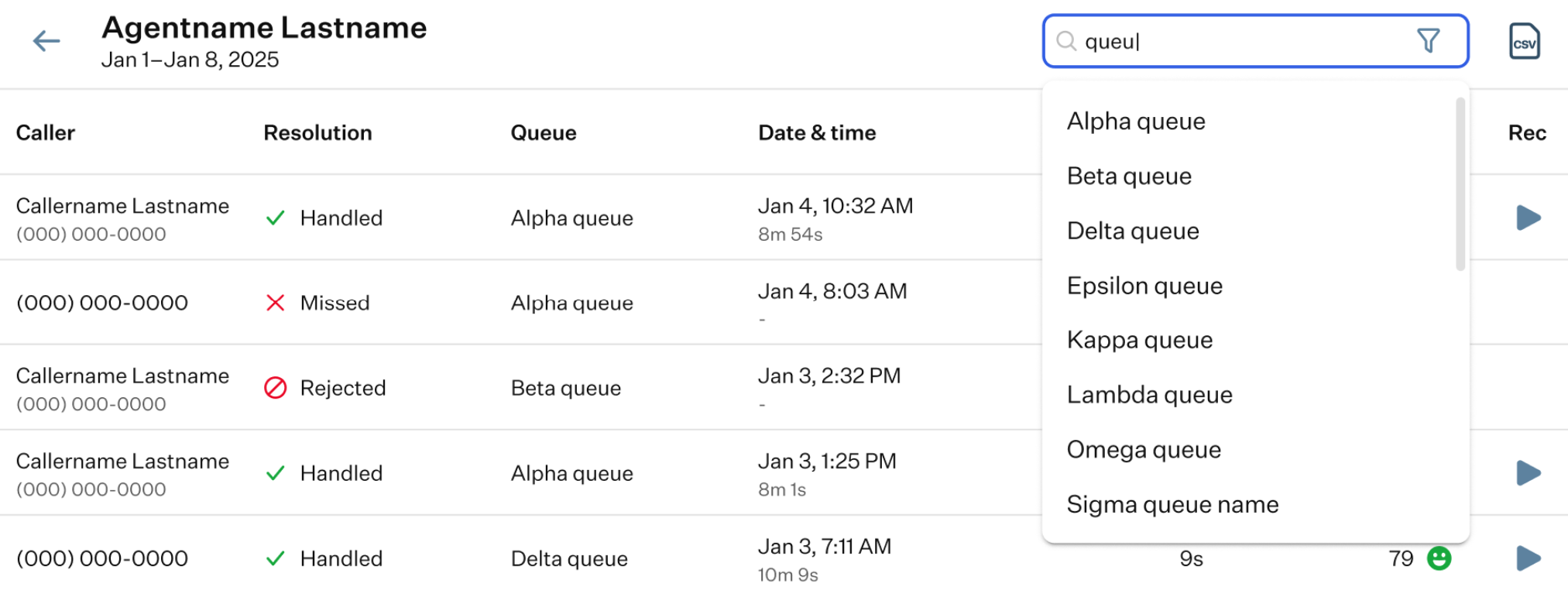
You can use the search bar to find a specific call by the caller’s name, phone number, or the queue the call took place. You can also click the “CSV” button to download the call history as a CSV file.
If a call was recorded, you can click the “Rec” badge to open a drawer on the right-hand side of the OE Desktop app, where detailed recording information is shown.
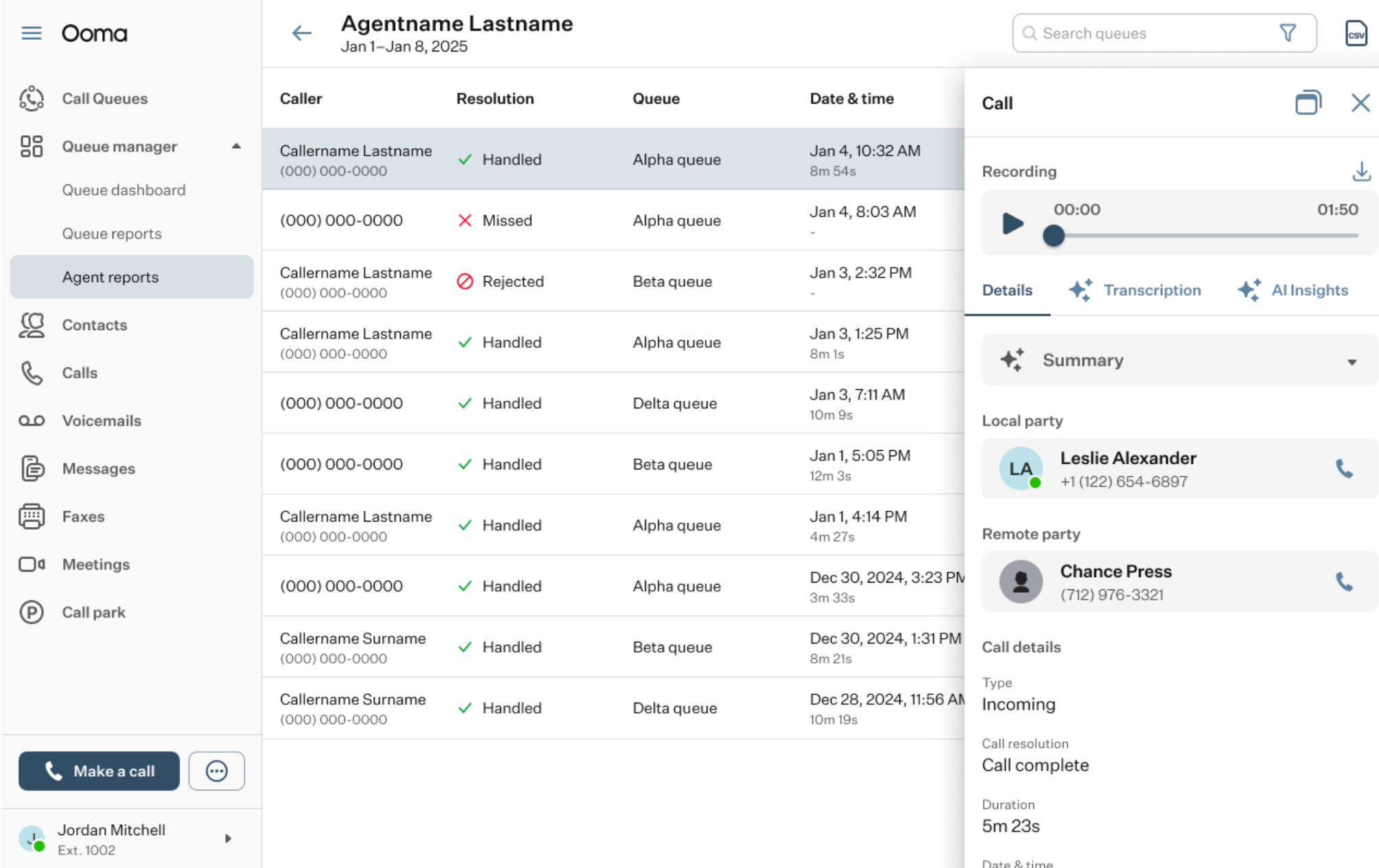
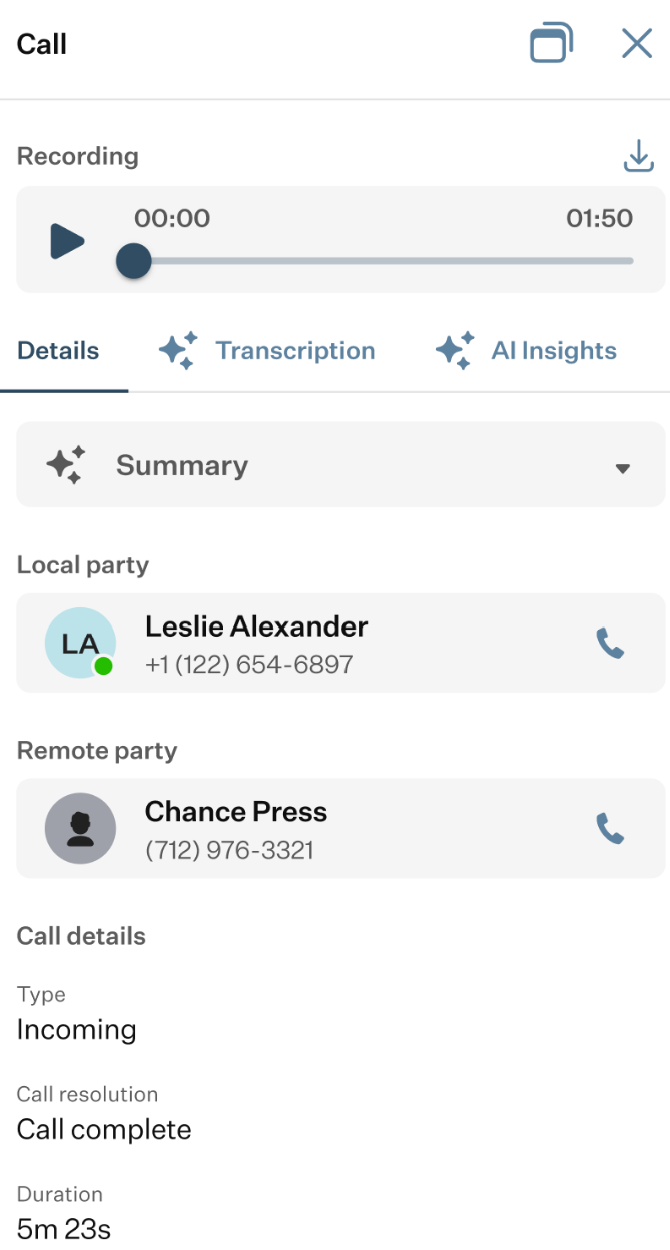
This drawer contains the recording of the selected call, which you can play and download, as well as three tabs:
- Details tab: provides key information about the call, including the local and remote parties, as well as general call details.
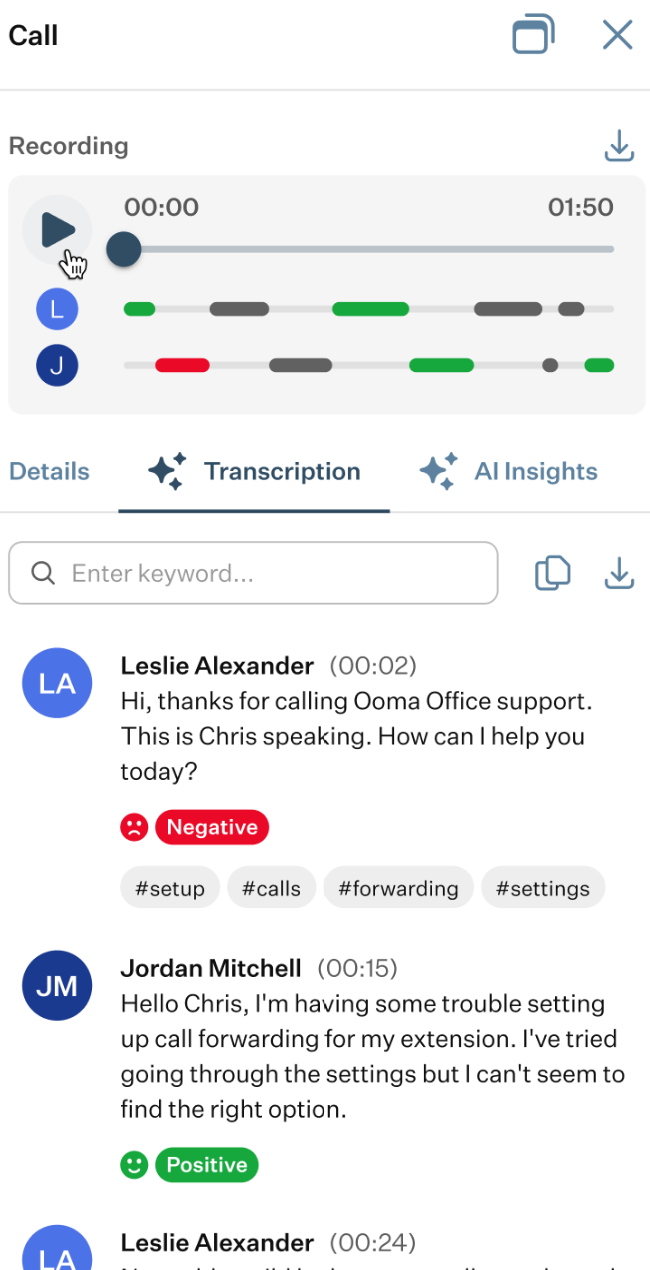
- Transcription tab: includes an advanced recording player that displays the speakers’ segments along a timeline, along with an AI-generated transcription of the entire conversation.
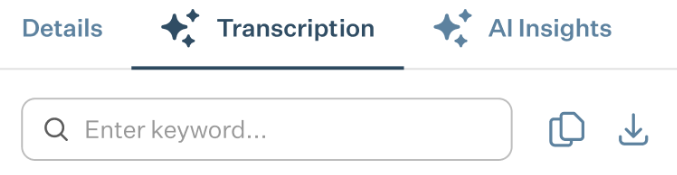
It also features an action panel with a Search Bar and “Copy” and “Download” buttons, allowing you to copy or download the conversation text.
- AI Insights tab: in this tab, you’ll find AI assistants that can help summarize the call, analyze its tone and sentiment, identify action items, and respond to any questions you ask through the built-in chat.
Was this article helpful?
That’s Great!
Thank you for your feedback
Sorry! We couldn't be helpful
Thank you for your feedback
Feedback sent
We appreciate your effort and will try to fix the article