Description: This Feature gives you access to the call center environment, where you can operate as an agent with full functionality.
When you access the Call Queues feature of the OE Desktop App, you will encounter an interface that resembles the following screenshot. By default, the interface is grayed out because the session has not been started yet.
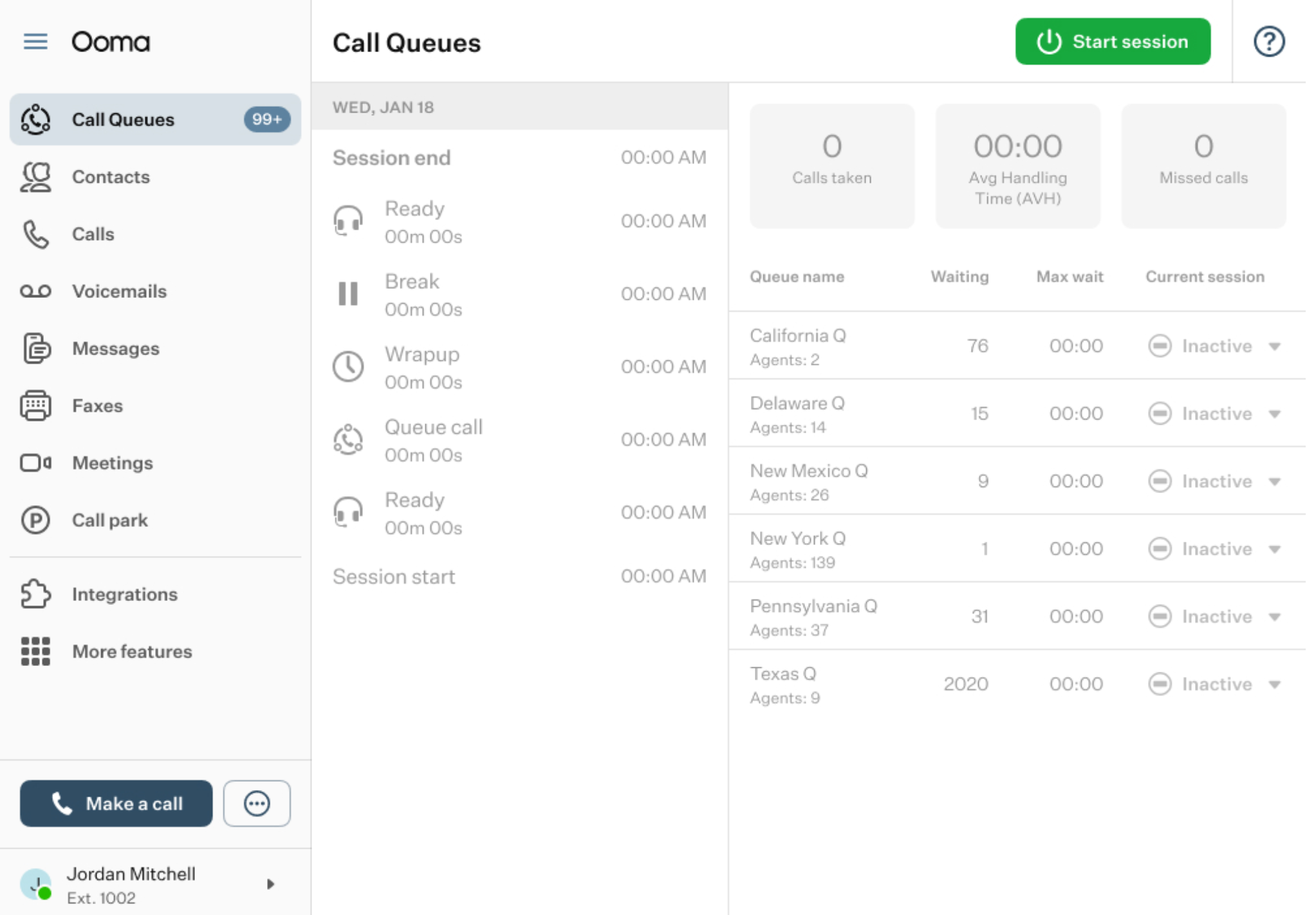
To begin, click the “Start Session” button. A pop-up window will appear, allowing you to select the queues you want to be active in.
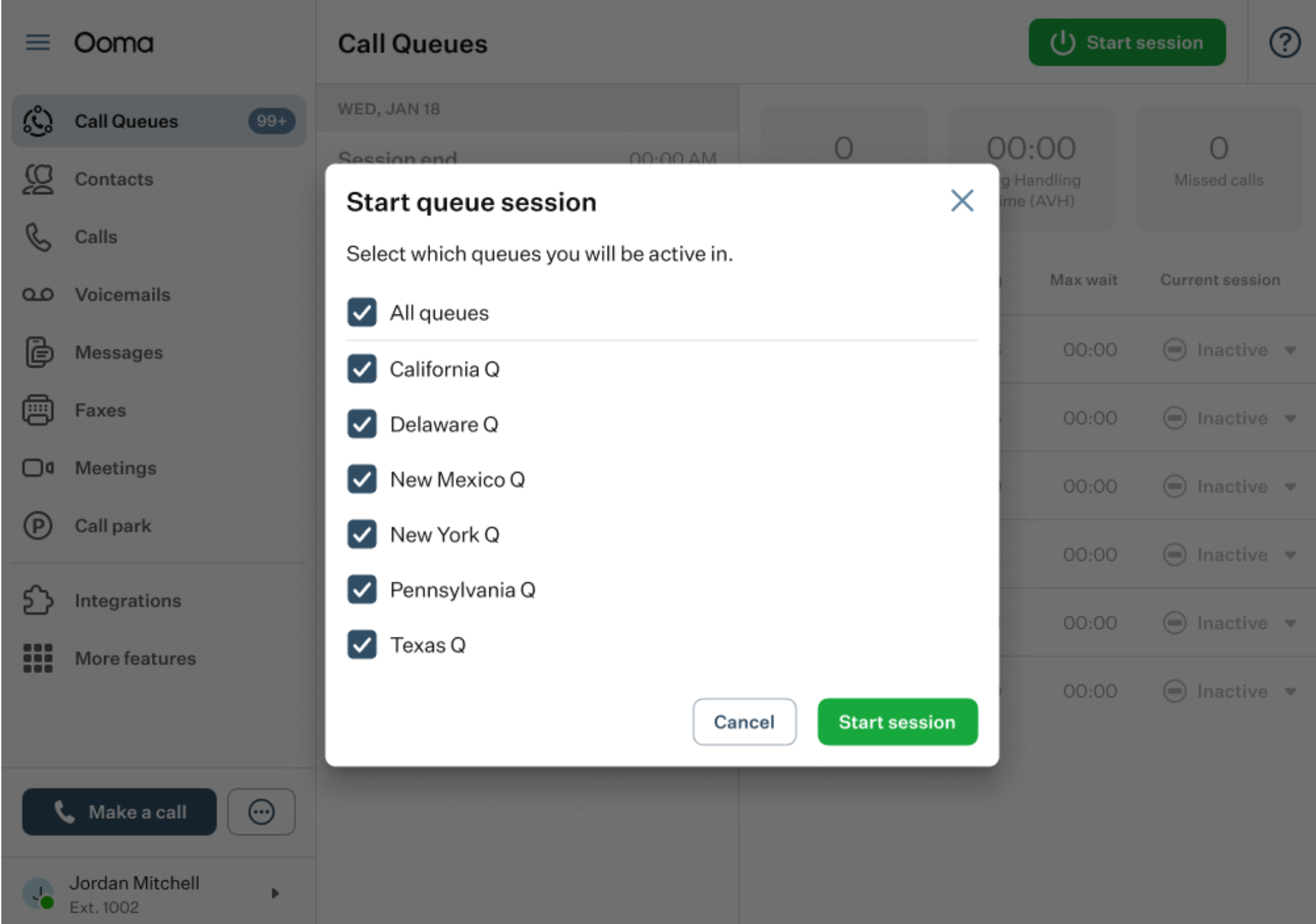
By default, all queues are selected. Agents can deselect any queues they do not want to be active in.
After selecting the queues and clicking the “Start Session” button, the session will begin, and the interface will become active.
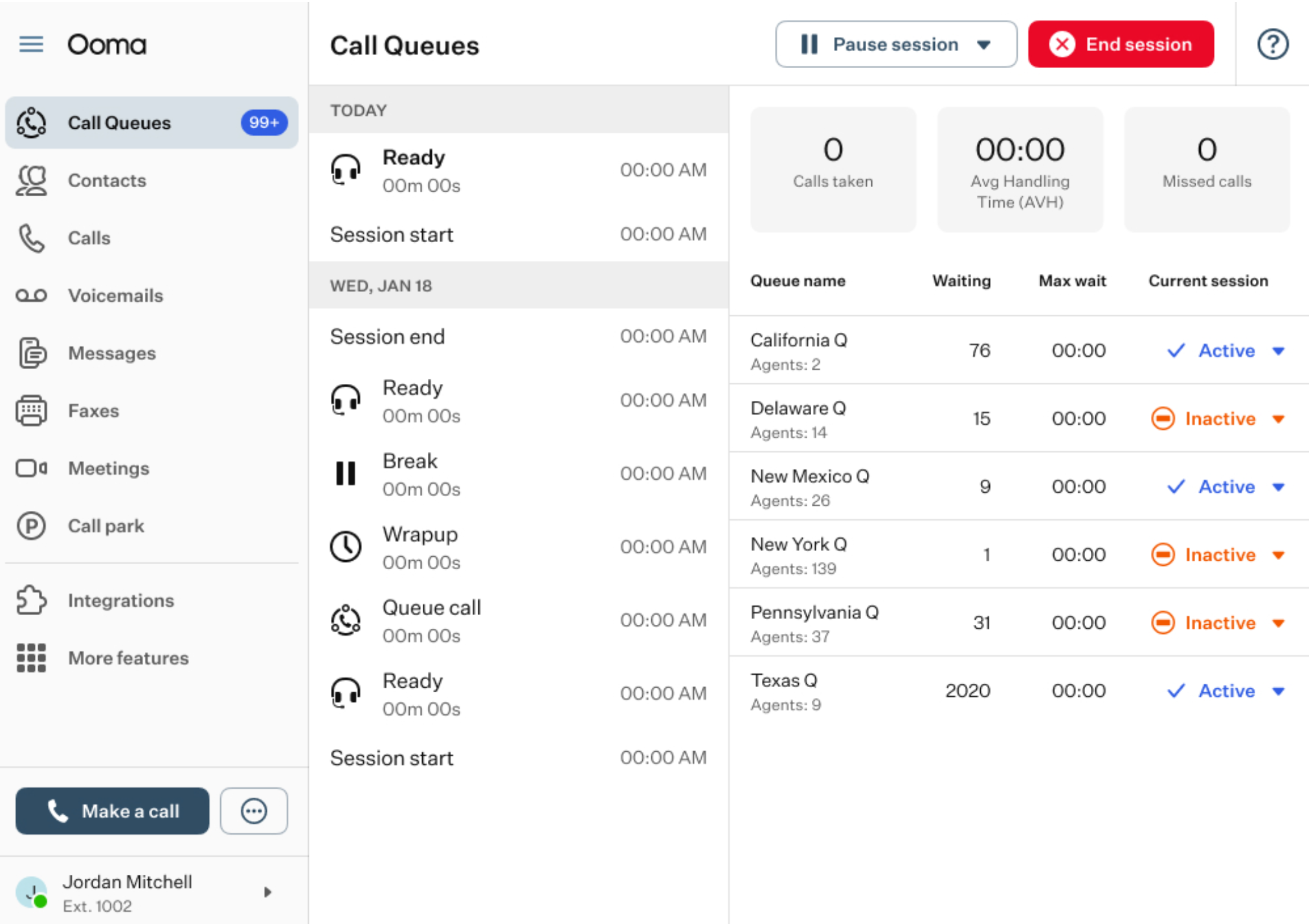
The call center interface can be divided into four main sections:
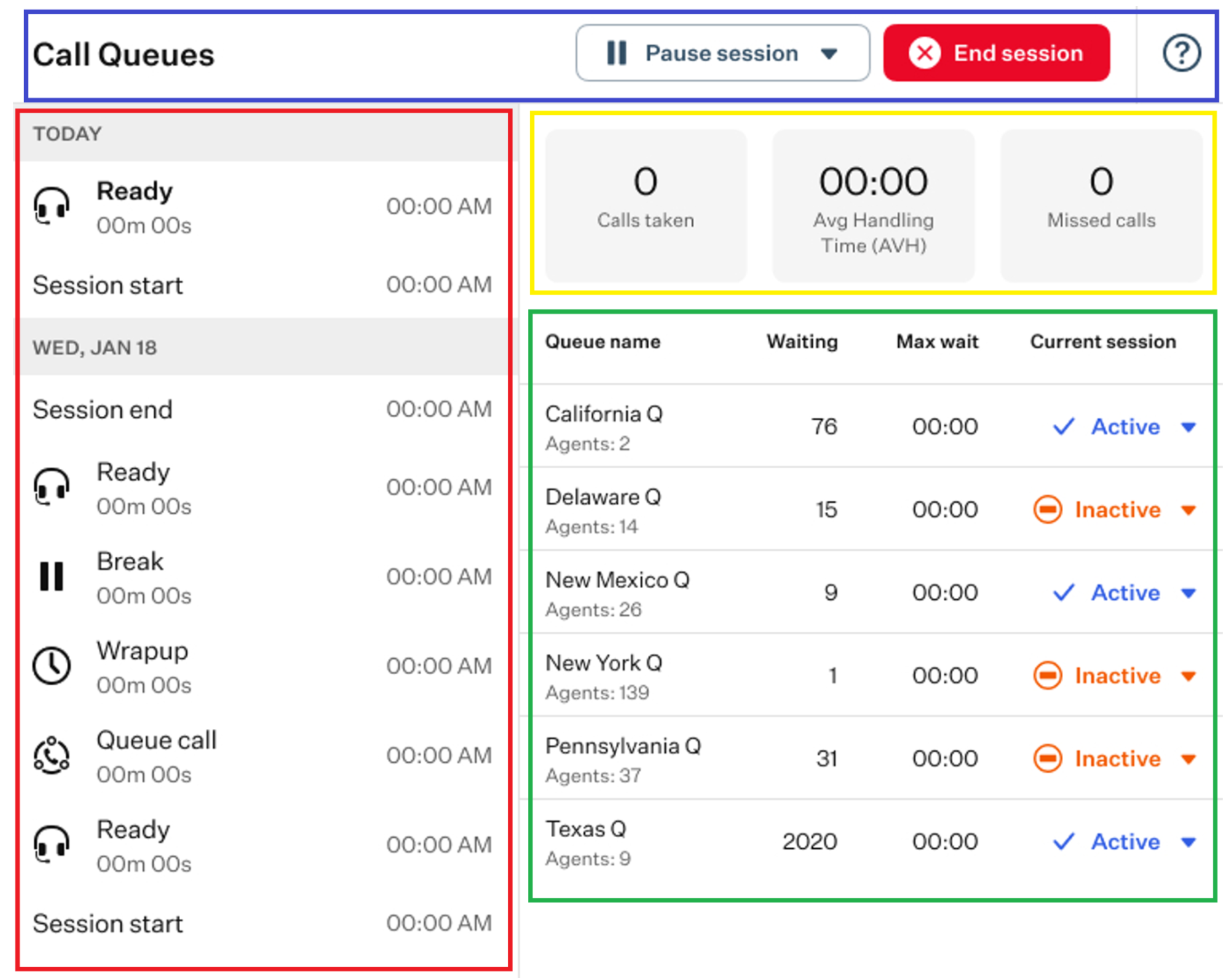
- Top horizontal panel (blue rectangle): includes several control buttons, such as:
- Pause/Resume Session: by clicking the “Pause Session” button, you will see a drop-down list of reasons for pausing your queue activity. Select one of the available options to pause the session.
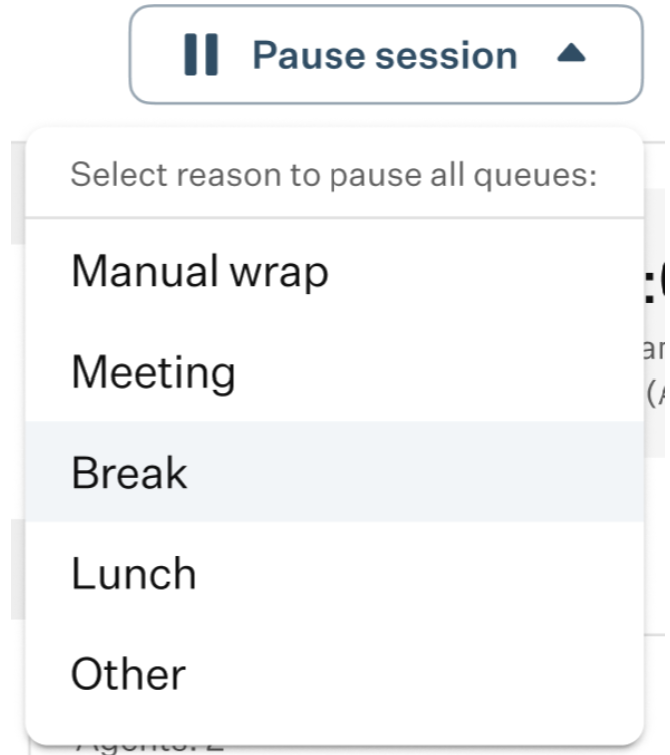
Once selected, the session will be paused, and the chosen reason will appear in the History Feed. Click the “Resume Session” button to make the session active again.
- End Session: use this button to end your session across all queues.
- Help: click this badge to access the help section of the OE Desktop app if you need assistance.
History Feed (red rectangle): it displays a list of your recent actions and activities, including those from previous sessions. All items in the list are timestamped.
Statistics Feed (yellow rectangle): here, you can find the current session metrics, such as the number of calls handled, average handling time, and missed calls.
If an agent reaches their limit of missed calls, they are put into “Forced pause” state.
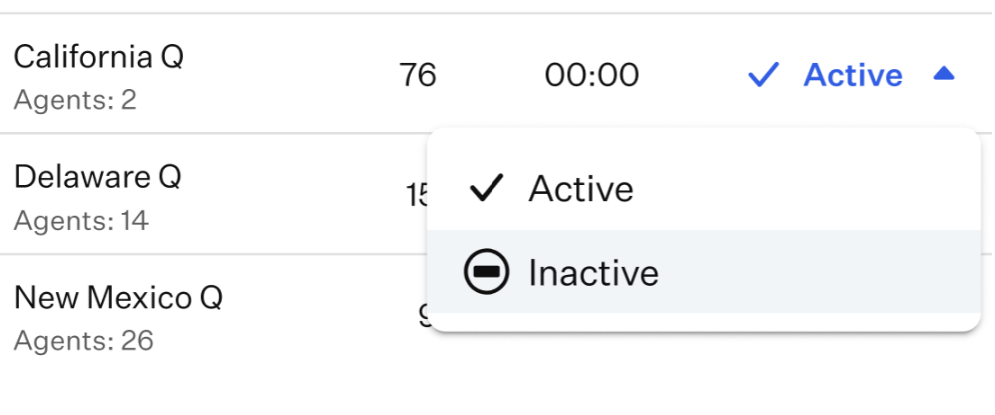
- Queue List (green rectangle): it provides an overview of all queues you are assigned to. It includes basic information such as the number of agents in each queue, the number of calls waiting, the maximum wait time, and your current session status within each queue. You can change the status in each queue manually.
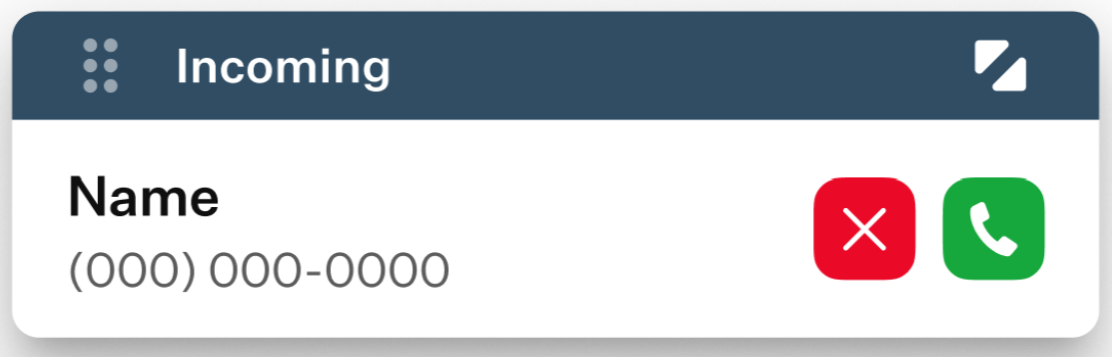
When you receive an incoming call, a small dialer will appear in the bottom-right corner of the OE Desktop app window. It displays the caller’s name, phone number, and two action buttons: Decline and Answer.
When you click the “Answer” button, the interface of the feature will update:
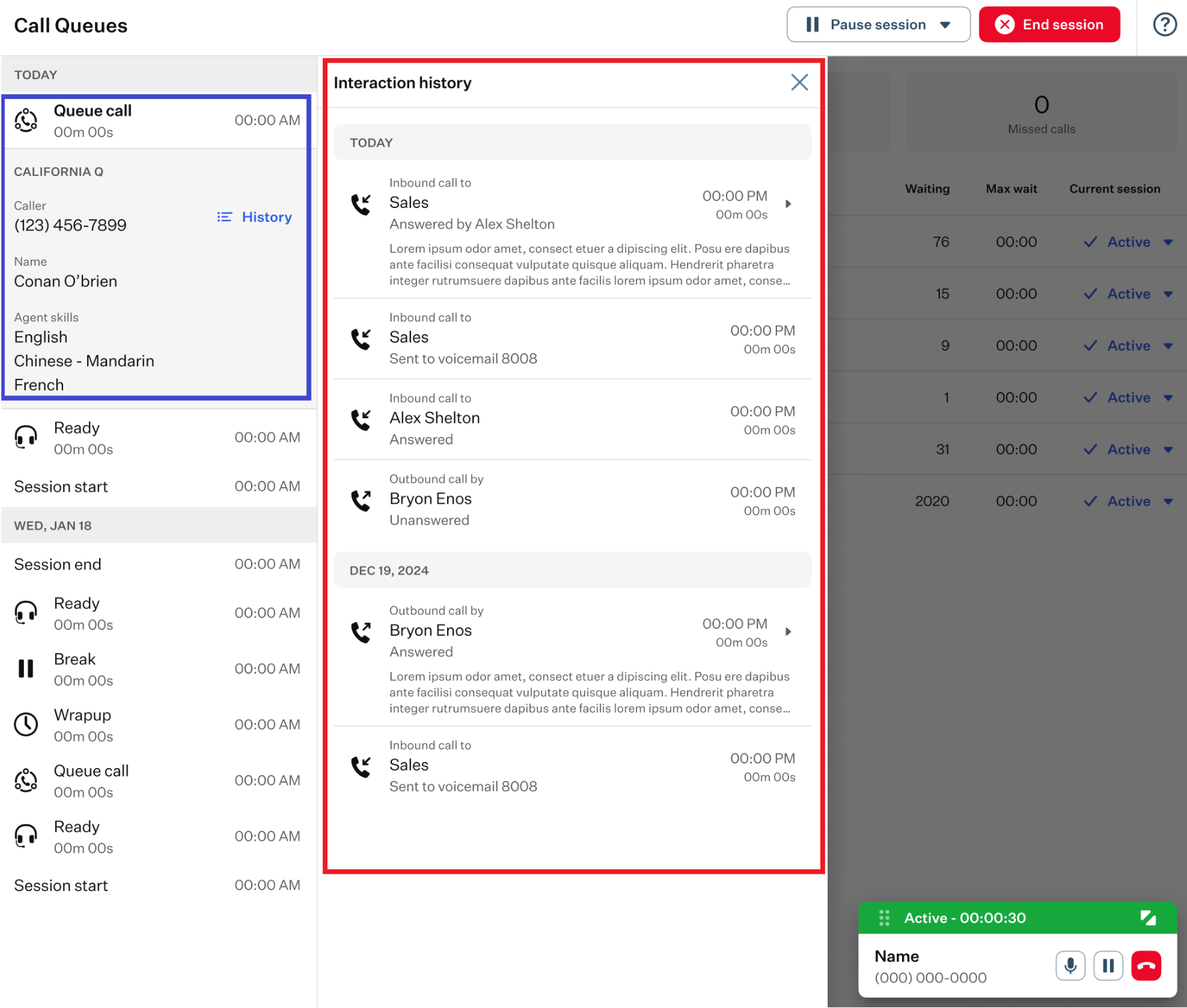
- Call details (blue rectangle): this section will appear on the left side of the OE Desktop app in the History Feed. It contains information about the caller, such as their name, phone number, the list of agent skills required for handling the call, and the “History” button. If the agent is on an external non-queue call, a dialog window will appear to inform them that the call must be completed before the session can be resumed.
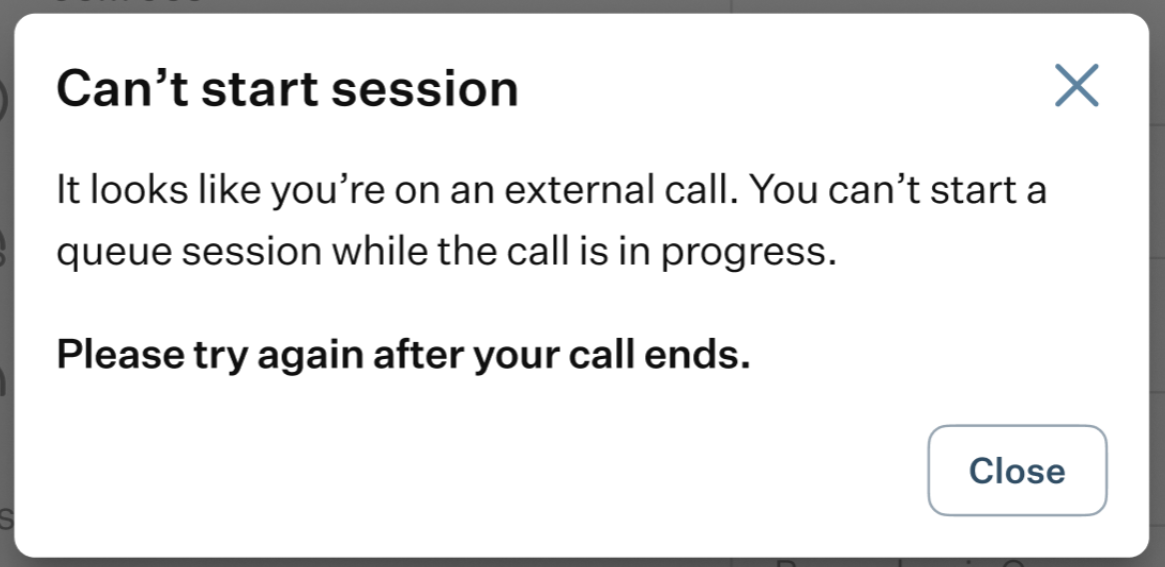
For direct non-queue calls, the call information may not be displayed in the Call Details section.
- Drawer (red rectangle): it opens automatically, as if you had clicked the “History” button. The Drawer displays the interaction history, not only for the current call but also for previous calls. You can see details such as caller names, numbers, call duration, and, if available, call transcriptions. Click the “X” button to close the interaction history in the drawer. To reopen it, simply click the “History” button in the Call details section.
When a queue call ends, either by pressing the “End Call” button or when the caller hangs up, you as the agent will automatically enter “Wrap-up” status in the History Feed. In this status only, the duration is a countdown timer.
By default, the wrap-up time is 15 seconds, but this can be configured in the Settings section of the OE Desktop app.
When the wrap-up time ends or if the agent clicks the “End Wrap-Up” button, the status will return to “Ready,” allowing the agent to continue handling calls in the queues.
Queue Manager Functions
In addition to call center agents, the system also includes users acting as Queue Managers. They can perform not only supervisory functions, such as monitoring sessions, but also take specific actions:
- Queue Managers can manually change agent statuses during service sessions.
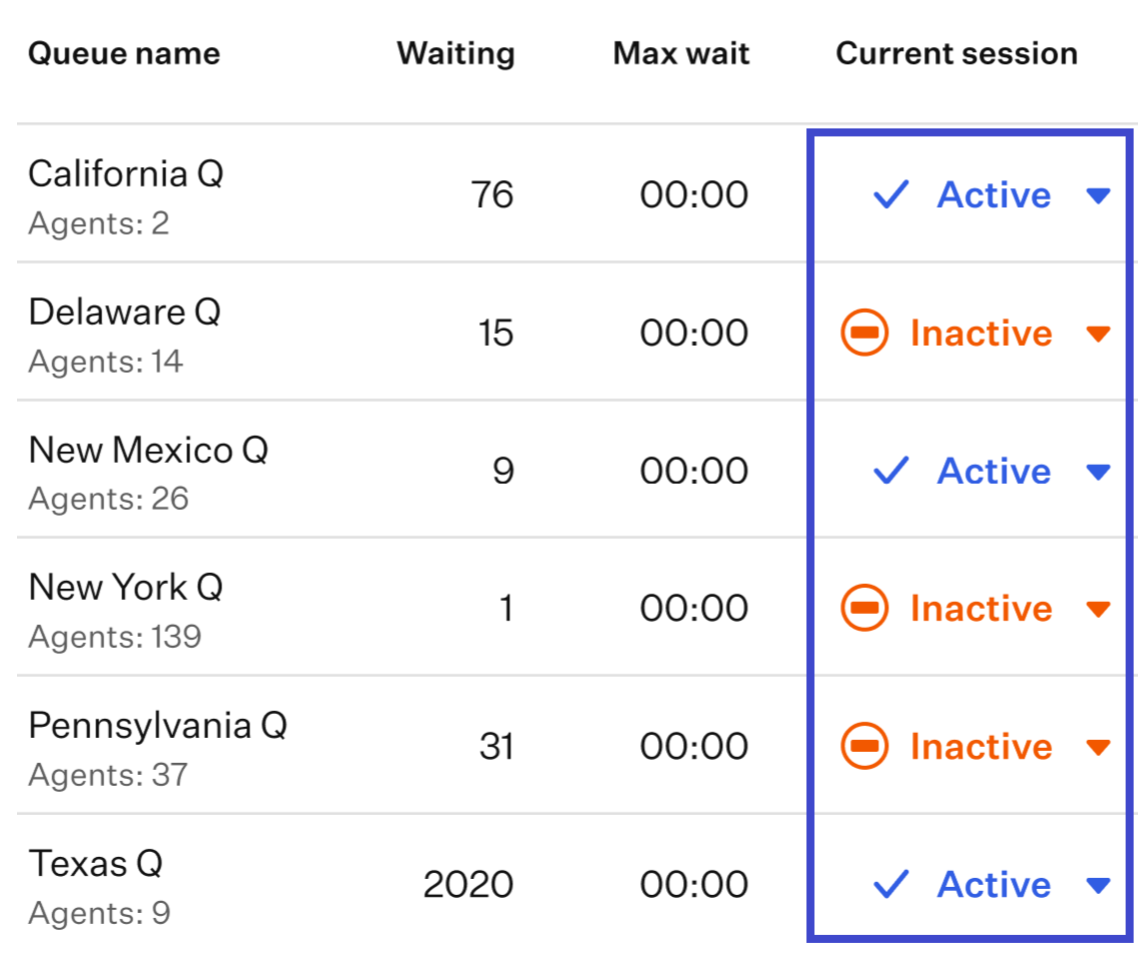
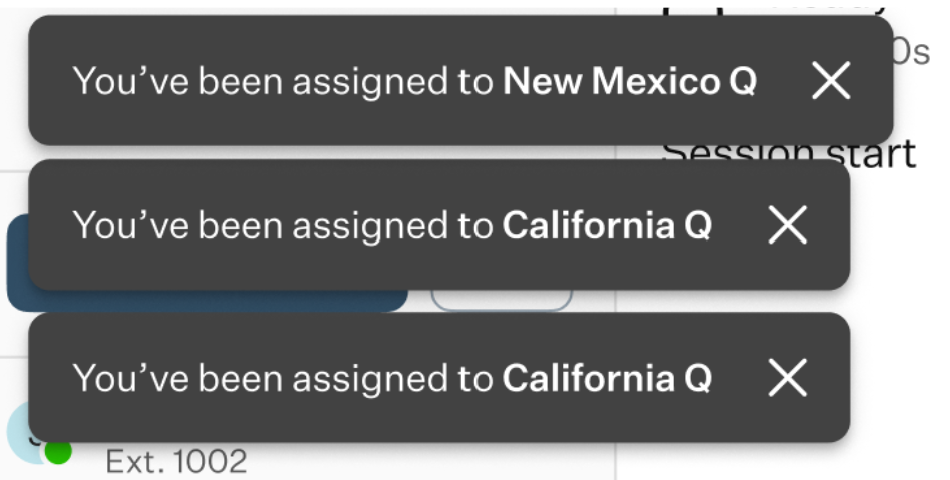
- Call Managers can also manually assign agents to specific call queues. When this happens, you will receive a notification that you have been assigned to a particular queue.
- Queue Managers also have access to standard call monitoring features to supervise active calls:
- Eavesdrop: the Queue Manager can listen to the conversation between the agent and the caller without either party knowing. This is typically used for quality monitoring or training.
- Whisper: the Queue Manager can speak to the agent during the call, but the caller cannot hear it. This is useful for coaching or giving instructions in real time.
- Barge: the Queue Manager joins the call as an active participant, so both the agent and the caller can hear them. This is usually done when intervention is needed.
For more information on how Queue Managers operate the OE Desktop app, read the corresponding article.
Was this article helpful?
That’s Great!
Thank you for your feedback
Sorry! We couldn't be helpful
Thank you for your feedback
Feedback sent
We appreciate your effort and will try to fix the article