Description: The OE Desktop App offers users a user-friendly interface for messaging through SMS/MMS communication.
In contrast to the Team Chat feature of the OE Desktop app, the Messages feature works over cellular SMS networks.
When you access the Messages feature of the OE Desktop App, you will encounter an interface that resembles the following screenshot. The user interface of the Messages Feature resembles that of the numerous messaging apps available today.
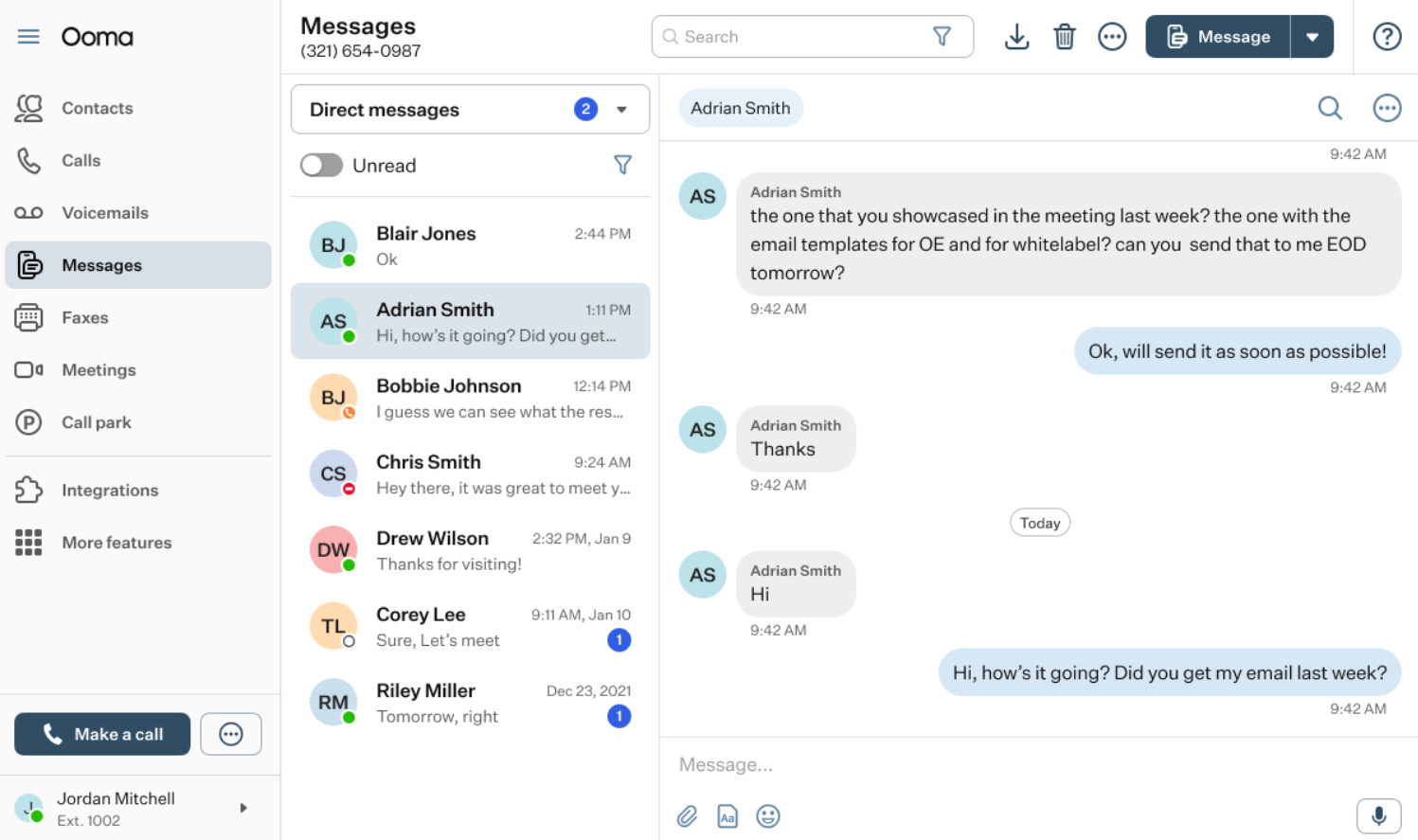
Despite the visual resemblances, all conversations take place via phone numbers, meaning that every text message is an SMS and any message containing multimedia attachments is an MMS.The feature’s interface within the main space of the app comprises three sections: the top horizontal panel, the list of chats, and the chat window, which displays all the messages from the selected conversation. Let’s examine all these sections separately.
- Top Horizontal Panel: it includes six functional elements:

- Your Number: here you can find the phone number used for messaging in this feature.
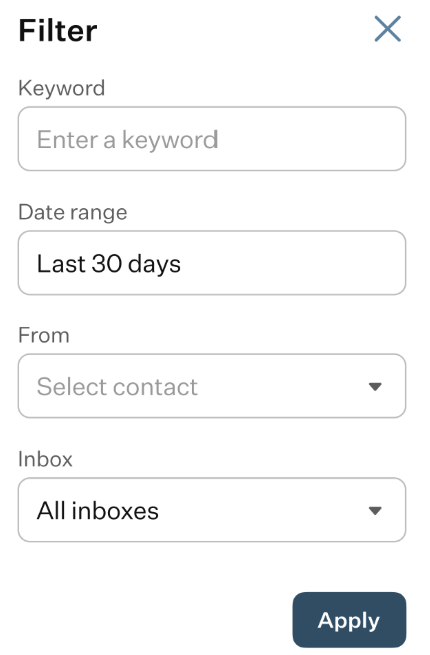
- Search Bar: you can use the search bar to locate a message or a contact within any of the chats. Clicking the Filter icon opens a pop-up window with available filter options.
- Download button: click this button to download the message history for the currently selected chat.
- Delete button: click this button to delete the currently selected chat.
- Three-Dot button: clicking this button opens a drop-down list of options:
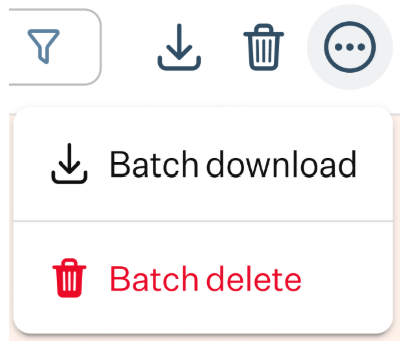
Batch Download: this option allows you to download multiple chats in a single batch. Hold the “Ctrl” key and select more than one chat from the list, then click the three-dot button and choose the Batch Download option from the appeared menu.
Batch Delete: this option allows you to delete multiple chats in a single batch. Hold the “Ctrl” key and select more than one chat from the list, then click the three-dot button and choose the Batch Delete option from the appeared menu.
- Messages Button: clicking this button opens a drop-down list where you can choose the type of message you want to create.
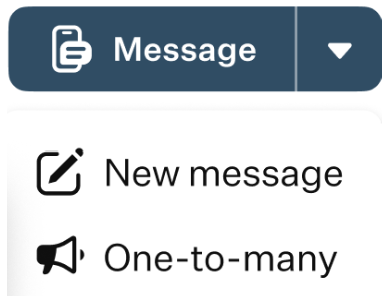
New Message: choosing this option creates a new one-to-one chat.
One-to-many: selecting this option also creates a new chat, allowing you to choose multiple respondents.
- Help button: clicking this button will open the Help pop-up window.
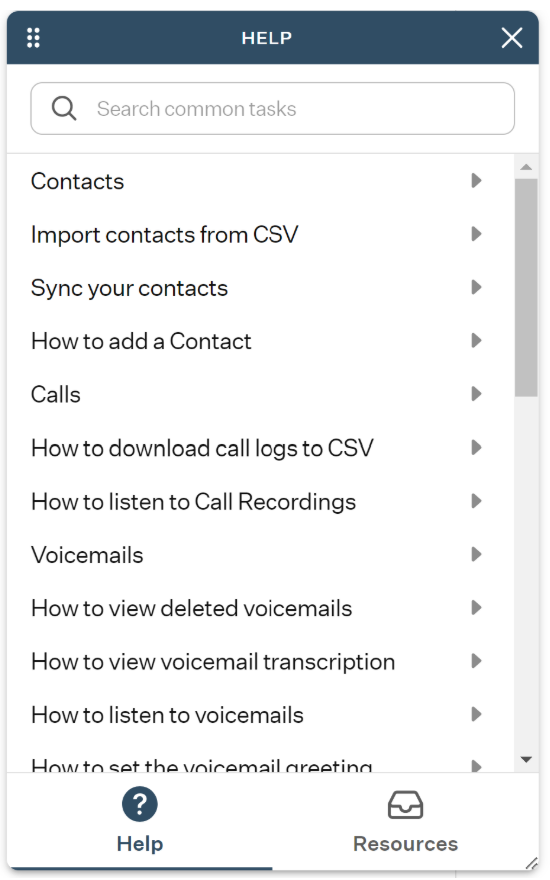
It contains a collection of useful articles covering the main features of the OE Desktop app and can be used as a knowledge base to learn more about the application.
- List of Chats: this section contains the list of chats along with several functional elements:
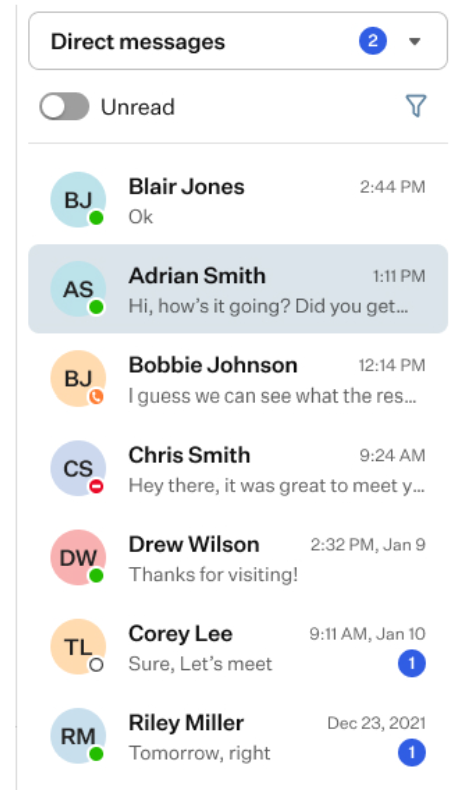
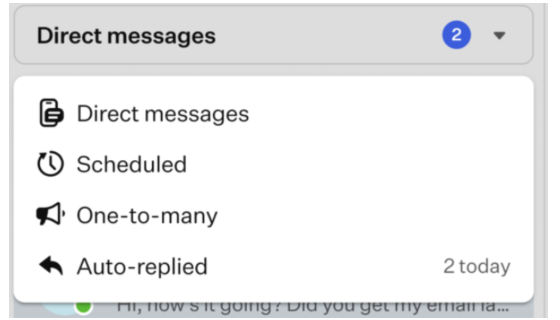
- Message type selector: clicking the field will display a drop-down list of filtering options that let you choose which message types should appear in the list of chat.
- Unread Switcher: switching this toggle changes the Chat List view to show either only unread messages or all messages.
- Filter: this button allows you to refine the Chat List by criteria such as date, respondents, and other parameters.
- Chat List: it is displayed as a series of conversations sorted by time. Each entry shows a preview of the respondent’s name and the most recent message. Selecting a chat from the Chat List opens the conversation in the Chat Window.
- Chat Window: the interface of the this section resembles that of the numerous messaging apps available today. The interface of this section is similar to many modern messaging apps. You enter your message in the text field, after which the “Send” button appears.
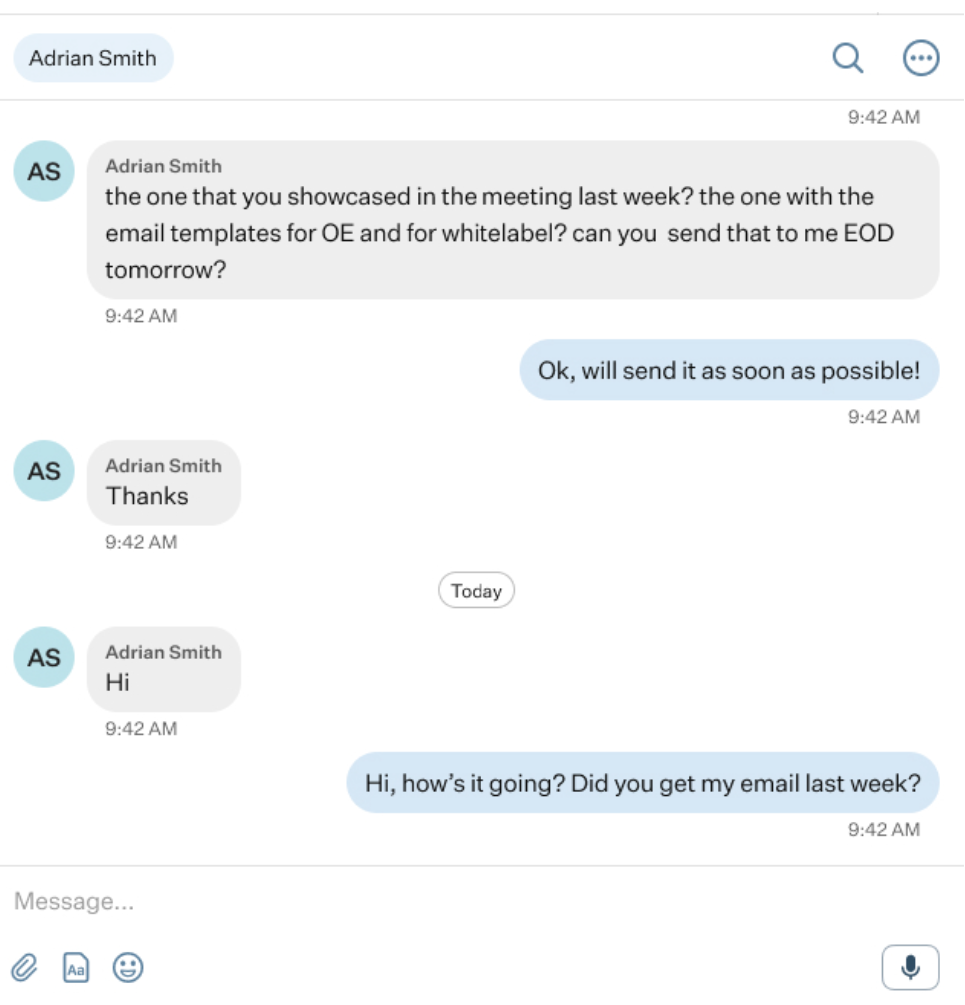
Several functional buttons are also provided, including:
- List of Respondents: this section displays all respondents in the chat. One-to-one chats show a single respondent, while one-to-many chats display a list of respondents.
Search badge: click it if you want to locate a message in the selected chat.
Three-dot button: when you click this button in a chat, a drop-down menu will appear with actions you can perform on the selected conversation:
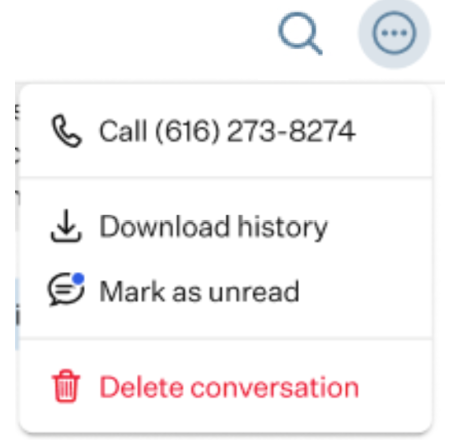
- Make a call: start a call with the participants of this conversation.
- Download history: download the full chat history to your device.
- Mark as unread: mark the conversation as unread so you can return to it later.
- Delete conversation: permanently remove the conversation from the list of chats.
Chat: here, you can see the chat with the selected respondents. It appears as a standard message conversation.
Message Section: here, you can find the message field and several action buttons.
- Message field: this field is used for inputting messages.
- Paperclip badge: clicking it allows you to attach a file to your message.
- Template badge: provides access to pre-configured message templates.
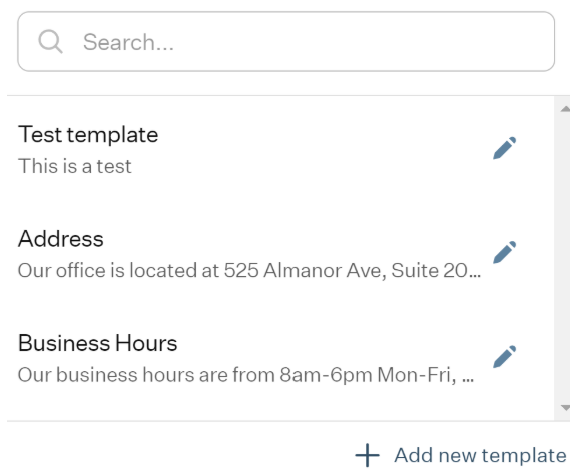
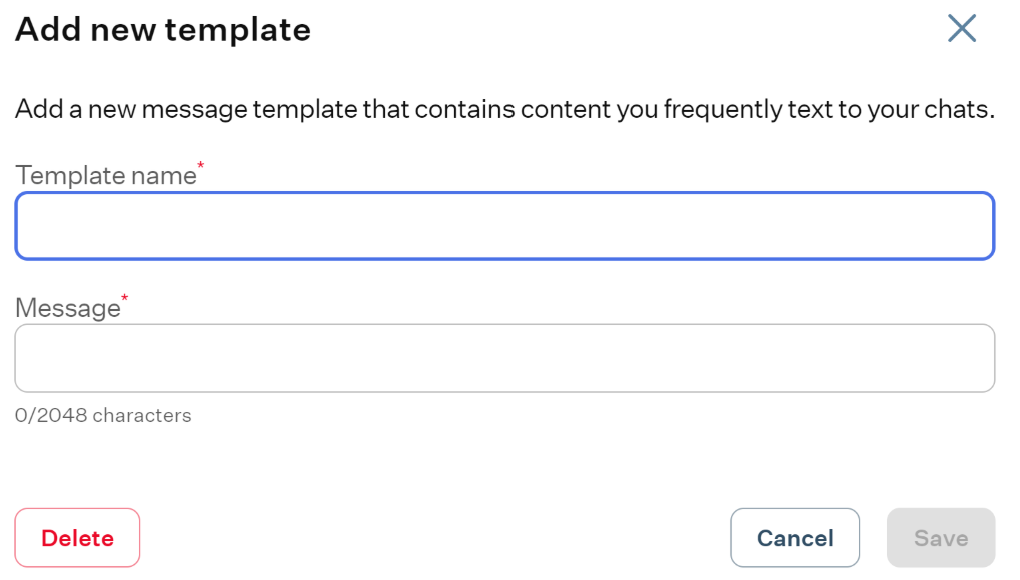
Or you can create a new one.
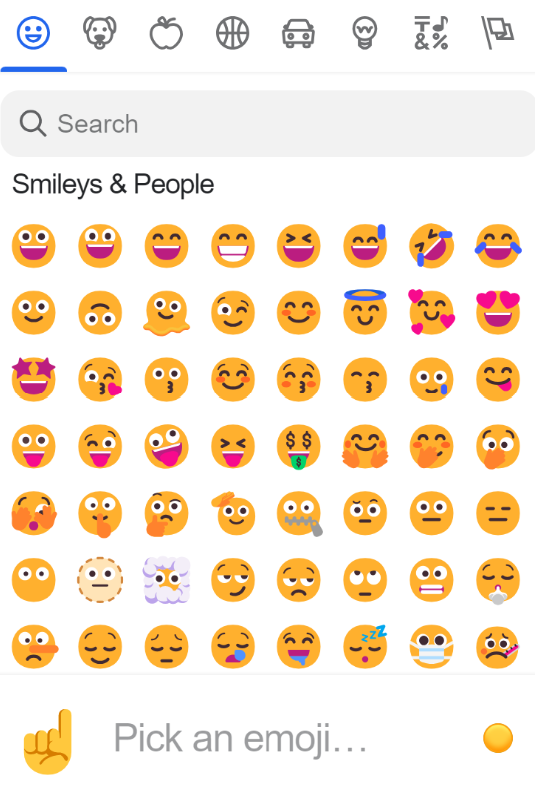
- Emoji badge: clicking on this badge will prompt a drop-up menu to appear, featuring an array of emojis. You can select an emoji by clicking on it to add it to your message.
- Microphone badge: clicking it allows you to record and send an audio message.
Was this article helpful?
That’s Great!
Thank you for your feedback
Sorry! We couldn't be helpful
Thank you for your feedback
Feedback sent
We appreciate your effort and will try to fix the article