Description: With the OE Desktop App, users can access personal voicemail boxes, allowing you to listen to the received messages and perform additional actions.
When you access the Voicemails feature of the OE Desktop App, you will encounter an interface that resembles the following screenshot.
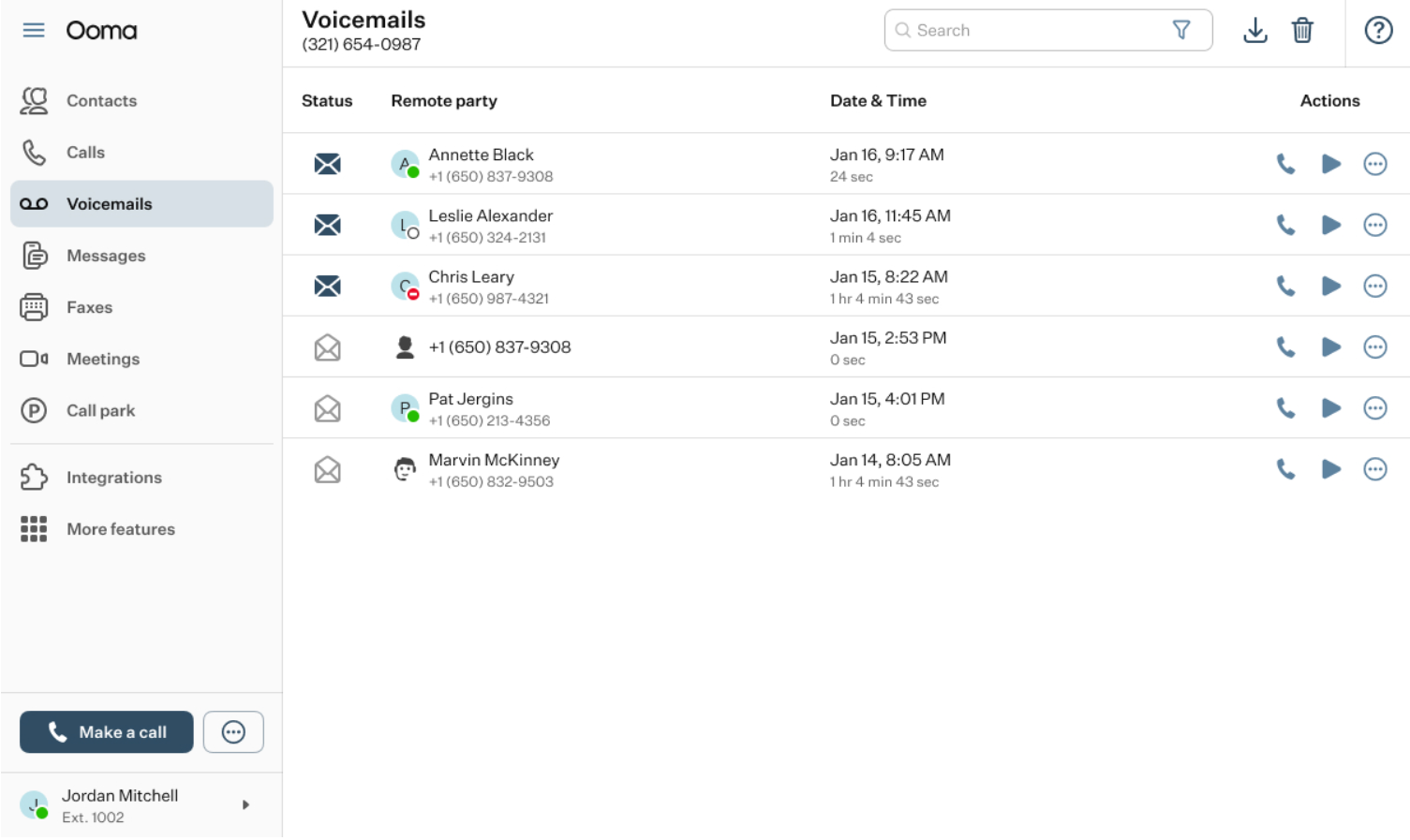
The top horizontal panel of the Voicemails feature of the OE Desktop App includes four functional elements:

- Search bar: you can use the search bar to locate a voicemail within the table of voicemails.
- Download button: clicking this button will prompt a drop-down list to appear, giving you the option to download voicemails as audio files or to download the CSV log file.
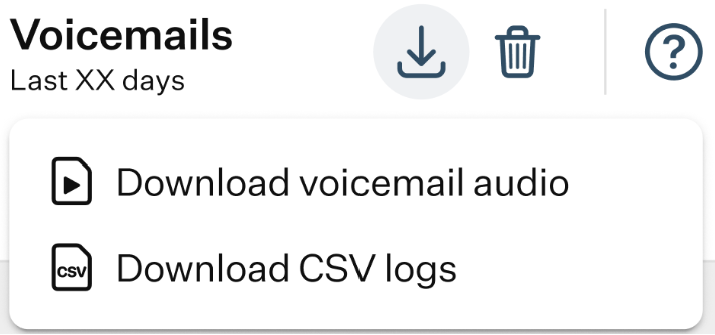
Bulk delete: upon pressing this button, you will be prompted to confirm that all voicemails will be deleted.
Help button: clicking this button will open the Help pop-up window.
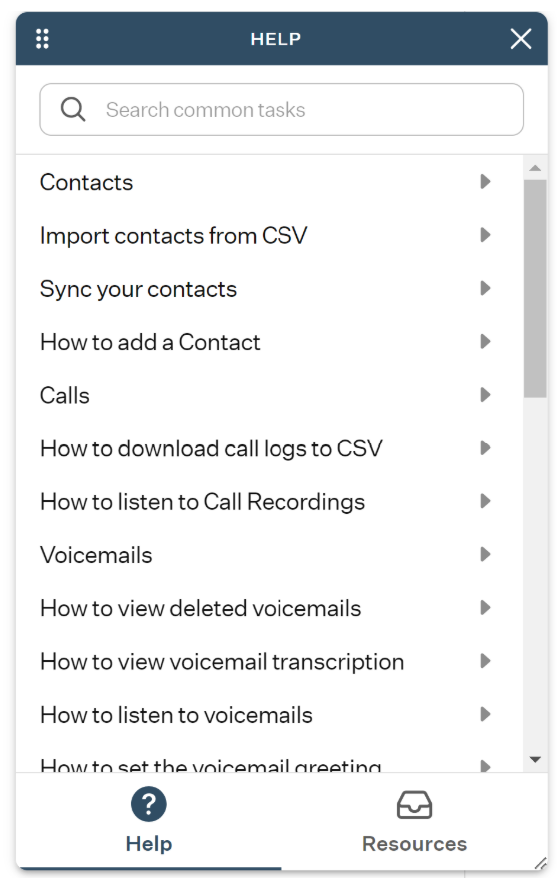
It contains a collection of useful articles covering the main features of the OE Desktop app and can be used as a knowledge base to learn more about the application.
In the main space of the app, you will find the table of voicemails that is used to display all the voicemails you received. Each record in the table of voicemails is equipped with three quick action buttons, enabling you to execute certain actions without needing to click on the record, which would typically open the detailed record card. These action buttons are:

Call button: clicking this button will initiate a call to the person who left the selected voicemail.
Play audio button: clicking this button will automatically open the detailed record card, and the audio recording of the selected voicemail will begin playing.
Three-dot button: clicking this button will prompt a small drop-down menu to appear, offering you the option to change the status of the selected voicemail to new/heard.
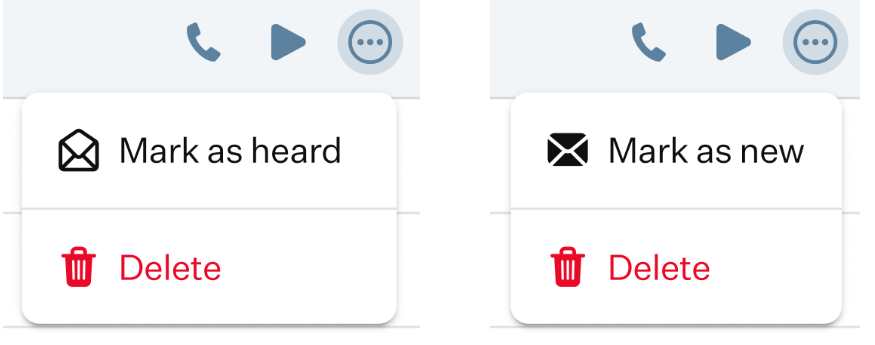
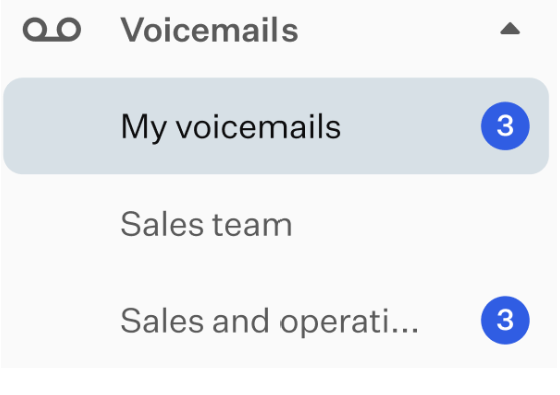
If the voicemail is labeled as new, you will see the notification badge in the left-hand menu of the app.

If you have more than one voicemail box, the Voicemail option in the left-hand menu of the app will display a small arrow. Clicking this arrow shows a list of all available voicemail boxes. Selecting any of them opens the corresponding voicemail box with all incoming voicemails enlisted in the table of voicemails.
When you click on a voicemail in the table of voicemails, the detailed record card of the selected voicemail will open in a drawer. It consists of several sections containing various buttons.
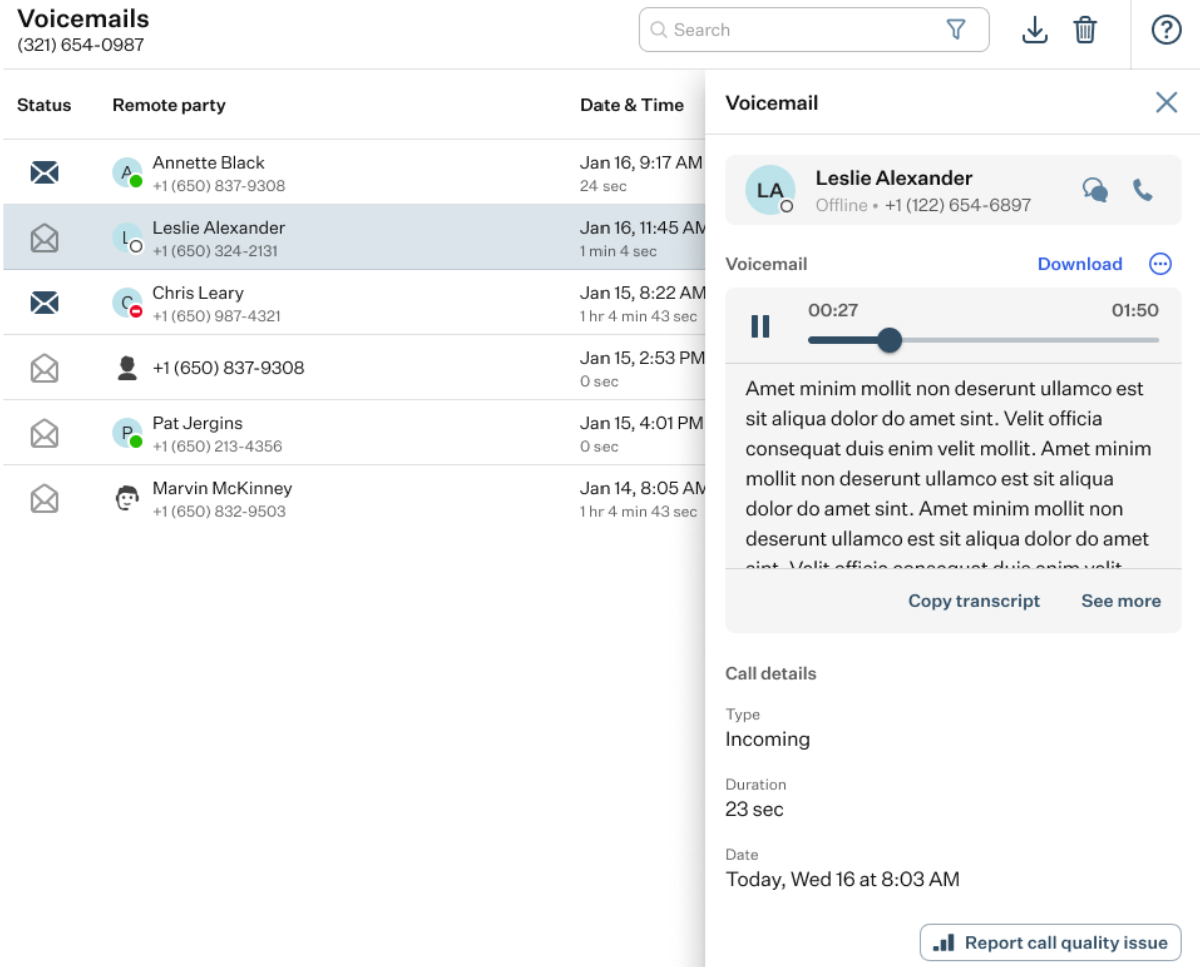
- The primary information section: it contains the contact’s name, their number, and two clickable elements.
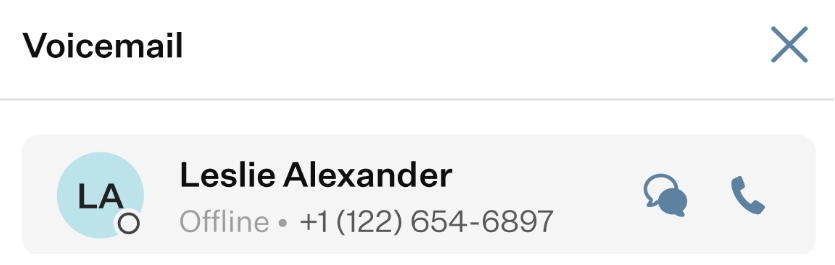
- Call button: clicking this button will initiate a new call to the person from whose number you received the selected voicemail.
- Message button: when you press this button, the Messages feature tab will be opened and the process of creating a new message will be initiated.
For further details on using the Messages feature of the OE Desktop app, please refer to the corresponding article accessible through this link.
- The voicemail section: this section includes the voicemail itself along with several primary functional elements.
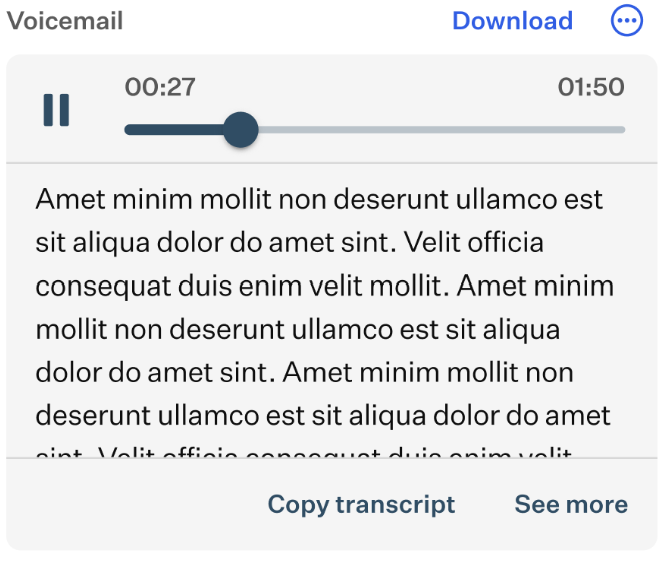
- Play / Pause: upon clicking this button, the audio recording of the selected voicemail will begin or stop playing. You can use the slider to navigate forward and backward through the recording while listening to it.
- Download: with this button, you can download the selected voicemail as an audio file of the *.mp3 format.
- Three-Dot button: clicking this button opens a drop-down menu with three actions for the selected voicemail:
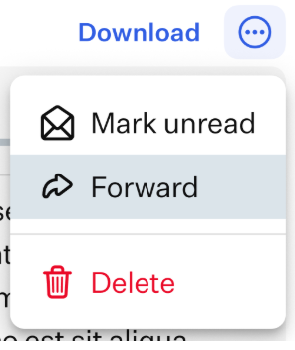
Mark unread: select this option to label the selected voicemail as unread.
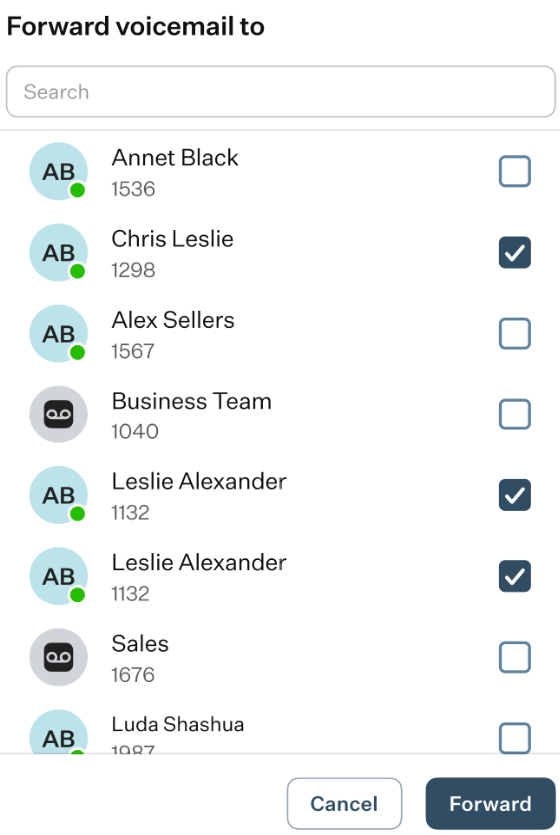
Forward: select this option to resend the selected voicemail. A pop-up window will appear prompting you to select the recipient from your contact lists.
Delete: select this option to remove the selected voicemail.
- Transcription: in this section, you will find an automatic transcription of the voicemail if the caller spoke during the call.
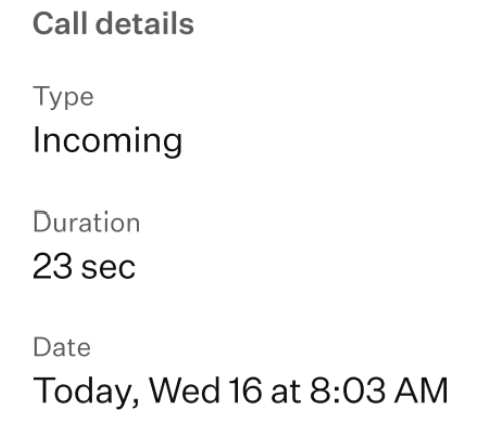
- Call detail section: within this section, you will find some meta information about the selected voicemail: its type, duration, and the date it was received.
- Report Cal Quality Issue: in case of having some issue with this call, you can report it by clicking this button. This action will prompt a pop-up window to appear, where you can enter relevant information regarding the issue.
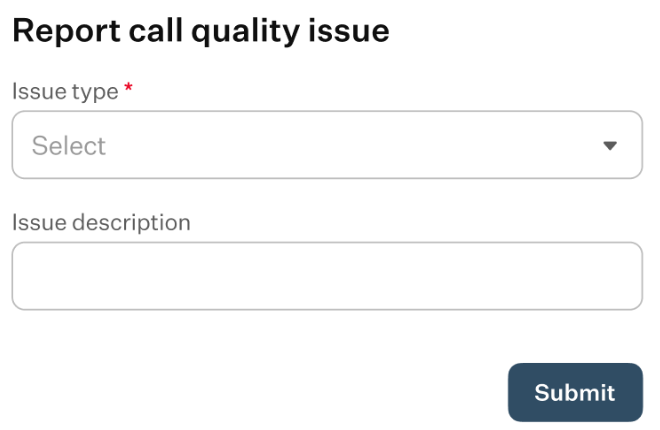
Based on the problem encountered, there are multiple issue types available to select from: Dropped Call, One-Way Audio, Broken Audio or Bad Sound, Other. Once you have selected the issue type, added any optional description, and clicked the “Submit” button, a support ticket will be created to report the issue.
Was this article helpful?
That’s Great!
Thank you for your feedback
Sorry! We couldn't be helpful
Thank you for your feedback
Feedback sent
We appreciate your effort and will try to fix the article