Description: There are several Profile settings that you can modify.
In order to access the settings for your Profile, you need to click on your profile picture, which can be found on the right-hand side of the top horizontal menu in the OE Desktop App.
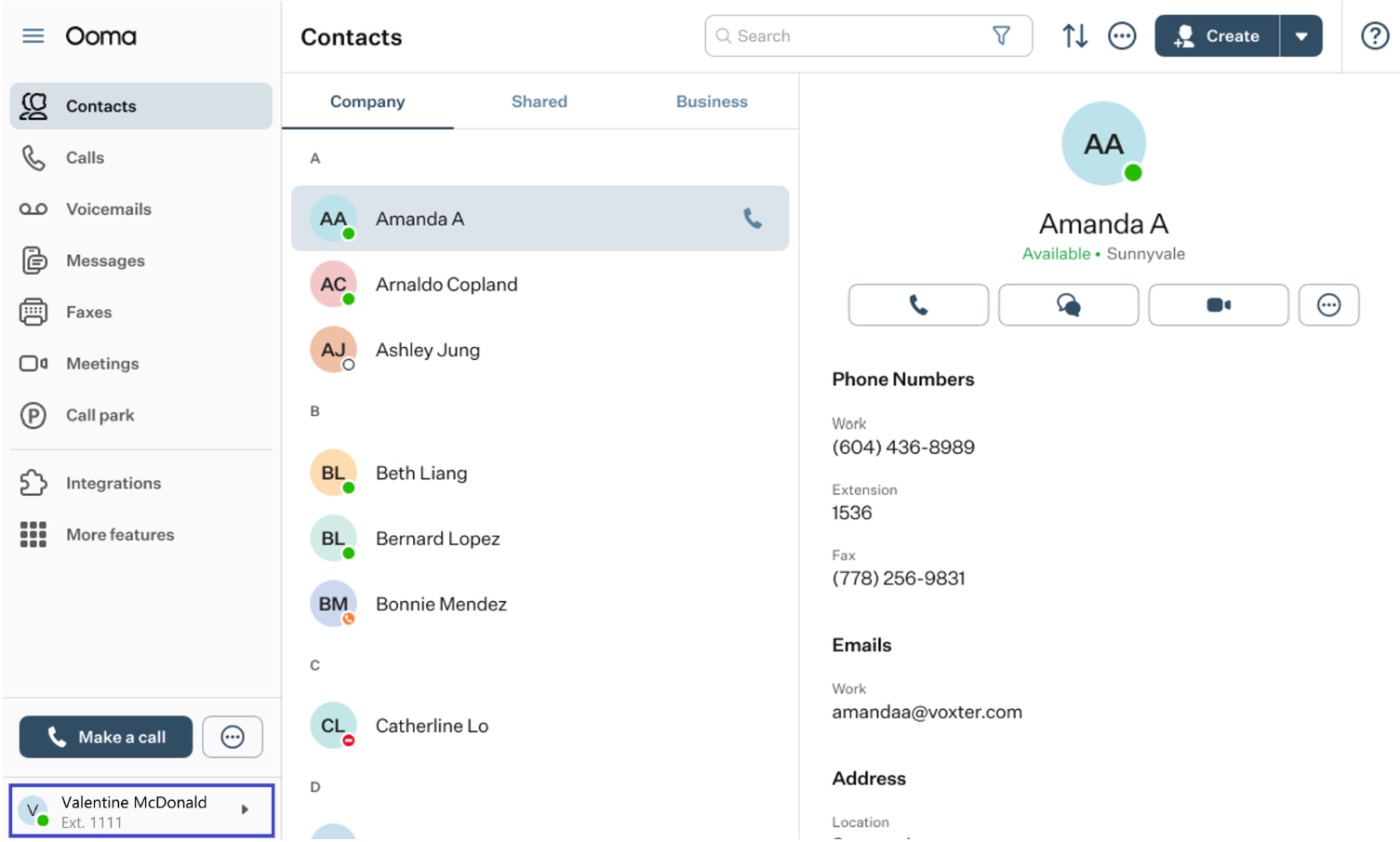
This will cause a drop-down menu to appear.
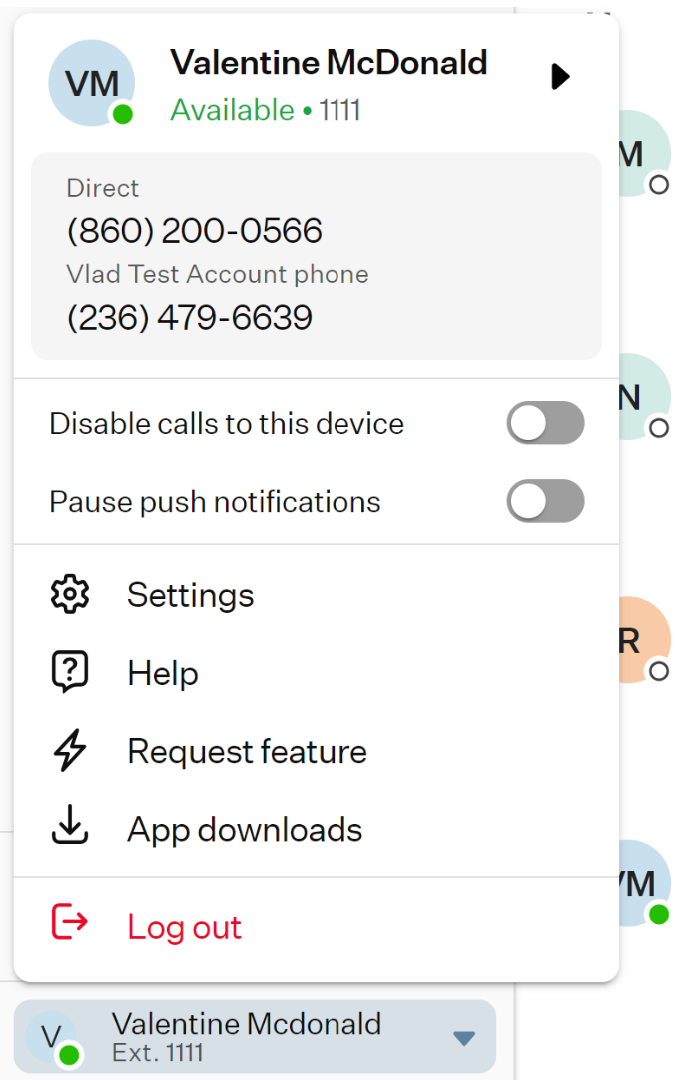
The given settings are organized into multiple sections.
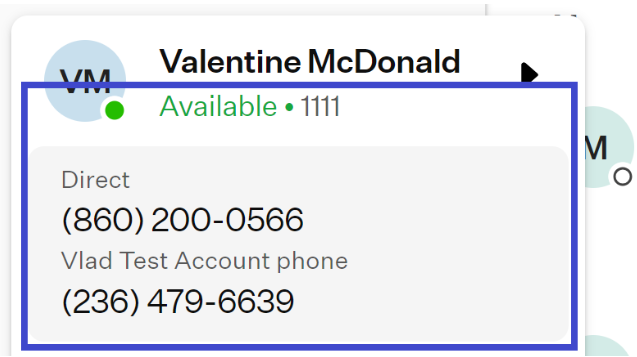
- View My Numbers: here, you will find a comprehensive list of all the phone numbers that are linked to your Profile, including the ones that have been assigned to you.
Disable calls to this service: enable this this toggle to prevents any calls from being made to or through the OE Desktop app.
Pause push notifications: enable this toggle switch to stop receiving push notifications in the OE Desktop app.
Settings: when you select this option, you are redirected to the Settings page, which contains all configurable and non-configurable parameters of the application and your account.
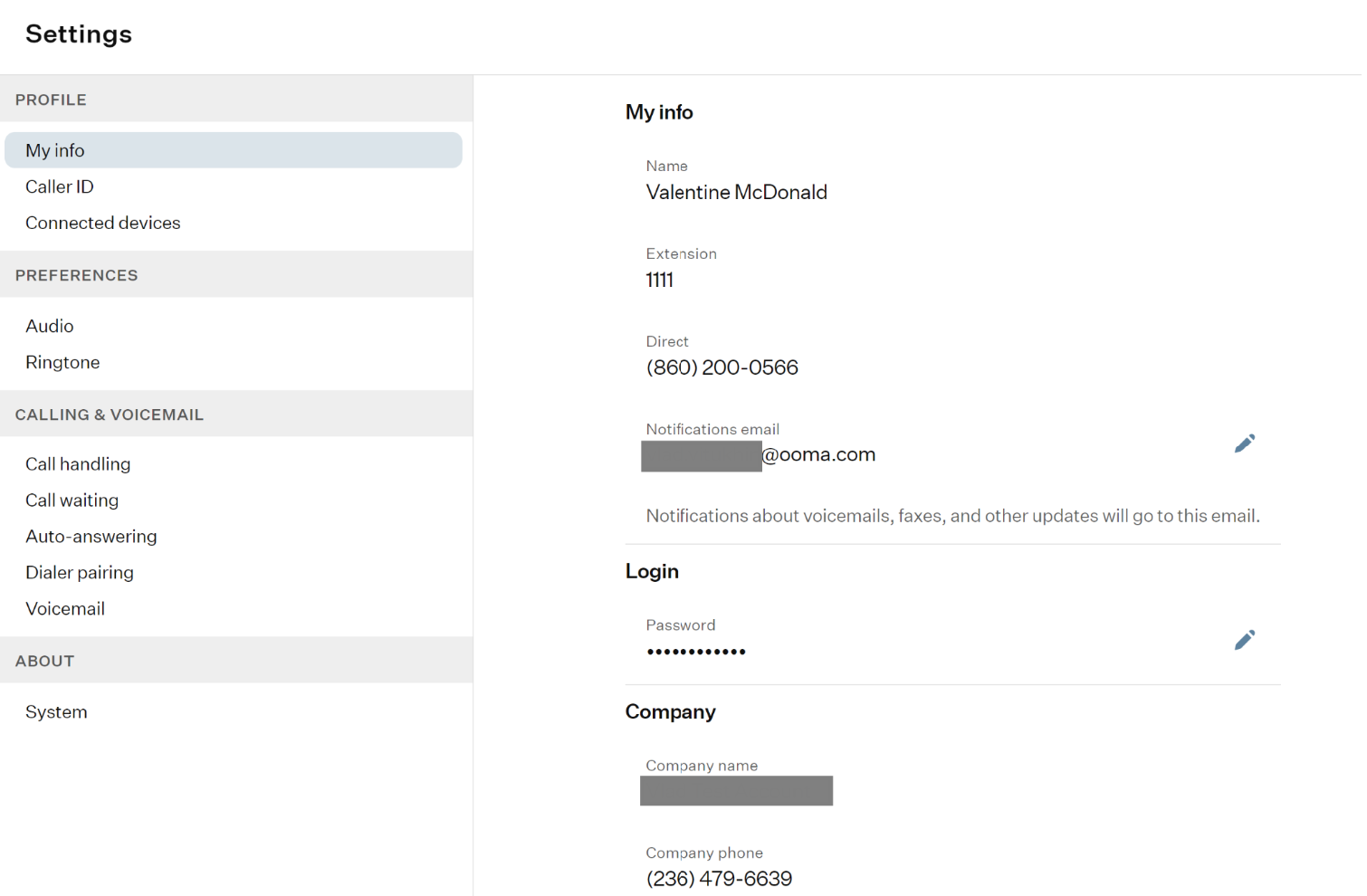
This topic is too broad to cover here. For more details, refer to this article.
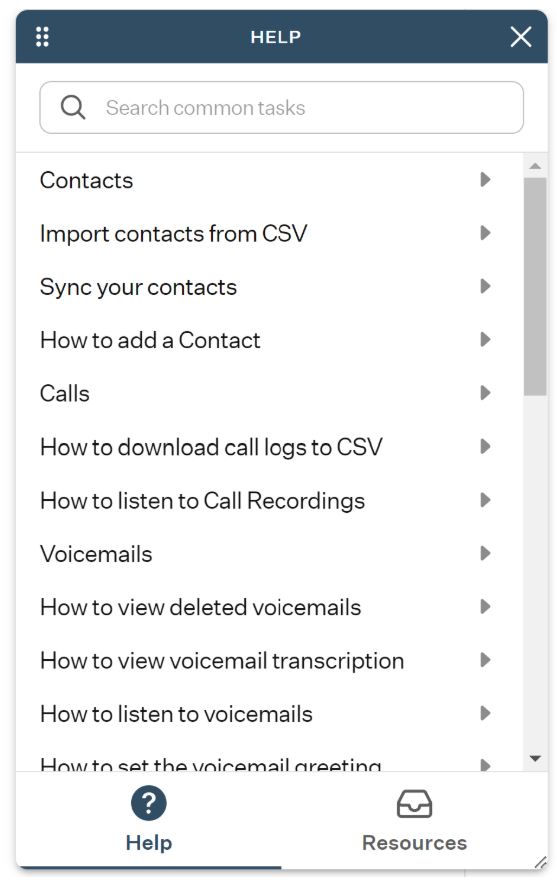
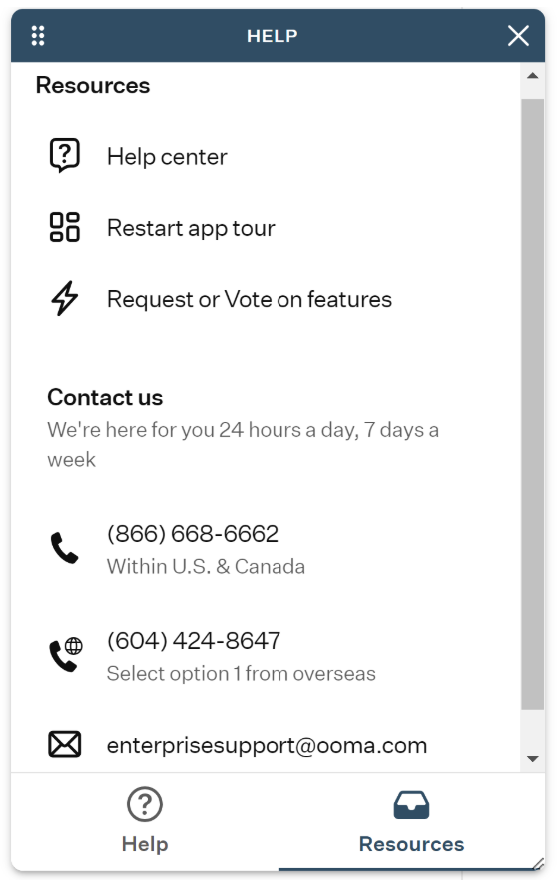
Help: this section contains two tabs that you may find useful in getting to know the application.
Help Tab: this tab contains a collection of useful articles covering the main features of the OE Desktop app and can be used as a knowledge base to learn more about the application.
Resources Tab: this tab provides quick links to various help resources, along with a section containing contact information on how to reach out to Ooma.
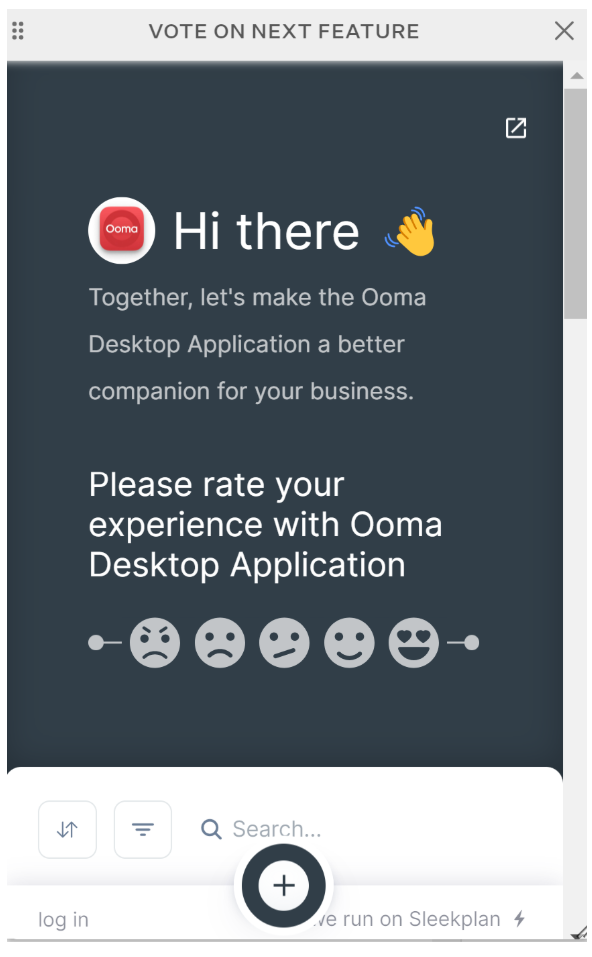
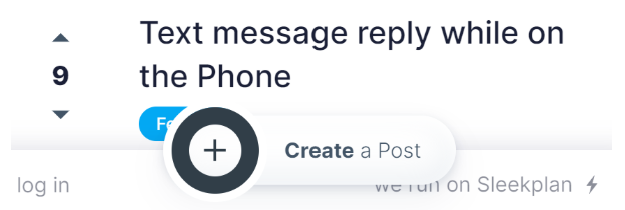
Request Feature: selecting this option will trigger a pop-up window above the app, allowing you to rate your experience with the app and view a list of features suggested by other users for further implementation.
Scroll down within the window to see the full list of suggested features. You can vote up or down on each suggestion by clicking on the up and down arrows next to them.
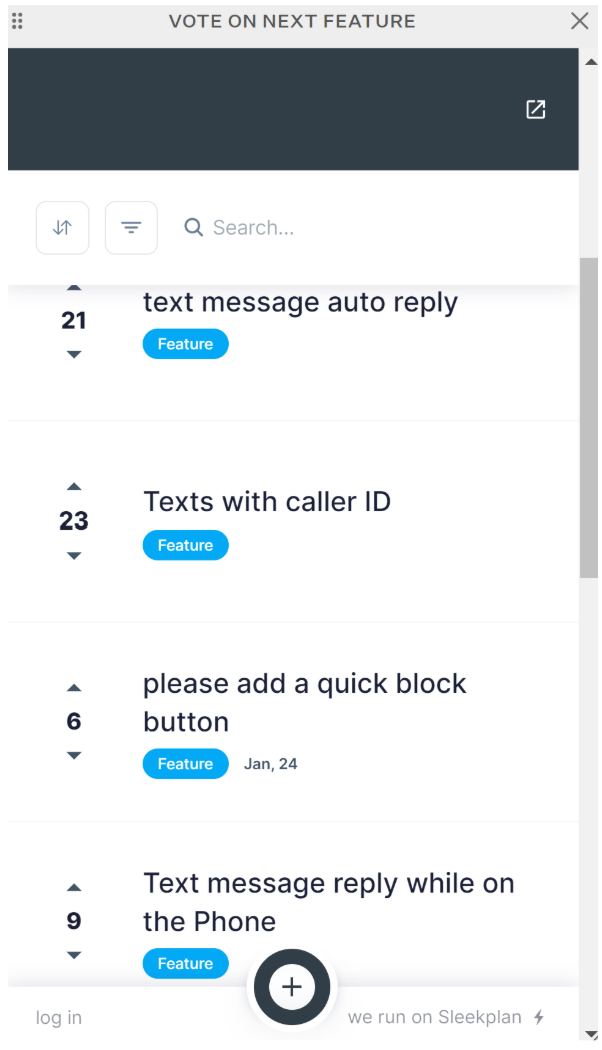
To submit your own suggestion, click on the Plus badge.
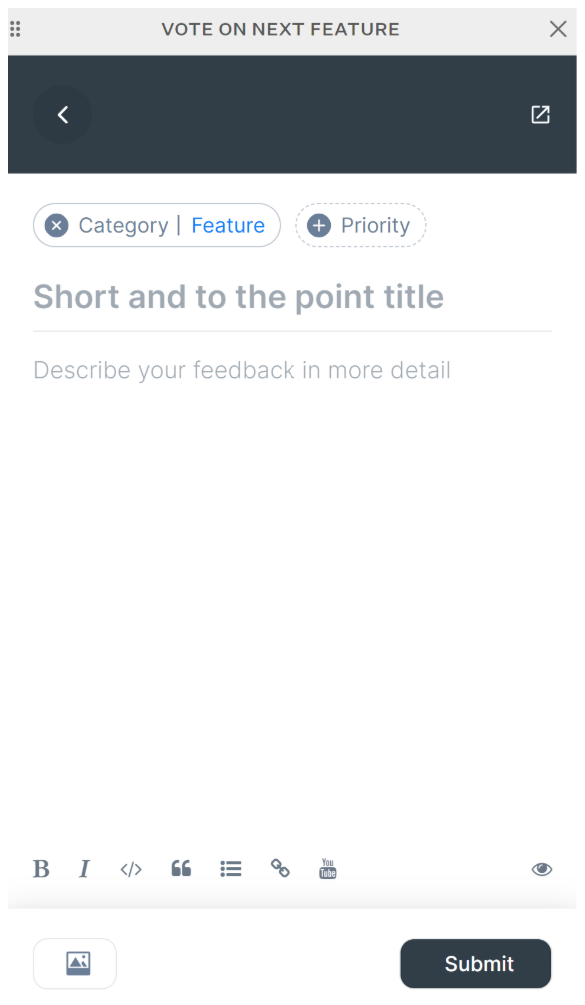
A new form will appear for you to fill out, which will add your suggestion to the list.
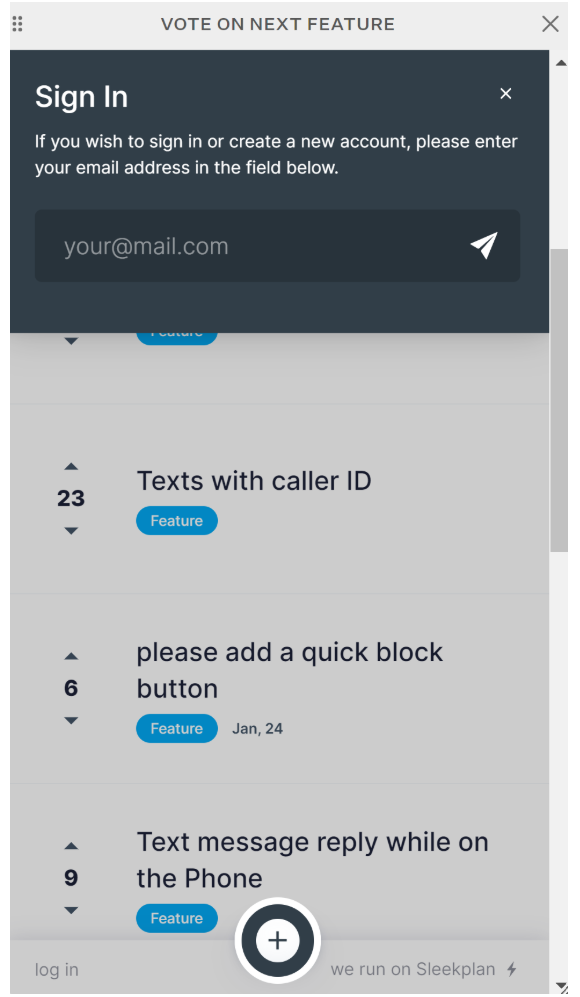
Additionally, you can log into the system if you prefer to submit a suggestion from an email address not associated with the account you use to log into the OE Desktop App.
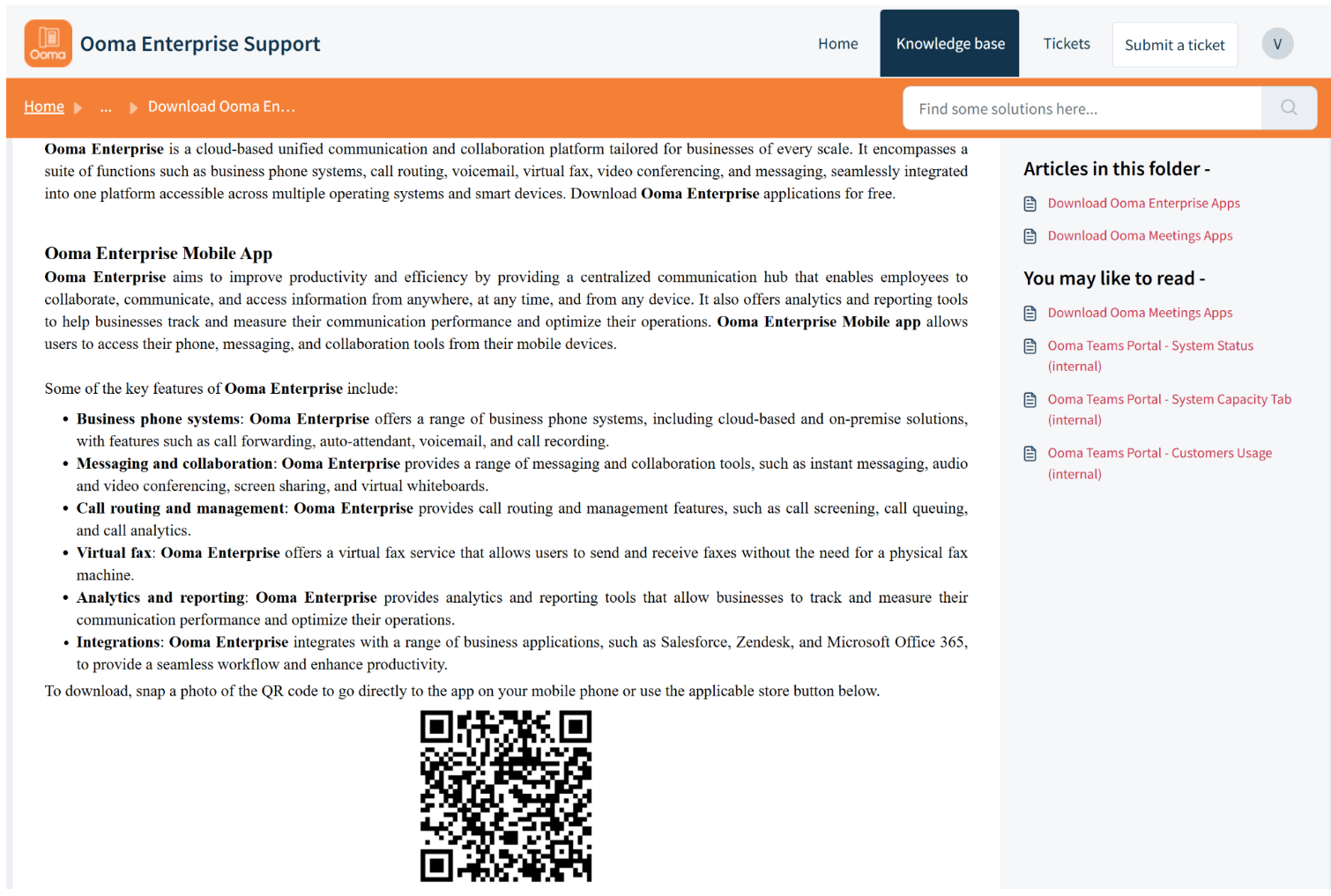
- App Download: when you select this option, a new page opens in your web browser and redirects you to the Ooma Knowledge Base, where you can download both the latest and legacy versions of the OE Desktop and Mobile apps.
- Log Out: if you select this option, you will be logged out of the OE Desktop App.
Was this article helpful?
That’s Great!
Thank you for your feedback
Sorry! We couldn't be helpful
Thank you for your feedback
Feedback sent
We appreciate your effort and will try to fix the article