Description: The Queue Manager feature lets you manage the call center using dashboards and reports. The Queue Reports section specifically provide all statistical information about the queues you have access to.
When you access the Call Manager feature of the OE Desktop App, the Queue Dashboard tab will be open by default.
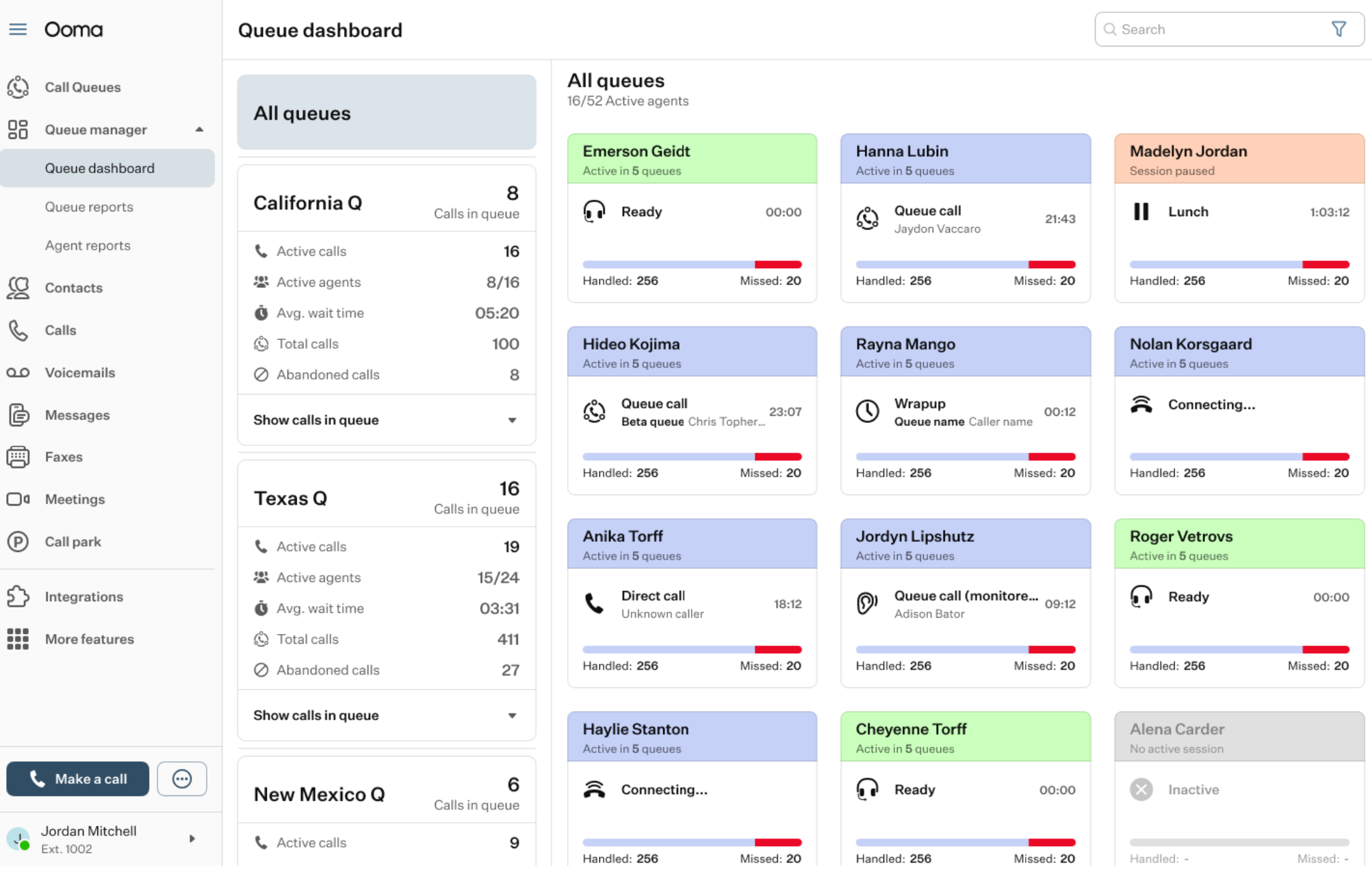
To access Queue Reports, select the corresponding option from the left-hand menu of the OE Desktop app.
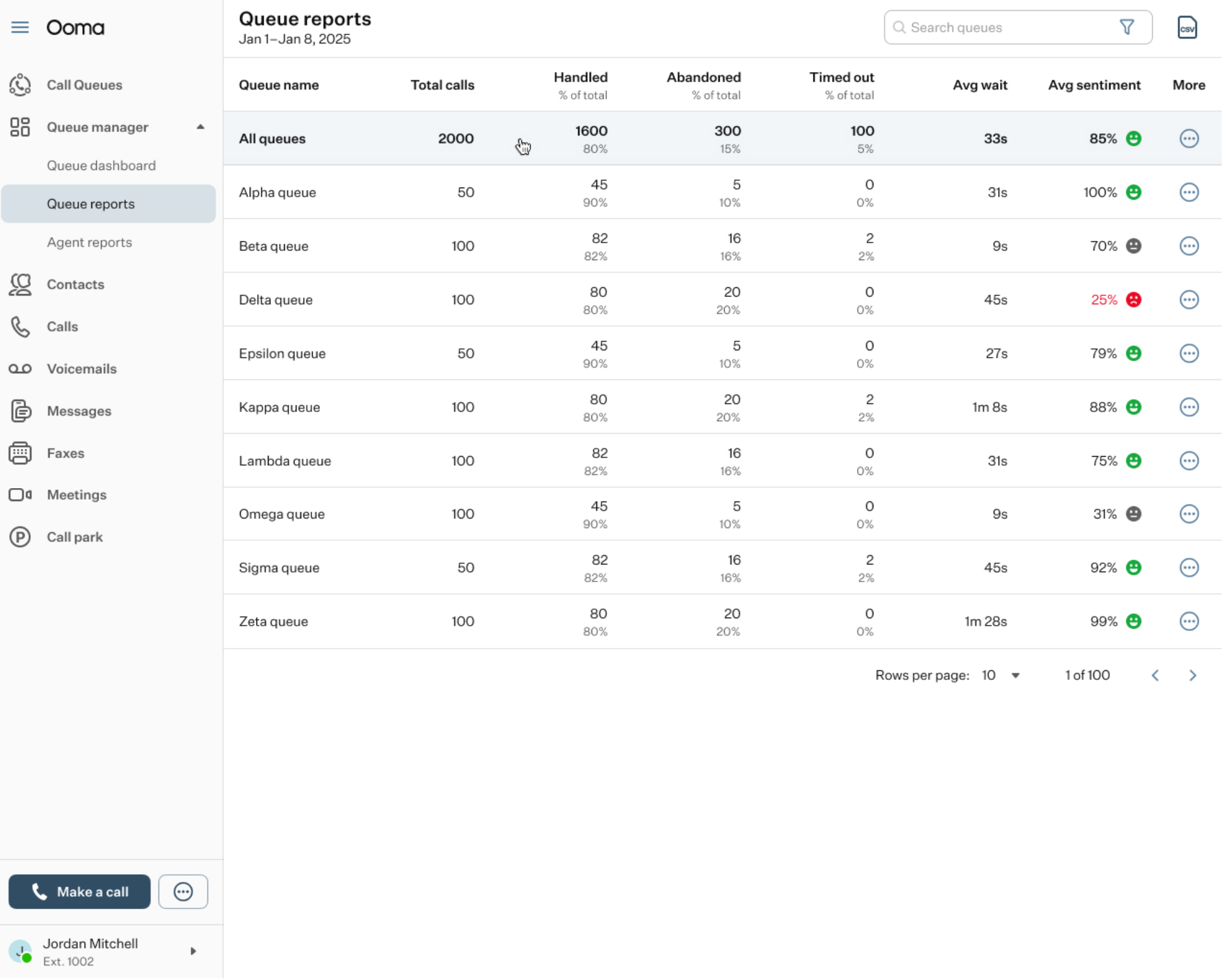
The Queue Reports interface can be divided into two main sections:
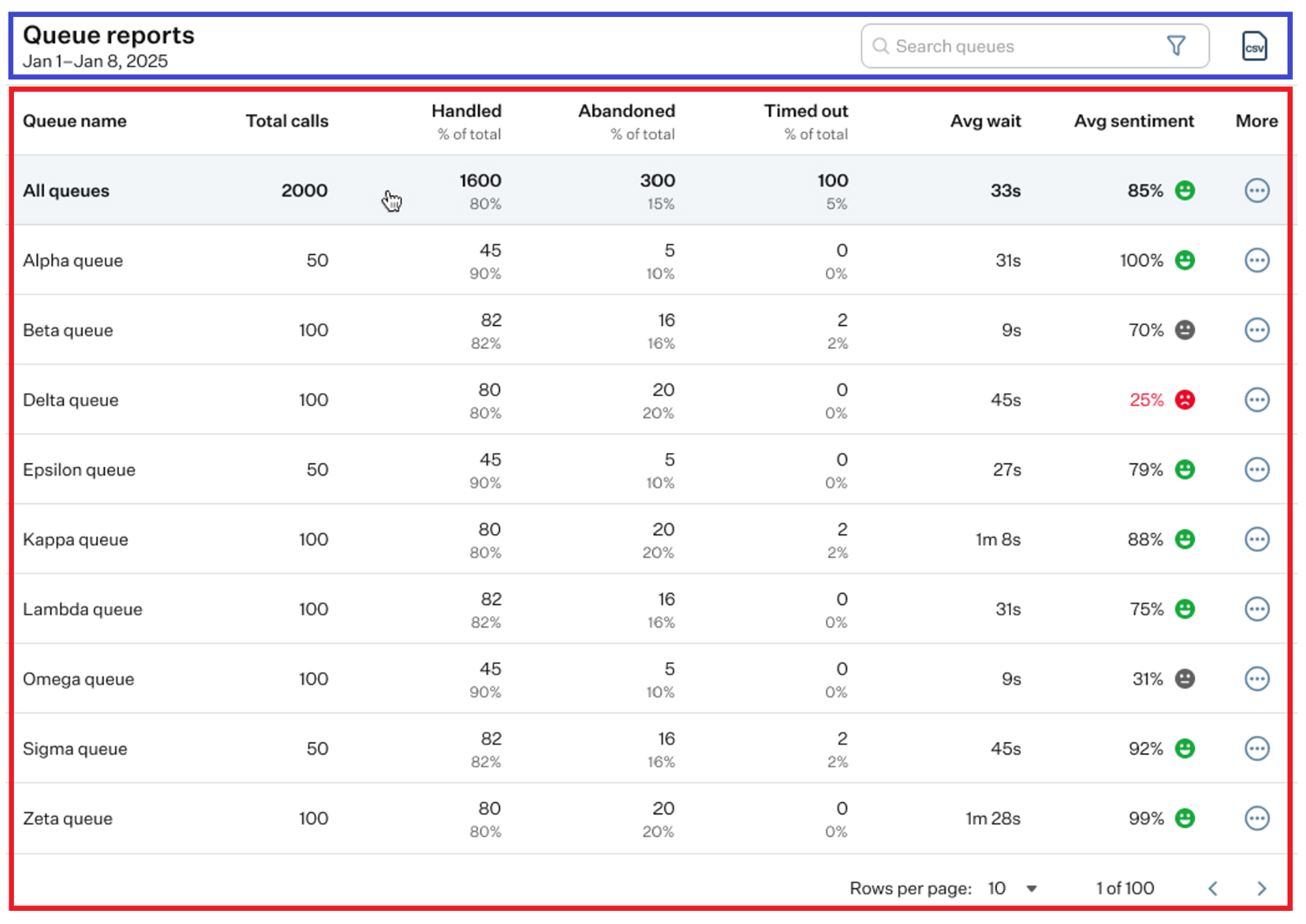
- Top panel: it contains several action elements:
- Search Bar: is used for finding a specific queue.
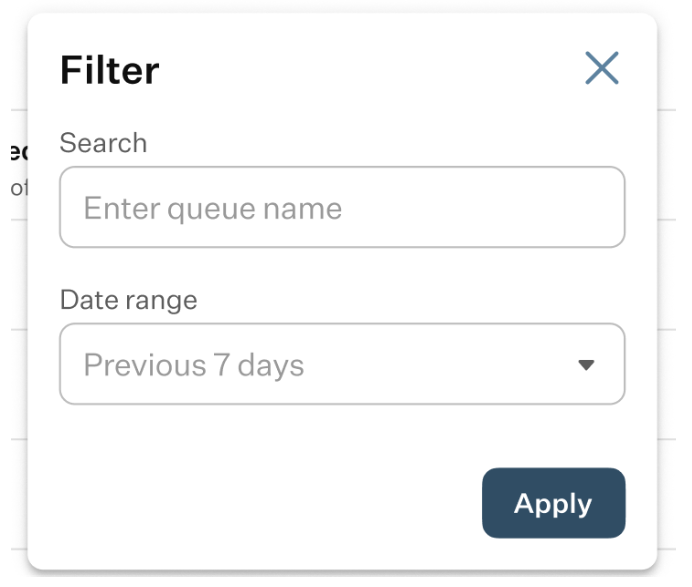
- Filter: it allows you to set a date range for your search.
- CSV: click this button for downloading the queue reports, as a CSV file.
- Table of queues: this section contains a list of queues for which you have managerial access. For each queue, the table displays key statistics, including total calls, the percentage of handled calls, the percentage of abandoned calls, the percentage of timeout calls, average wait time, and average sentiment, along with the “More” button.

By clicking the “More” button, you can open a drop-down menu with additional options, such as Call History and Activity Log.
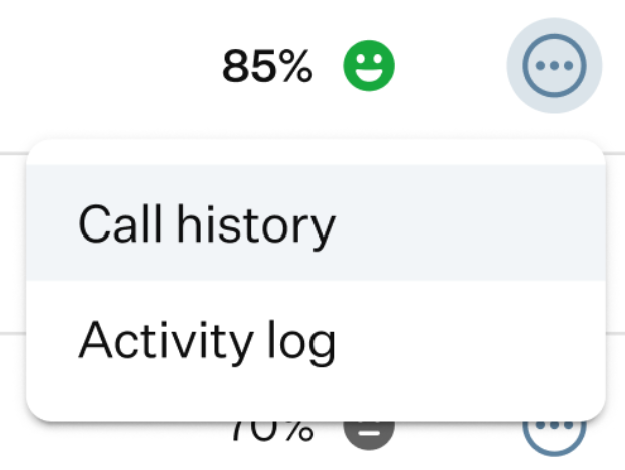
These options are also accessible when selecting a specific queue from the table, so the “More” menu serves as a convenient shortcut to open them directly from the table.
When you select a queue from the table of queues, the corresponding report section open.
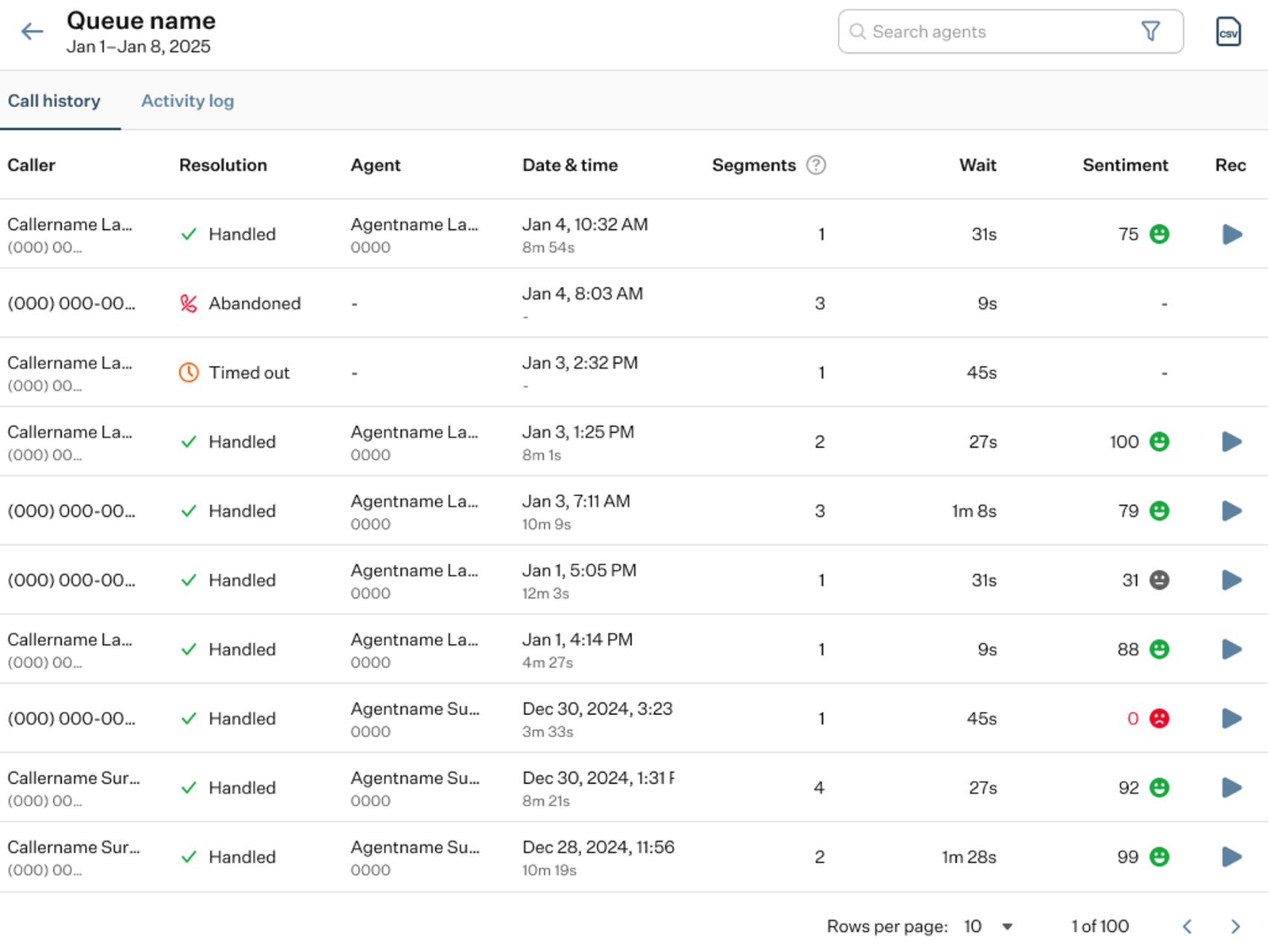
There are two available tabs here: Call History and Activity Log. By default, the Call History tab is displayed. The functionality of the page elements varies depending on which tab is selected. Let’s explore these tabs separately.
- Call History: this tab displays the history of all calls conducted within the selected queue.
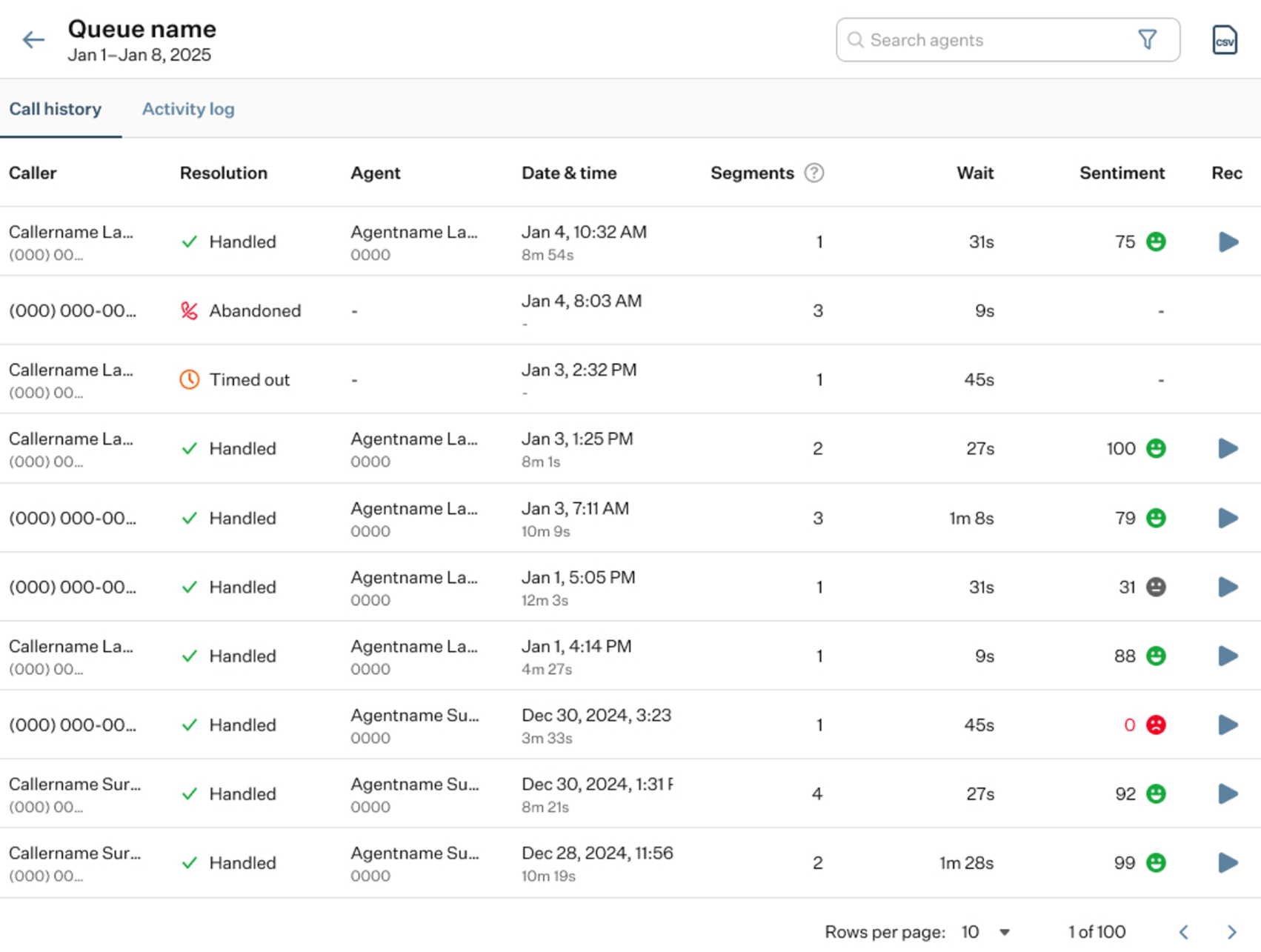
The interface consists of two main elements:
- Top panel: it contains several action elements:
- Search Bar: is used for finding a specific call in the call history table.
- Filter: it allows you to set additional details for your search.
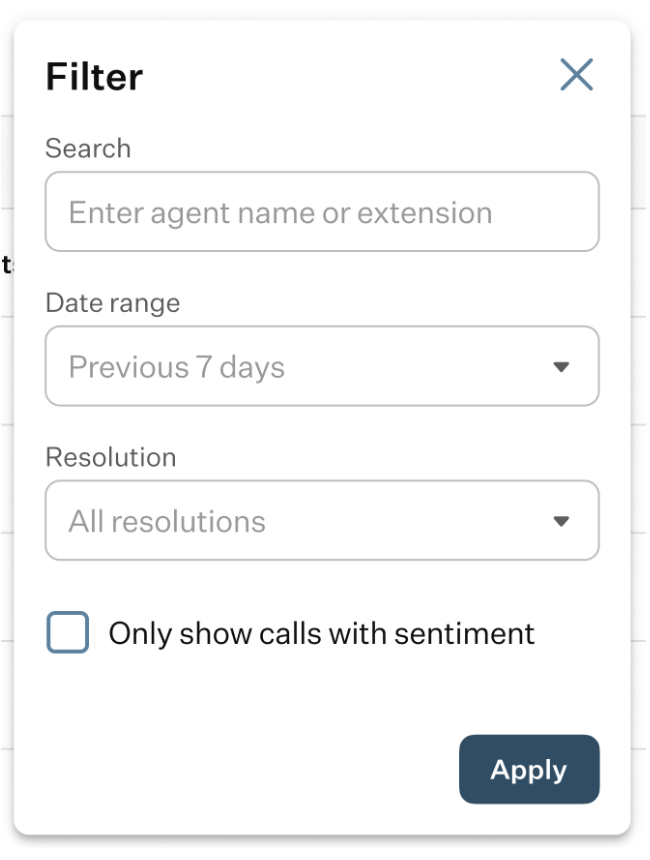
- Search: use this field to enter a name, extension, or any other information you want to search for.
- Data Range: this field allows you to set a date range for your search.
- Resolutions: use this field to filter calls based on how they were resolved.
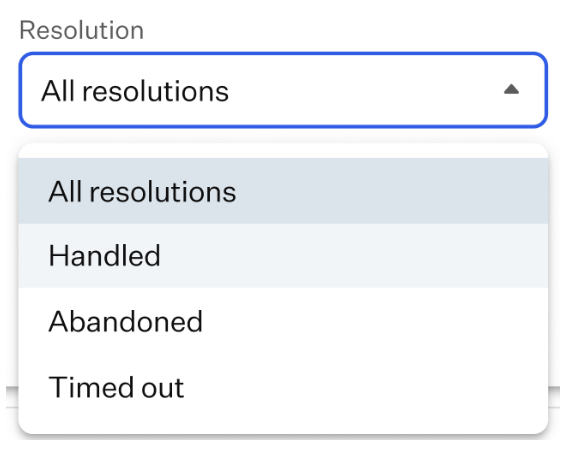
- Only show calls with sentiment: this checkbox allows you to display only calls that include sentiment data.
- CSV: click this button for downloading the queue call history, as a CSV file.
- Call history table: this table provides detailed information about each call, including the call name, resolution, the agent who handled the call, the date and time the call was segmented, wait time, and sentiment. It also includes the “Rec” badge indicating whether a call recording is available.
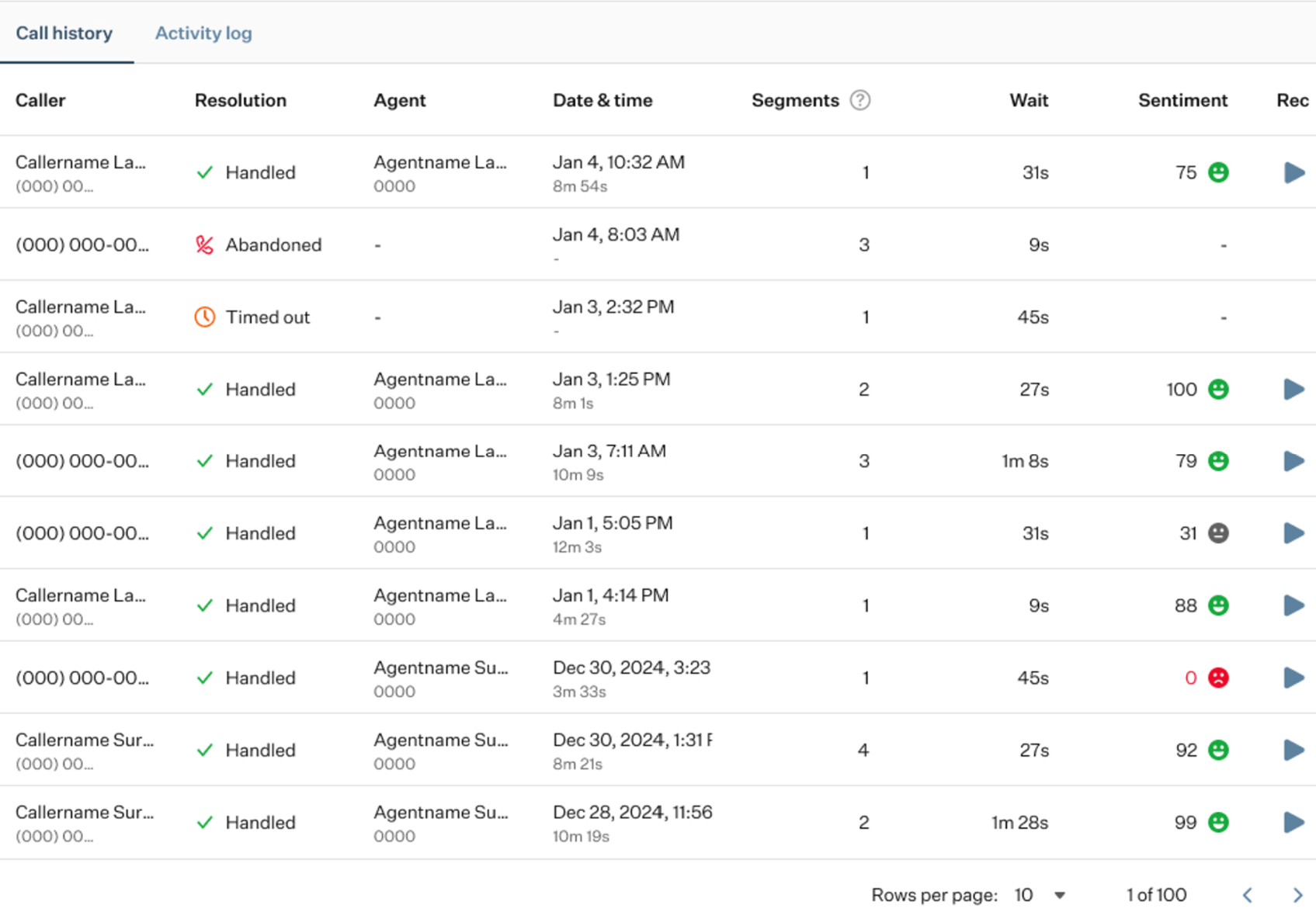
When you select a call from the table, a drawer opens on the left-hand side of the OE Desktop app.
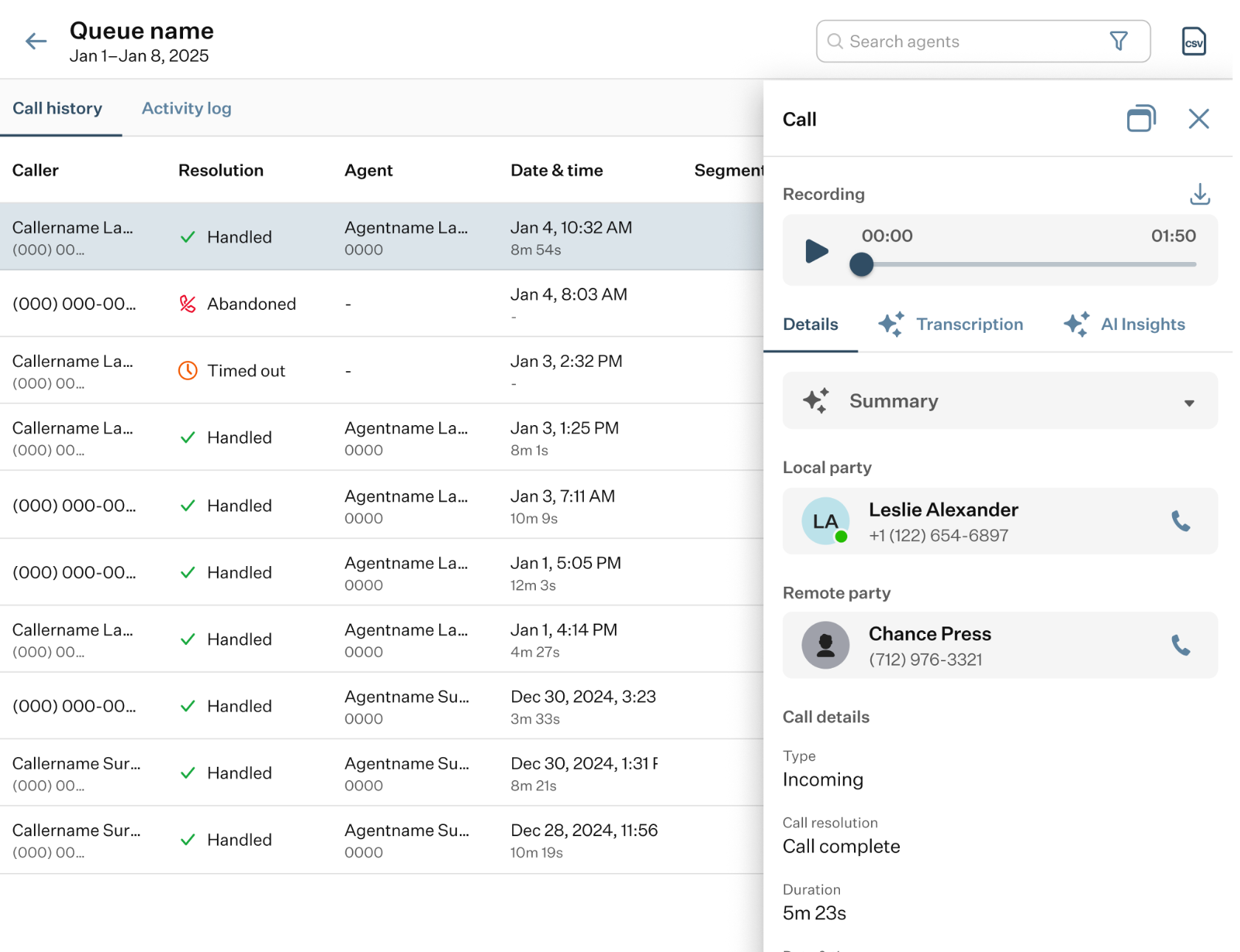
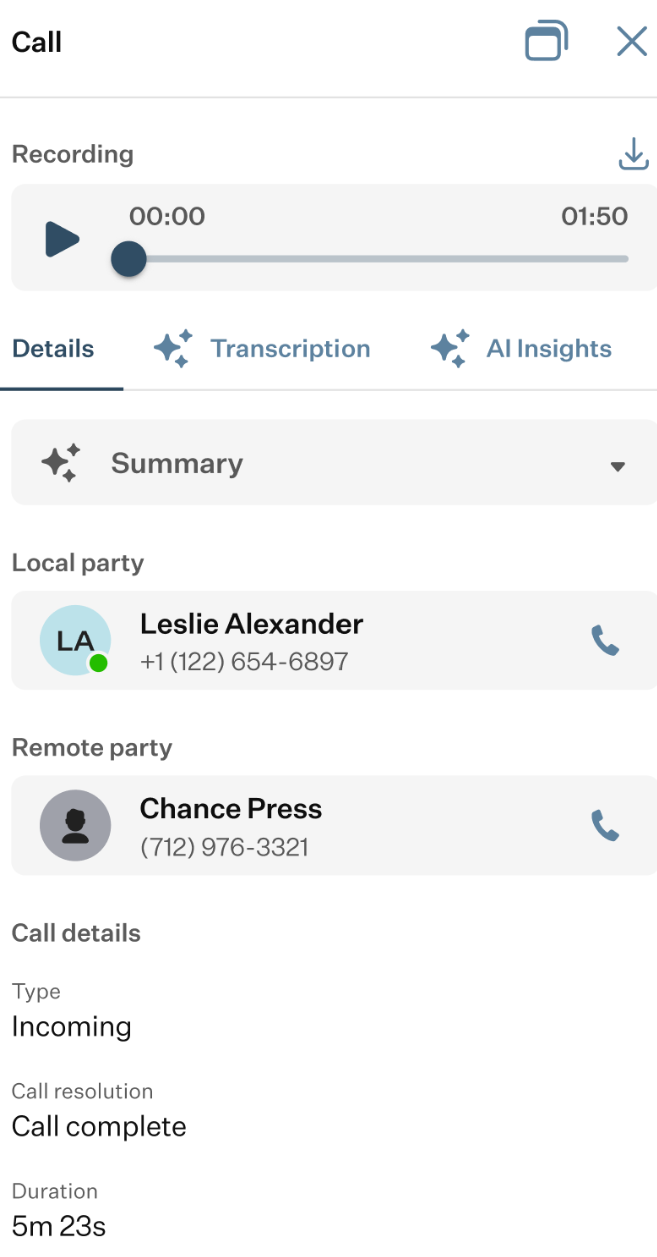
This drawer contains the recording of the selected call, which you can play and download, as well as three tabs:
- Details tab: provides key information about the call, including the local and remote parties, as well as general call details.
- Transcription tab: includes an advanced recording player that displays the speakers’ segments along a timeline, along with an AI-generated transcription of the entire conversation.
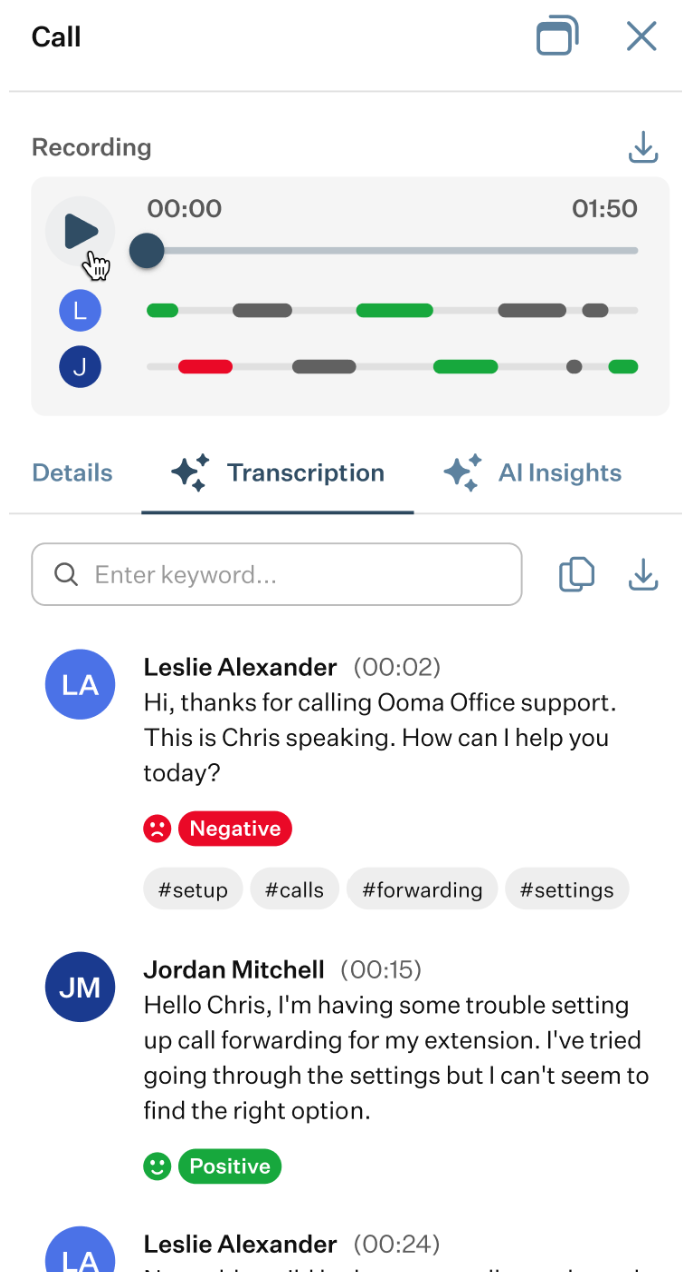
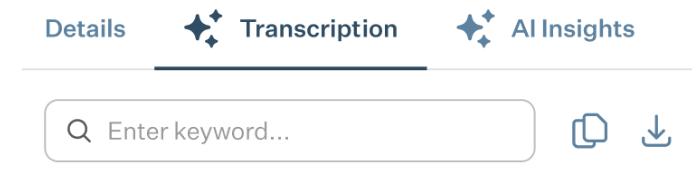
It also features an action panel with a Search Bar and “Copy” and “Download” buttons, allowing you to copy or download the conversation text.
- AI Insights tab: in this tab, you’ll find AI assistants that can help summarize the call, analyze its tone and sentiment, identify action items, and respond to any questions you ask through the built-in chat.
- Activity Log: this tab displays the history of all events that occur within the selected queue.
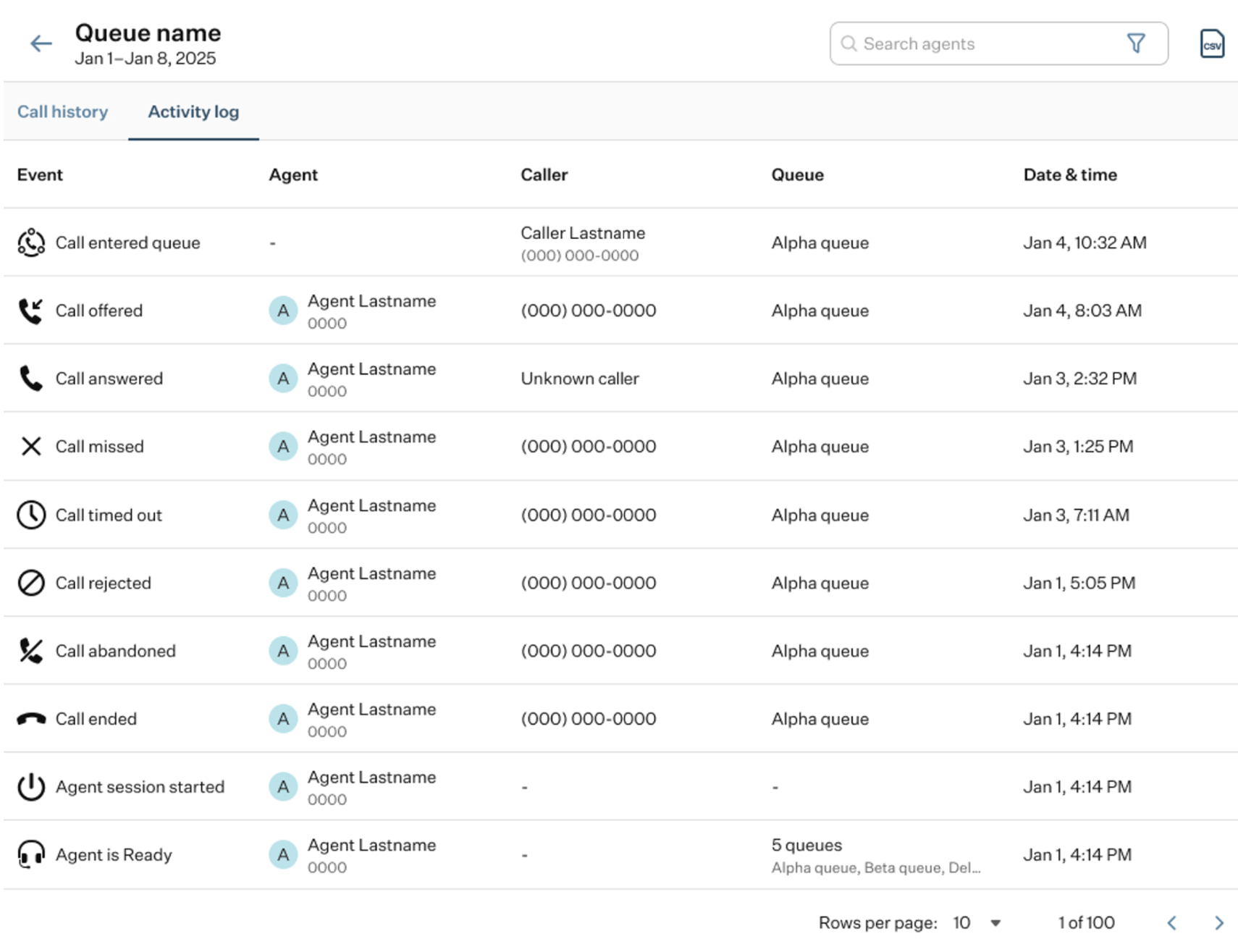
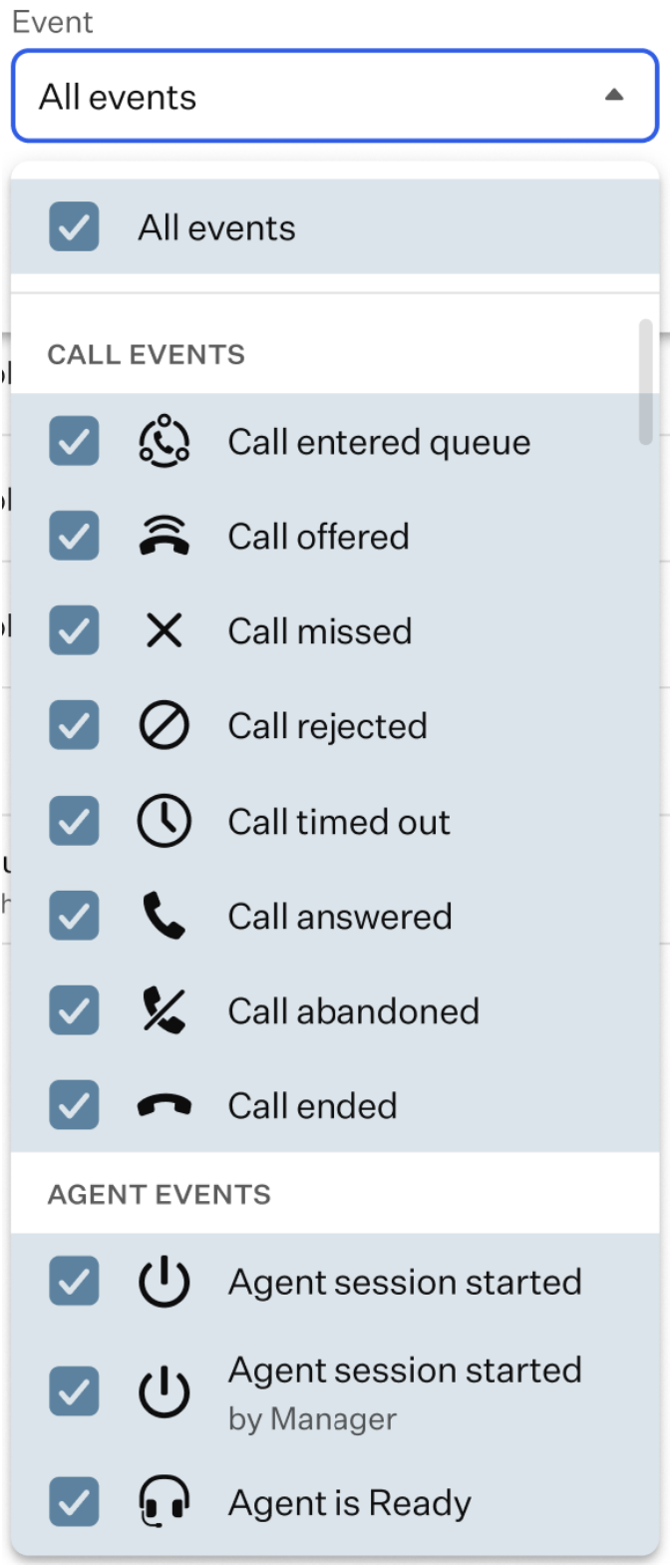
Here’s a short description for each event that is recorded into the logs:
- Call Events
-- Call entered queue: the call has been placed into the queue and is waiting to be handled.
-- Call offered: the system has routed the call to an available agent.
-- Call missed: the agent did not answer the call in time.
-- Call rejected: the agent explicitly declined the call.
-- Call timed out: the call was not answered within the allowed time and expired.
-- Call answered: the agent accepted and connected to the call.
-- Call abandoned: the caller hung up before the call was answered.
-- Call ended: the call has been completed and disconnected.
- Agent Events
-- Agent session started: the agent has started their session.
-- Agent session started by Manager: the agent’s session was started by a manager.
-- Agent is Ready: the agent is available to receive calls.
-- Agent session paused: the agent manually paused their session.
-- Agent session paused by Manager: the agent’s session was paused by a manager.
-- Agent force paused: the system automatically paused the agent.
-- Agent set to Active: the agent became active and able to handle calls.
-- Agent set to Active by Manager: the agent was set to active by a manager.
-- Agent set to Inactive: the agent became inactive and cannot receive calls.
-- Agent set to Inactive by Manager: the agent was set to inactive by a manager.
-- Agent session ended: the agent ended their session.
-- Agent session ended by Manager: the agent’s session was ended by a manager.
The interface of the tab consists of two main elements:
- Top panel: it contains several action elements:
- The events table displays an activity log of events with details such as the type of event, the agent who handled it, the person who initiated the event, the caller (if applicable), whether it was a call, the queue associated with the activity, and the date and time it occurred. Selecting a queue from the table has no effect.
- Search Bar: is used for finding a specific event in the event table.
- Filter: it allows you to set additional details for your search.
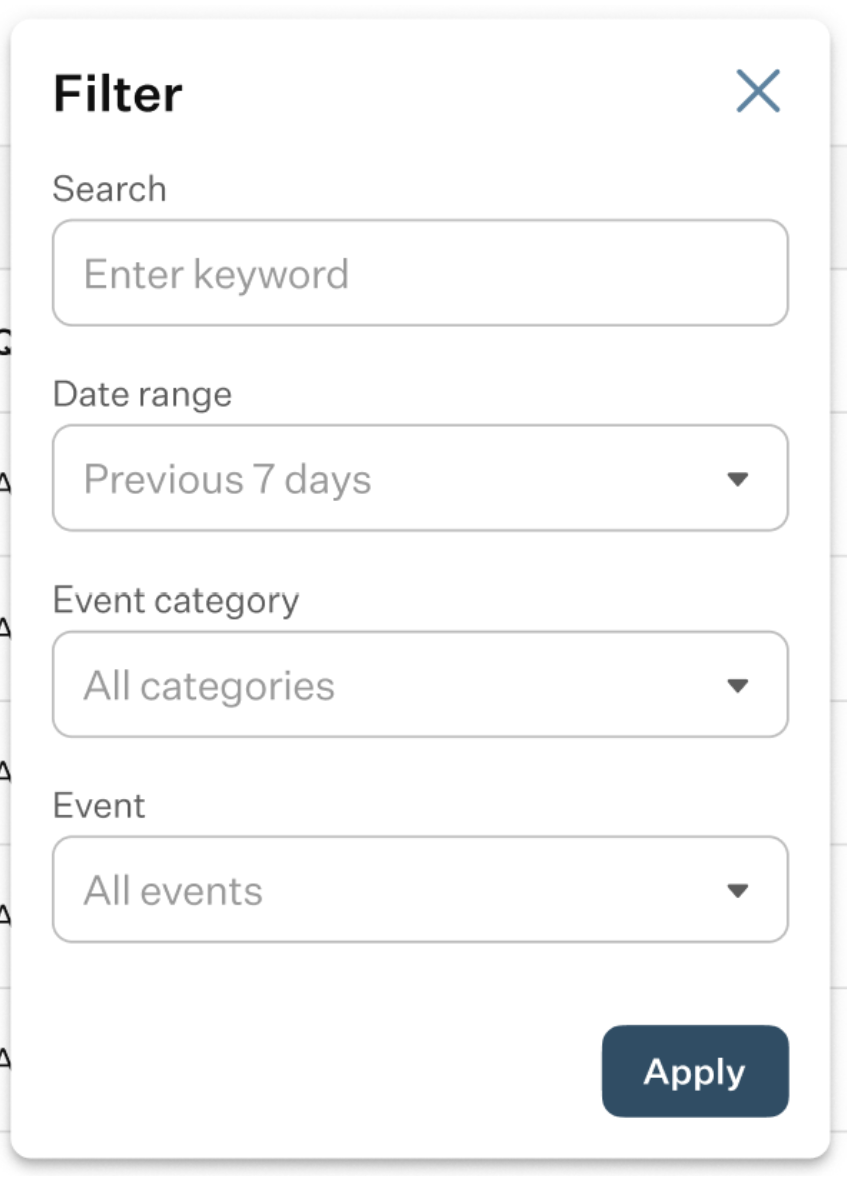
- Search: use this field to enter a keyword you want to search for.
- Data Range: this field allows you to set a date range for your search.
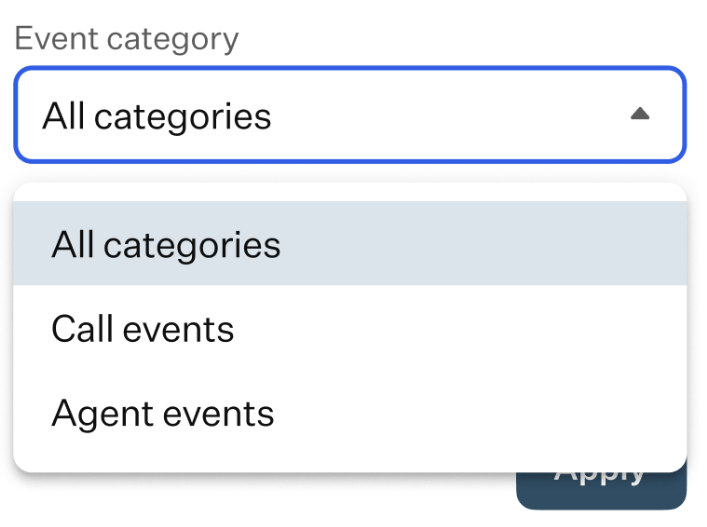
- Event Category: use this field to filter call logs according to the event category.
- Event: use this field to choose one or more specific events within the selected event category to further narrow your search.
- CSV: click this button for downloading the queue activity log, as a CSV file.
- Events table: it displays an activity log of events with details such as the type of event, the agent who handled it, the person who initiated the event, the caller (if applicable), whether it was a call, the queue associated with the activity, and the date and time it occurred.
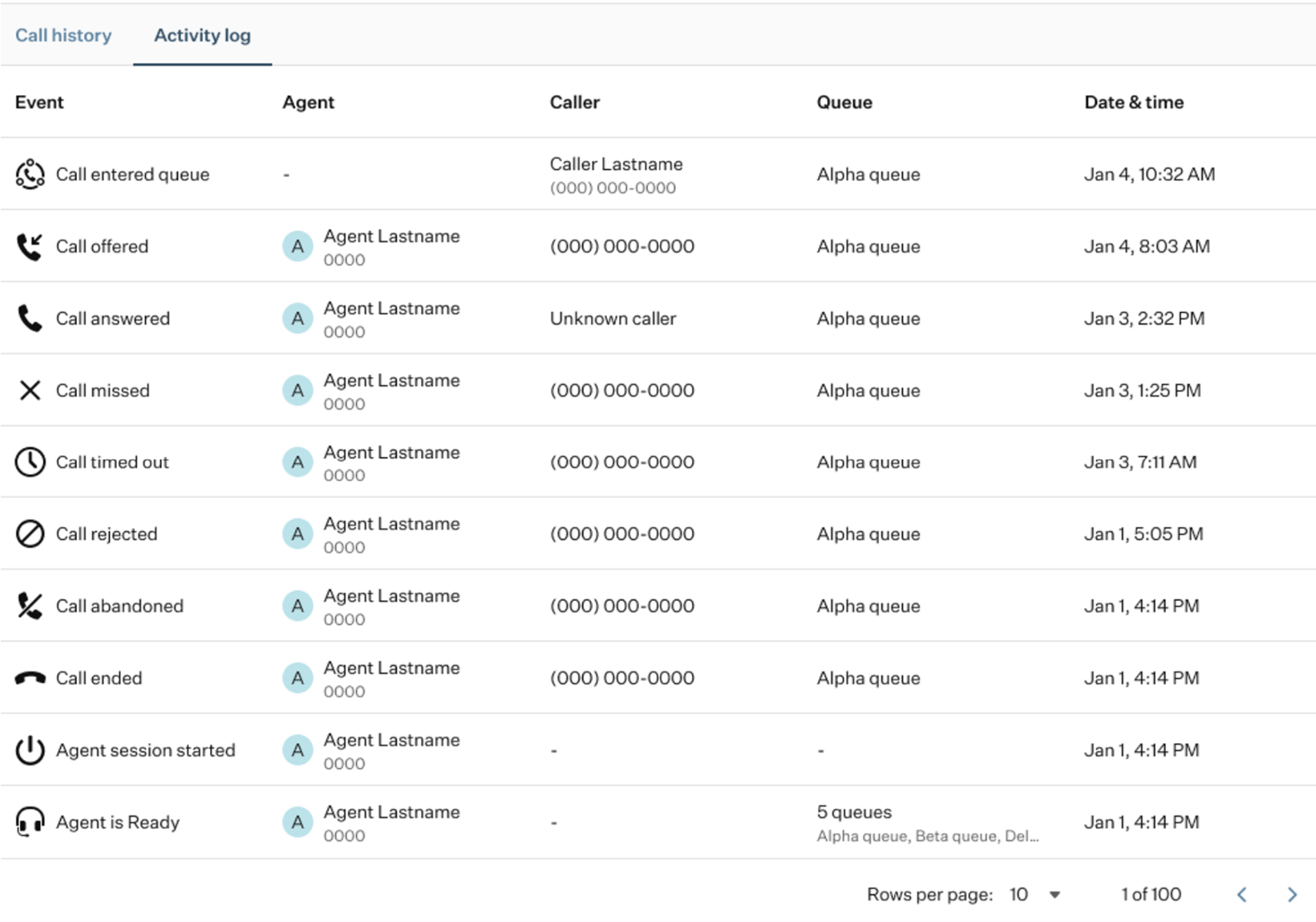
Selecting an event from the table has no effect.
Was this article helpful?
That’s Great!
Thank you for your feedback
Sorry! We couldn't be helpful
Thank you for your feedback
Feedback sent
We appreciate your effort and will try to fix the article