Description: This article provides an overview of the Profile parameter group located in the OE Desktop app’s Settings section.
Upon accessing the OE Desktop app’s Settings section, you will find six groups of parameters. In this article, we explore the Profile group.
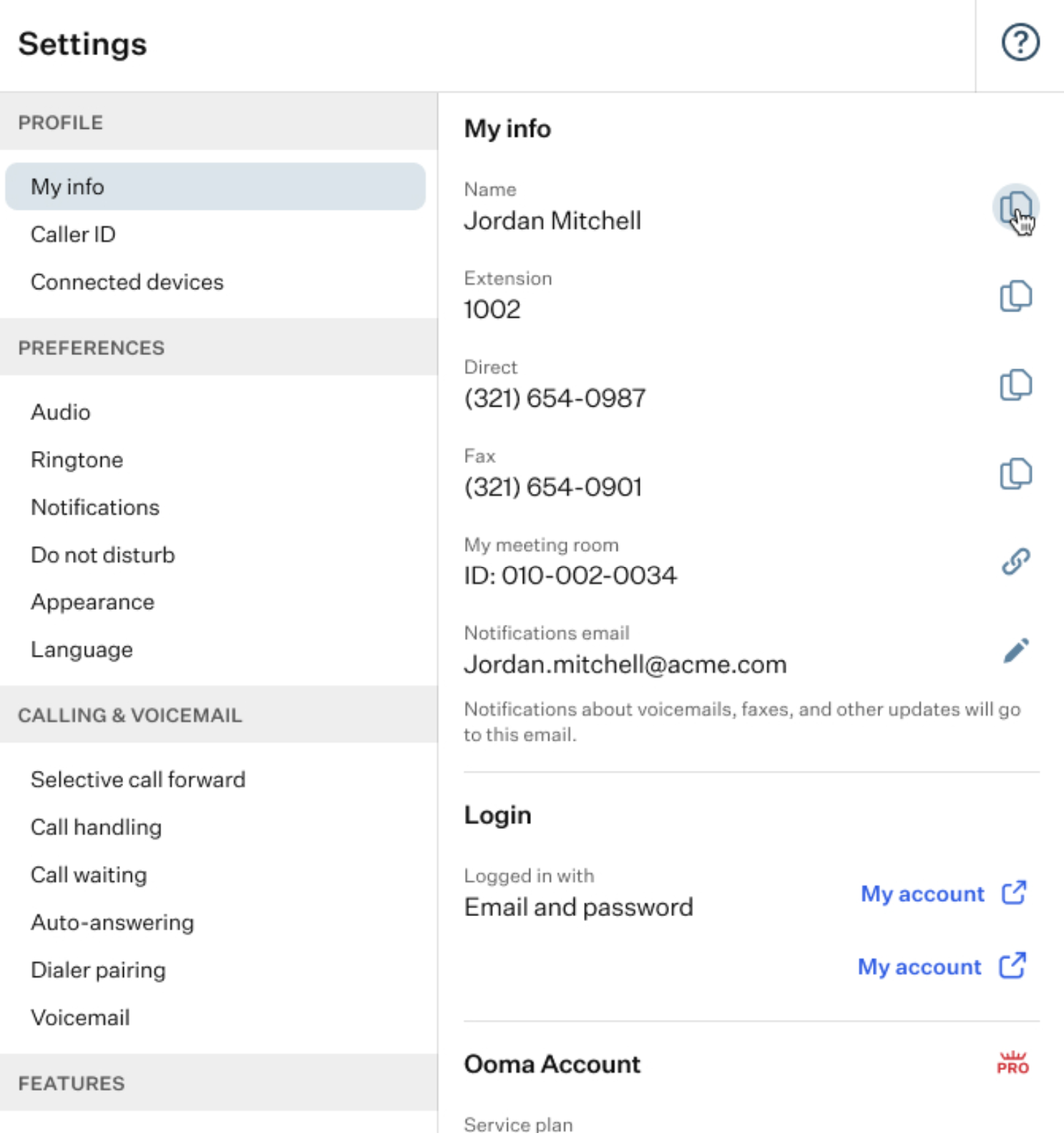
This group of settings allows you to manage your personal information, configure your Caller ID, and manage connected devices.
- My Info: here, you can copy one of your personal or company numbers, edit your notification email, and change your password.
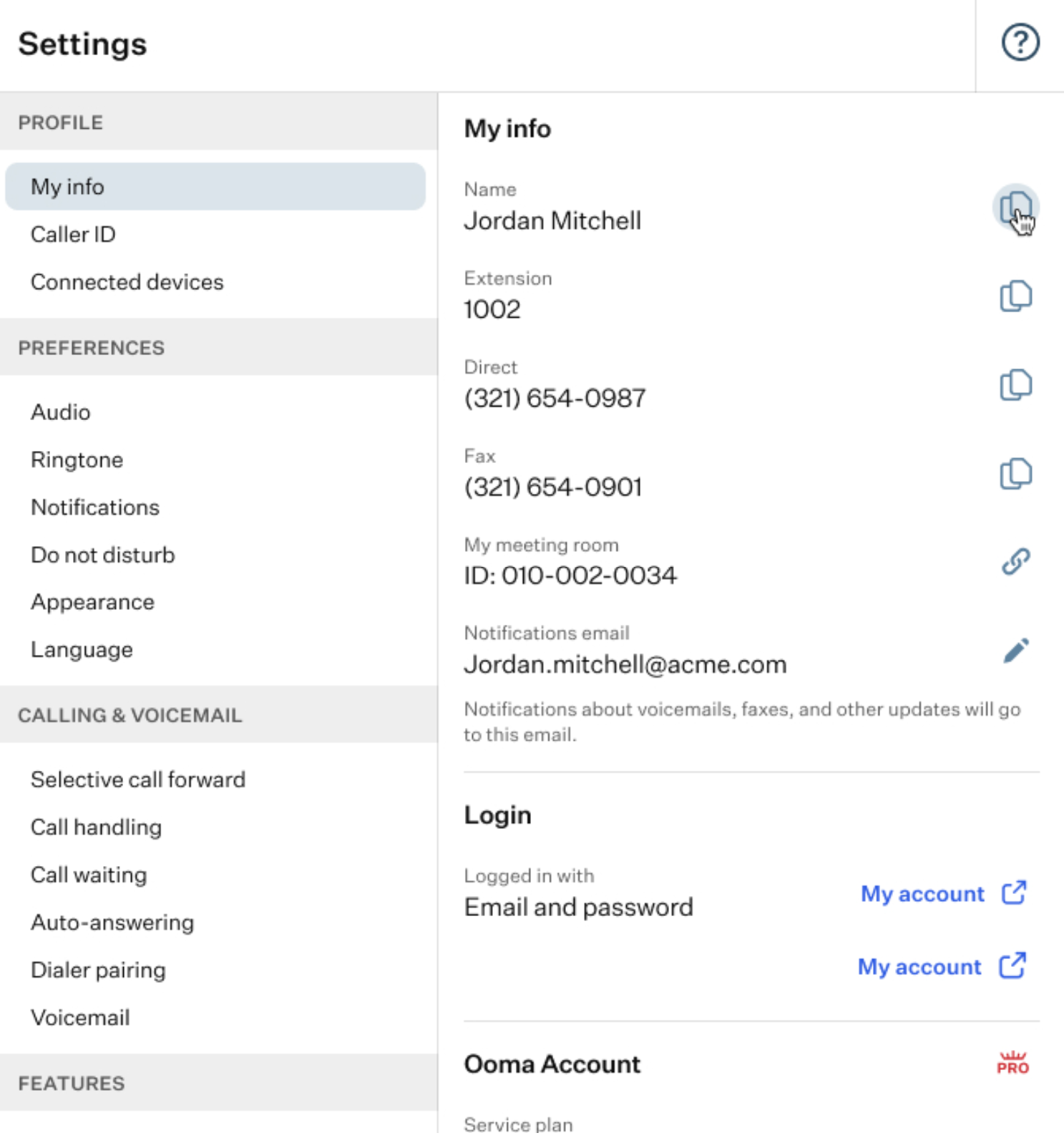
This subgroup of settings displays your personal and account information, including both editable and non-editable fields.
- My Info: this section displays your personal information.
- Name: displays your full name. You cannot edit this field, but the information can be copied.
- Extension: shows an extension number assigned to your account. You cannot edit this field, but the information can be copied.
- Direct Number: shows a phone number assigned to your account. You cannot edit this field, but the information can be copied.
- Fax: shows a fax number assigned to your account. You cannot edit this field, but the information can be copied.
- My Meeting Room: provides a link to your meeting room, which you can use to start a meeting. The link can be copied.
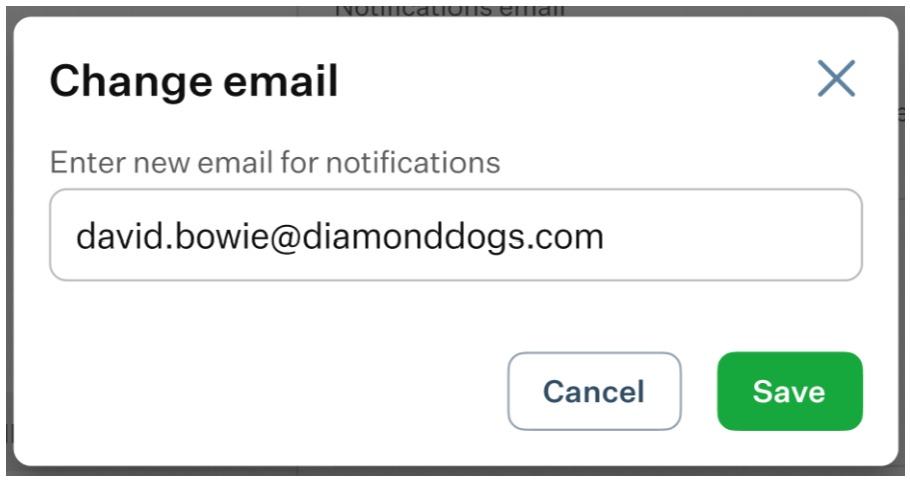
- Notification email: displays the email address used for notifications. You can edit this field by clicking the pencil icon.
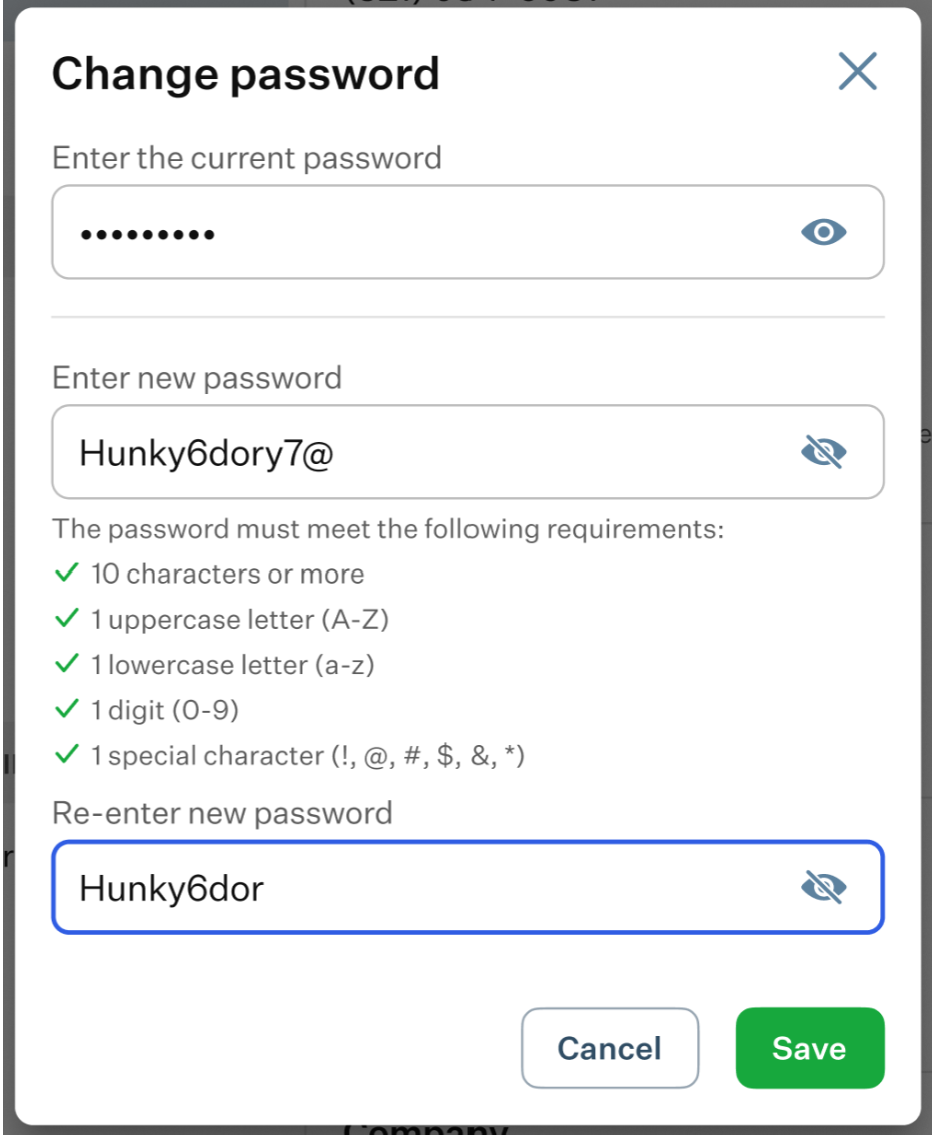
- Login: this section displays your account information. You can change your password by clicking the pencil icon.
- Ooma Account: displays the service plan assigned to your account. You cannot edit this field.
- Company: this section displays the basic information about the company you work for.
- Company Name: shows the name of your company. You cannot edit this field.
- Company Phone: displays the company’s phone number. You cannot edit this field.
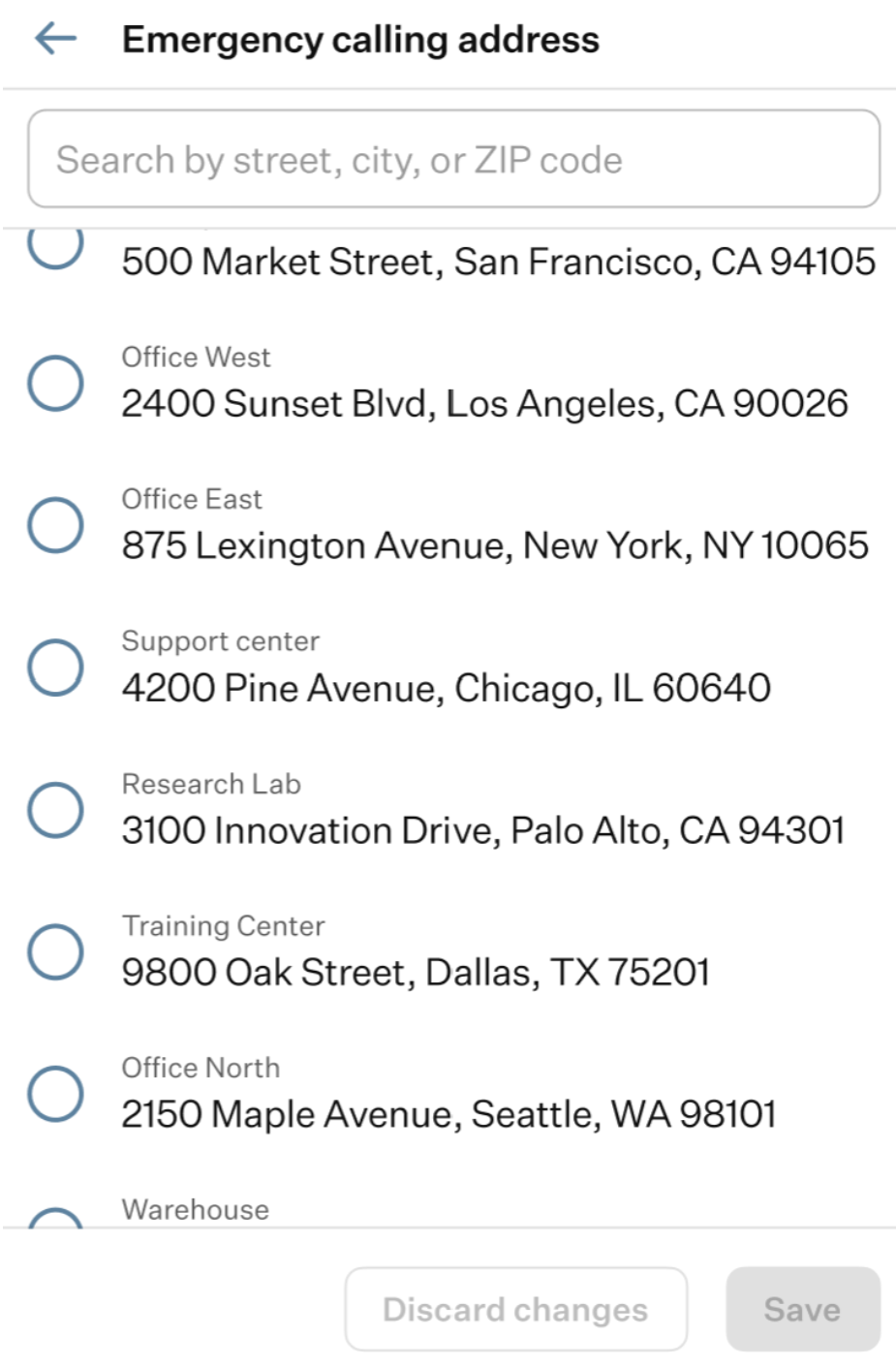
- Emergency Calling Address: shows the address used for emergency services. You can update this field by selecting one of the available options.
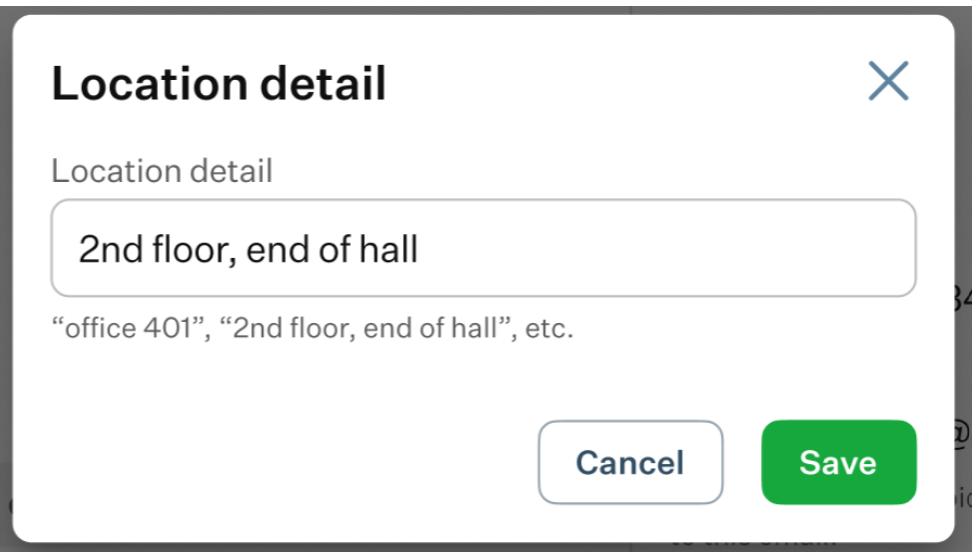
- Location Detail: you can use this field to specify your location.
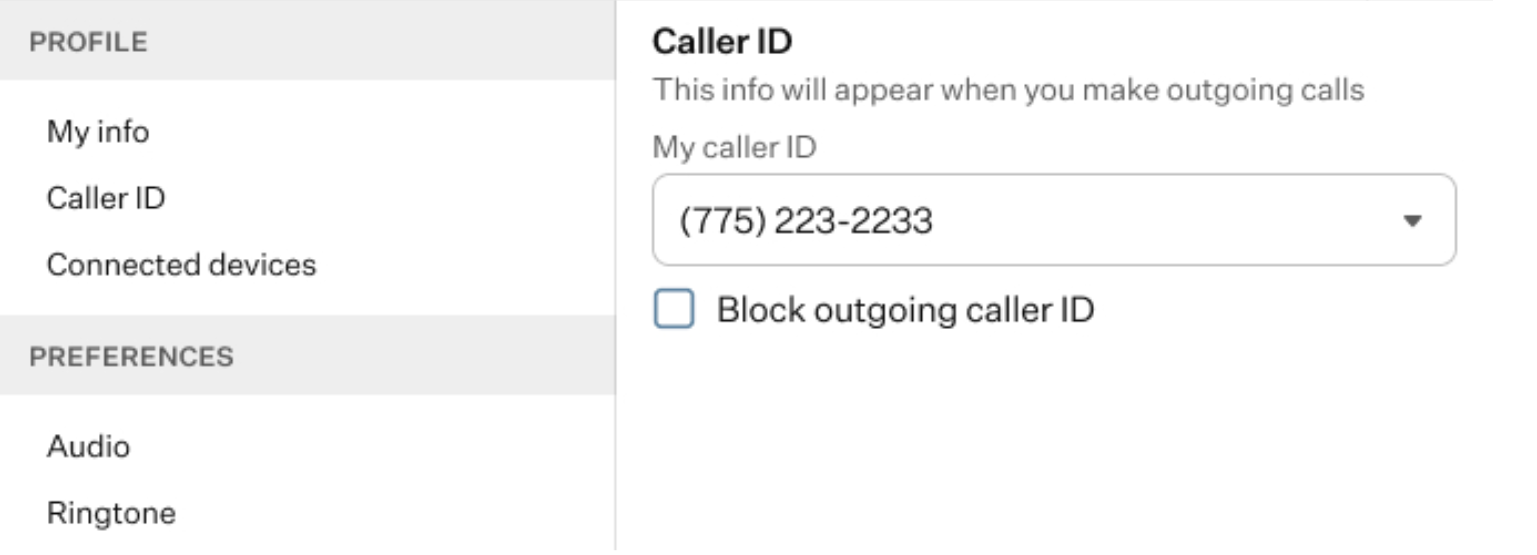
- Caller ID: here, you can choose your Caller ID from a drop-down list of options and block outgoing Caller ID by enabling the corresponding toggle switch.
- Connected Devices: on this page, you can find a list of all devices connected to your account. At least one device must remain assigned. If you delete all devices except one, the remaining device will not be available for management.
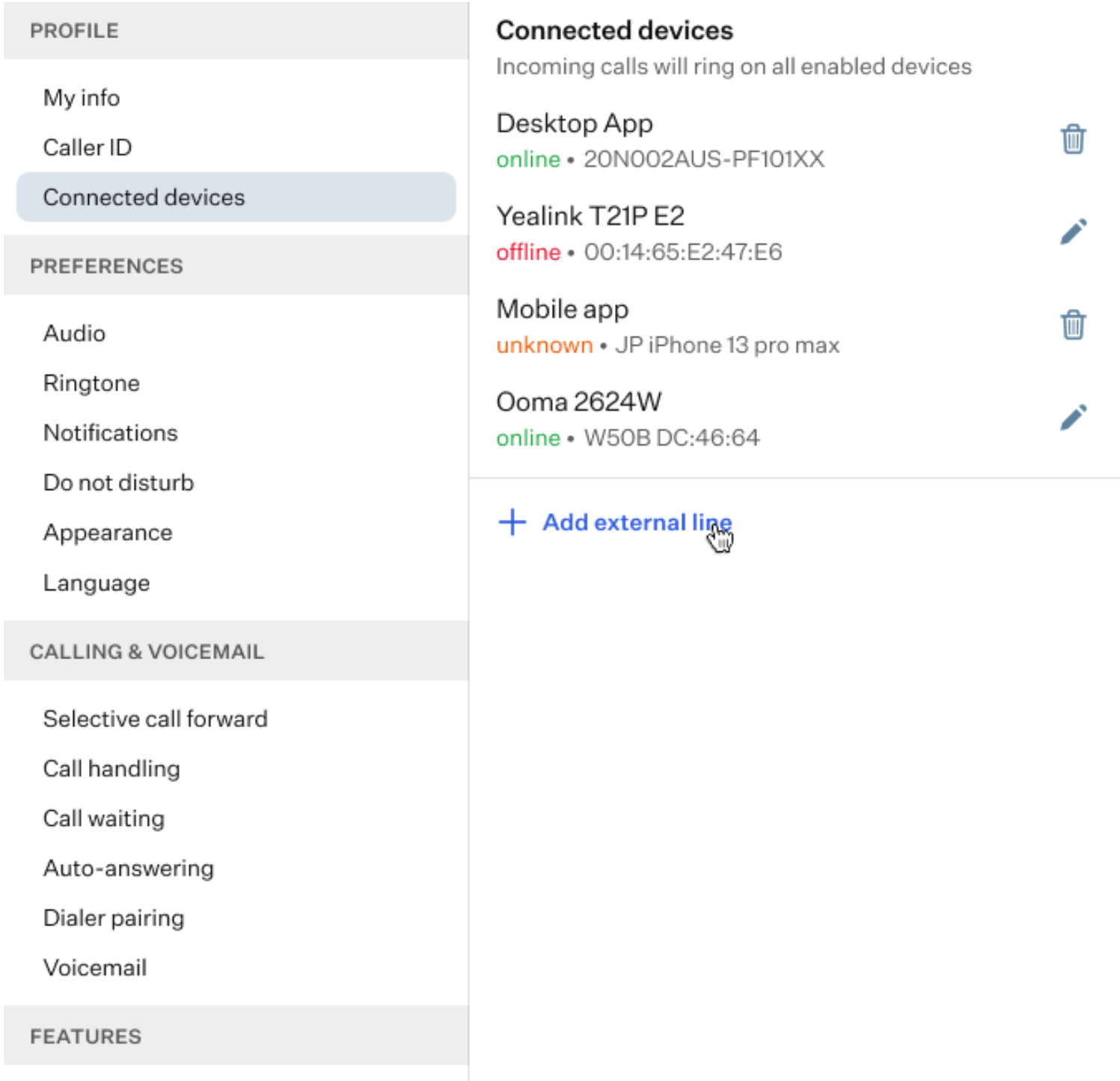
You can edit the configurations of some devices that have the pencil icon. When you click this icon, the configuration page for the selected device opens, where you can edit several fields and access additional parameter groups
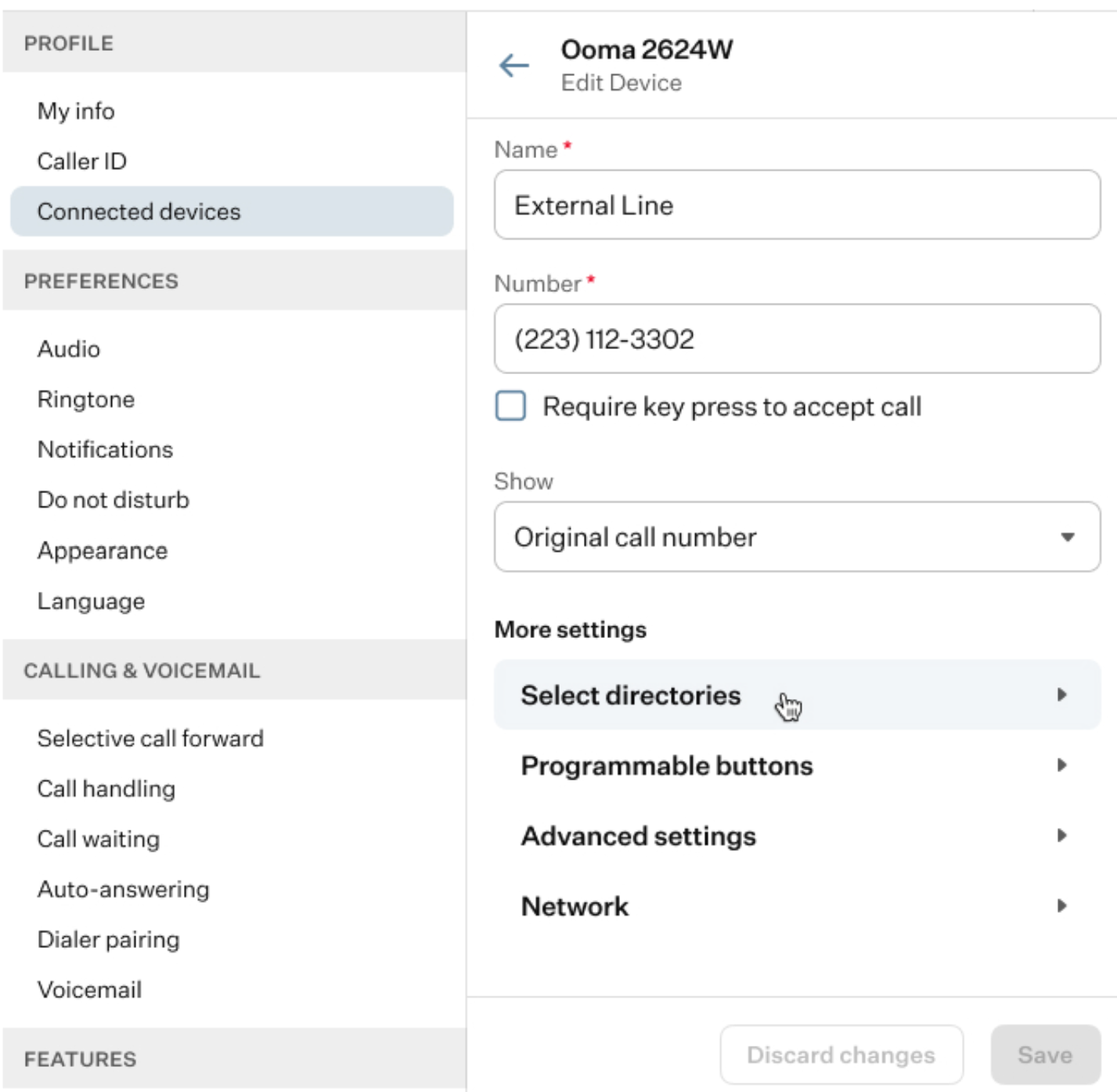
- Name: within this field, you can set up a custom name for the device you want to connect to the app.
- Number: here, you should enter the number assigned to the device you want to connect to the app.
- Require key press to accept call: by enabling this option, you allow the newly connected device to accept calls by pressing a key.
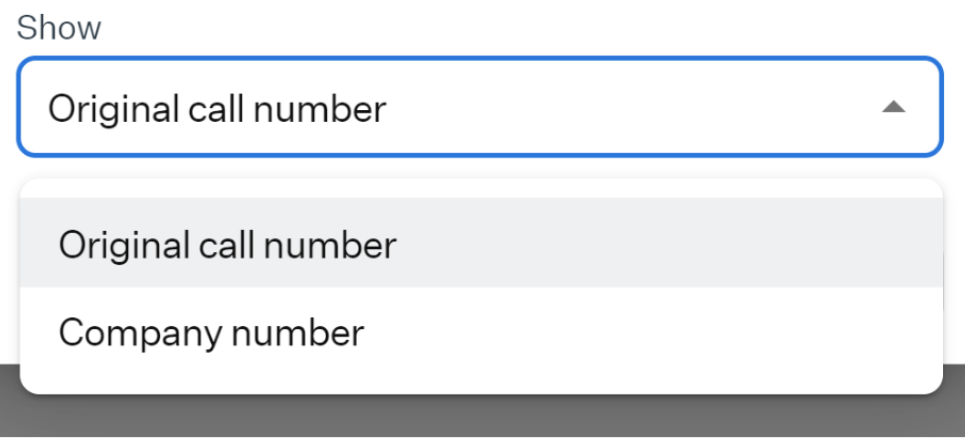
- Show: within this field, you will find two options regarding which number will be displayed to the recipient of a call from the configured device.
- More Settings: here, you can find four additional sections of parameters that you can configure.
- Select directories: in this section, the user can choose which 3 directories they want to display on the selected device.
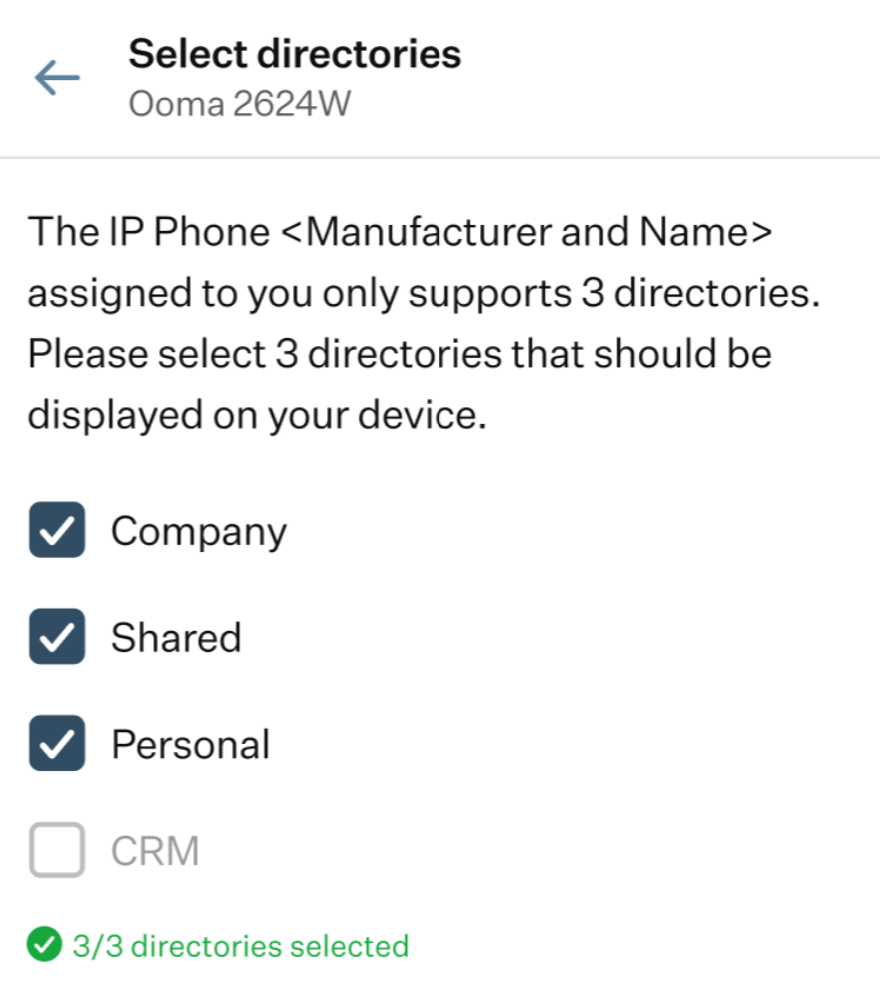
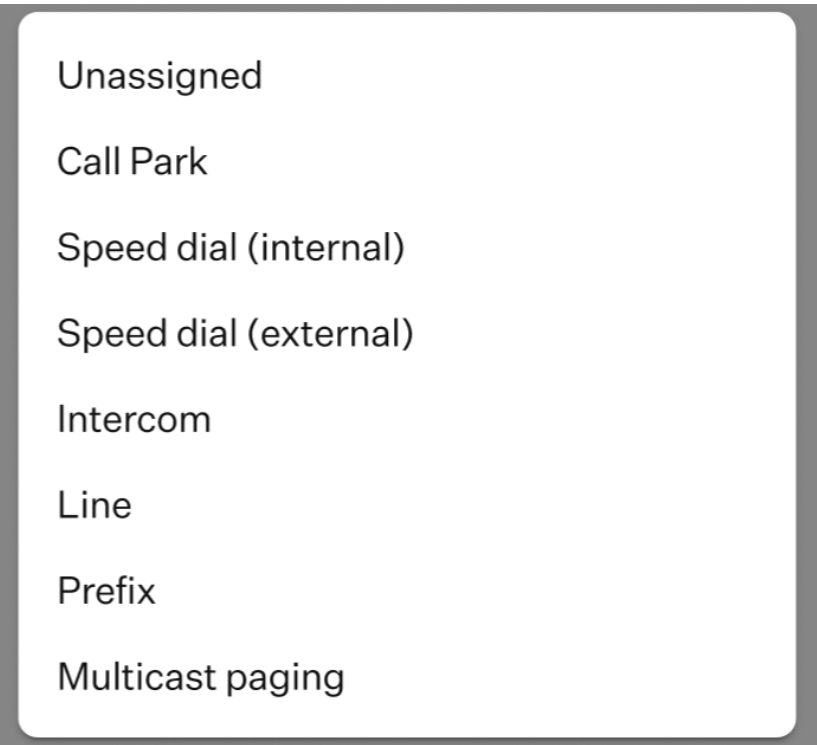
If the user chooses less than 3 directories, an error banner will appear as well as the error hint text.- Programmable buttons: in this section, you can configure the programmable buttons that the selected device has. When you click this section, a pop-up window appears. It is divided into two main areas: the left side displays a list of programmable buttons, while the right side shows the parameters that can be configured for the selected button.
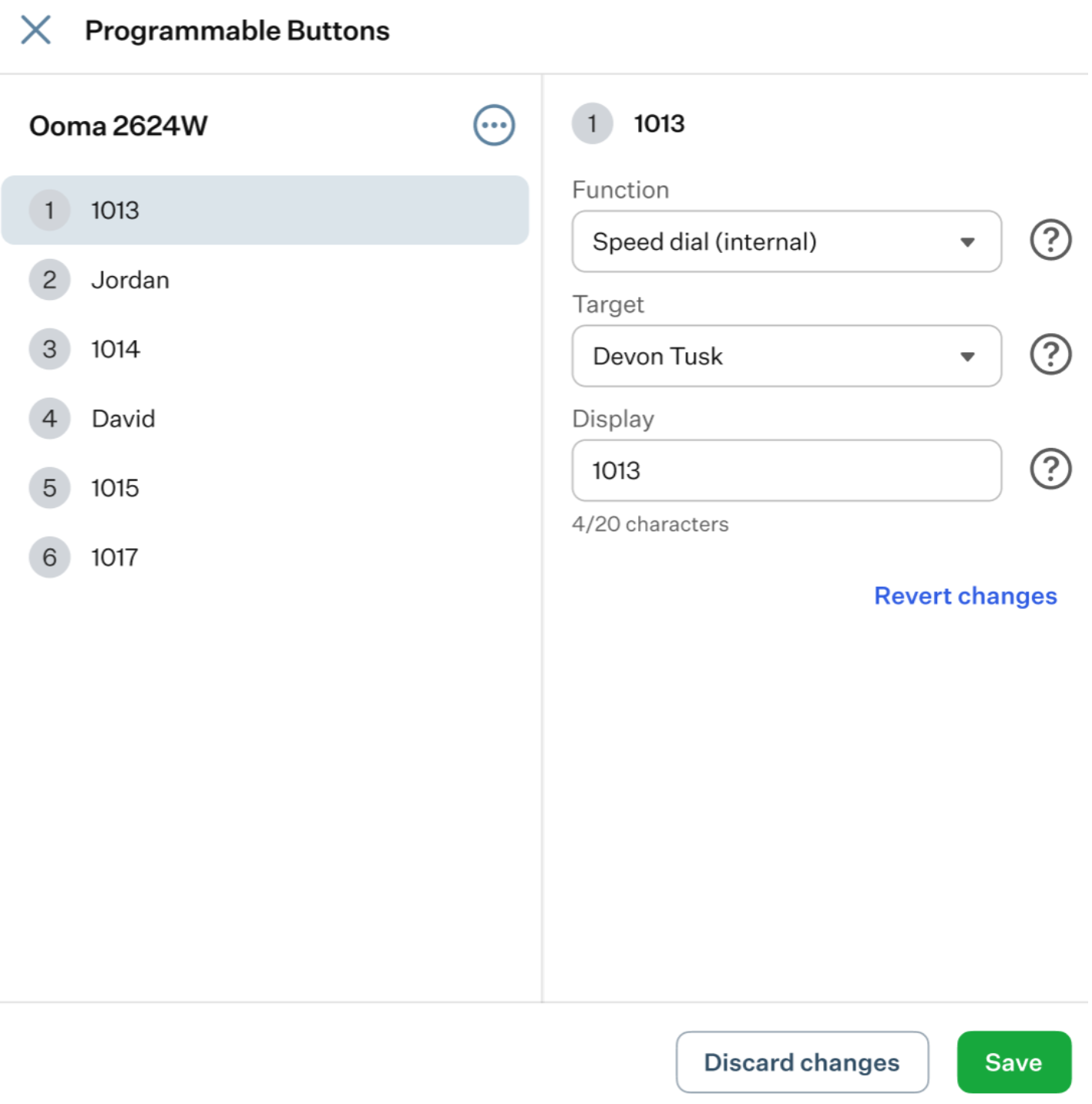
- Function: the user selects the function that the selected Programmable Button will have. There’s a list of functions available in the drop-down list.
- Target: the user chooses a target name that will be associated to the selected Programmable Button.
- Display: the user can type what they want the selected Programmable Button to display on the interface.
- Revert Changes: clicking this button will revert the configuration of the selected Programmable Button back to its previous saved state.
- Advanced settings: in this section, you can access additional settings for the selected device, such as:
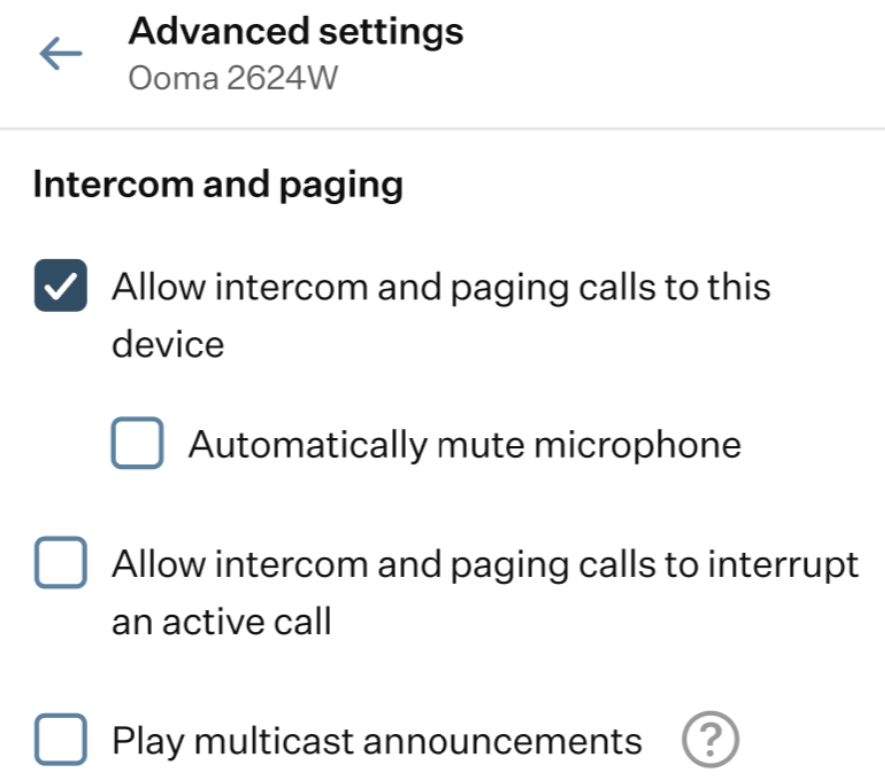
- Allow intercom and paging calls to this device: enables the device to receive intercom and paging calls from other users or systems.
- Automatically mute microphone: automatically mutes the microphone when an intercom or paging call is received to prevent unintended audio from being transmitted. This option becomes available if you enabled the “Allow intercom and paging calls to this device” toggle switch.
- Allow intercom and paging calls to interrupt an active call: allows incoming intercom or paging calls to interrupt an ongoing call on this device.
- Play multicast announcements: when someone triggers a multicast announcement using a programmable button, the announcement will be played through this device’s speakers.
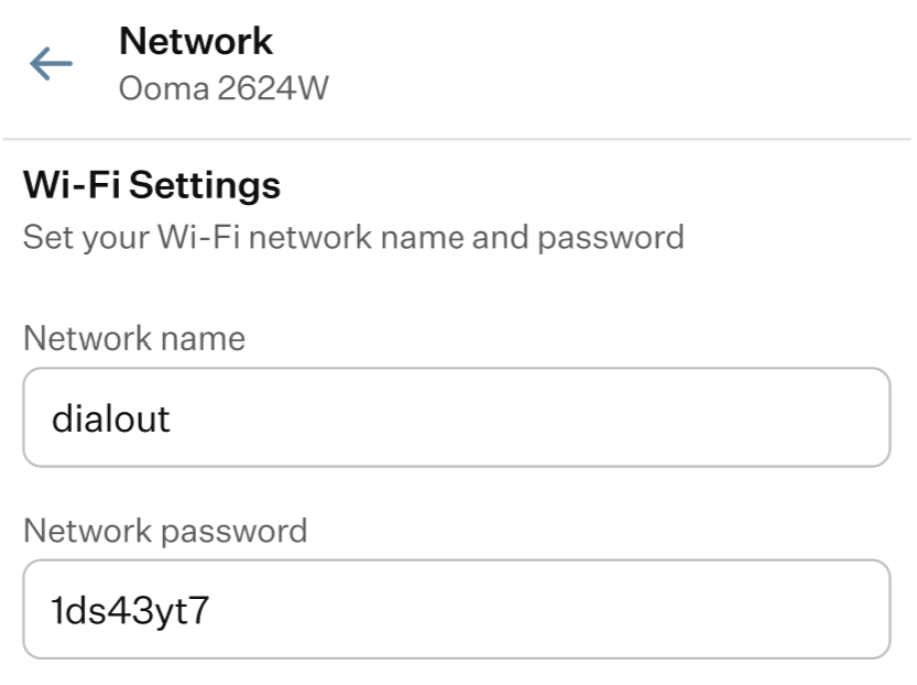
- Network: in this section, you can configure the Wi-Fi network that the selected device can access.
You can add additional devices by clicking the “Add External Line” button.
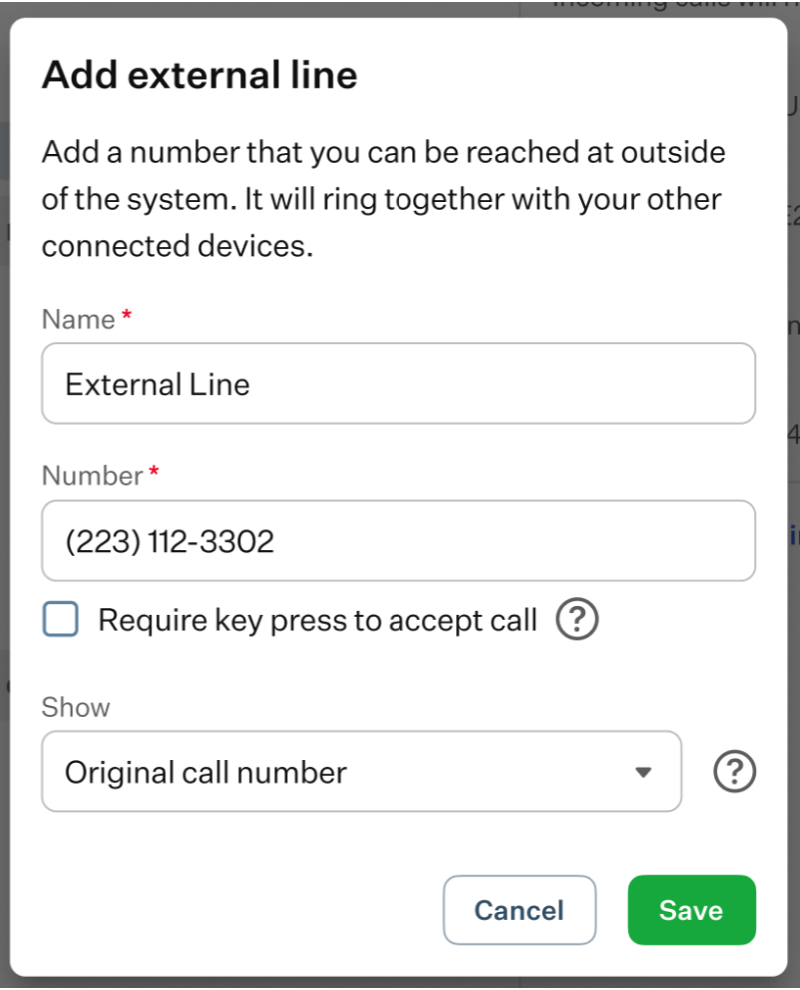
There are four configurable fields in this pop-up window, all of which were explained earlier in the section above where device parameter editing is described.
Was this article helpful?
That’s Great!
Thank you for your feedback
Sorry! We couldn't be helpful
Thank you for your feedback
Feedback sent
We appreciate your effort and will try to fix the article