Description: The purpose of this article is to provide a comprehensive overview of the interface and main functions of the Meeting window.
When using the Meeting feature of the OE Desktop App, you can engage in a video meeting conducted in a separate window with its own interface, resembling other video meeting apps
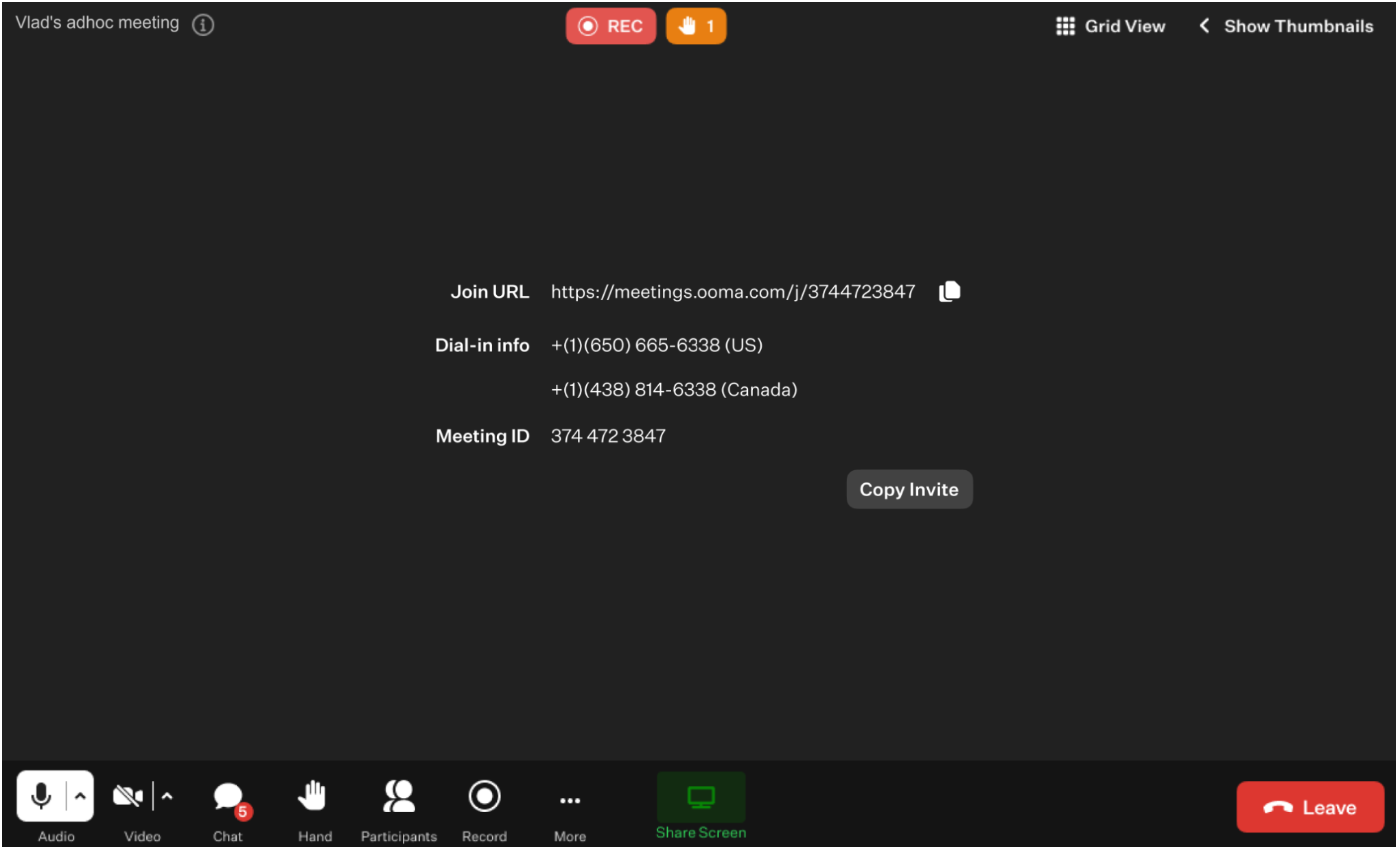
Let’s explore the interface and primary functions of the meeting window.
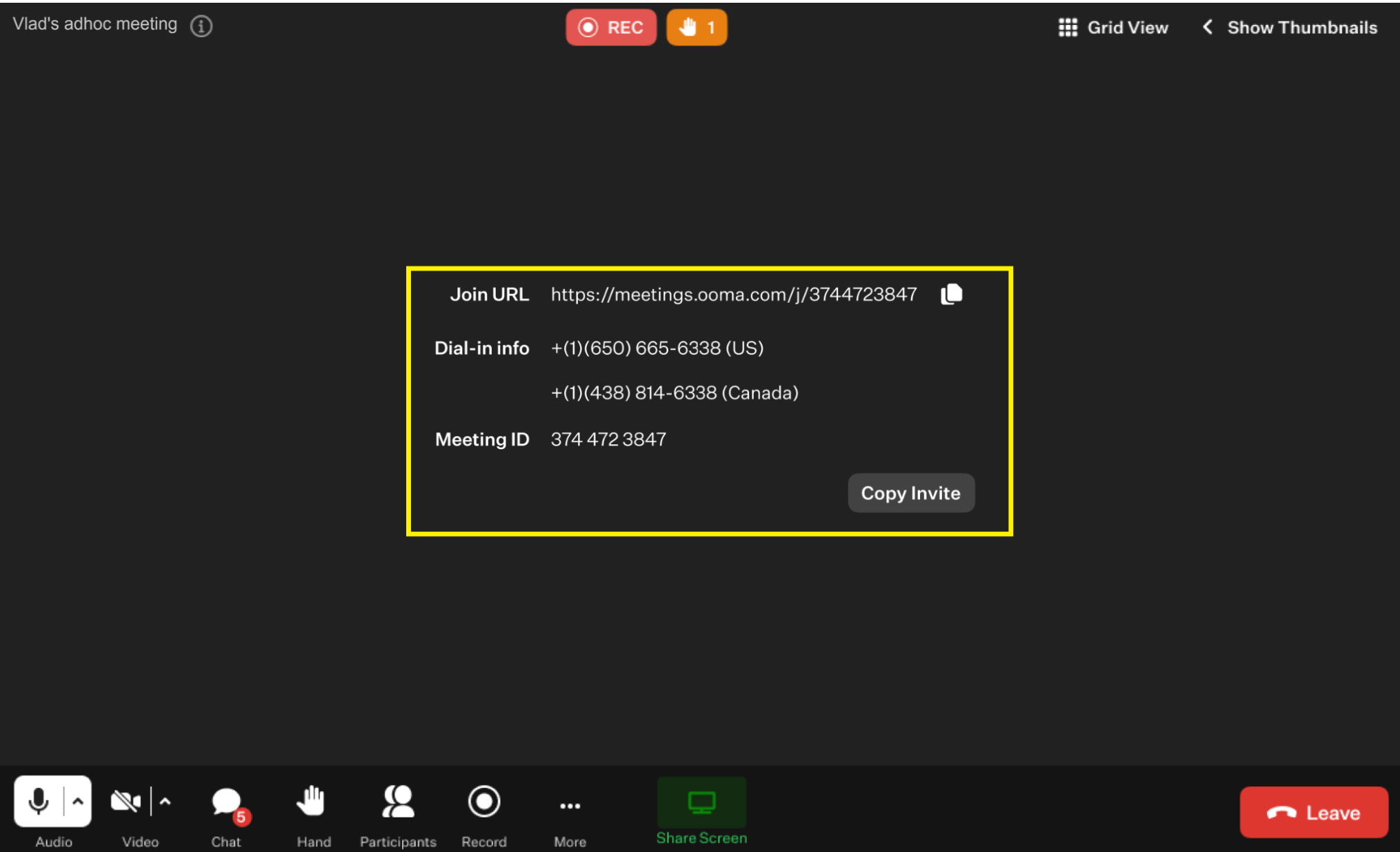
If no participants have their cameras turned on, the main space of the meeting window will display the meeting link, dial-in numbers, and meeting ID. You can share this information with additional potential participants to grant them access to the ongoing meeting.
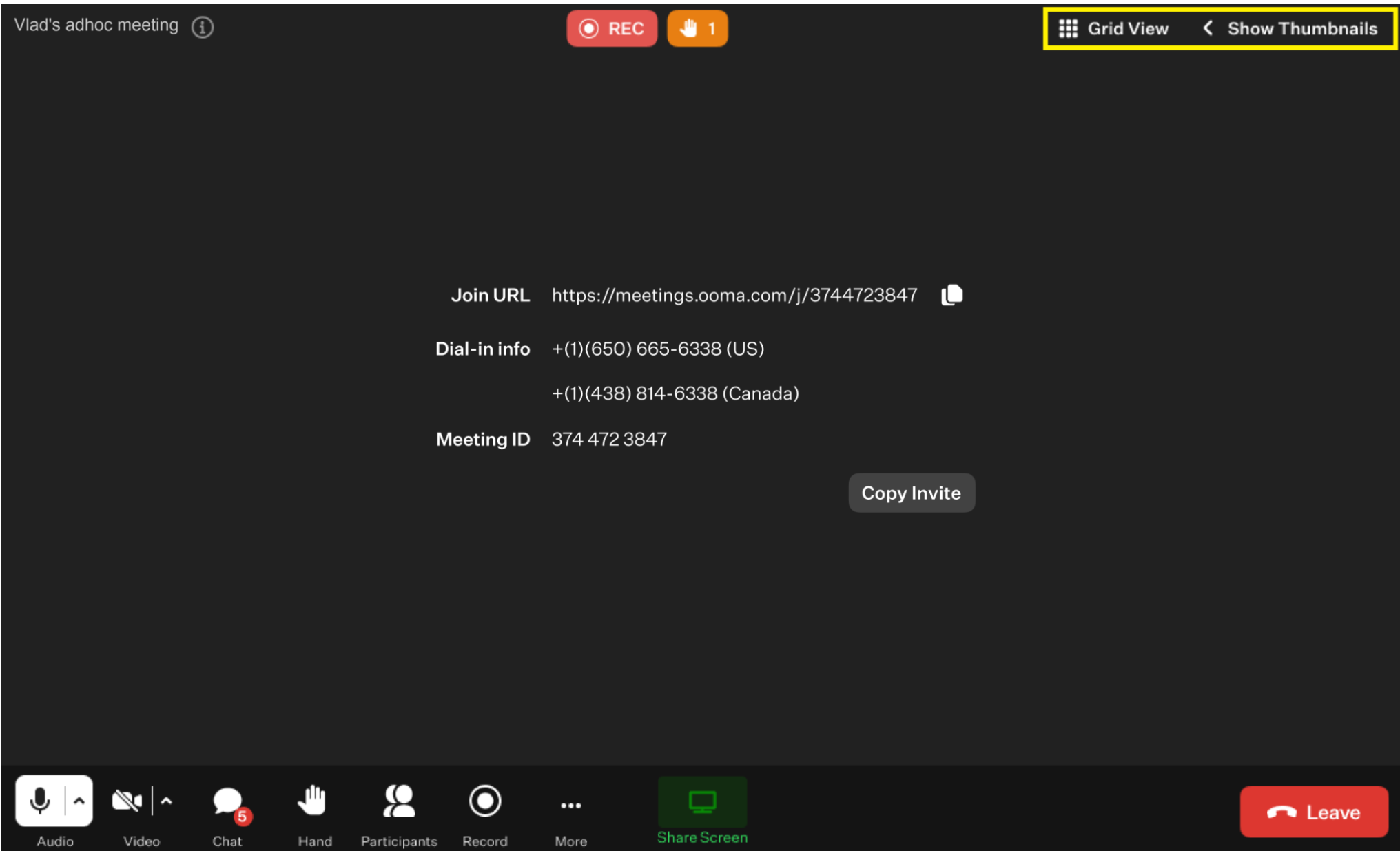
On the right-hand side of the meeting window, you will find a thumbnails section where you can enable the Video Grid View or hide/show the Thumbnail column.
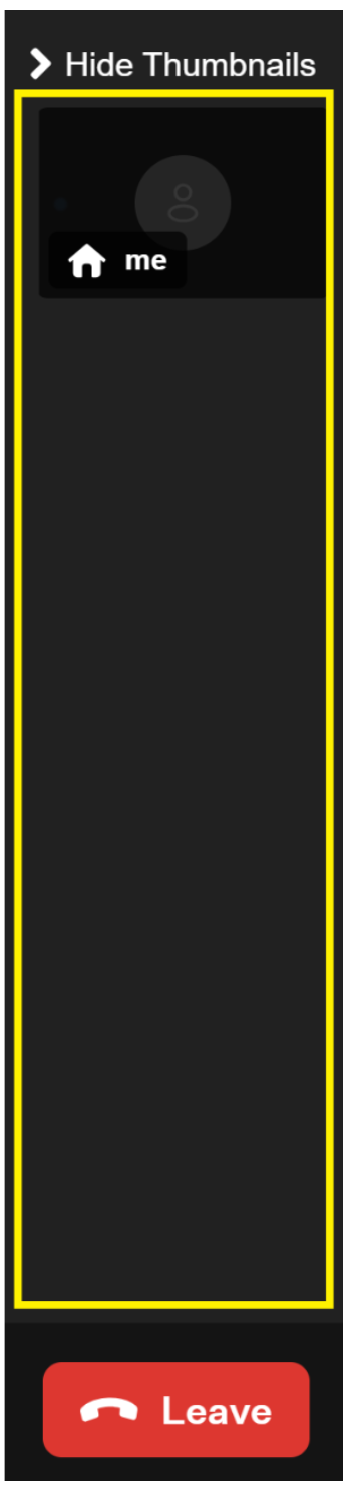
In the thumbnail column, each tile with a name represents one of the participants in the ongoing meeting. Your own tile will always be the topmost thumbnail in this column. The tile of the host participant will be labelled by a House badge.
The bottom horizontal panel contains all the function buttons, offering a comprehensive number of settings and actions for you to configure and execute.
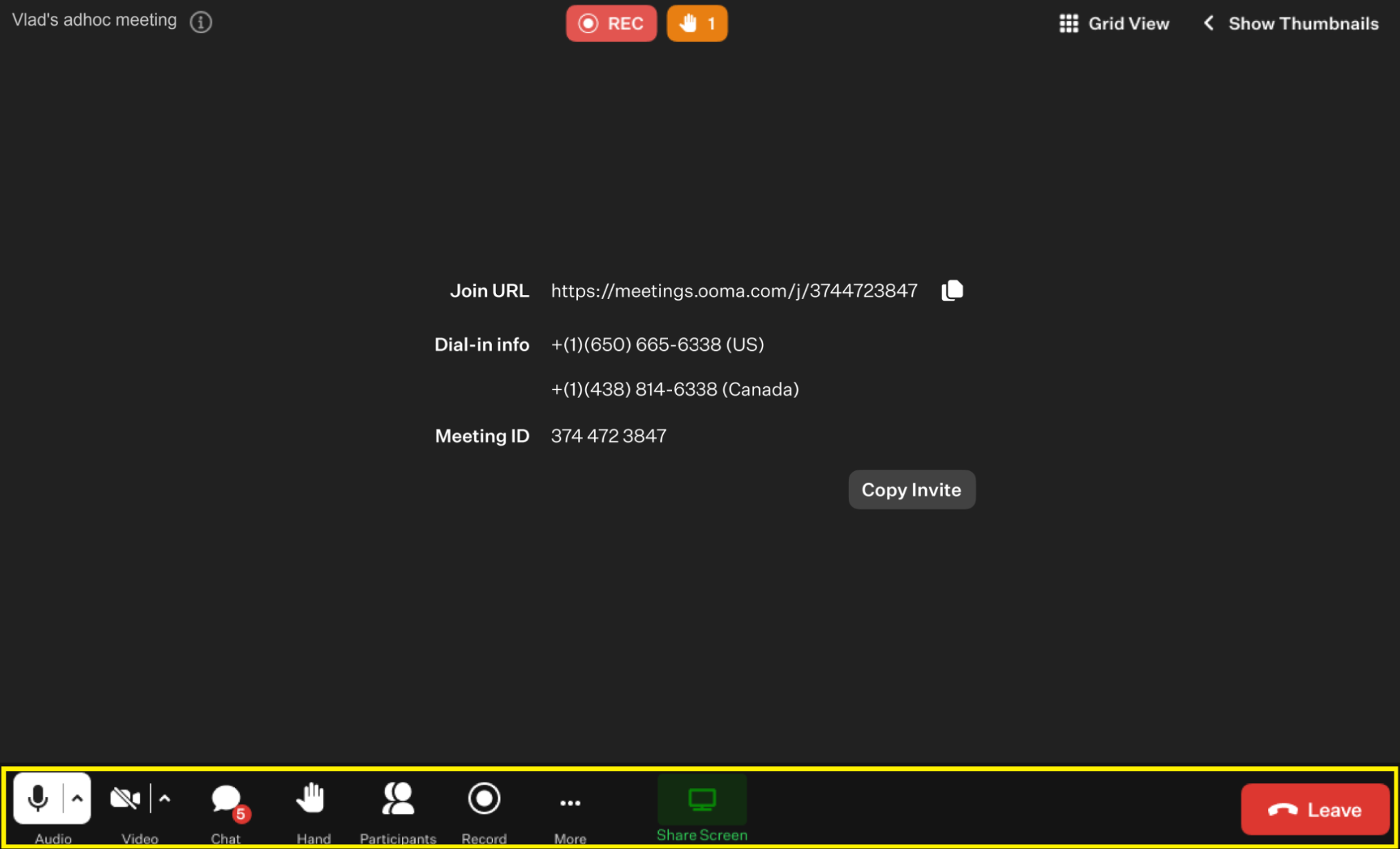
Let’s examine them separately.
- Audio: upon clicking this button, you are able to enable or disable your microphone. Additionally, upon clicking the small section of this button with an upward pointing arrow a drop-up menu will appear with a list of audio settings.
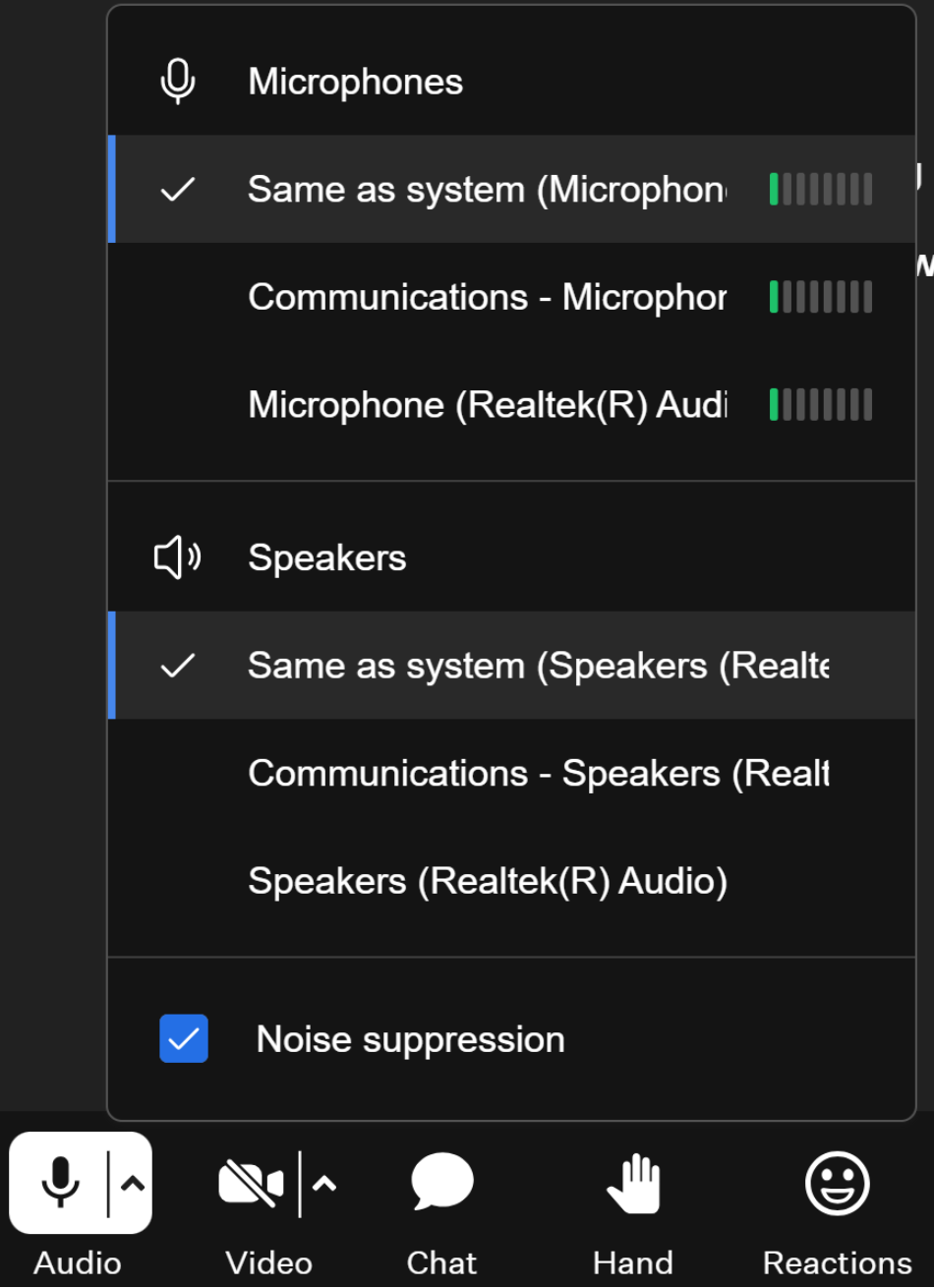
- Microphones: within this section, you can find the microphone settings.
- Speakers: within this section, you can find the speaker settings.
- Noise suppression: by toggling this switch on or off, you can enable or disable noise suppression.
- Video: upon clicking this button, you are able to enable or disable your web camera. Additionally, upon clicking the small section of this button with an upward pointing arrow a drop-up menu will appear with a list of video settings.
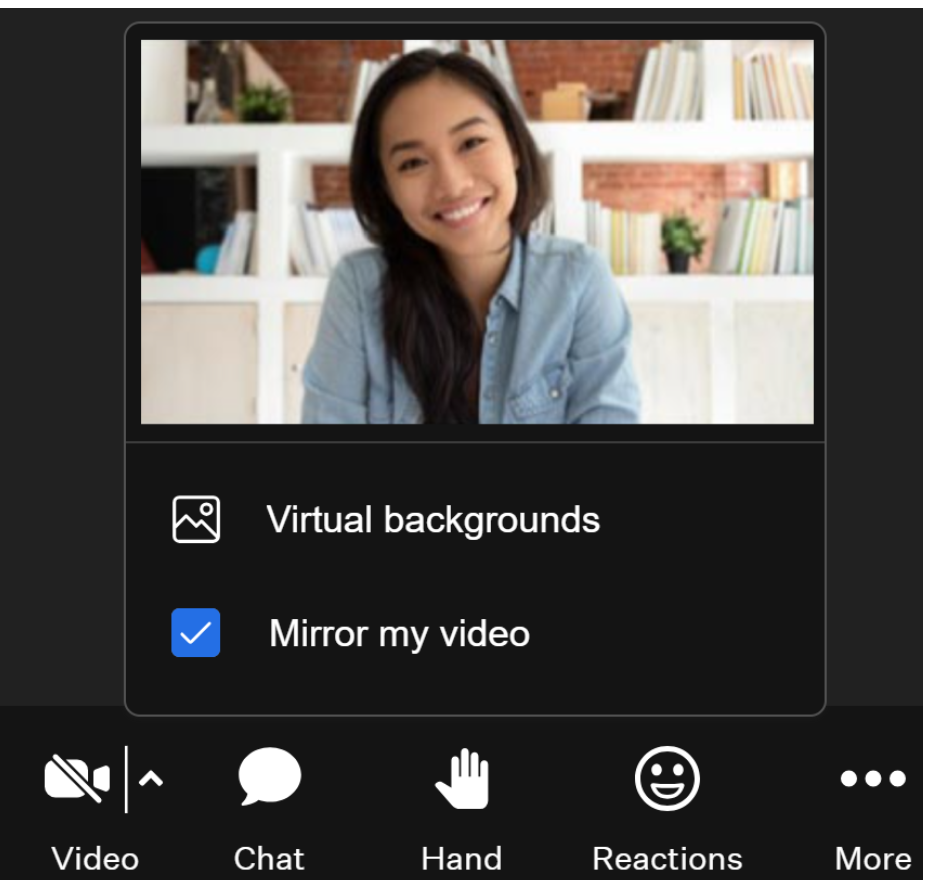
- Virtual backgrounds: when you select this option, you’ll be directed to the Settings/Virtual Backgrounds section (as described below), where you can configure a virtual background
- Mirror my video: by toggling this switch on, you can mirror your video.
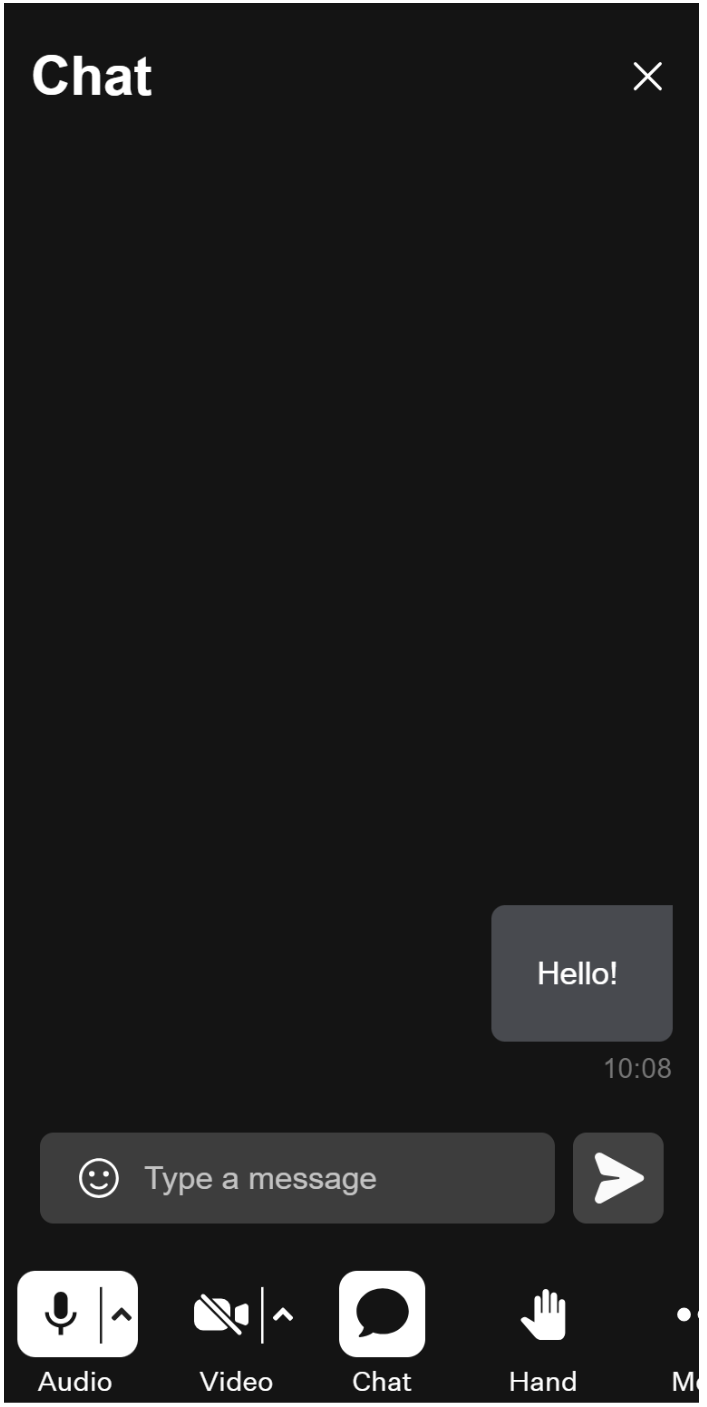
- Chat: upon clicking this button, a meeting chat will appear. Initially, it prompts you to set a nickname which you will use in the chat.
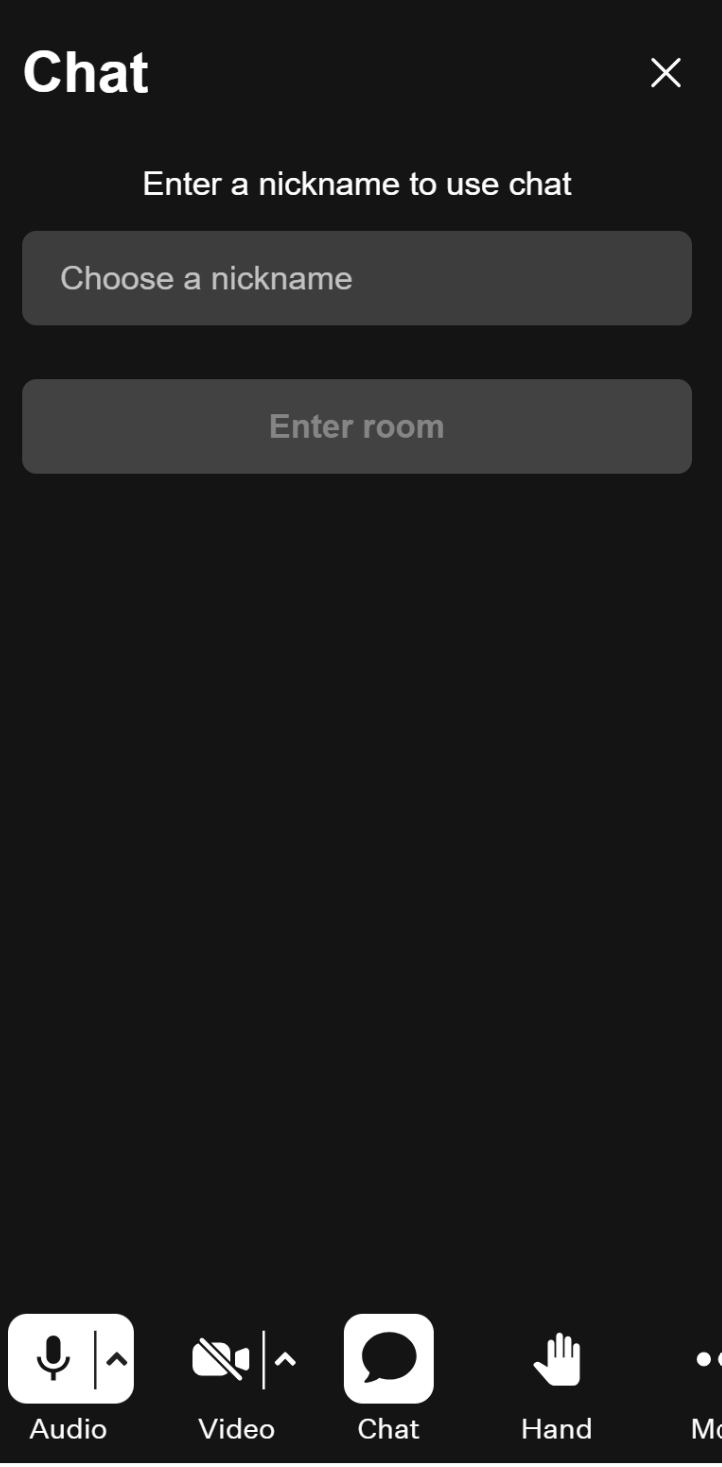
After that, you will be able to post messages in the chat.
- Hand: this button is used for managing the meeting process. Upon pressing it, the tile of the person who pressed it in the thumbnail column will display a Hand badge, indicating their desire to speak.
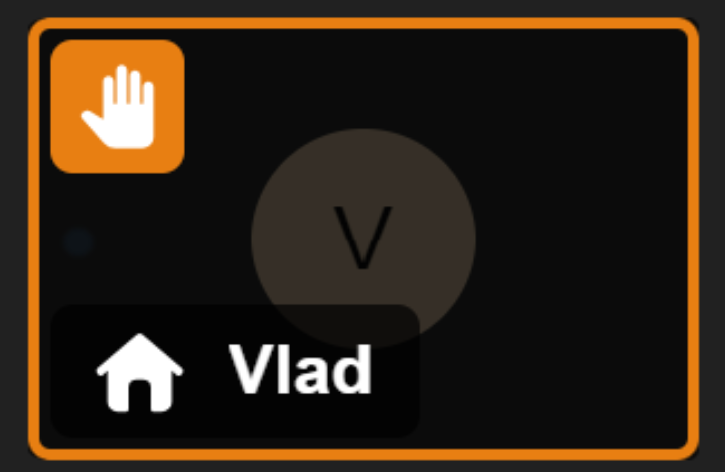
A corresponding hand badge also appears at the top of the meeting window.

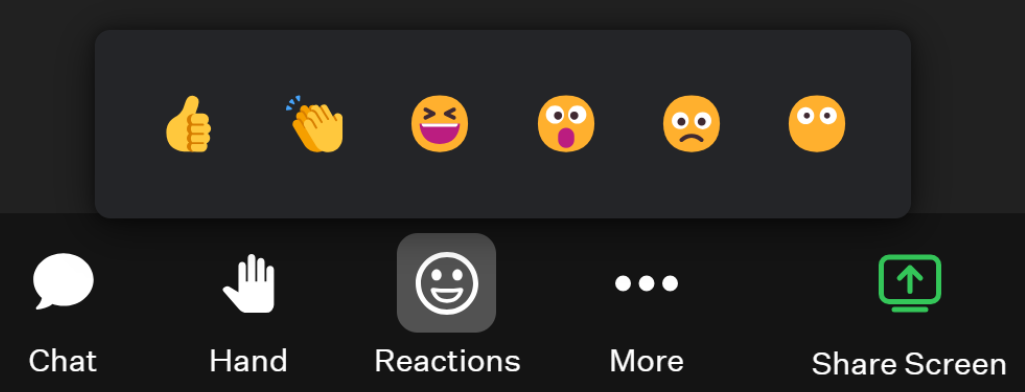
- Reactions: when you click this button, a drop-up list of emojis will appear for you to use as emotional expressions visible to other meeting participants.
- More: upon clicking this button, a drop-up list of additional options will appear. Let’s examine them individually.
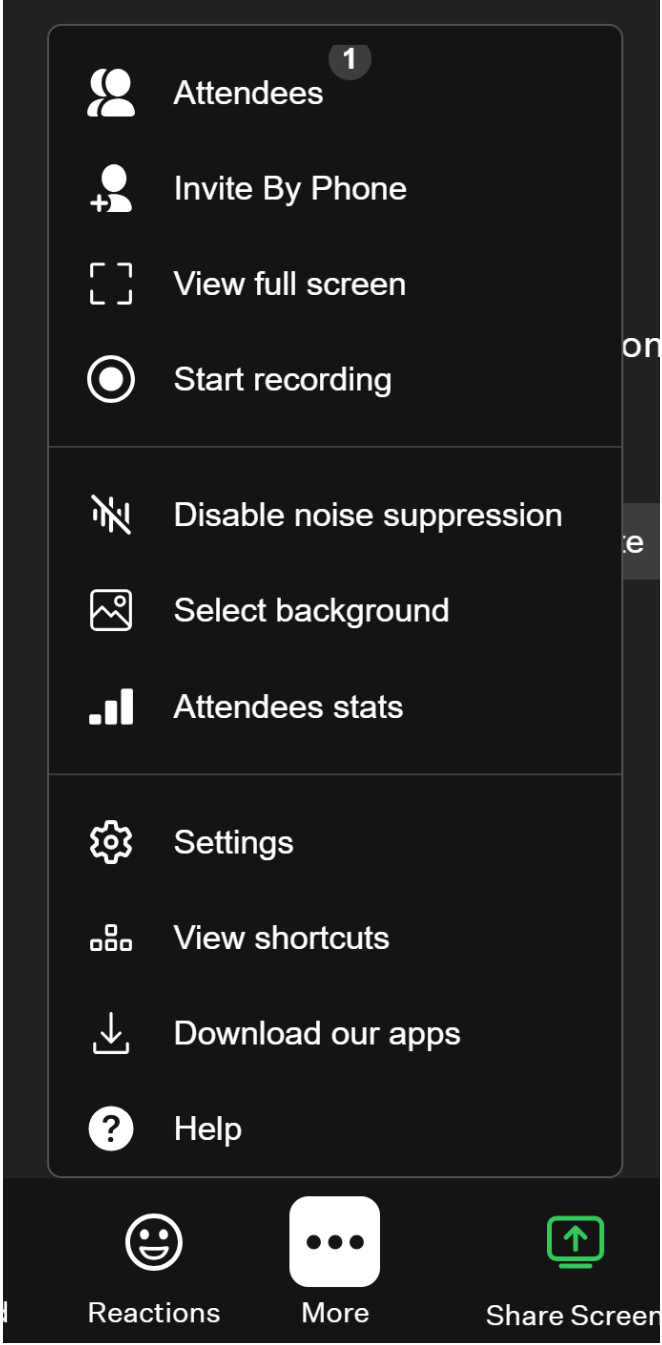
- Attendees: when you select this option, a pop-up window will appear on the right-hand side of the app.
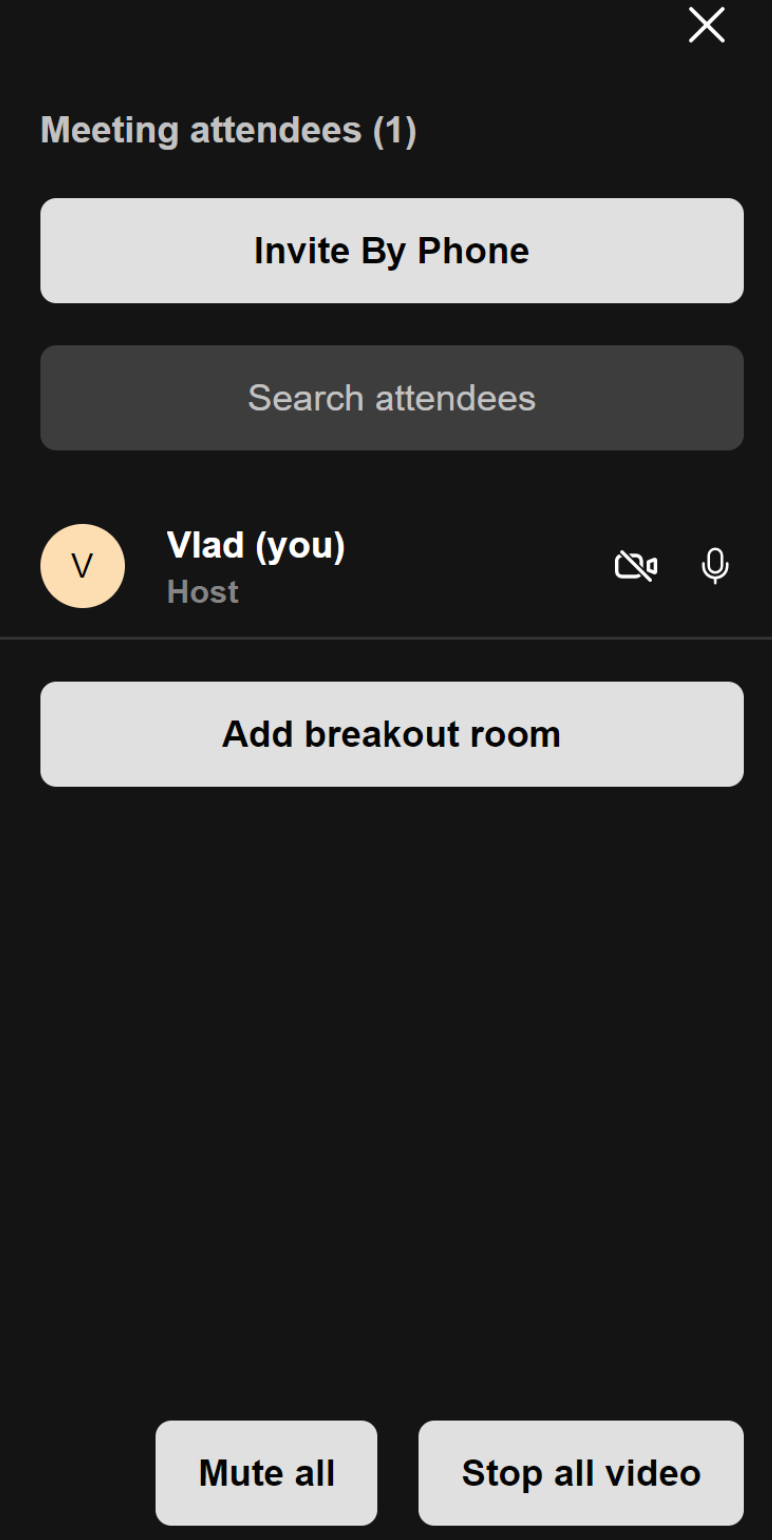
It will display a list of video meeting participants along with additional buttons and fields.
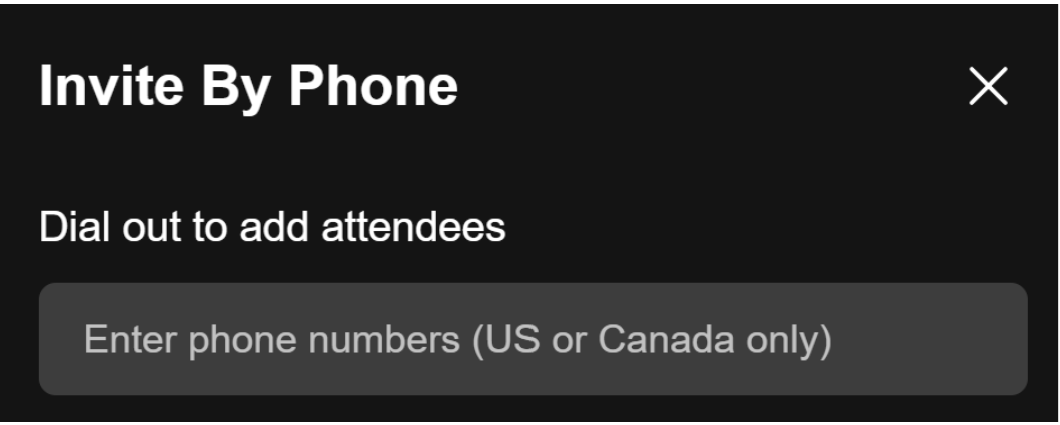
- Invite by phone: clicking this button will prompt a pop-up window to appear with a field where you can input a phone number. This number will receive an invitation to join the ongoing video meeting.
- Search attendees: this field is used to search for a specific participant within the list of participants. It proves useful when there is a considerable number of participants present.
- Add breakout room: by clicking this button, you can create a breakout room, which serves as a tool for meeting management. Participants can enter this separate "room" for more private conversations without other participants present.
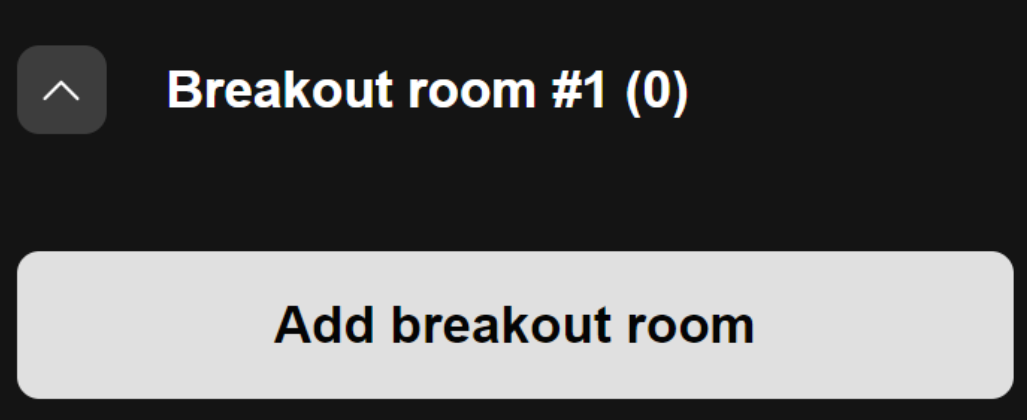
Below the list of participants, you will find all the breakout rooms. When you hover your mouse over a breakout room name, two buttons will appear.

- Join: clicking this button will allow you to enter the selected breakout room.
- Three-dot button: when you click this button, a dropdown list of options will appear.
- Rename: if you select this option, you can change the name of the configured breakout room.
- Remove: if you choose this option, the configured breakout room will be deleted.
- Invite By Phone: clicking this button will prompt you to invite another participant by phone using the same method described earlier.
View full screen: choosing this option allows you to open the meeting window in full-screen mode.
Start Recording: when you select this option, a pop-up window will appear asking you to confirm that you want to start recording the ongoing meeting.
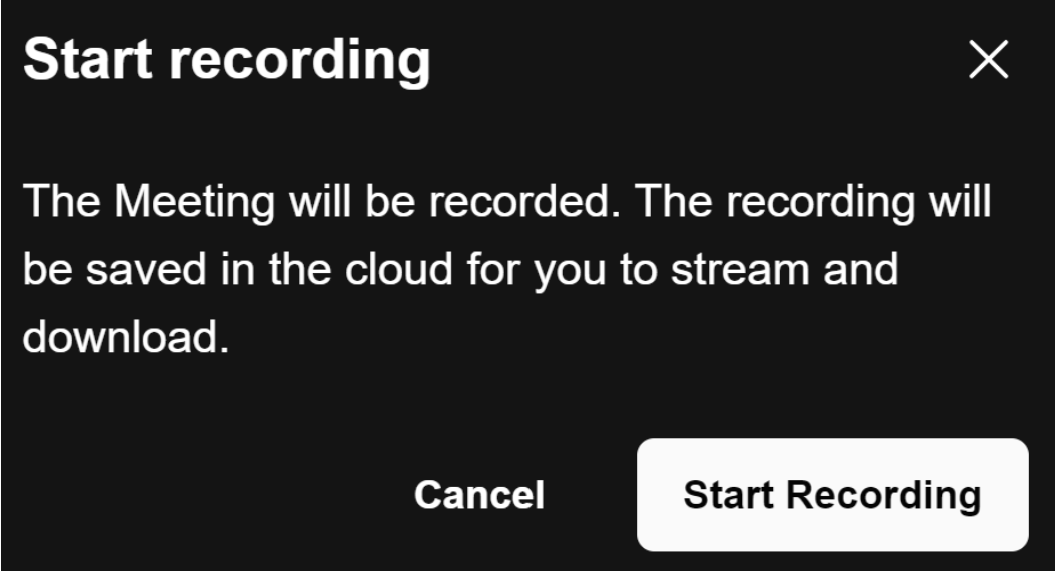
All the participants will receive a notification indicating that the ongoing meeting will be recorded. A corresponding recording badge will appear at the top of the meeting window.

- Disable noise suppression: by using this option, you can enable or disable noise suppression.
- Select Background: when you select this option, you’ll be directed to the Settings/Virtual Backgrounds tab (as described below), where you can configure a virtual background.
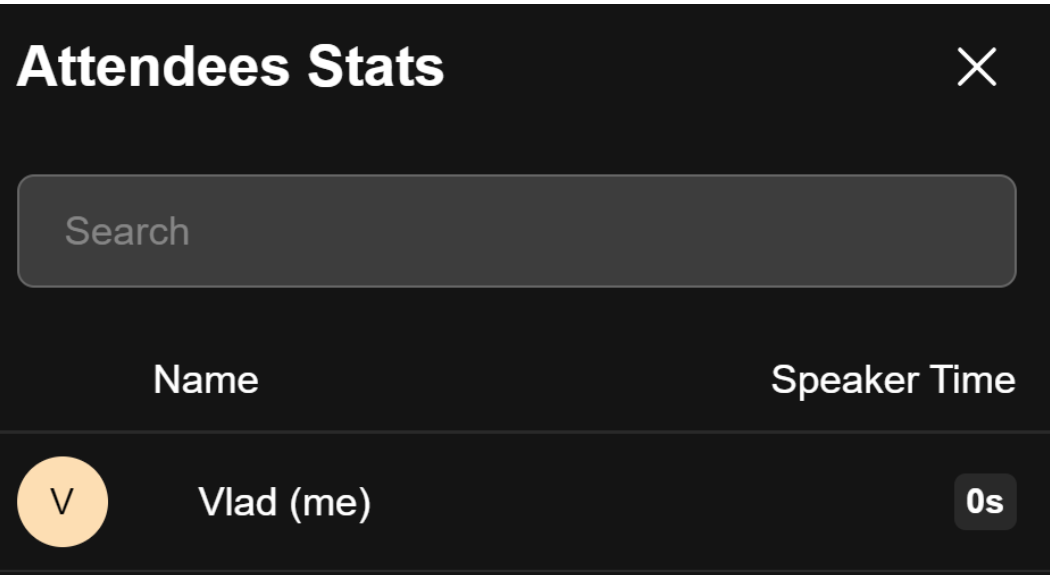
- Attendee Stats: upon choosing this option, a pop-up window will display a list of meeting participants along with their speaking time. You can use the search field to find a specific participant and review their speaking time.
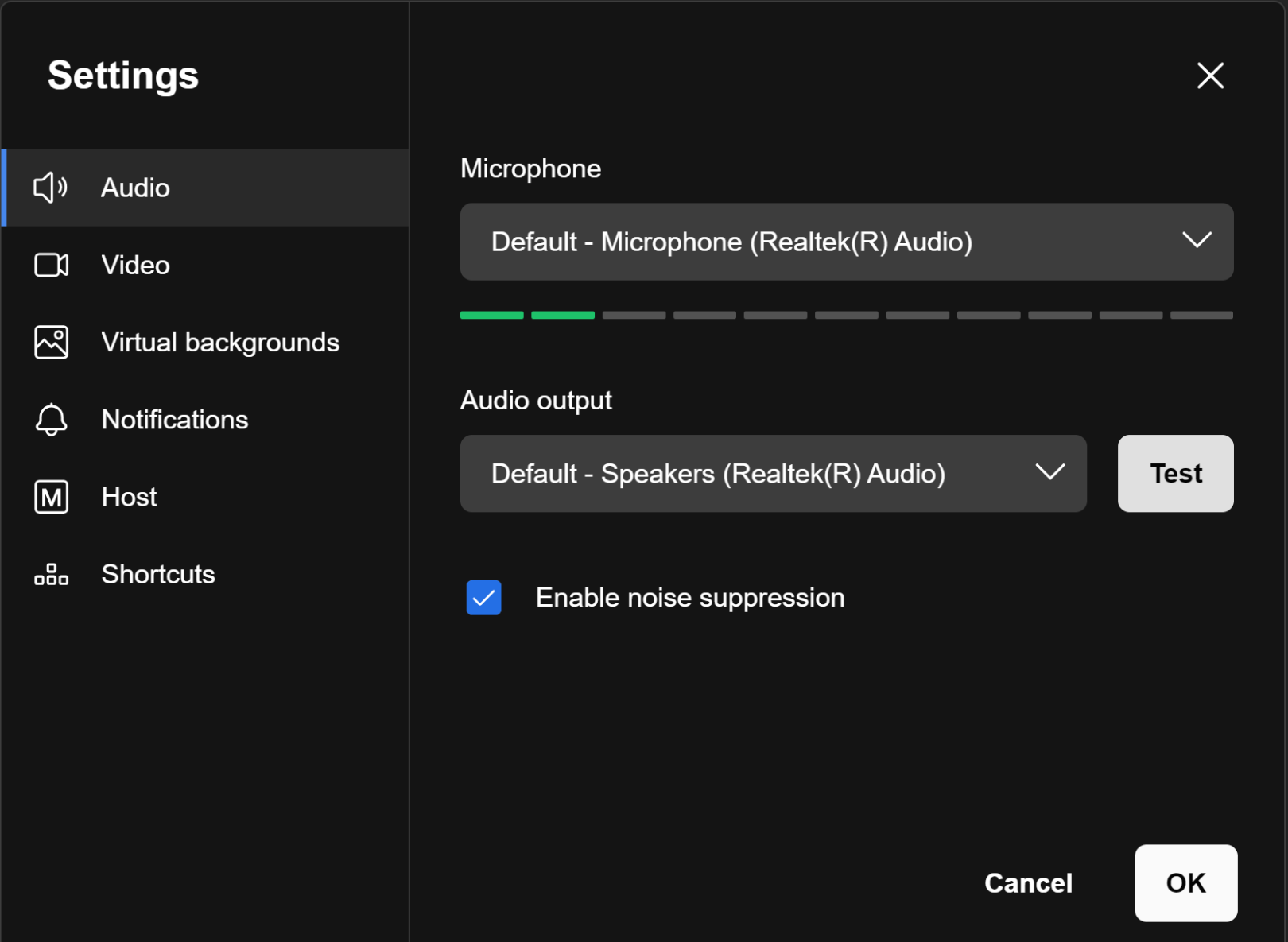
- Settings: selecting this option triggers a pop-up window presenting a comprehensive settings menu organized into multiple parameter tabs.
- Audio Tab: here, you can configure the microphone and audio output used for the meeting.
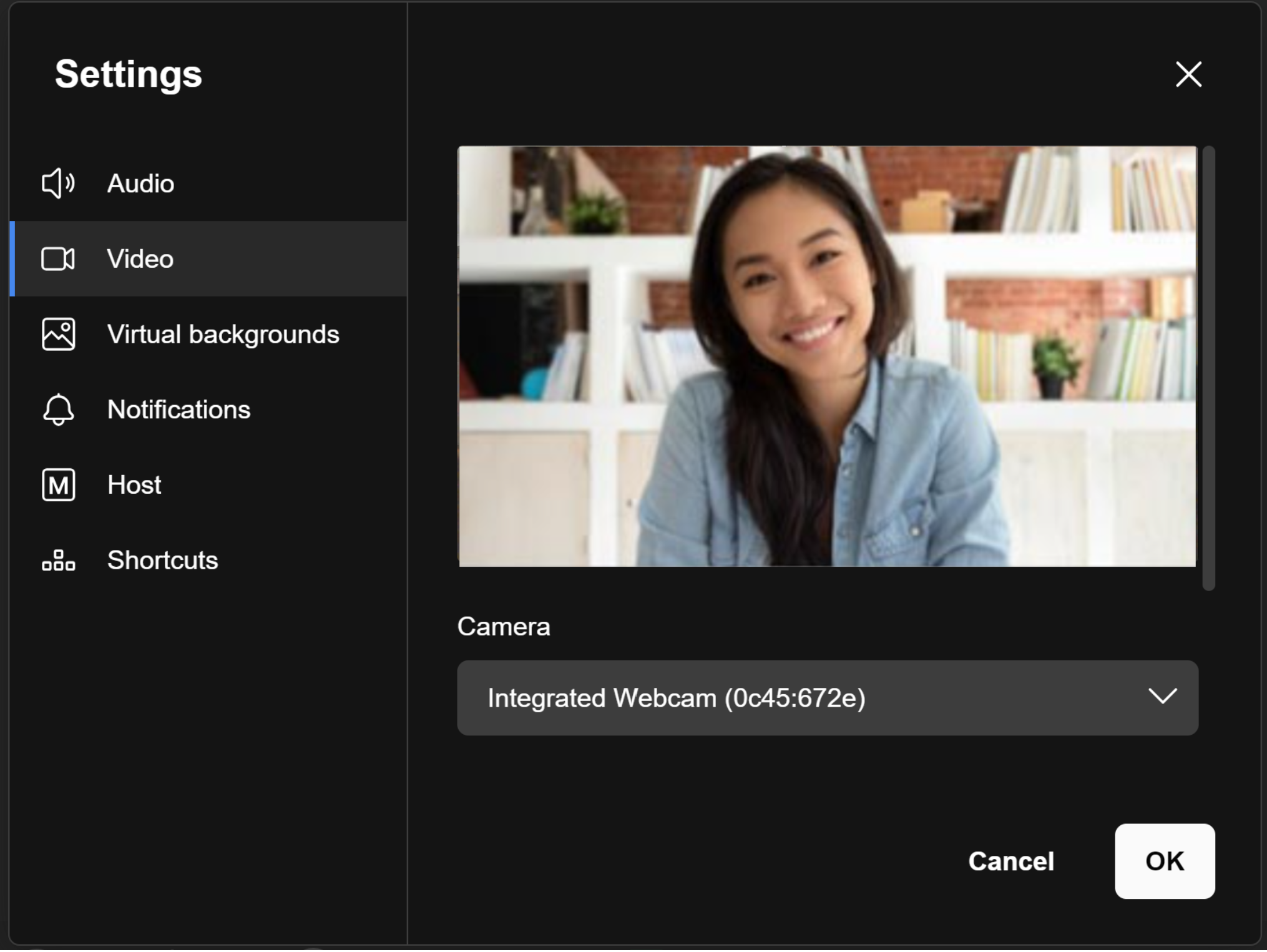
- Video Tab: here, you can select the camera that will be used during the meeting.
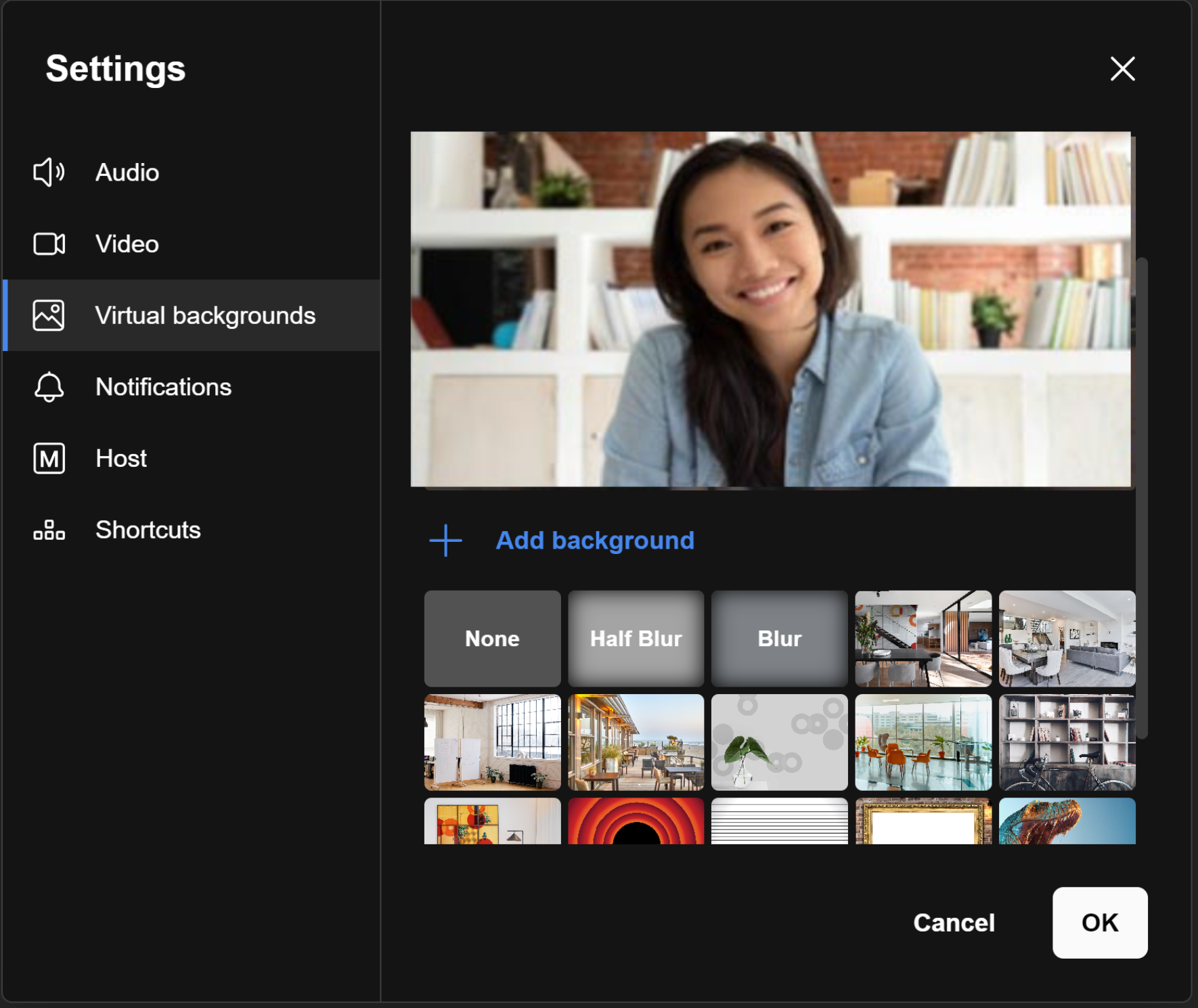
- Virtual backgrounds Tab: here, you can choose a background to appear behind you when your camera is enabled. You can also blur or partially blur your real background.
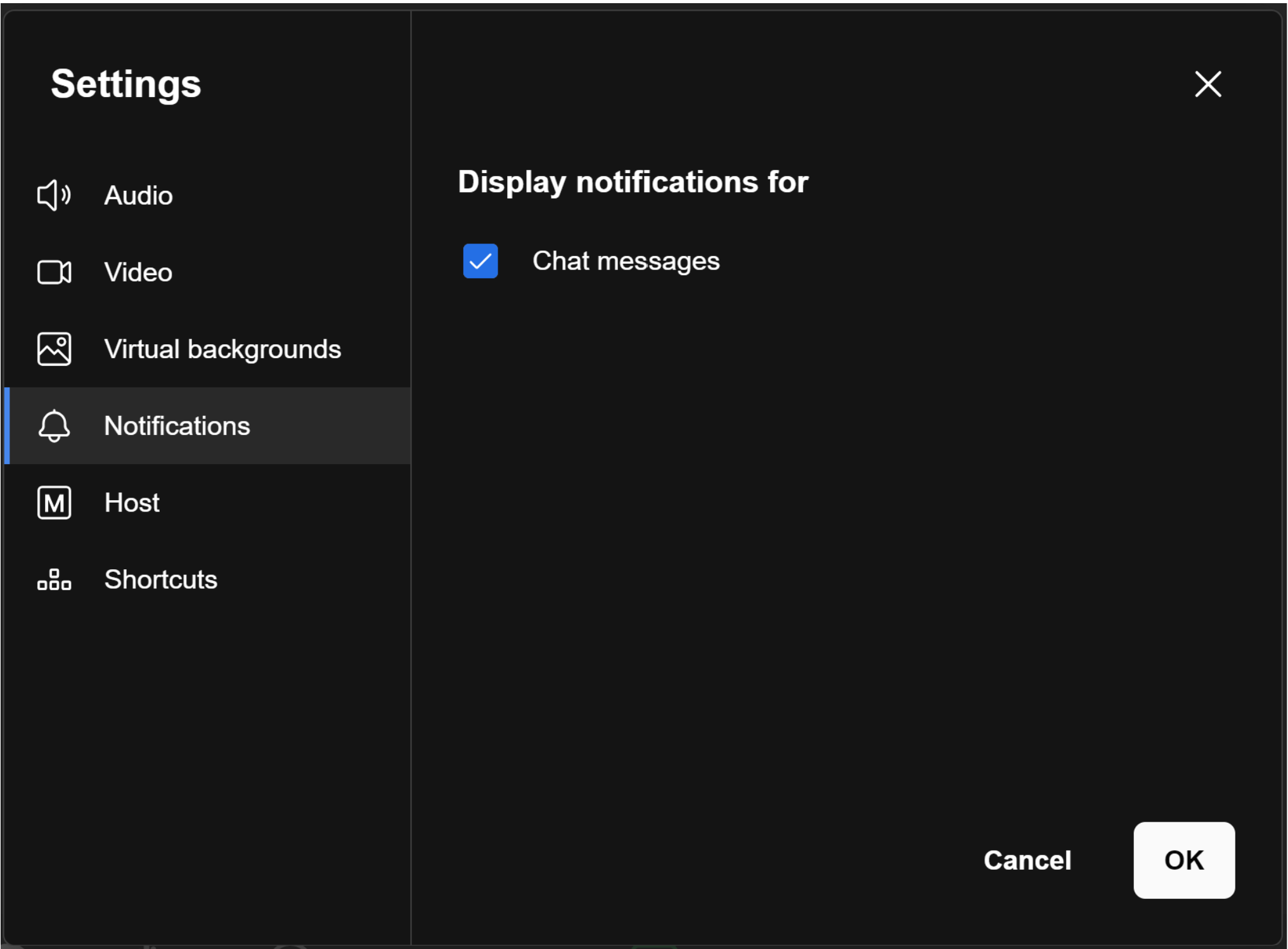
- Notifications Tab: here, you can enable or disable notifications for chat messages.
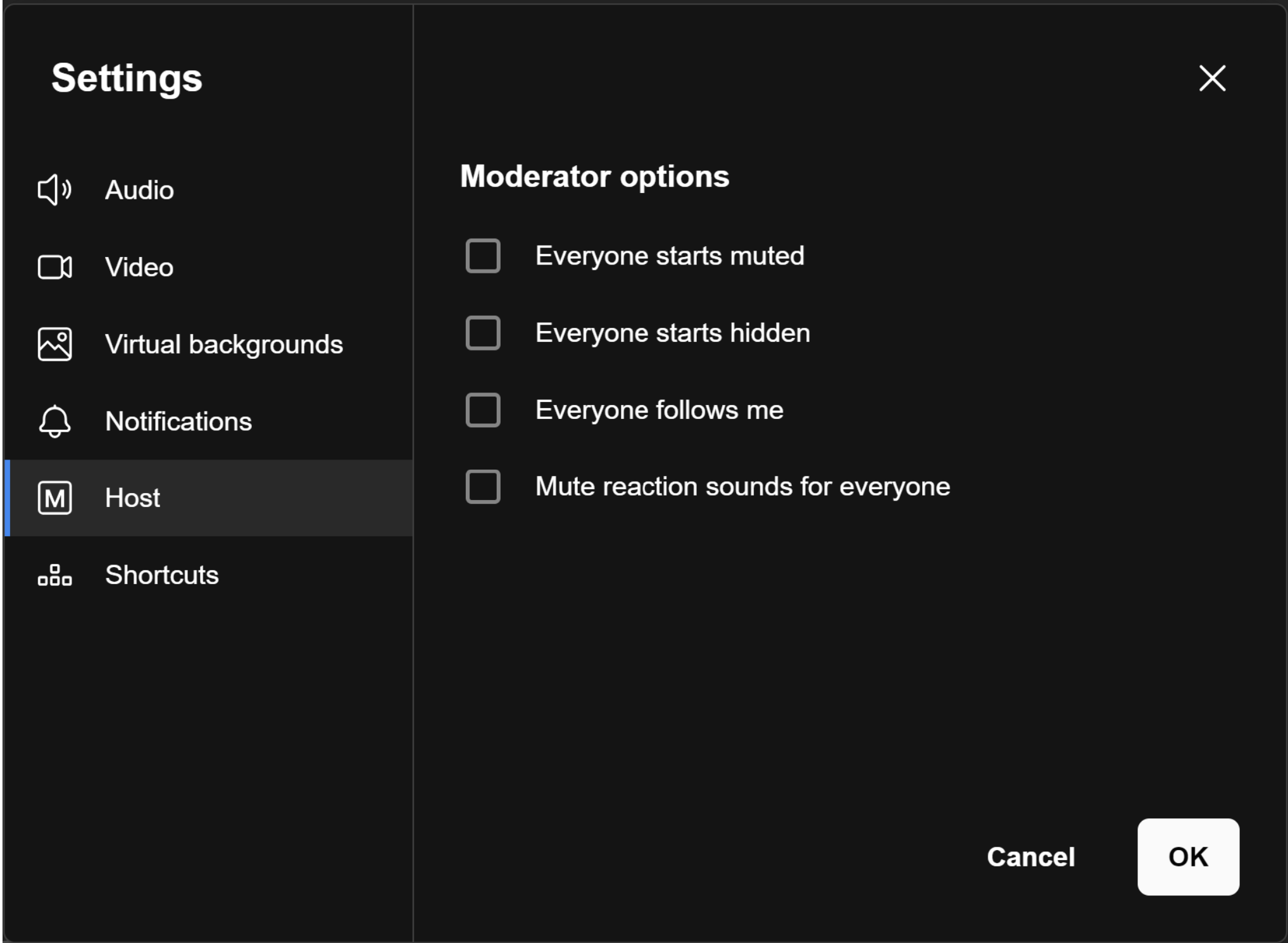
- Host Tab: here, you can enable or disable moderator settings such as Everyone Starts Muted, Everyone Starts Hidden, Everyone Follows Me, and muting reaction sounds for all participants.
- Shortcuts Tab: here, you can find a list of available keyboard shortcuts that you can enable or disable.
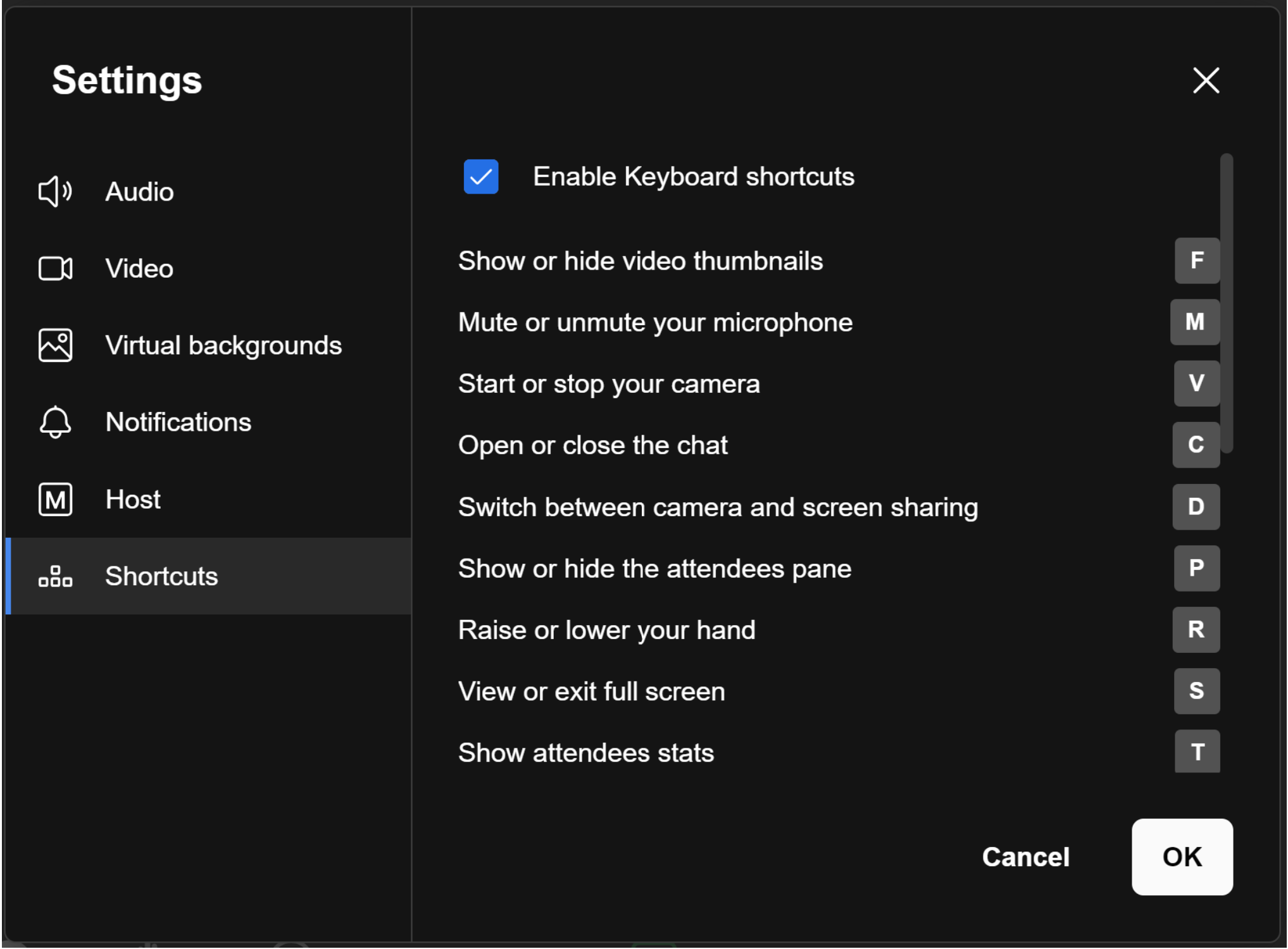
- View Shortcuts: when you select this option, you’ll be directed to the Settings/Shortcuts tabs (as described above), where you can configure a virtual background.
- Download our apps: choosing this option will redirect you to your web browser, opening a new page displaying the Ooma Applications website, where you can find a list of Ooma applications.
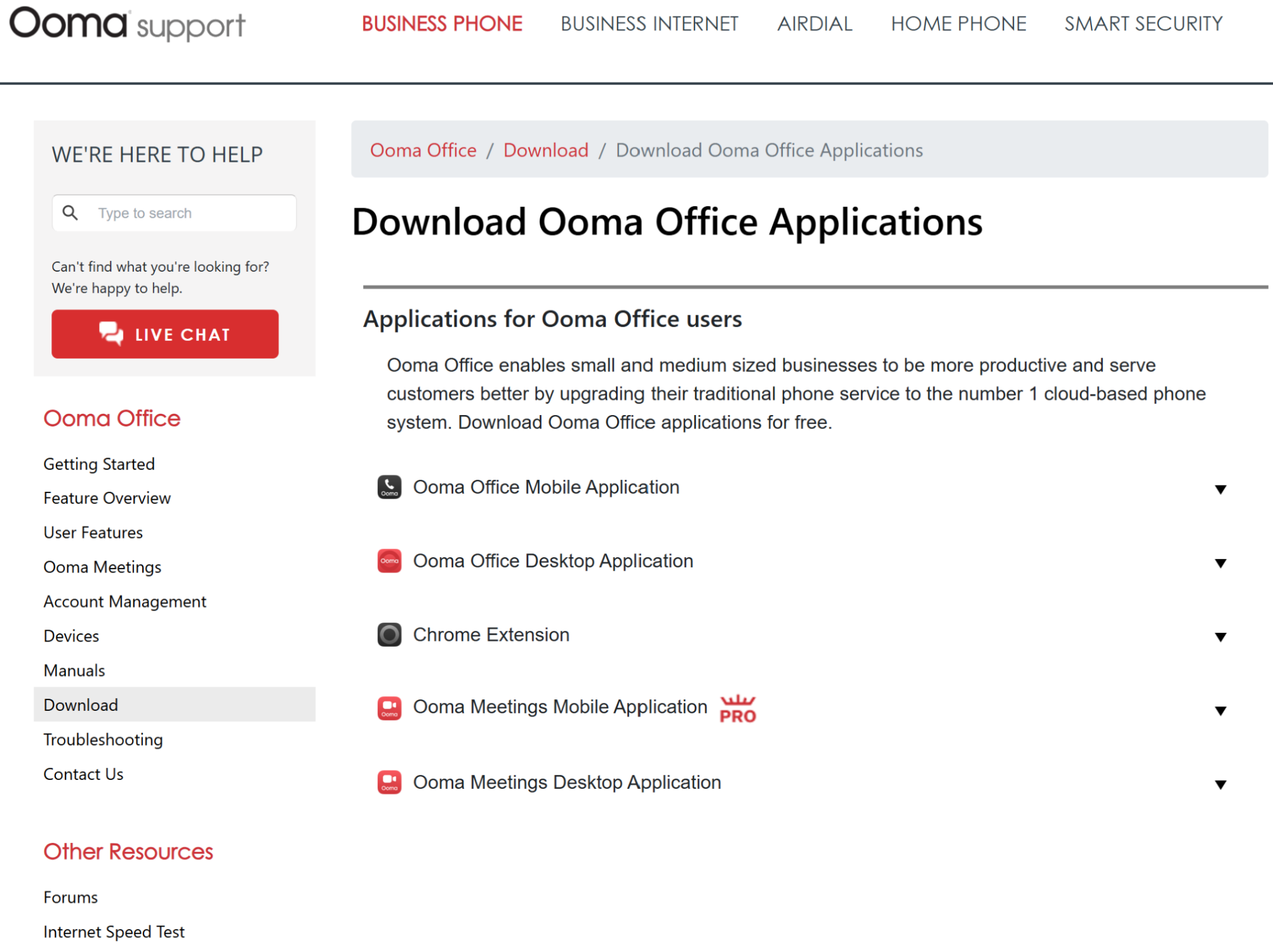
- Help: choosing this option will redirect you to your web browser, opening a new page displaying the Ooma Support website, where you can find a set of articles on the Ooma Meetings feature.
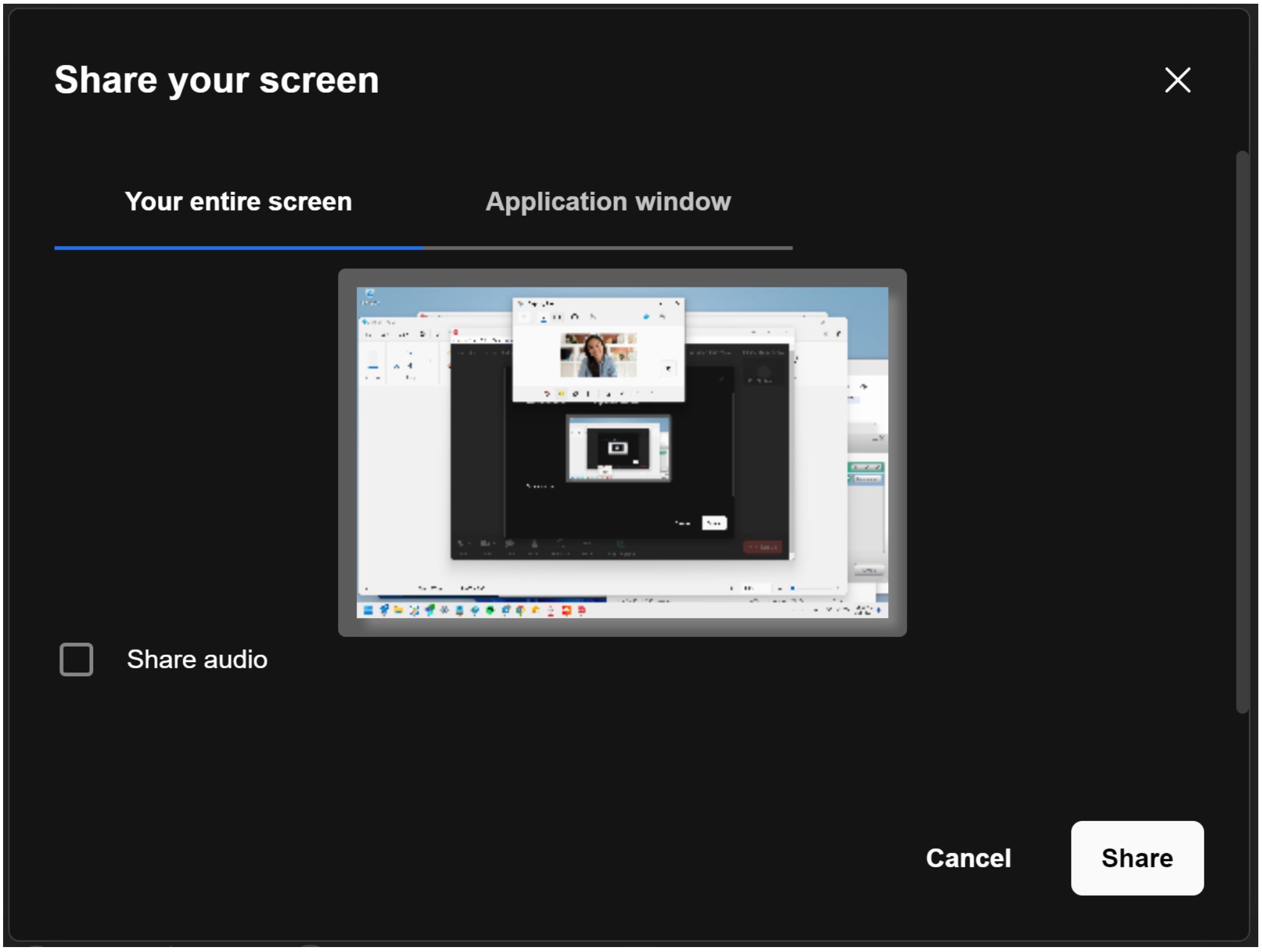
- Share Screen: when you choose this option, a pop-up window will appear, allowing you to share your screen with other participants. Within this window, there are two tabs: one for sharing your entire screen and another for sharing a specific application window from a list of currently running applications.
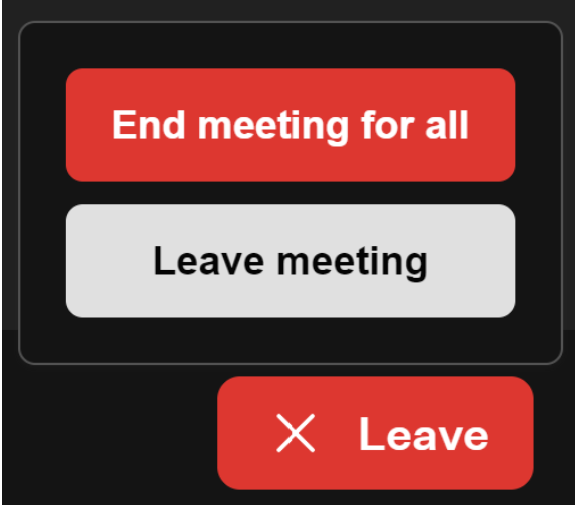
- Leave: when you click this button, a drop-down menu appears with two options: End Meeting for All and Leave Meeting. Select the option that best suits how you want to end the meeting.
Was this article helpful?
That’s Great!
Thank you for your feedback
Sorry! We couldn't be helpful
Thank you for your feedback
Feedback sent
We appreciate your effort and will try to fix the article