Description: This Feature provides you with intelligent access to your list of contacts, along with an indication of the availability statuses of the individuals included in it.
Every time you launch the OE Desktop App, the Contacts Feature is the default one that you'll see.
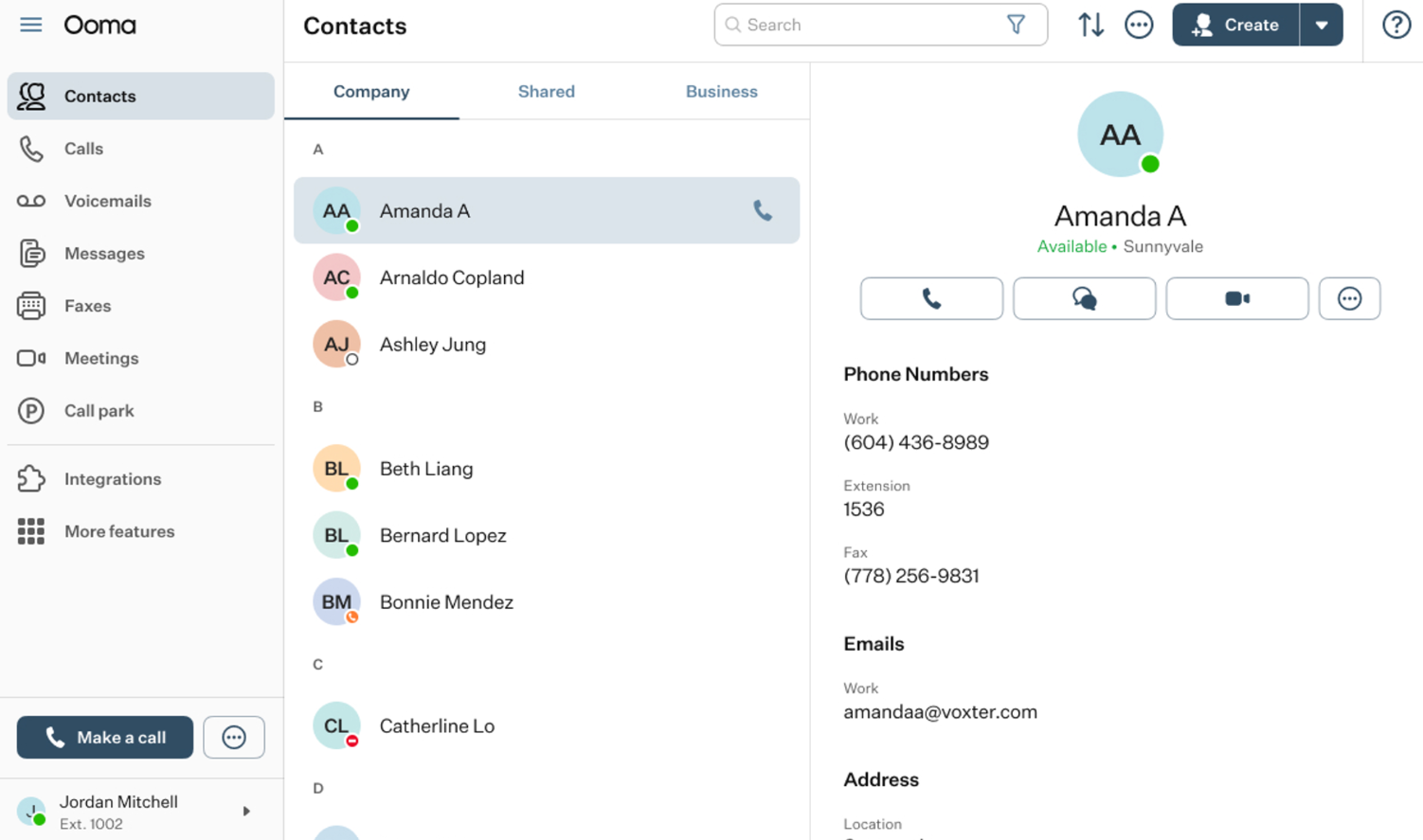
The top horizontal panel of the Contacts feature of the OE Desktop App includes five functional elements:

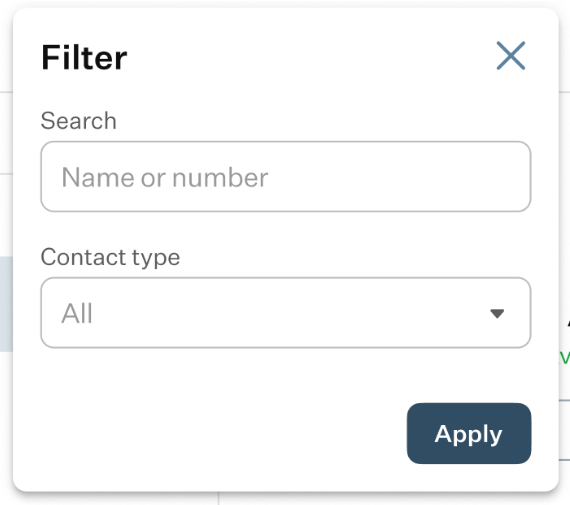
- Search Bar: you can use the search bar to locate a contact within any of the contact tabs’ lists. Clicking the Filter icon opens a pop-up window with available filter options.
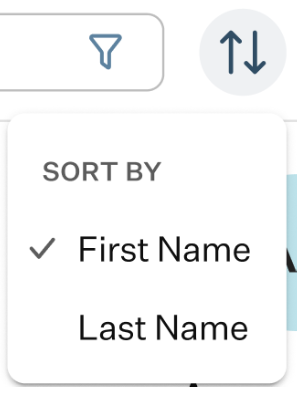
- Sort button: clicking this button allows you to sort contacts in the active contact list by first or last name.
- Three-dot button: clicking this button opens a drop-down list of options:
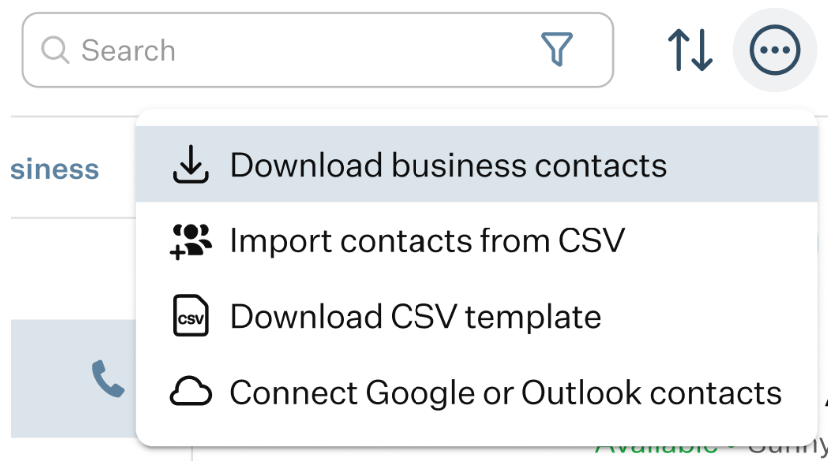
- Download business contacts: when you press this button, a file explorer will open, prompting you to select the location on your PC where you want to save the CSV file.
- Import contacts from CSV: selecting this option opens a pop-up window where you can choose how to import contacts into your business contact folder.
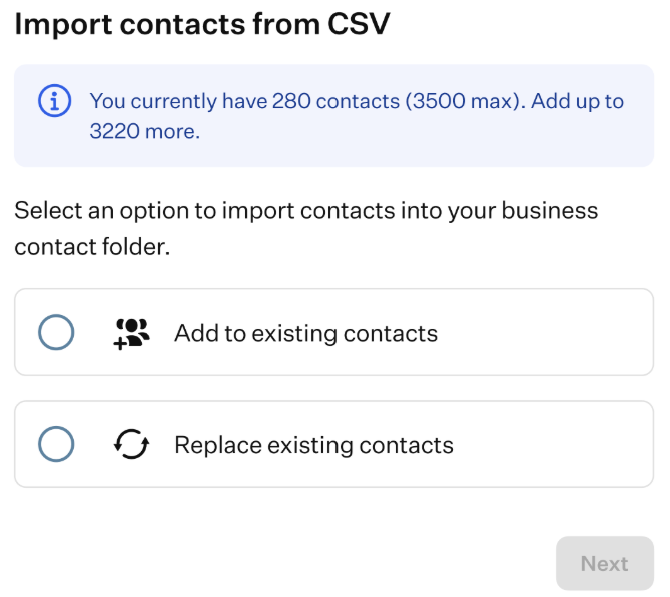
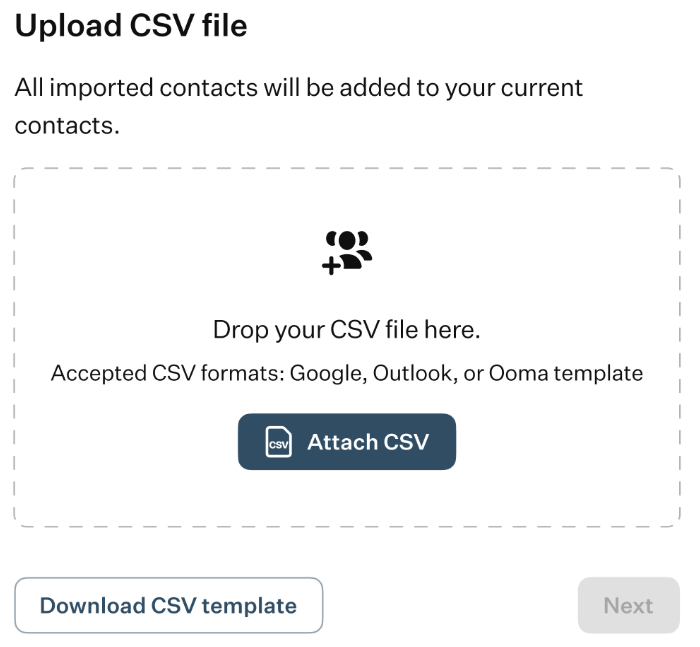
After selecting an import method, you can upload a CSV file. A CSV template is also available for download, allowing you to enter the data manually.
Once the file is uploaded, the system analyzes it. If any issues are detected, a window appears listing the issues and prompting you to either replace the CSV file or continue the import using the valid entries from the uploaded file.
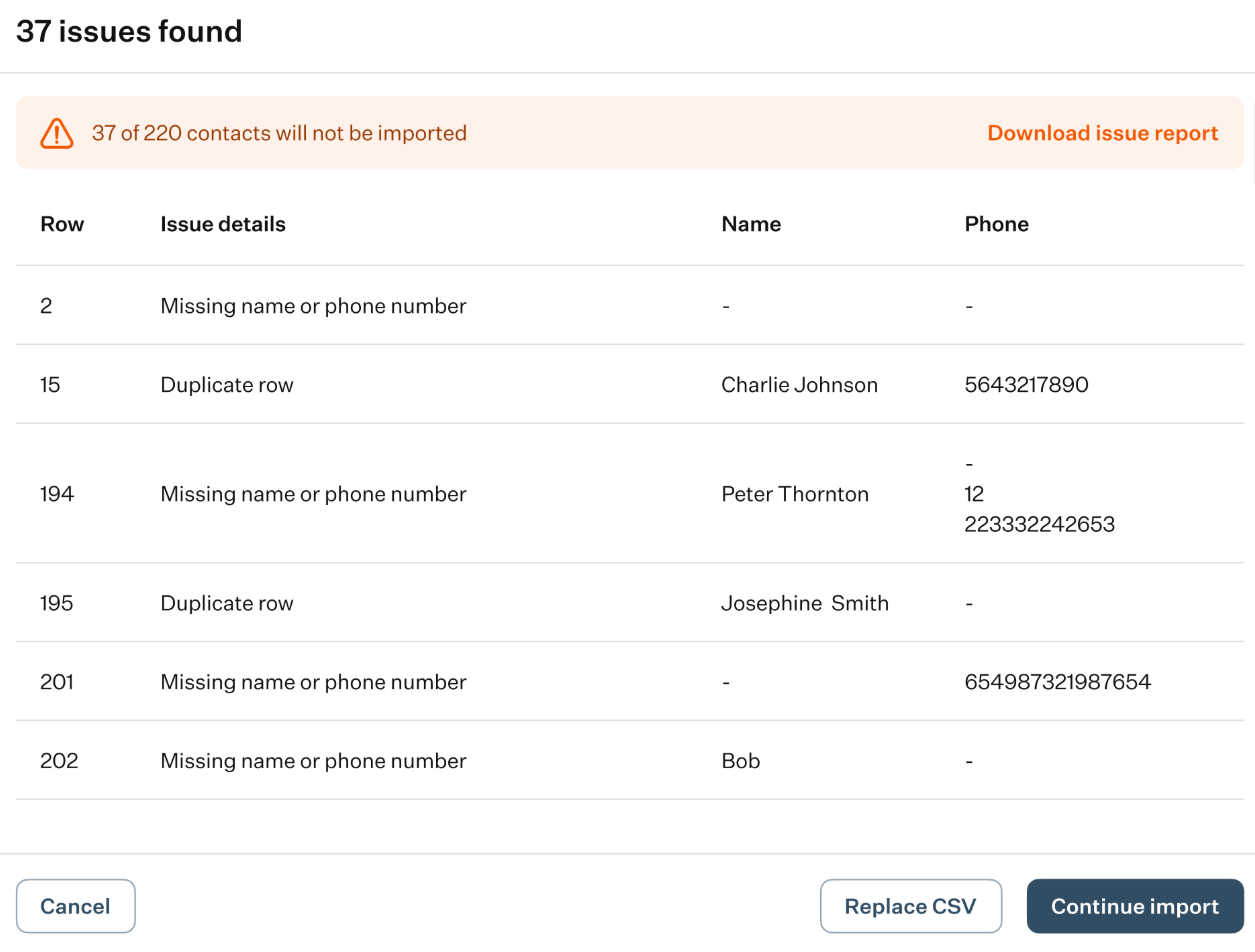
Clicking the “Continue Import” button displays a list of valid entries from the uploaded file.
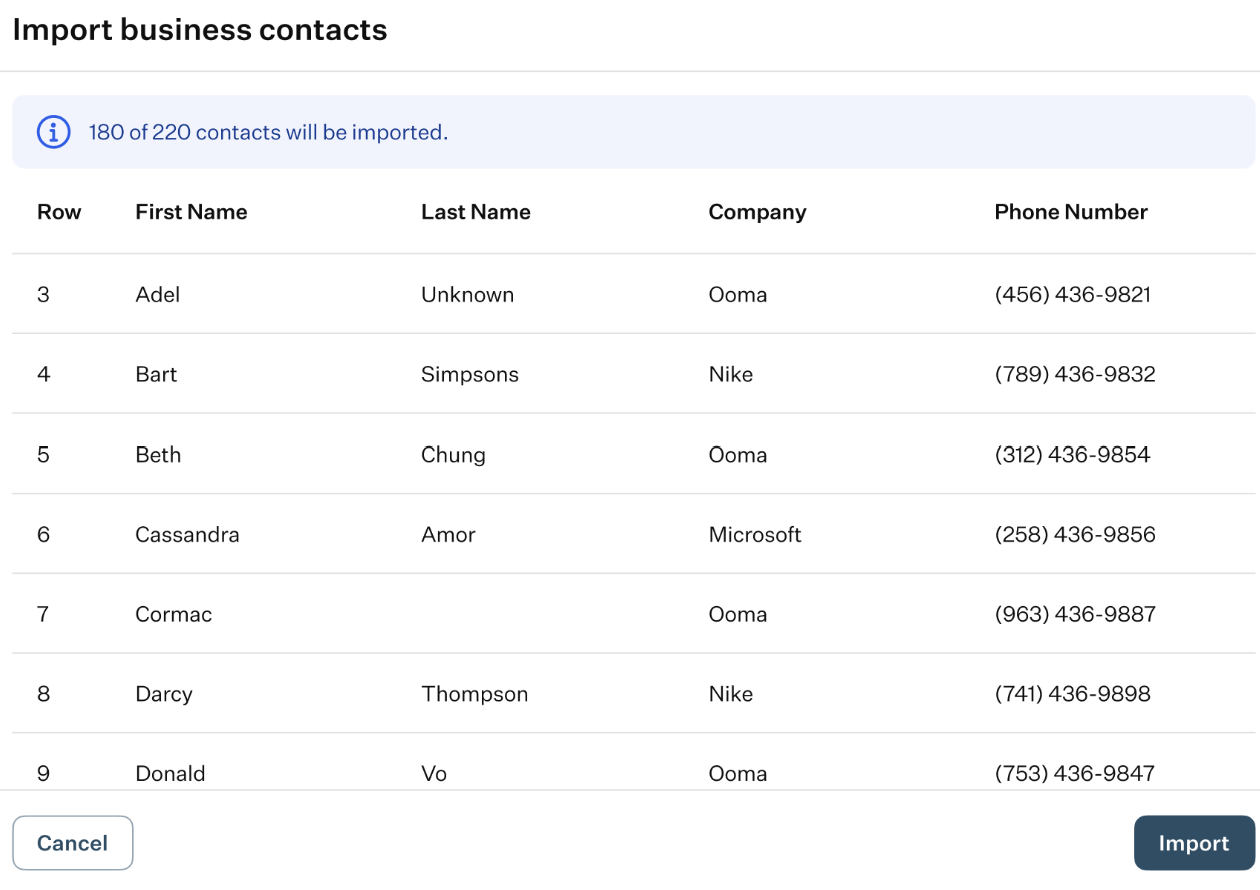
You can add these contacts to your business contact list by clicking the “Import” button, or cancel the upload by clicking “Cancel.”
- Download CSV template: clicking this button lets you download a CSV template file without opening the Import Contacts from CSV wizard.
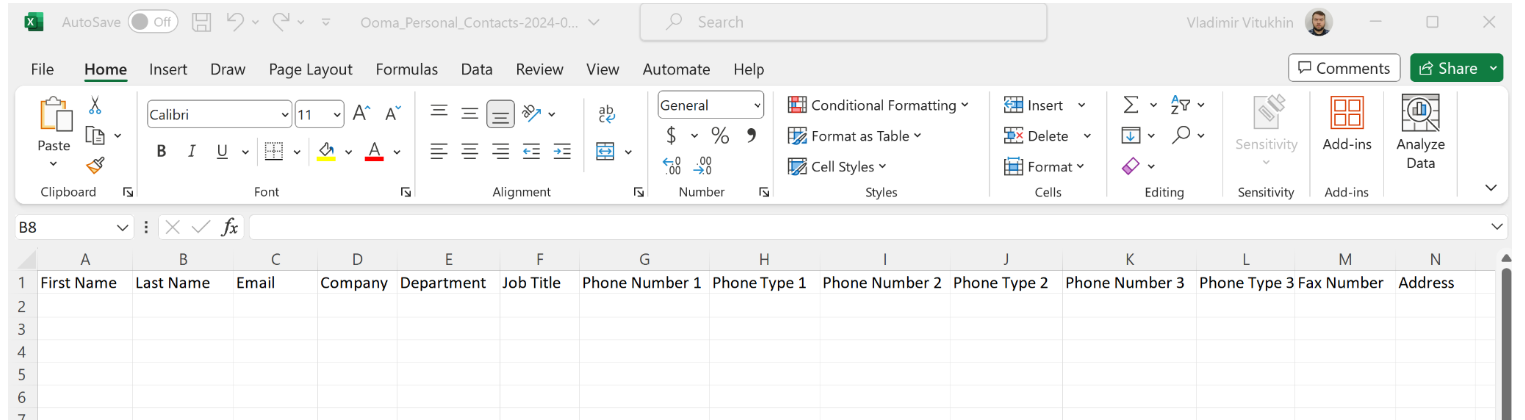
Connect Google or Outlook contacts: choosing this option will trigger the same process of synchronizing contacts with a Google or Microsoft account. Clicking this button Upon will open a new page in your internet browser, redirecting you to a form where you will be prompted to enter your work email.
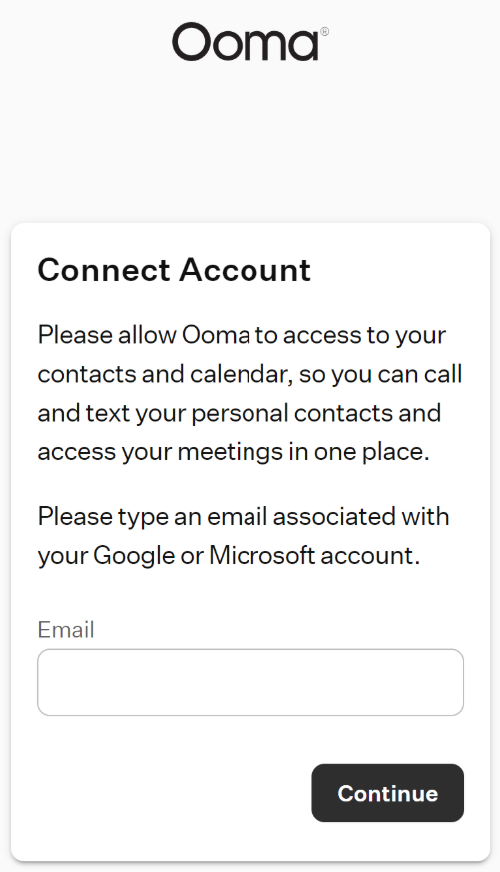
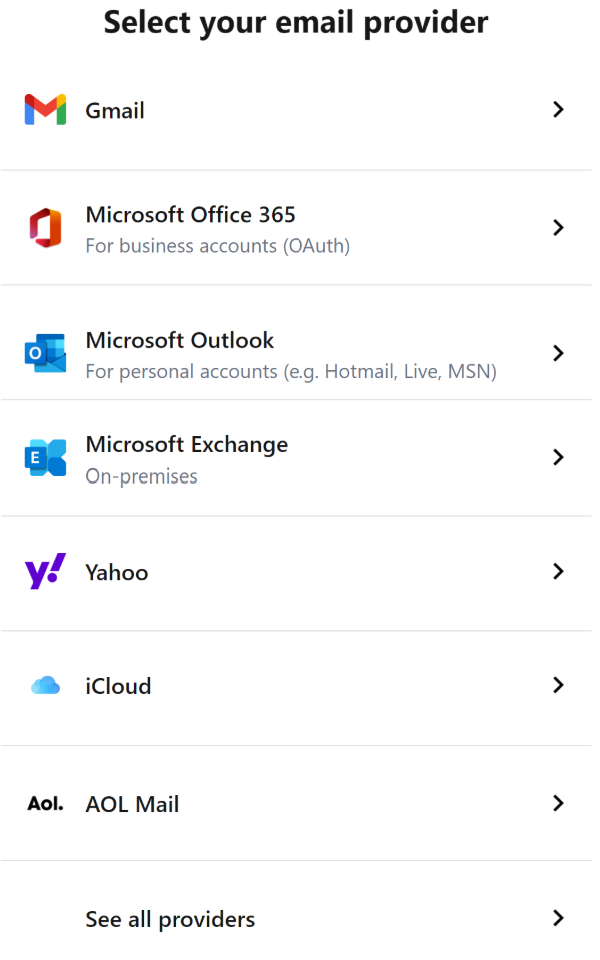
Following that, you will be prompted to select your email provider which contact list and calendar you wish to integrate into the app.
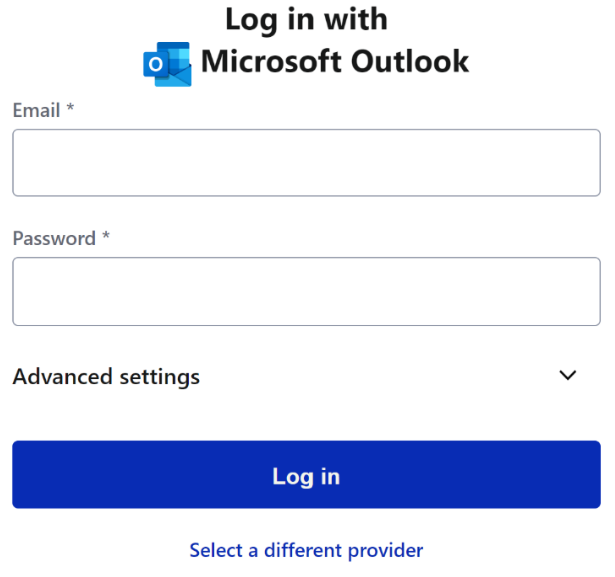
After selecting your email provider, you will be prompted to input your credentials to complete the integration process.
Create Button: clicking this button opens a drop-down list where you can choose the type of contact to create
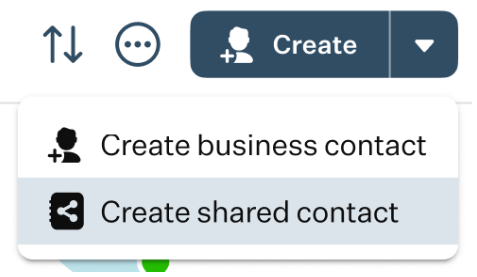
Regardless of the option selected, the same form is displayed and appears on the right-hand side of the OE Desktop app.
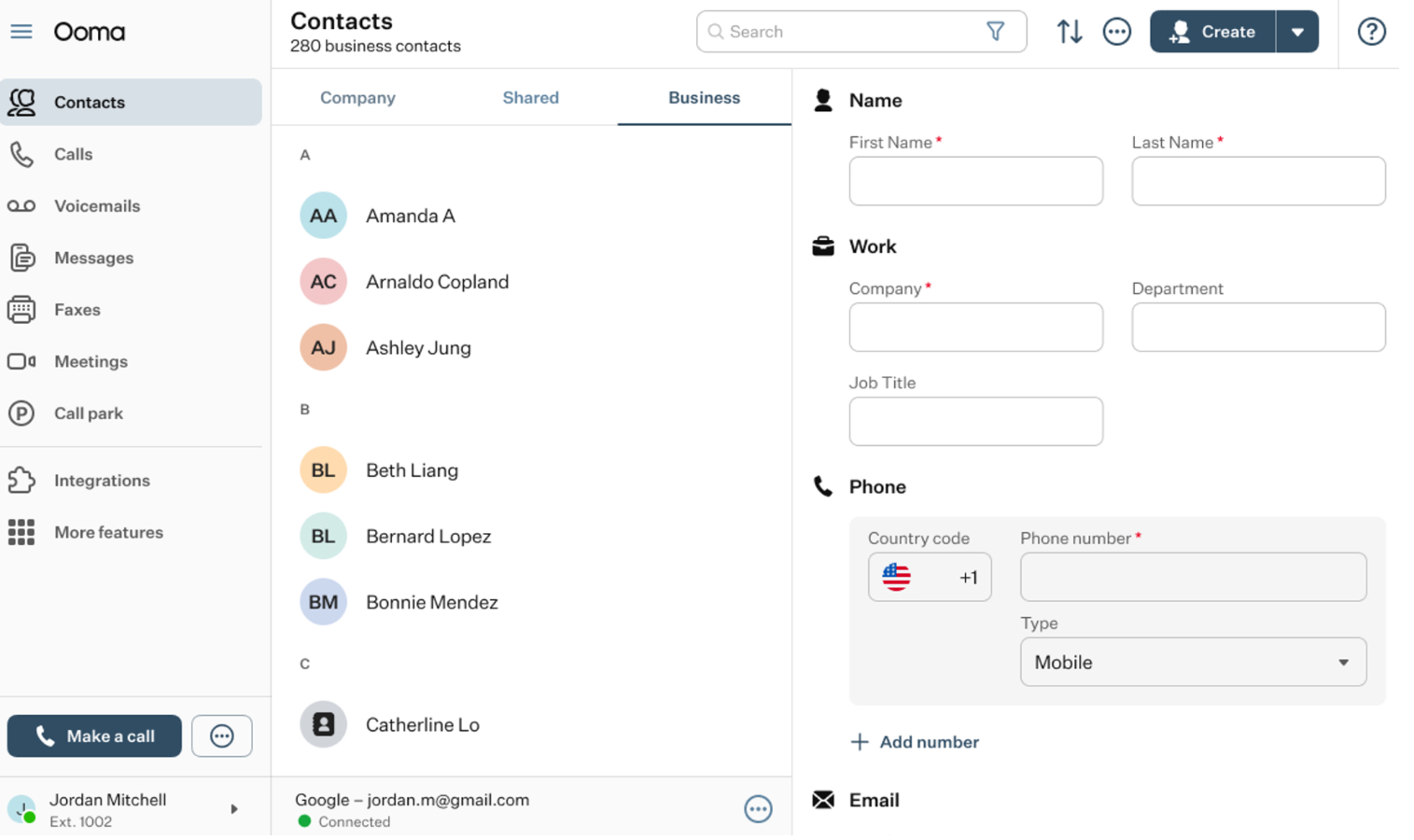
- Help button: clicking this button will open the Help pop-up window.
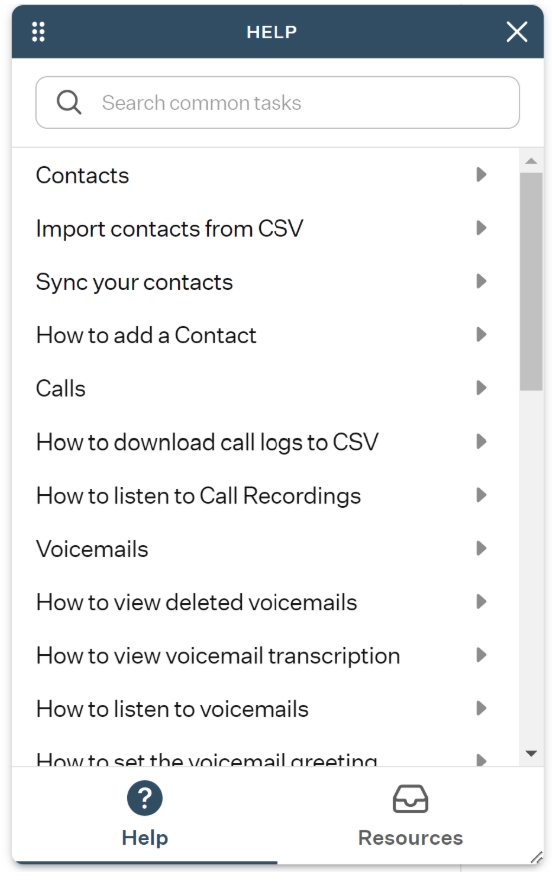
It contains a collection of useful articles covering the main features of the OE Desktop app and can be used as a knowledge base to learn more about the application.
The contacts are categorized into three tabs:

- The Company tab lists job-related contacts.
- The Shared tab includes contacts that are shared with you or your team.
- The Business tab contains company-wide contacts.
When you choose a contact from any of the contact tabs’ lists, the contact card of the selected contact will open.
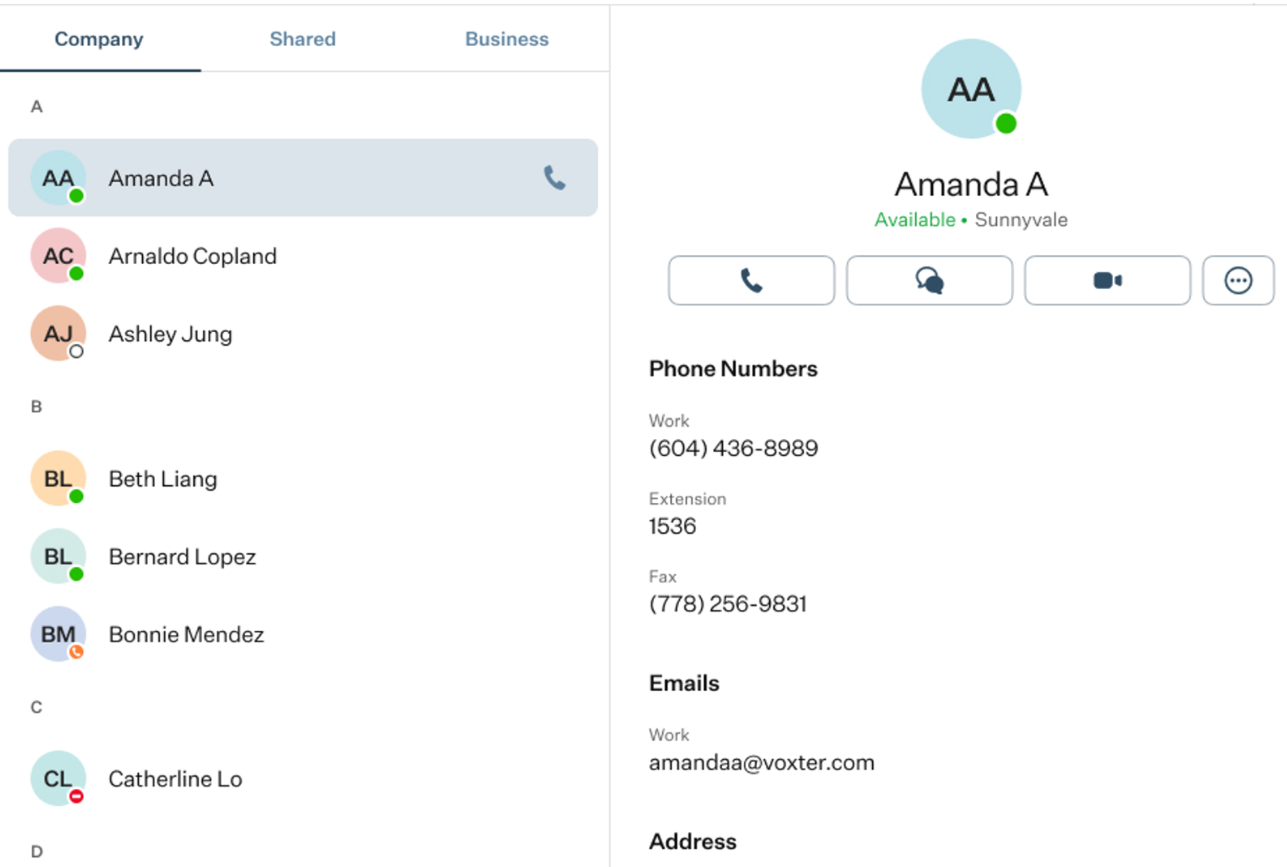
In addition to the contact information of the selected contacts, you will find several action buttons available for interacting with the selected contact.
The set of available action buttons depends on the contact information provided in the contact card of the selected contact. For example, the “Fax” button appears only if a fax number is available.

Clicking an action button opens the corresponding feature. The three-dot button contains a drop-down list of additional features that are not displayed on the contact card, along with action options for managing the selected contact.
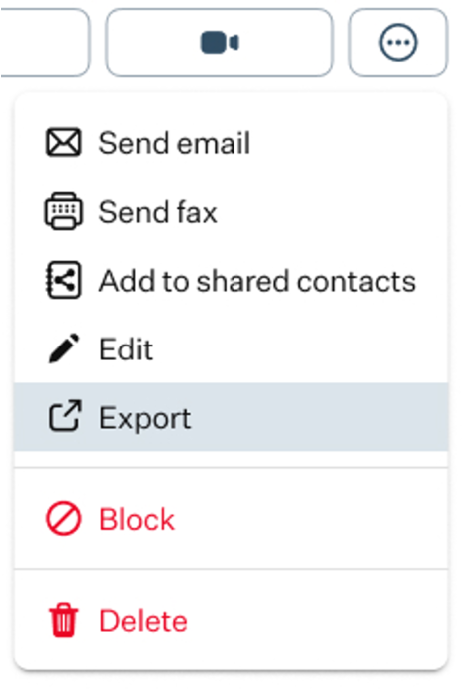
- Add to Shared Contacts: by pressing this button, you will add the contact to the shared contact list so it can be accessed by your team.
- Edit: this button allows you to modify the contact’s details.
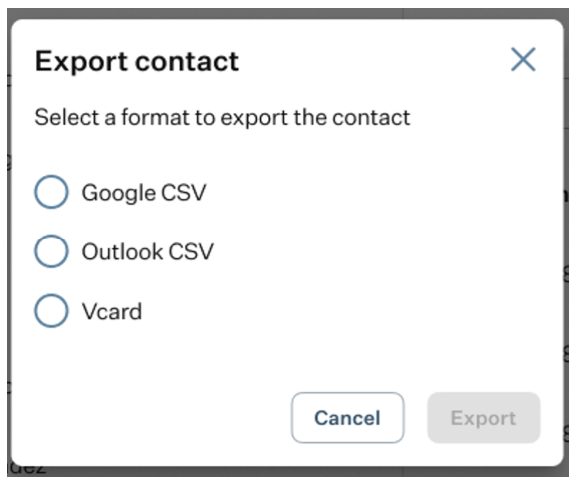
- Export: exports the contact information for use outside the application. When you click this button, a pop-up window appears displaying the available export options.
- Block: prevents the contact from calling or messaging you.
- Delete: permanently removes the contact from your contact list.
Was this article helpful?
That’s Great!
Thank you for your feedback
Sorry! We couldn't be helpful
Thank you for your feedback
Feedback sent
We appreciate your effort and will try to fix the article