Description: The OE Desktop App offers users a user-friendly interface for chat messaging through the Ooma network.
In contrast to the Messages feature of the OE Desktop app, the Team Chat feature works over an internet connection and does not use cellular SMS networks.
When you access the Team Chat feature of the OE Desktop App, you will encounter an interface that resembles the following screenshot. The user interface of the Team Chat Feature resembles that of the numerous messaging apps available today.
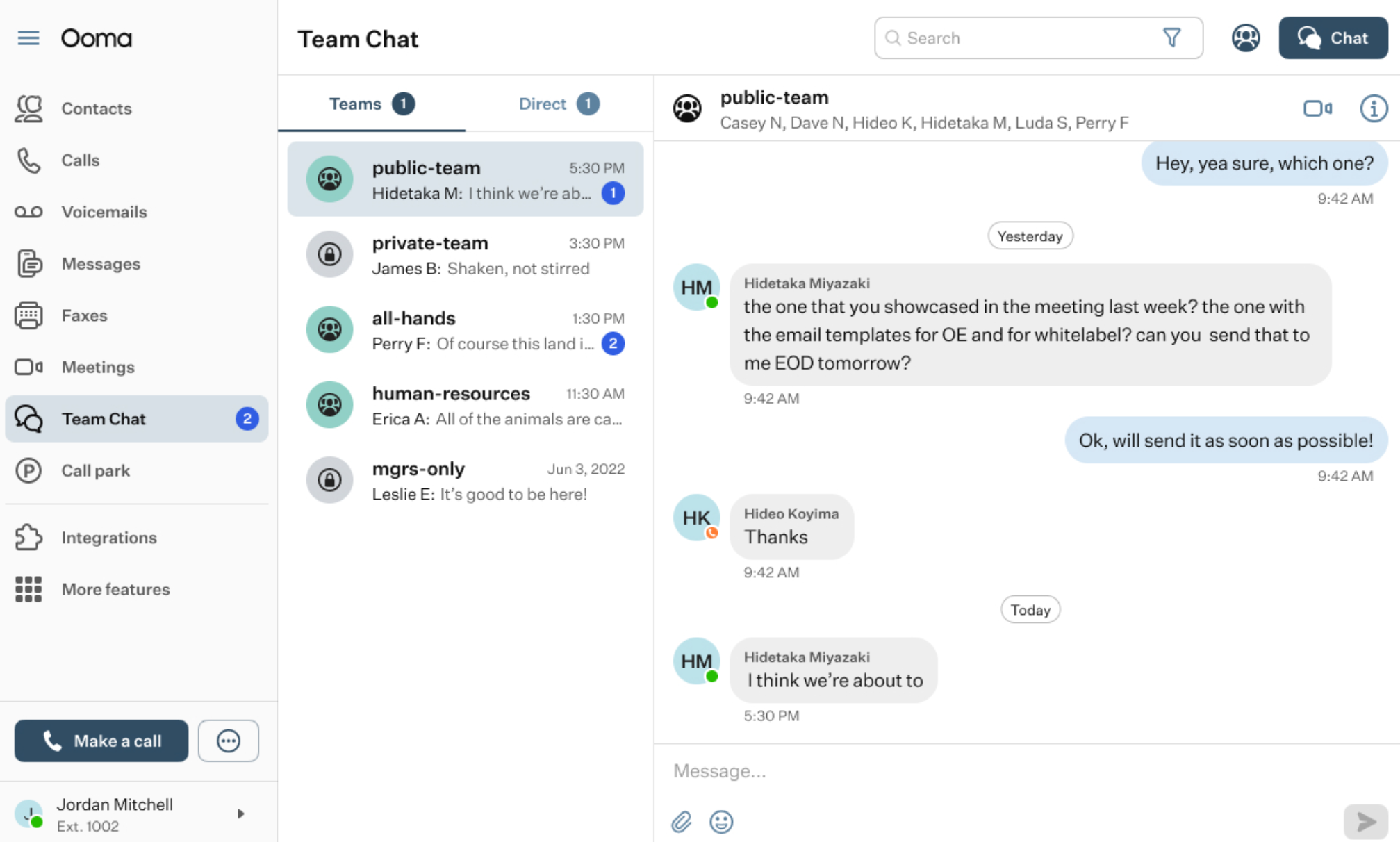
The feature interface is split into two main sections: a Chat List, distinguishing between Teams and Direct tabs, and the Chat Section that contains the conversation history of the chosen chat.
The Top Horizontal Panel of the Team Chat feature of the OE Desktop App includes three functional elements:

Search bar: you can use the search bar to locate a desired chat.
Create Team button: when you press this button, a pop-up window will appear, guiding you through the process of setting up a new Team. First, you will need to provide a name for the new Team. You also have the option to include an additional description for the Team, although this step is optional.
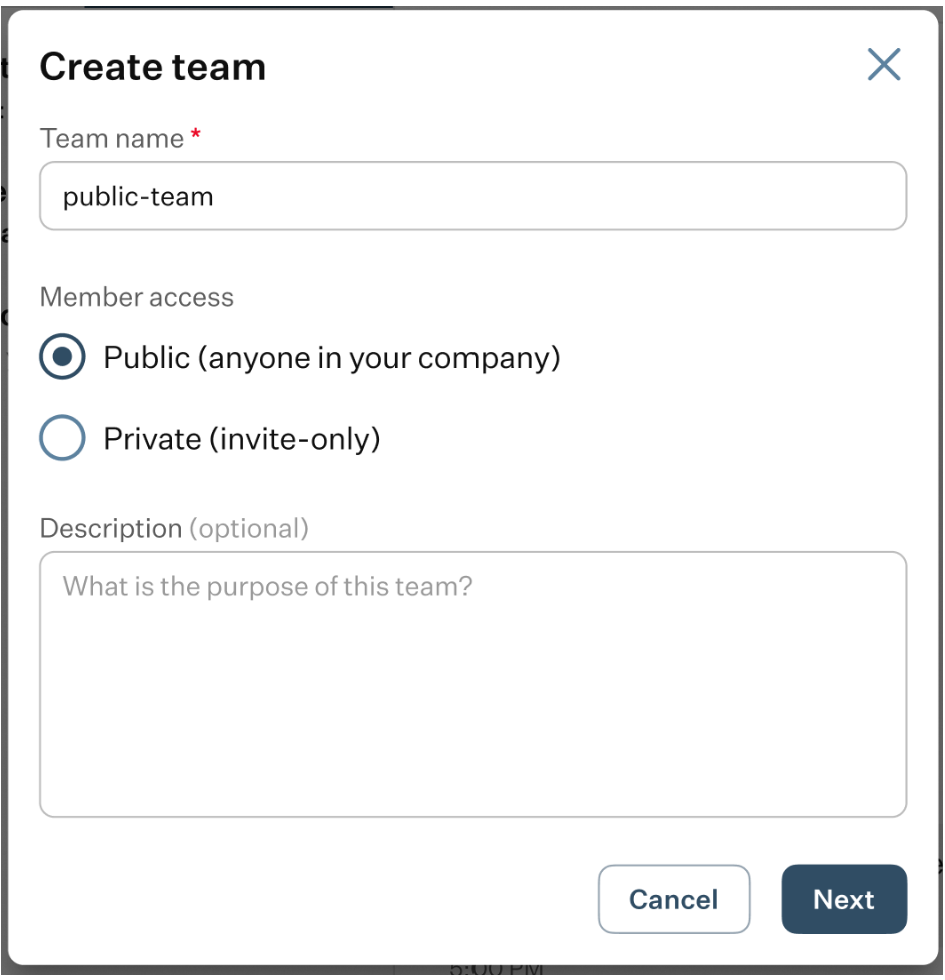
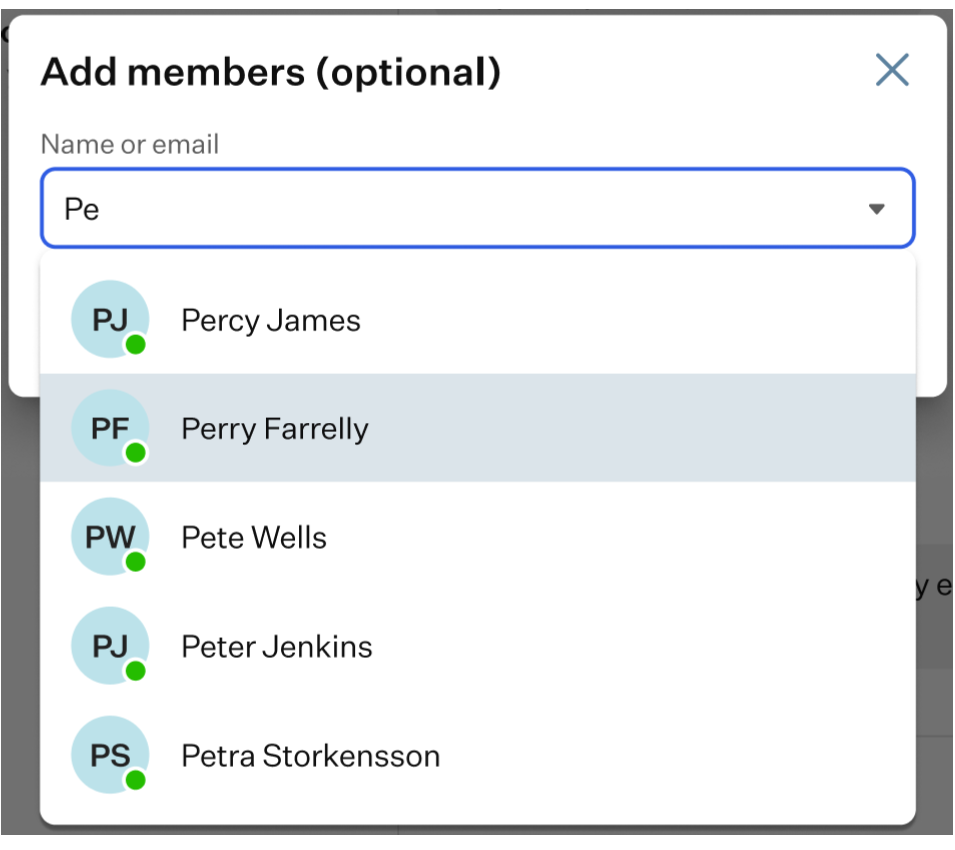
Upon clicking the “Next” button, the pop-up window interface will change, revealing a new field for adding members to the created Team. Once you click “Create” button, the Team will be created.
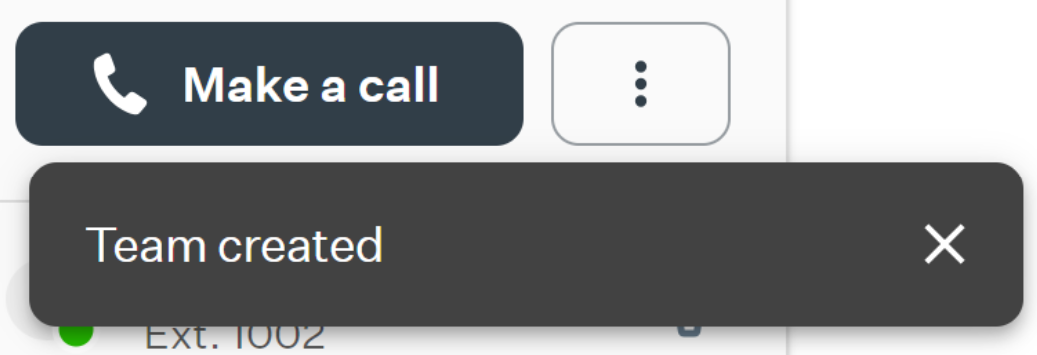
You will receive a notification from the OE Desktop App once the creation process is finished.
The newly created Team will be listed under the Teams tab in the chat section. The top horizontal menu of the chat contains important information and additional action buttons:
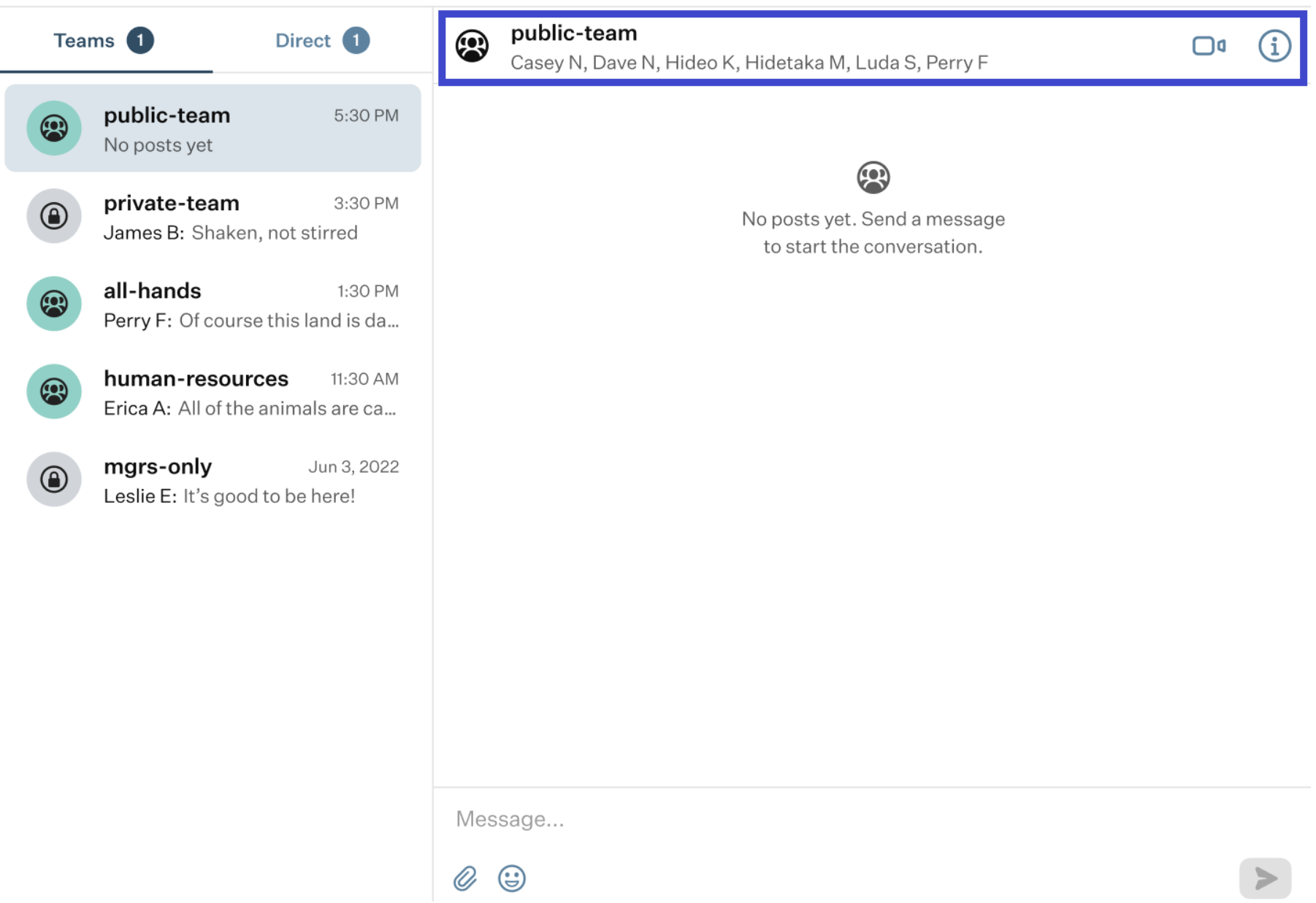
- Name: here, you can find the name of the Team that you set up upon its creation.
- Team members: here, you can find a list of the team members you added to this Team.
- Video: clicking this button starts a video conference with all team members.
- “i” badge: this button opens a drawer on the right side of the page. This drawer displays details about the selected team, including its name, description, member list, and available action buttons.
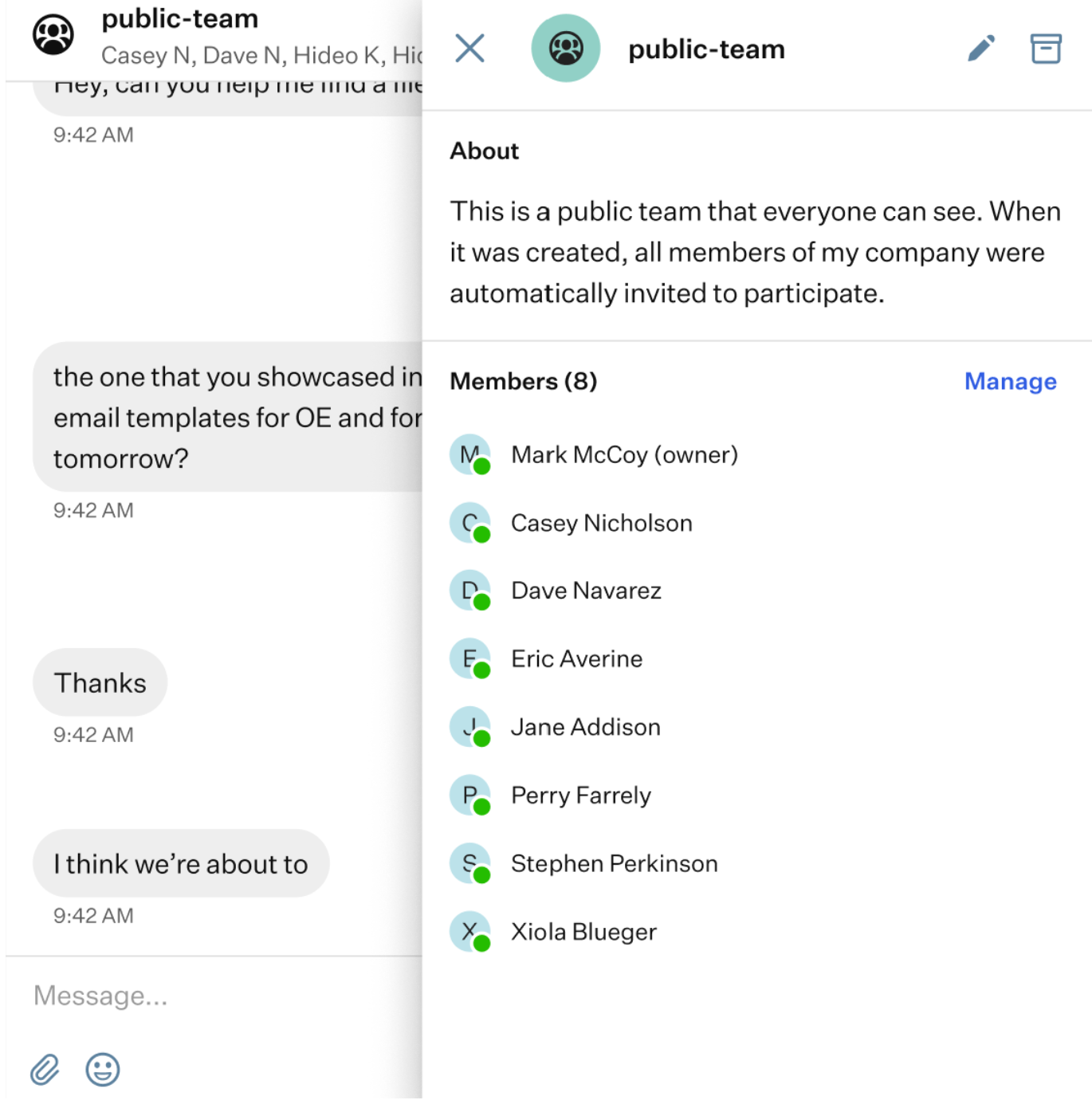
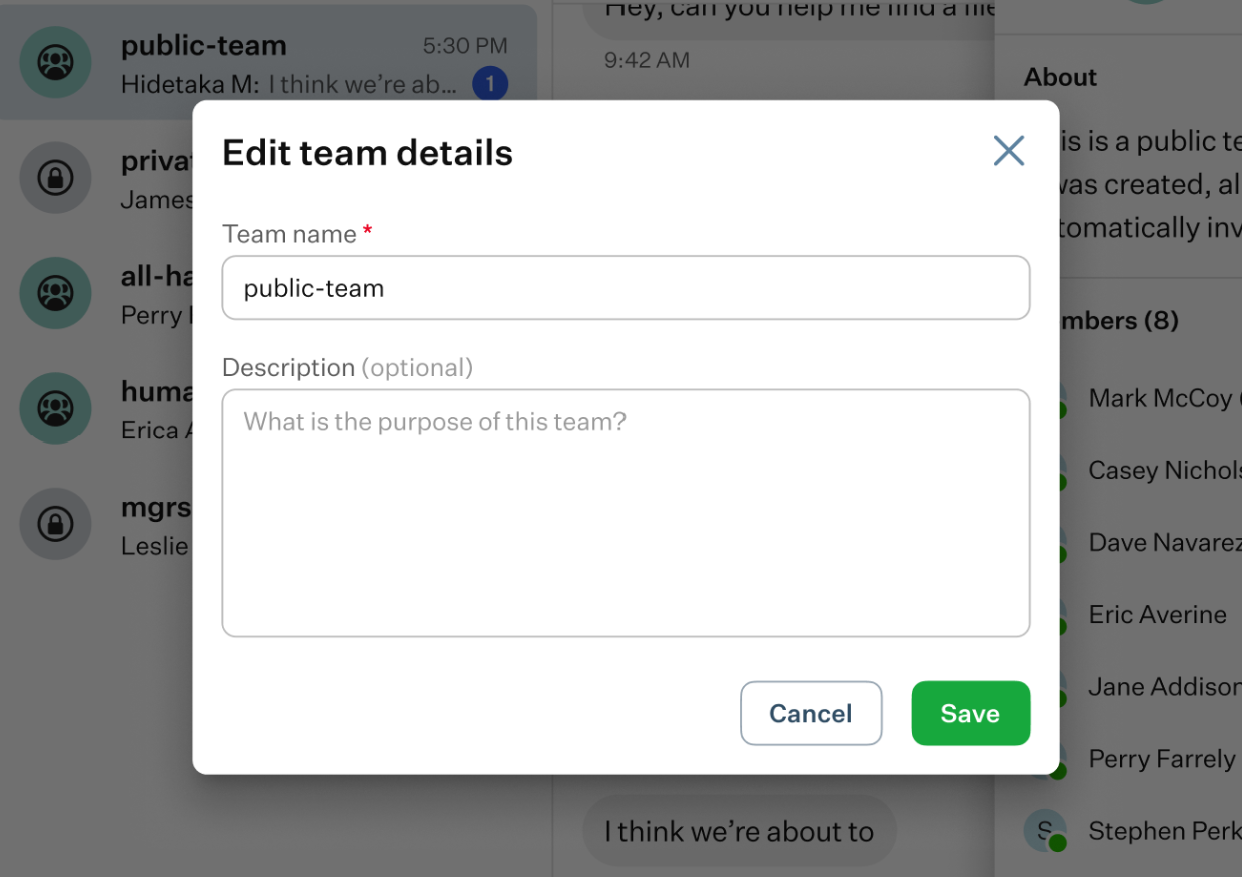
- Pencil: clicking this badge grants you access to the first page of parameters you have set during the creation of the Team. Here, you can modify the Team's name and its optional description.
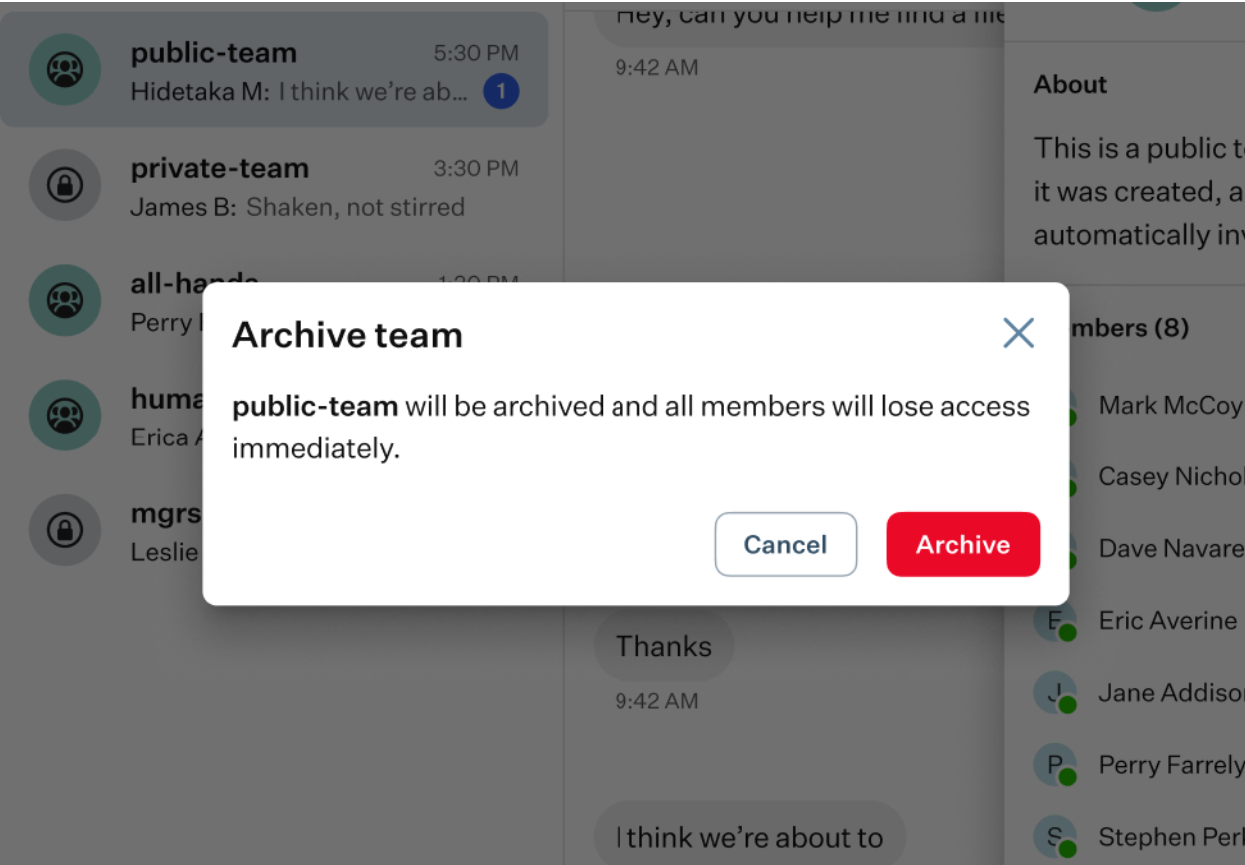
- Archive: by clicking this badge, a pop-up window will appear, asking you to confirm that you want to archive the selected Team chat.
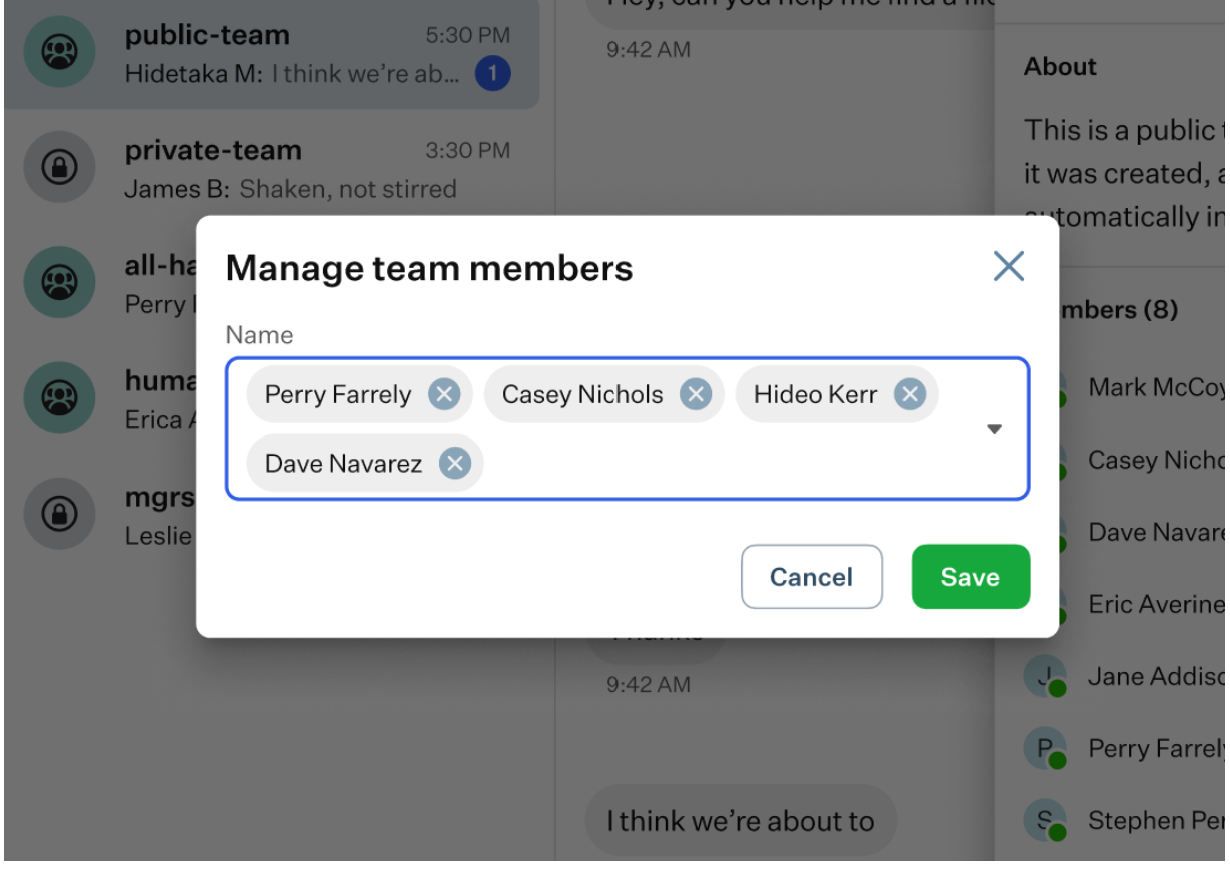
- “Manage” button: clicking this button grants you access to the second page of parameters you have set during the creation of the Team. Here, you can add or delete members assigned to the Team.
- Chat button: when you click this button, a new message form will appear in the Direct tab of the feature page.
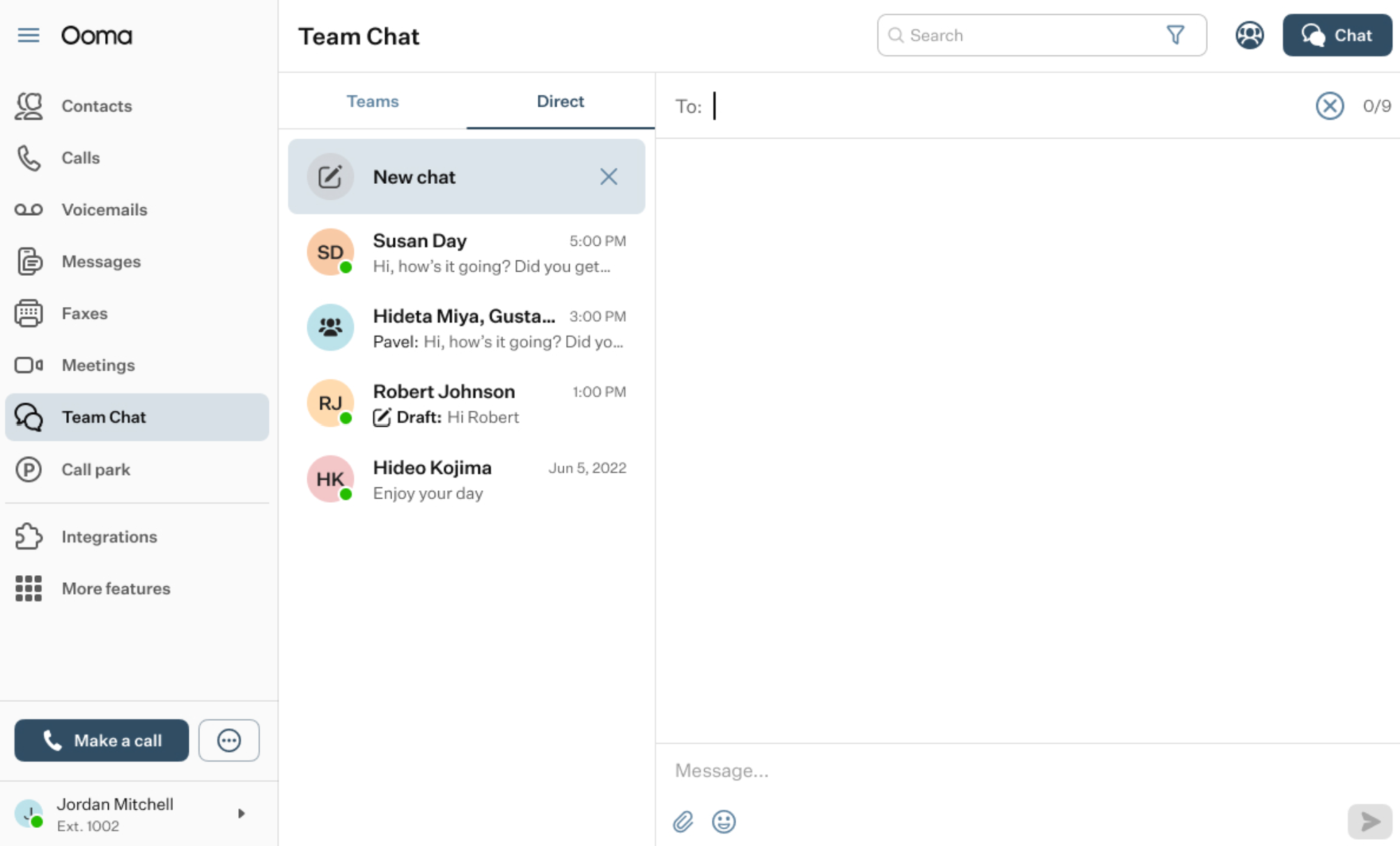
Use the “To:” field to select the recipients and the message field to input your message. The interface is similar to the one in the Teams tab described earlier. The chat will be created once you send the first message.
Working with Chat
The main space of the app consists of two elements: a list of chats on the left and the message history on the right. When you select a chat from the left, its message history is displayed on the right side of the app.
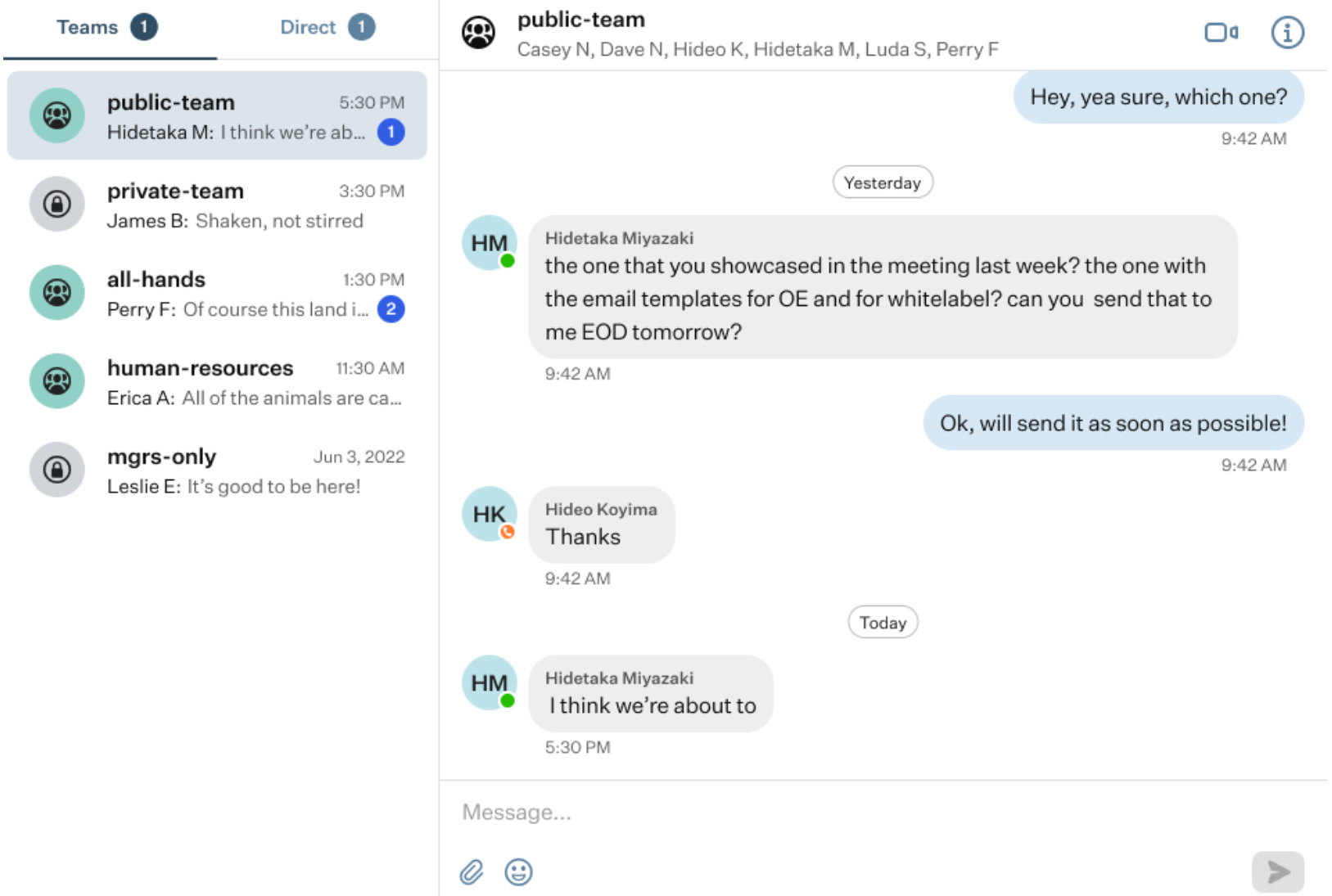
Regardless of the chat type, whether Team Chat or a Direct Chat, the Chat section works like a modern messaging app. Below the conversation history, you will find several action elements, including:
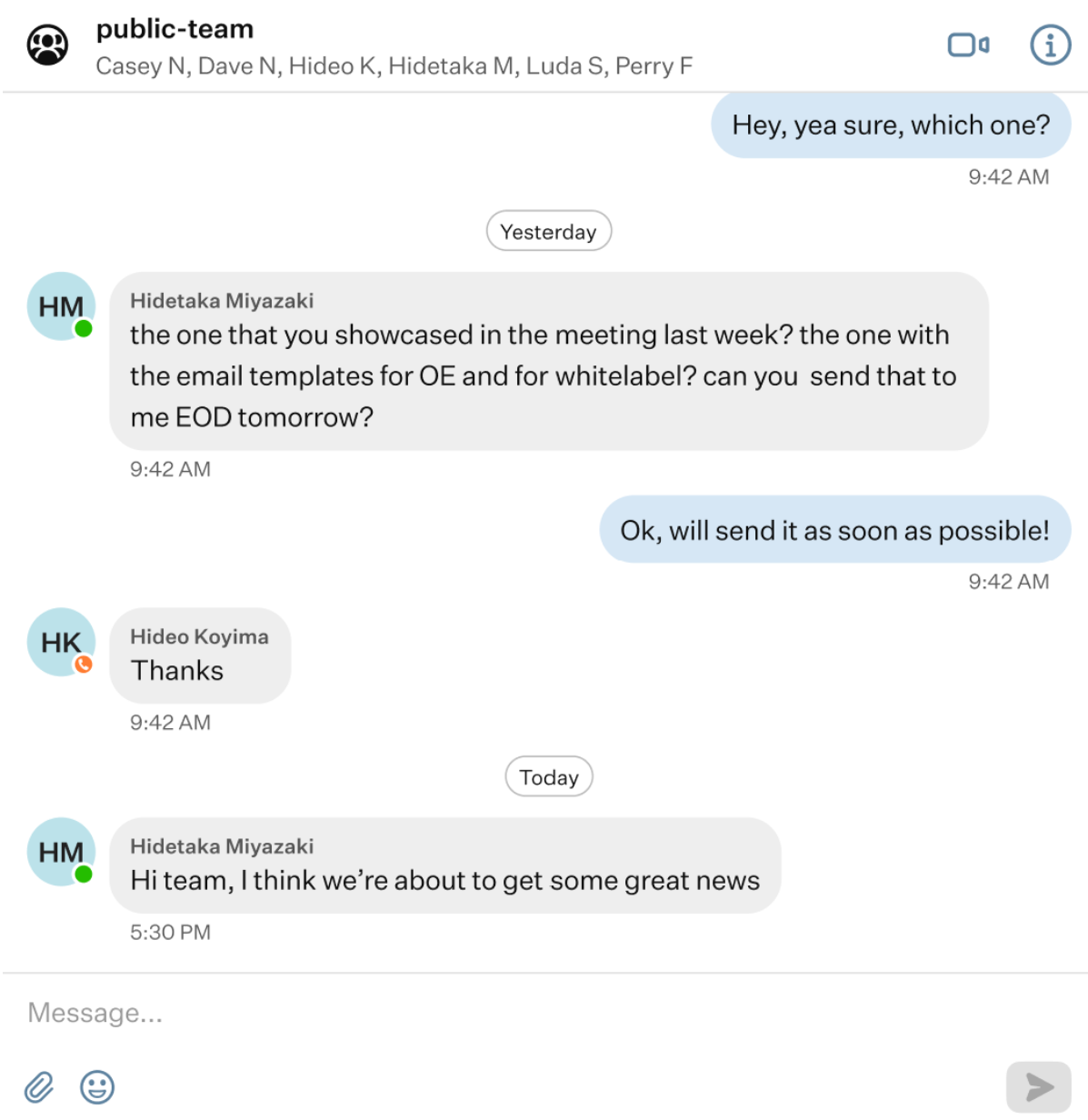
- Message field: use it to type your messages.
- Paperclip badge: use this option to attach files to your messages. You can also send a single attached file without typing a message.
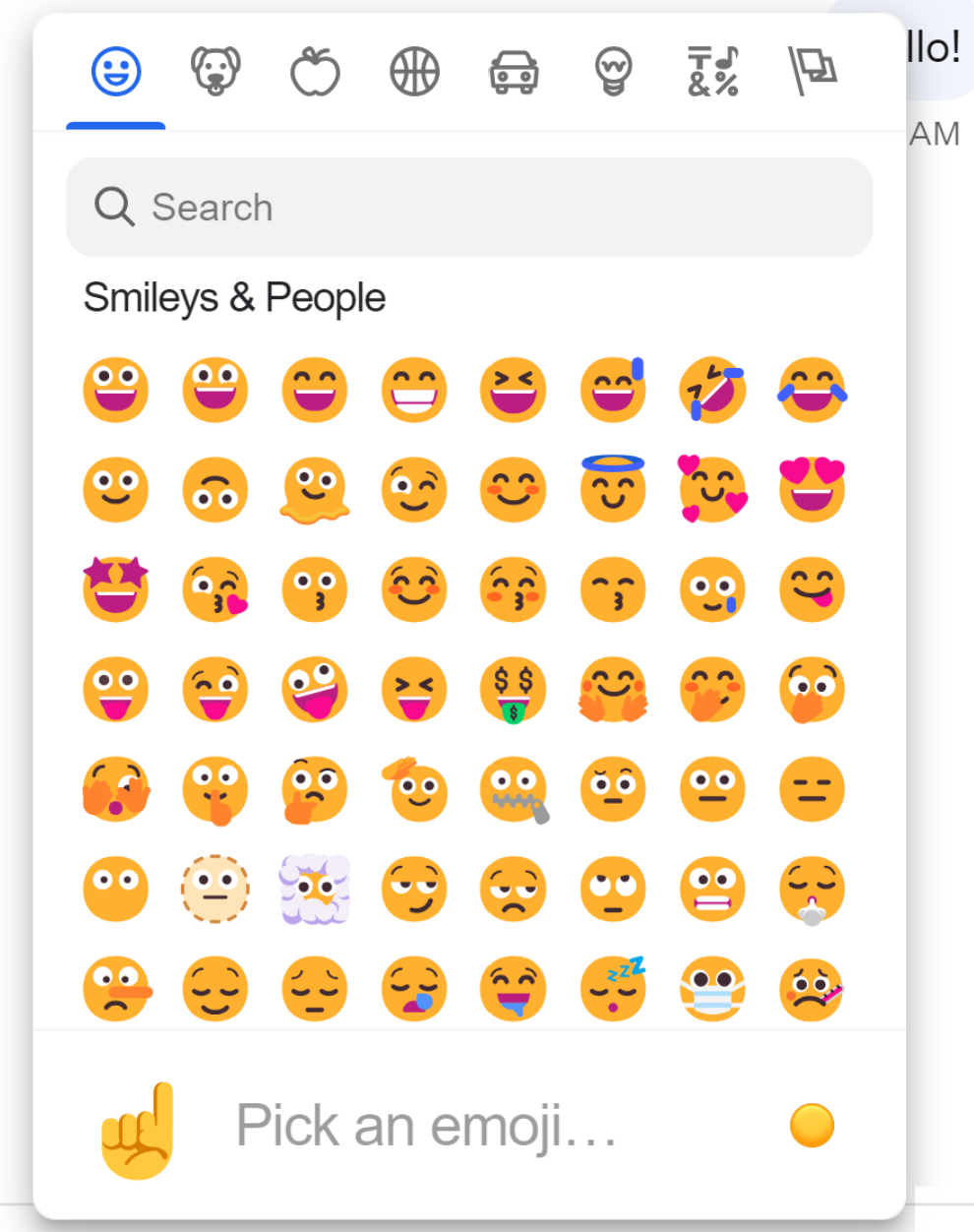
- Emoji badge: clicking it will prompt a drop-up menu with various emojis to choose from. Select an emoji by clicking on it to include it in your message.
- Send button: use this button to send the typed message, attached files, or emojis. If no content is entered or selected, the “Send” button remains disabled and cannot be clicked.
Was this article helpful?
That’s Great!
Thank you for your feedback
Sorry! We couldn't be helpful
Thank you for your feedback
Feedback sent
We appreciate your effort and will try to fix the article