Description: This Feature offers access to your list of calls, allowing you to dial, send a fax, or compose a message or email with ease.
When you access the Calls feature of the OE Desktop App, you will encounter an interface that resembles the following screenshot.
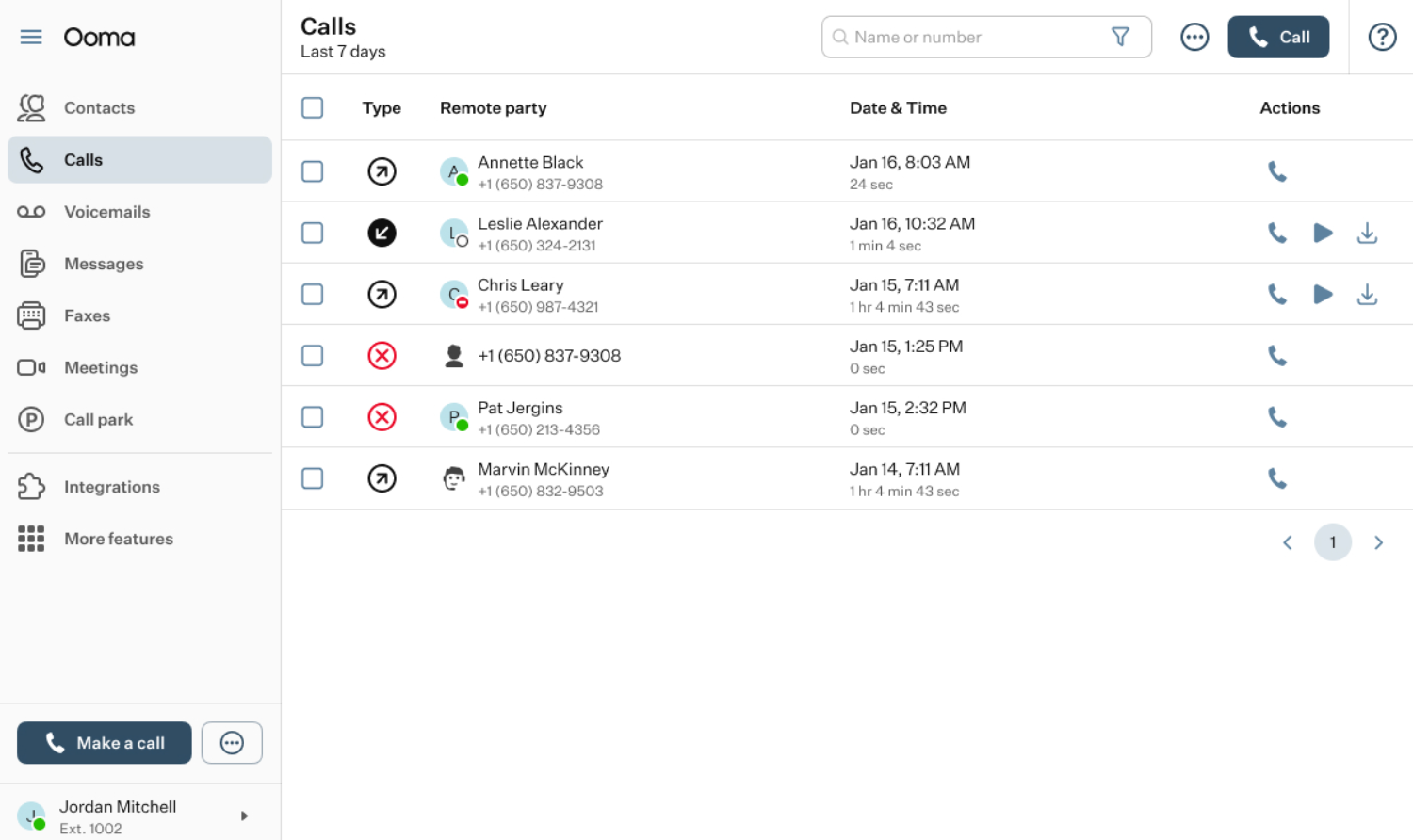
The top horizontal panel of the Calls feature of the OE Desktop App includes four functional elements:

- Search Bar: you can use the search bar to locate a particular contact within your call logs of call transcriptions. Clicking the Filter icon opens a pop-up window with available filter options.
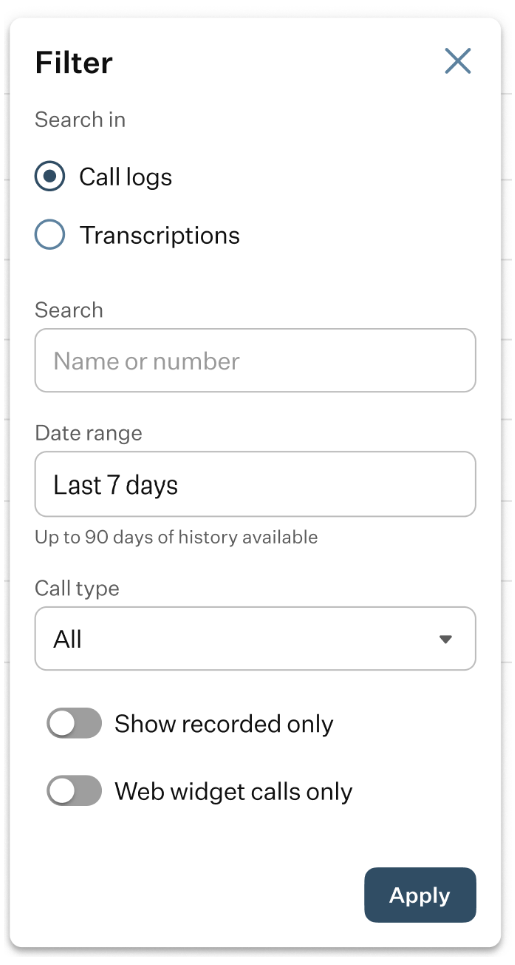
- Search in: select where the search should be performed: call logs or transcriptions.
- Search: enter a name, number, word, or phrase to search for in the call history and transcriptions.
- Date Range: select a date range for the search. You can choose from several preset options or define a custom range.
- Call Type: select the call type to include in the search: incoming, outgoing, missed, or all calls.
- Show recorded only: enable this toggle to search only among recorded calls.
- Web Widget calls only: Enable this toggle to search only among calls made via the web widget.
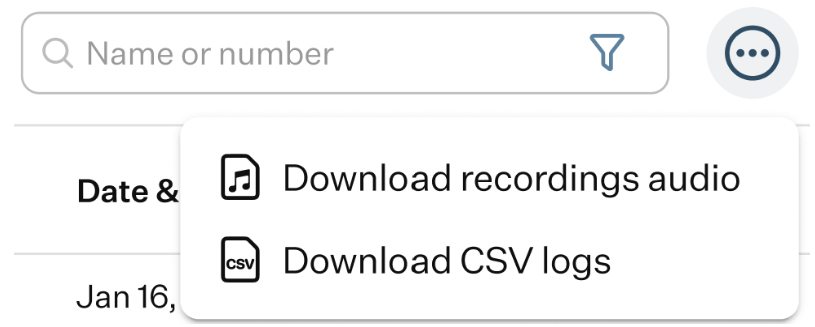
- Three-Dot button: clicking this button will prompt a drop-down list to appear, giving you the option to download the call recordings or to download the CSV log file.
- Call button: clicking this button opens the Dial Pad pop-up window, which is equivalent to pressing the “Make a Call” button located in the left-hand menu of the app.
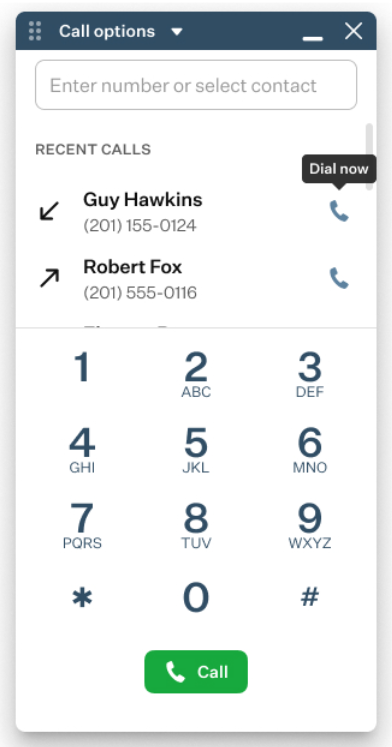
For more information on how to use the Dial Pad, refer to the article available at this link.
In the main space of the app, you will find the table of calls that is used to display data for incoming, received, and missed calls. Clicking on a record in the table of calls will open a pop-up window containing essential information about the user involved in the selected call, call information, and various action elements enabling you to execute specific actions.
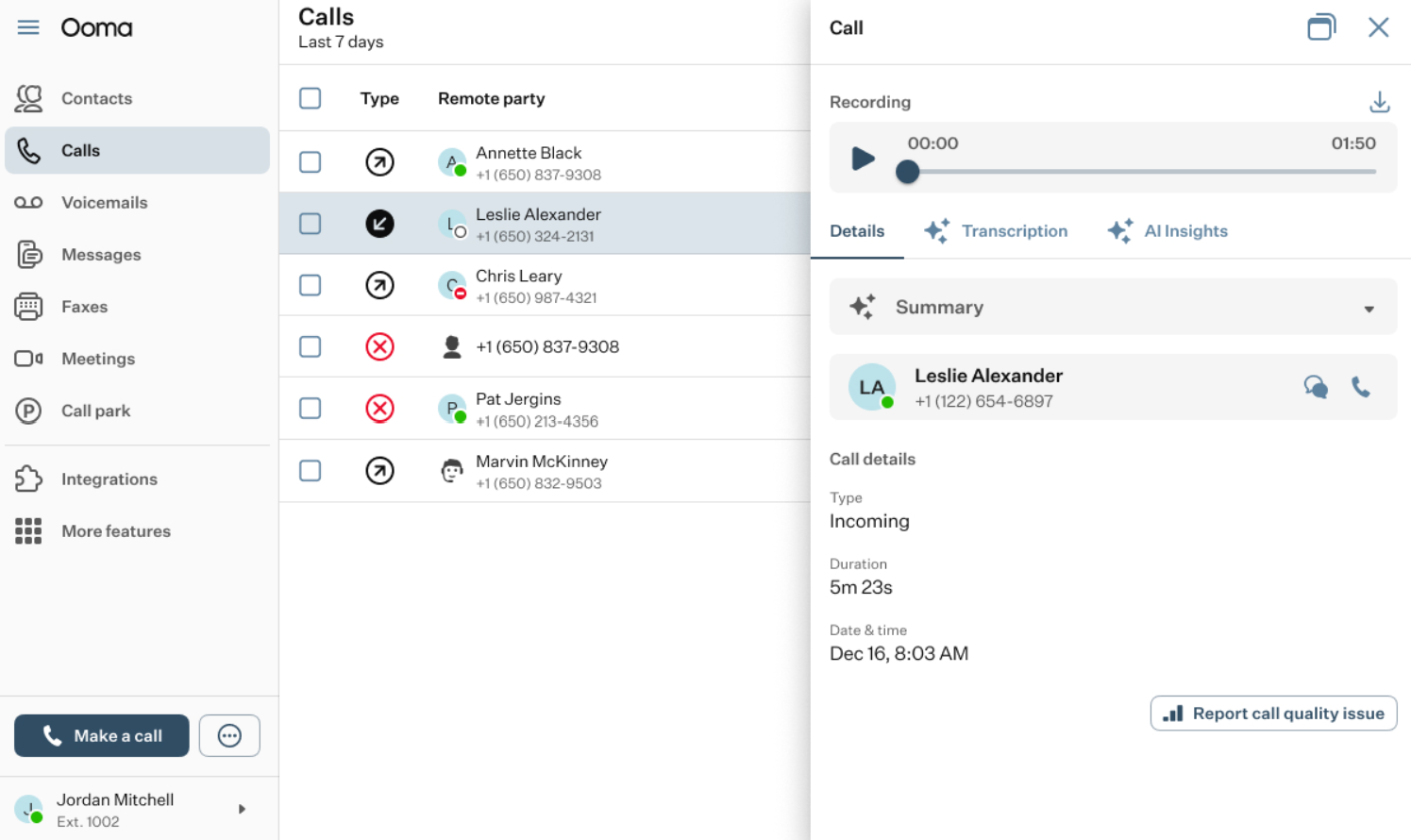
The set of available action elements may vary depending on the information available for the selected caller and whether the call was recorded.
- Recording: if the call was recorded, it will appear in this section. Click the “Play” button to listen to the recording, or the “Download” button to save it.

Note: If the call was not recorded, this section will not be displayed in the drawer.
- Details tab: this tab contains the main information about the selected call.
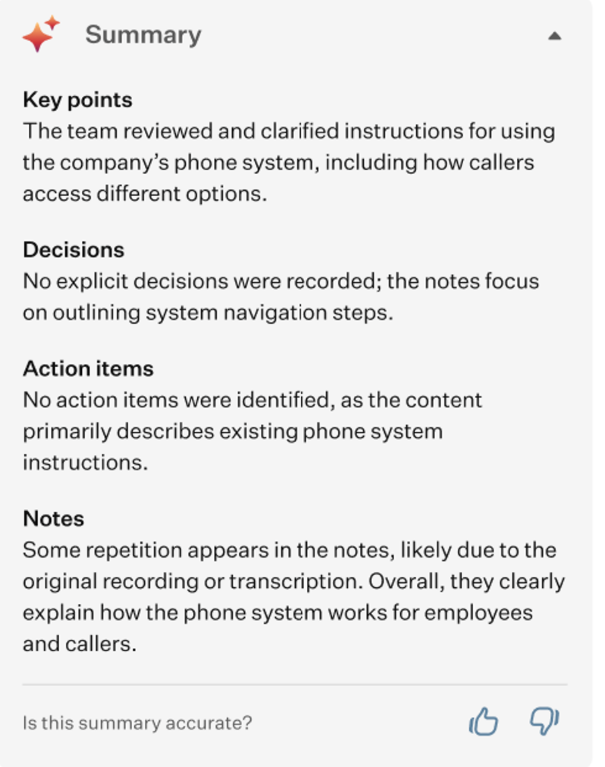
- Summary: this expandable section contains a brief summary of the call, generated from its transcription by our AI assistant. For more detailed assistance from the AI, refer to the AI Insights tab.
- The primary information section: it contains the contact’s name, their number, and two clickable elements.

- Call button: clicking this button will initiate a new call to the person from whose number you received the selected voicemail.
- Message button: when you press this button, the Messages feature tab will be opened and the process of creating a new message will be initiated.
For further details on using the Messages feature of the OE Desktop app, please refer to the corresponding article accessible through this link.
- Call details: within this section, you will find some meta information about the selected call: its type, duration, and the date and time it was received.
- Report Call Quality: in case of having some issue with this call, you can report it by clicking this button. This action will prompt a pop-up window to appear, where you can enter relevant information regarding the issue.
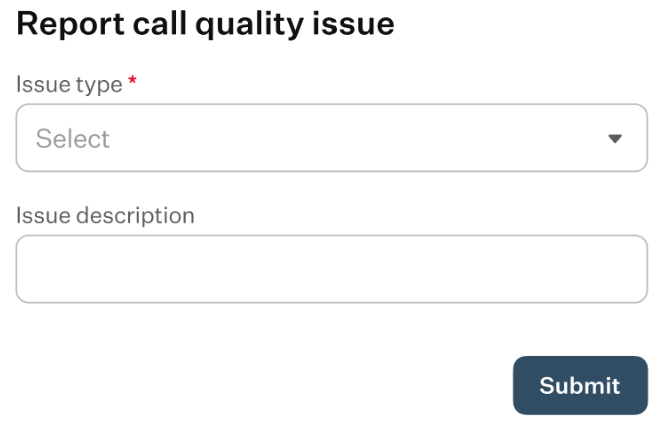
Based on the problem encountered, there are multiple issue types available to select from: Dropped Call, One-Way Audio, Broken Audio or Bad Sound, Other. Once you have selected the issue type, added any optional description, and clicked the “Submit” button, a support ticket will be created to report the issue.
- Transcription tab: here, you will find an automatic transcription of the call.
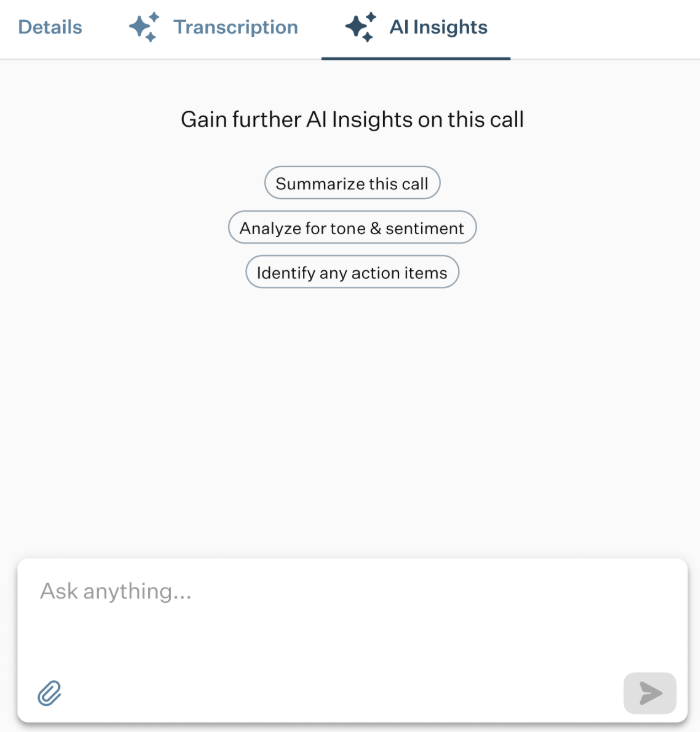
- AI Insights tab: in this tab, you’ll find AI assistants that can help summarize the call, analyze its tone and sentiment, identify action items, and respond to any questions you ask through the built-in chat.
Was this article helpful?
That’s Great!
Thank you for your feedback
Sorry! We couldn't be helpful
Thank you for your feedback
Feedback sent
We appreciate your effort and will try to fix the article