Description: The OE Desktop App offers users a user-friendly interface for sending, receiving, and managing Faxes.
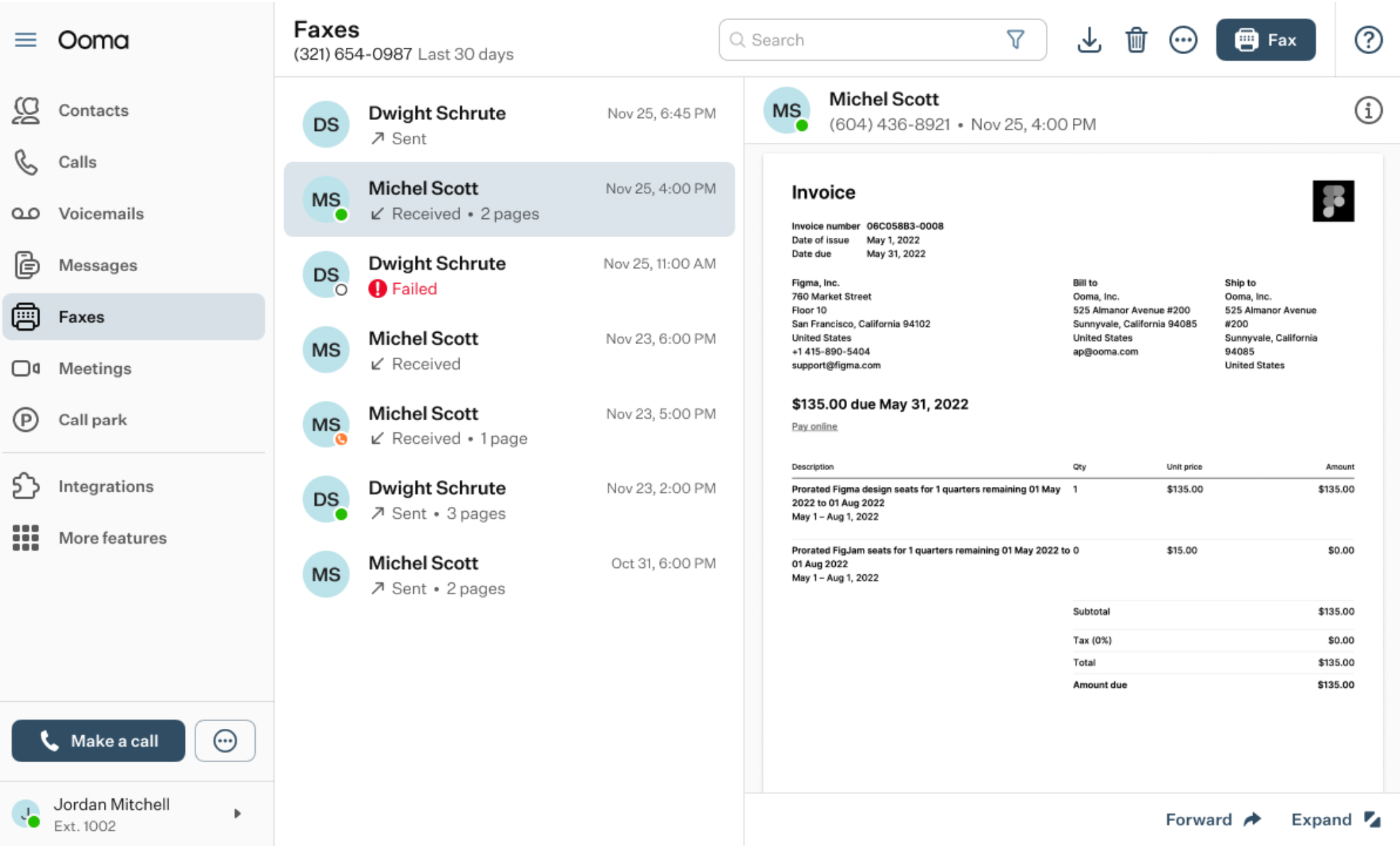
When you access the Faxes feature of the OE Desktop App, you will encounter an interface that resembles the following screenshot.
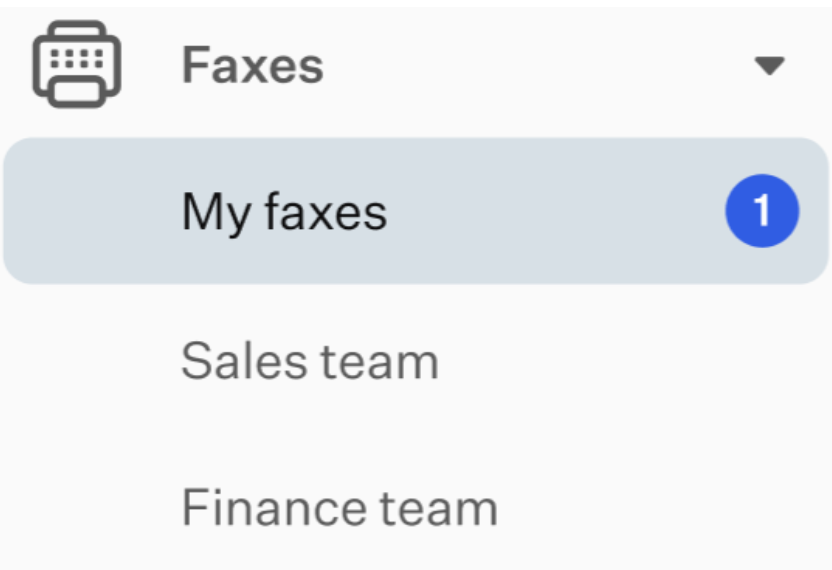
If you have more than one fax box assigned to your account, all of them will be available in the left-hand menu of the OE Desktop app.
The top horizontal panel of the Faxes feature of the OE Desktop App includes six functional elements:

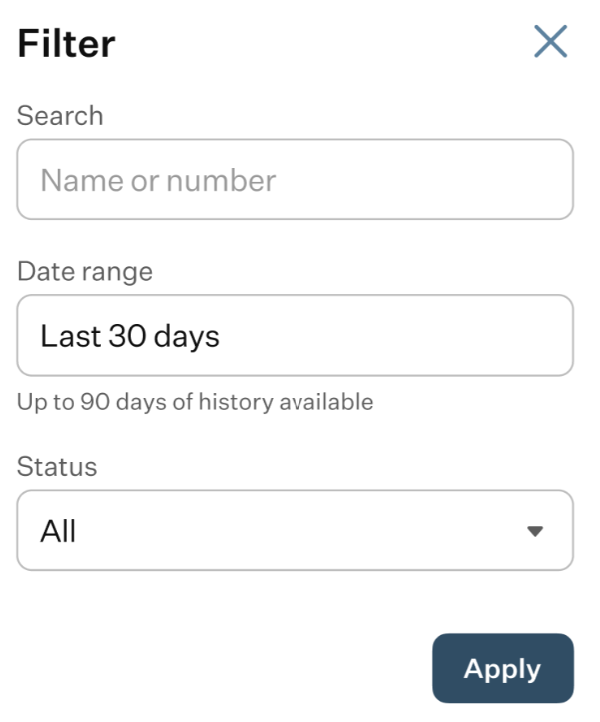
Search bar: you can use the search bar to locate a fax in the list of faxes. Clicking the Filter icon opens a pop-up window with available filter options.
- Download: clicking this button will download the selected fax.
- Delete: clicking this button will delete the selected fax.
- Three-Dot button: clicking this button opens a drop-down list of options:
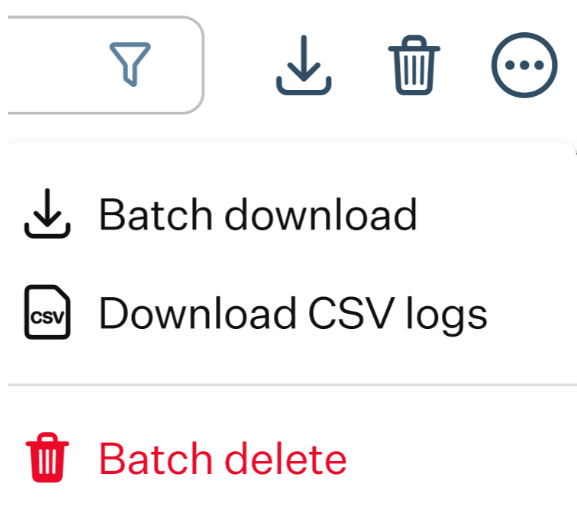
- Batch Download: this option allows you to download multiple faxes in a single batch. Hold the “Ctrl” key and select more than one chat from the list, then click the three-dot button and choose the Batch Download option from the appeared menu.
- Download CSV logs: selecting this option allows you to download the CSV log file.
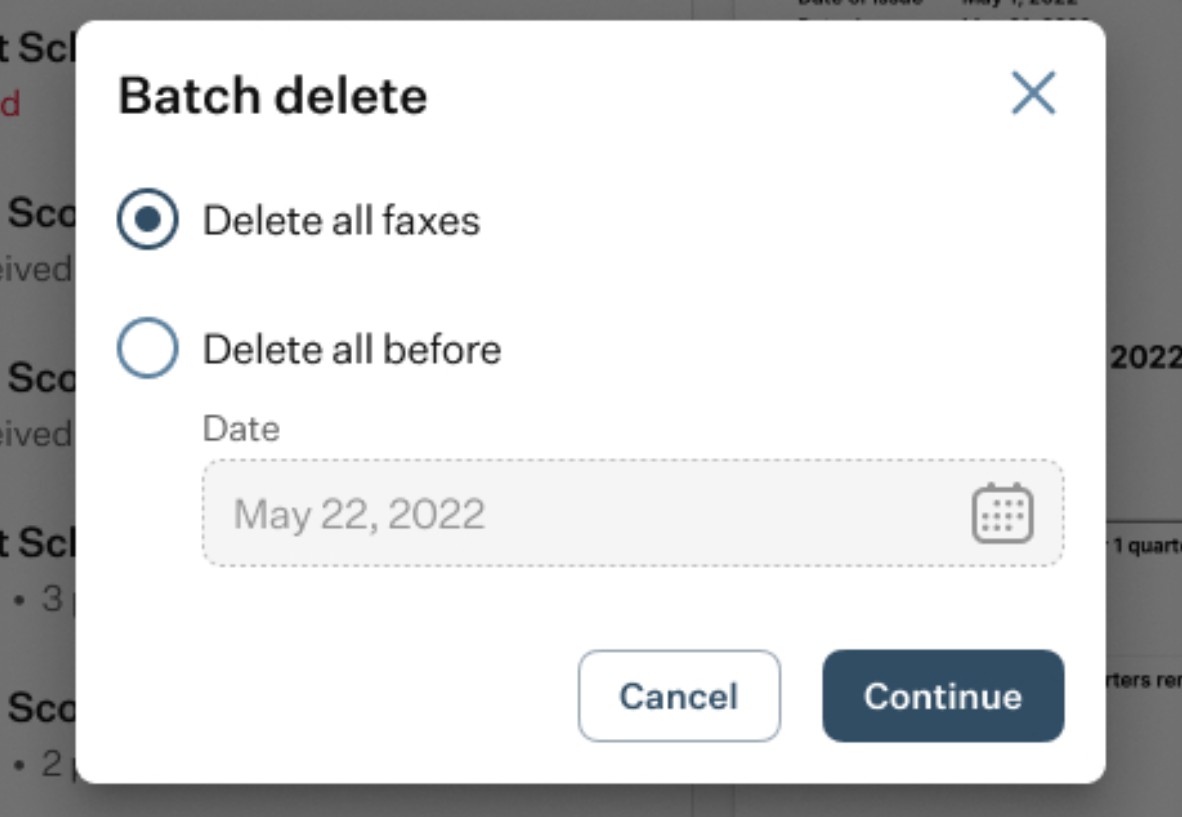
- Batch Delete: this option allows you to delete multiple faxes in a single batch. Hold the “Ctrl” key and select more than one chat from the list, then click the three-dot button and choose the Batch Delete option from the appeared menu. If no faxes or only one fax is selected and you press the “Batch Delete” button, a pop-up window will appear, prompting you to choose between deleting all faxes or deleting all faxes before a specific date that you can set.:
Fax: clicking this button will open the New Fax form that we explore below.
- Help: clicking this button will open the Help pop-up window.
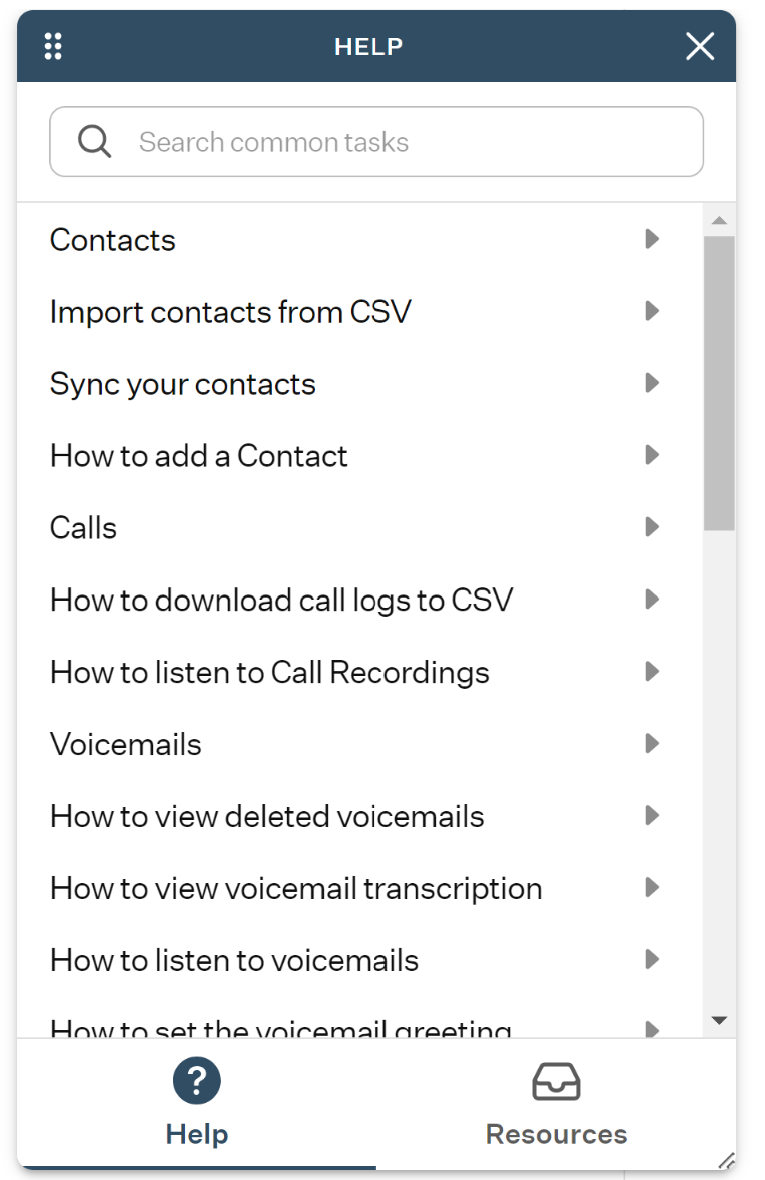
It contains a collection of useful articles covering the main features of the OE Desktop app and can be used as a knowledge base to learn more about the application.
The feature’s interface within the main space of the app comprises two sections: the list of faxes and the preview window. The preview window displays the sender information and a preview of the selected fax file. Clicking on the sender’s name will bring up a pop-up contact card.
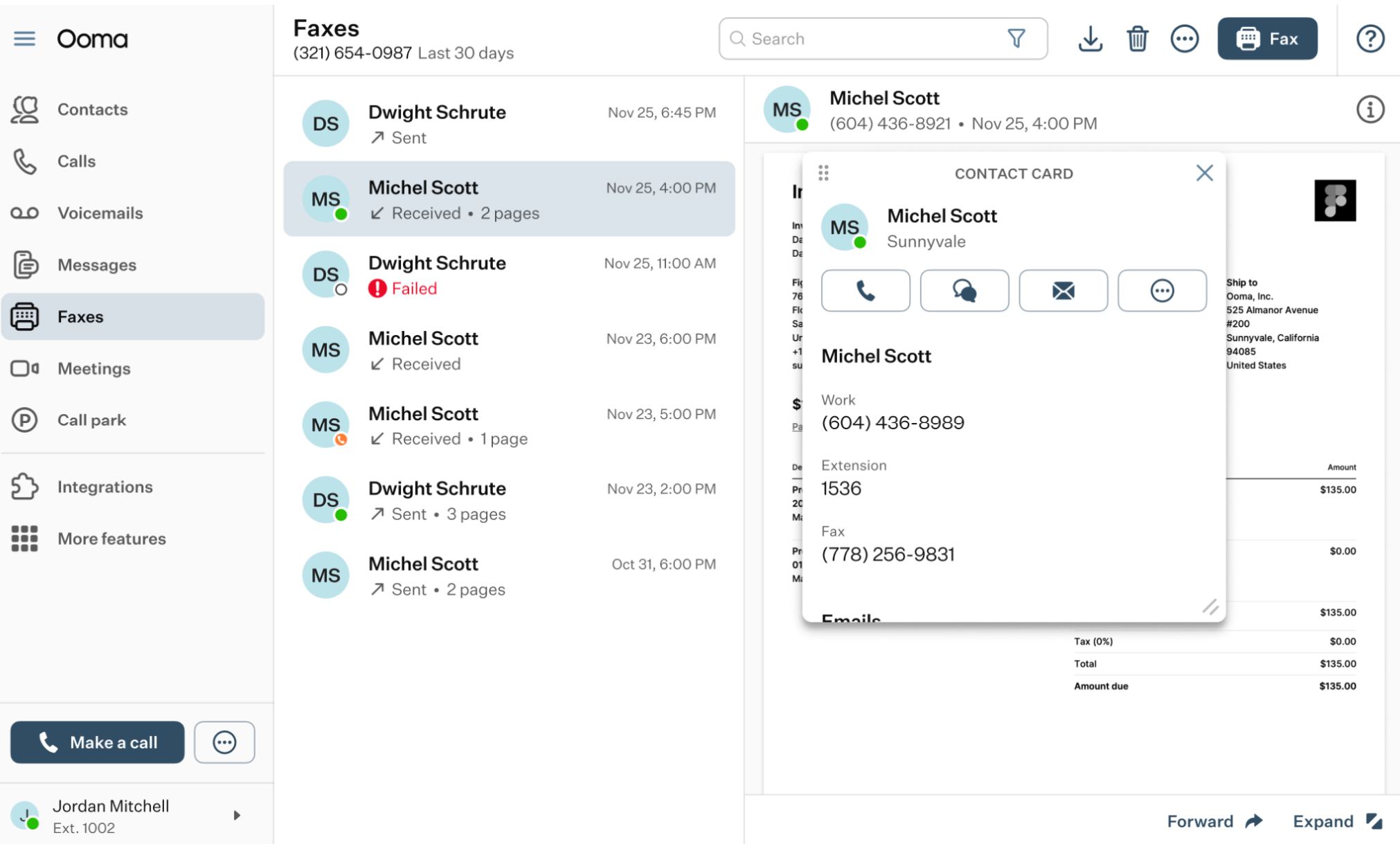
The contact card includes not only the contact information but also four action buttons:
- Call: when you click this button, a dropdown list of all numbers associated with the selected contact will appear. Upon selecting any of them, that number will be dialed via the Dial Pad.
- Message: when you press this button, the Messages feature tab will be opened and the process of creating a new message will be initiated. For further details on this process, please refer to the corresponding article accessible through this link.
- Email: clicking this button will open the default email client used in your PC’s operating system and initiate the creation of a new email message. The email address of the selected user will be automatically pasted into the recipient field.
- Three-Dot button: depending on the additional contact information stored in the selected contact card, such as a fax number, these communication options will appear in the drop-down list when you click the three-dot button, allowing you to choose how to contact them.
Below the preview window, which displays the preview of the selected fax file, you will find two buttons:
- Forward: clicking this button allows you to resend the selected fax file. When you press this button, a pop-up window will appear, allowing you to choose the recipient of the fax.
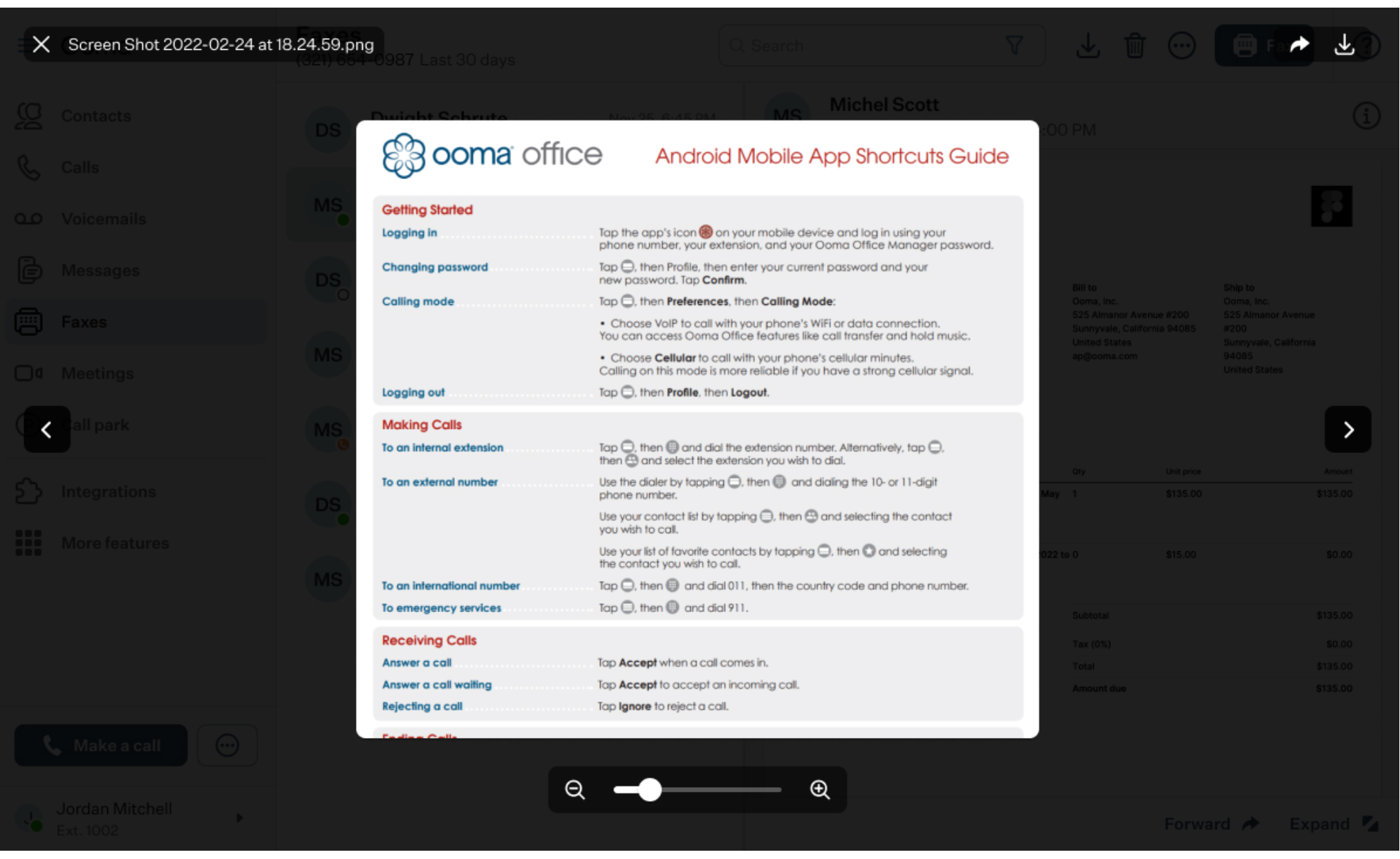
- Expand: clicking this button will open the previewed fax file in full-screen mode.
Sending a Fax
The New Fax form contains three fields that need to be completed before sending the fax:
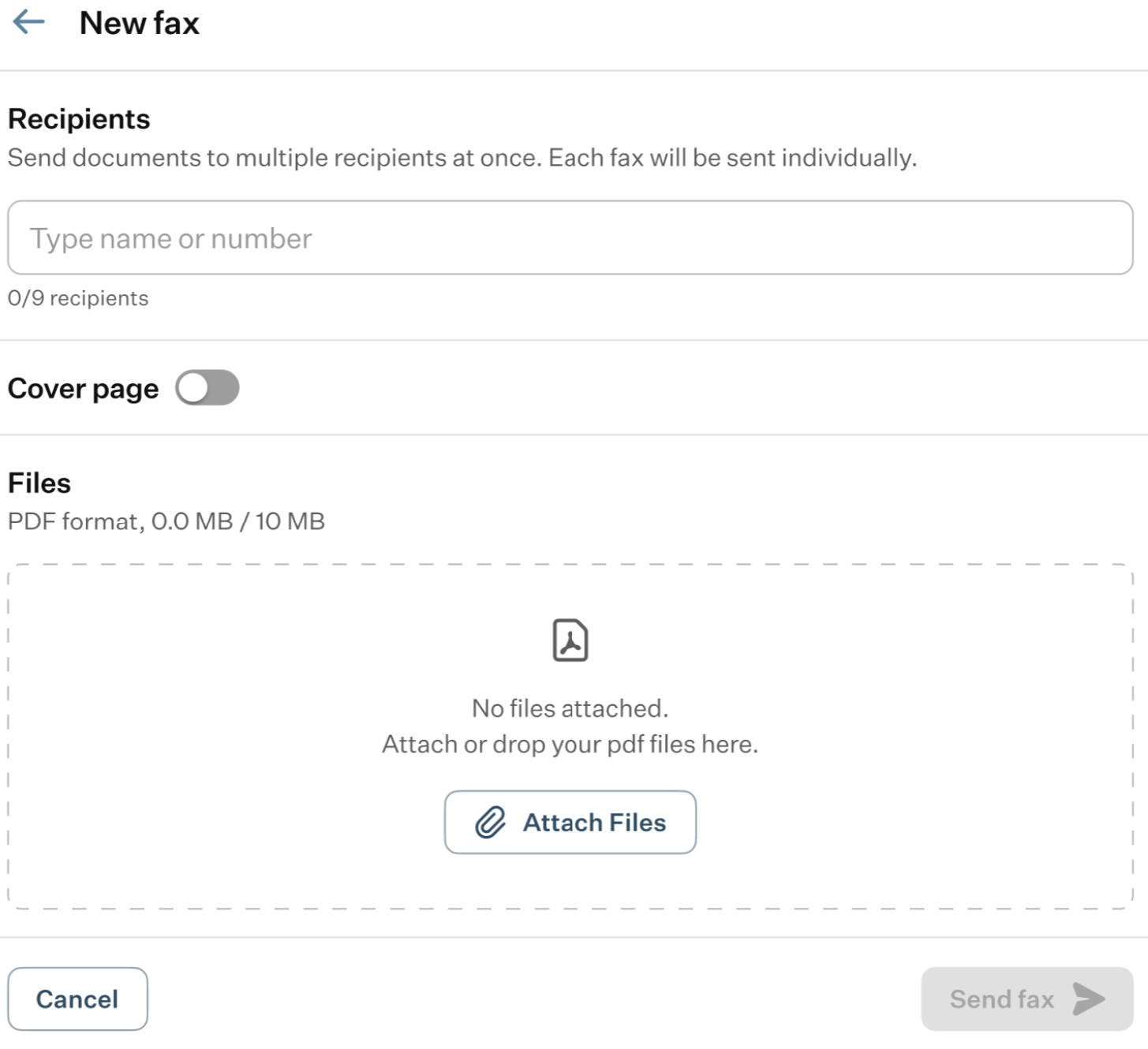
Recipients: within this field, you can list up to 9 recipients of this fax.
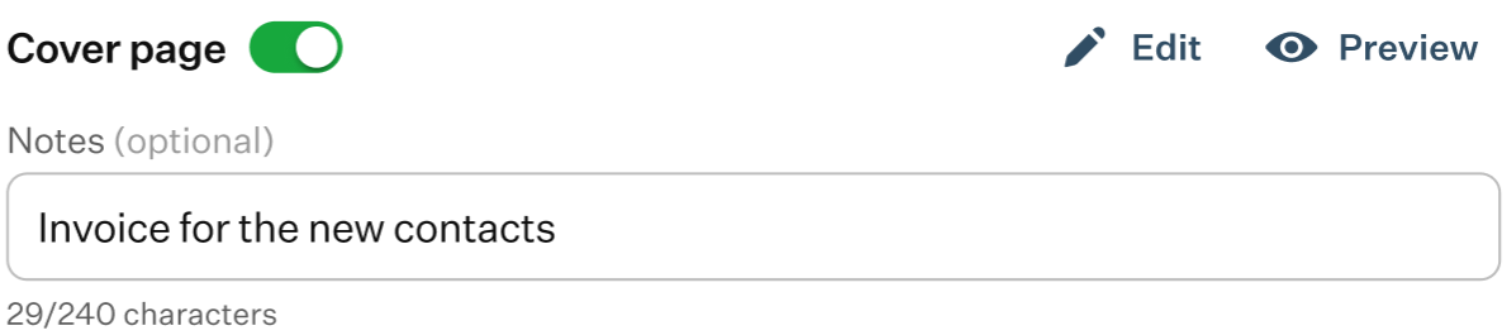
Cover Page: enabling this toggle switch adds the CoverPage.pdf file before the main fax file, which serves as a cover page.
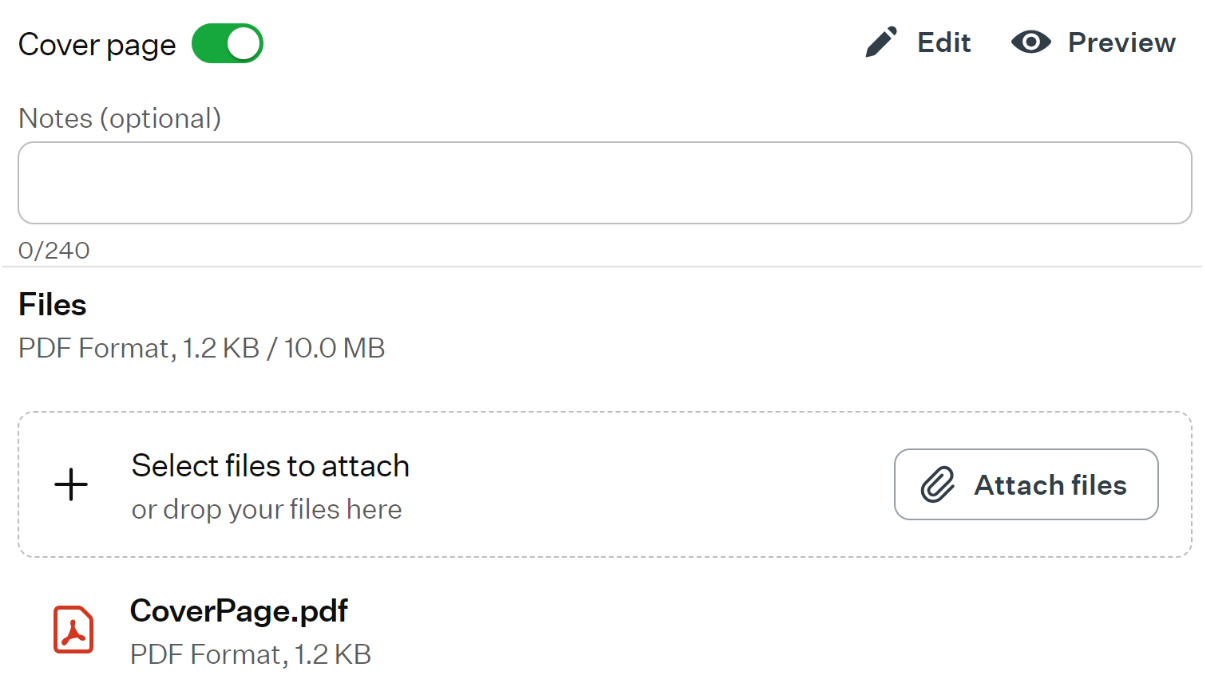
You can configure this cover page by clicking the “Edit” button and filling out the fields in the pop-up form that appears above the main space of the app.
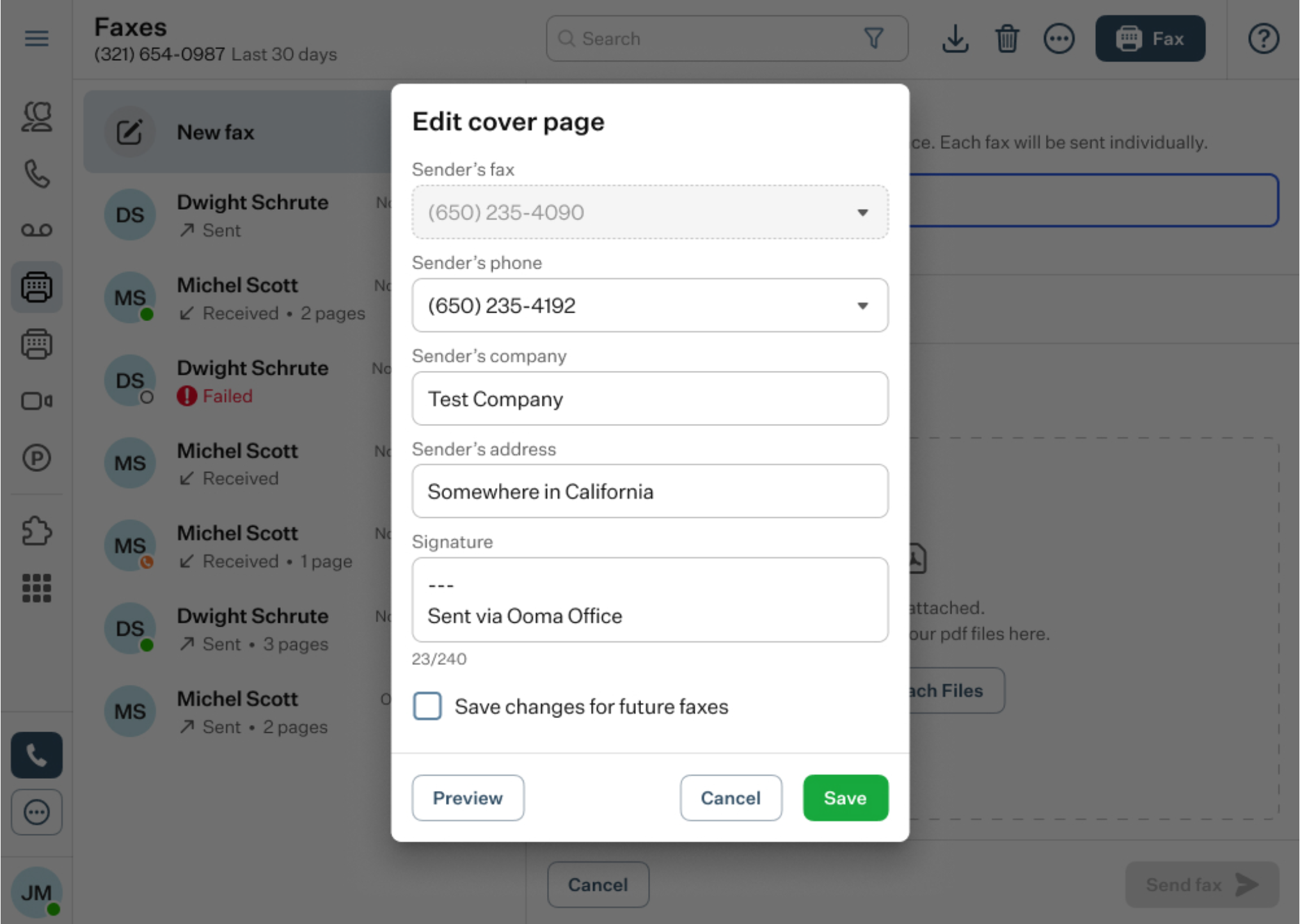
To preview the cover page with the entered information, press the “Preview” button, which is available both in the Cover Page pop-up form and in the New Fax form.
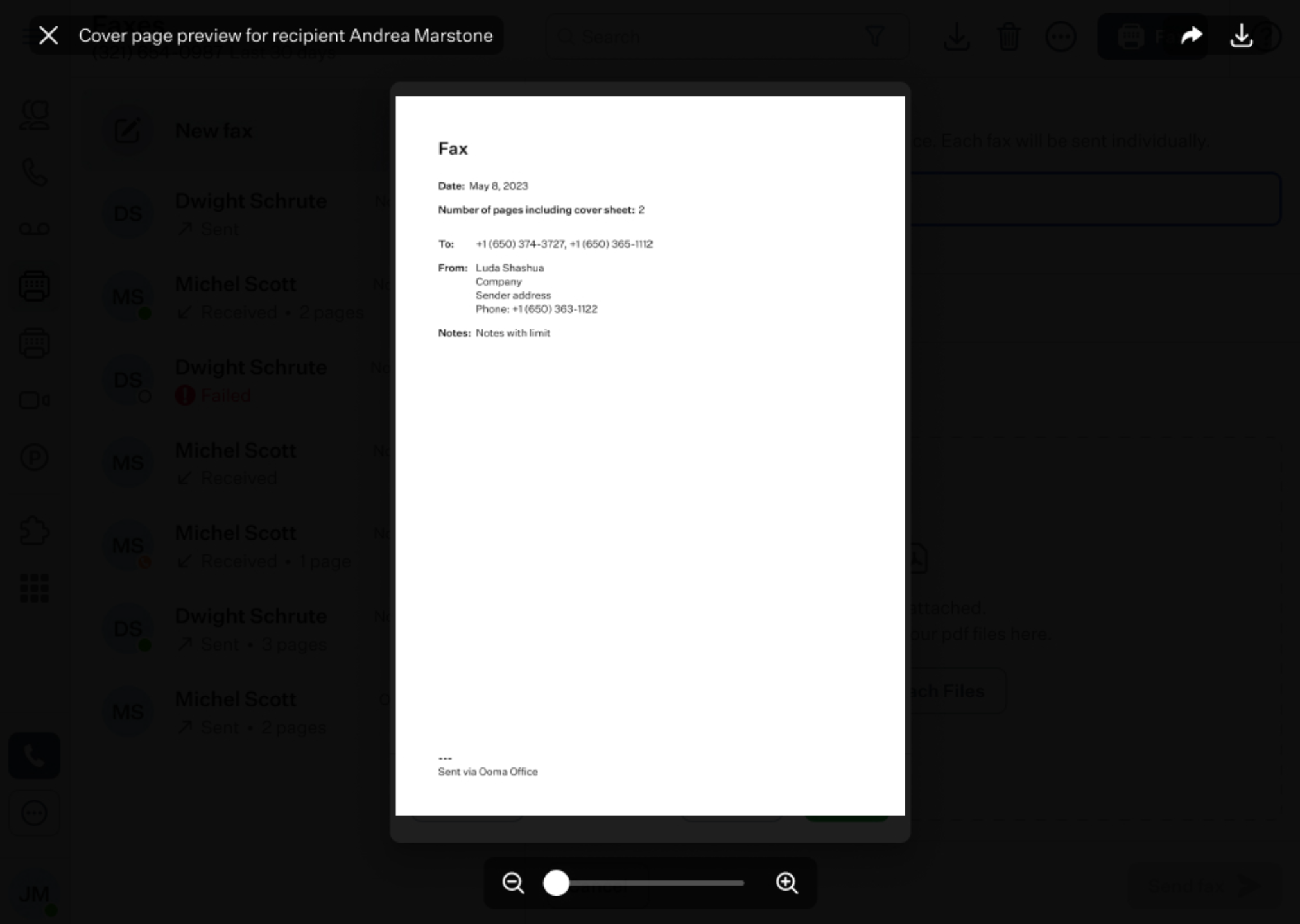
The “Notes” field is optional and can be used to add an explanatory comment that the recipient will see before opening the cover letter.
Files: here, you will find a list of files that will be sent with the configured fax. To add a file, drag and drop the file into the designated area or click the “Attach files” button. Clicking this button will open a file explorer, prompting you to select the location on your PC where the desired file you want to send as a fax is stored.
If you added a cover letter, it will be included in the file list as one of the filed.
Was this article helpful?
That’s Great!
Thank you for your feedback
Sorry! We couldn't be helpful
Thank you for your feedback
Feedback sent
We appreciate your effort and will try to fix the article